

What does this do?
A directory is just a folder. When you protect a folder, the browser shows a small login box. Visitors must type the right user name and password to see anything inside. This is useful for a test site, private files or an admin area.
The feature is in cPanel, a control panel for hosting accounts. Ask Hostvento support if cPanel is part of your plan.
Steps in cPanel
- Log in to cPanel using the details in your welcome email.
- Find the Files section, or the Security section on some themes.
- Click Directory Privacy.
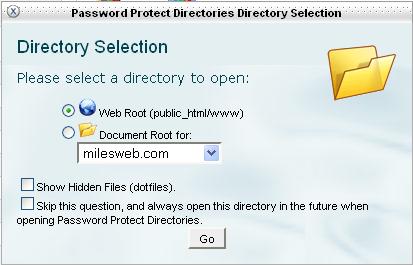
- If a box asks which folder to start in, choose the Web Root and click Go.
- Click the folder name you want to protect.
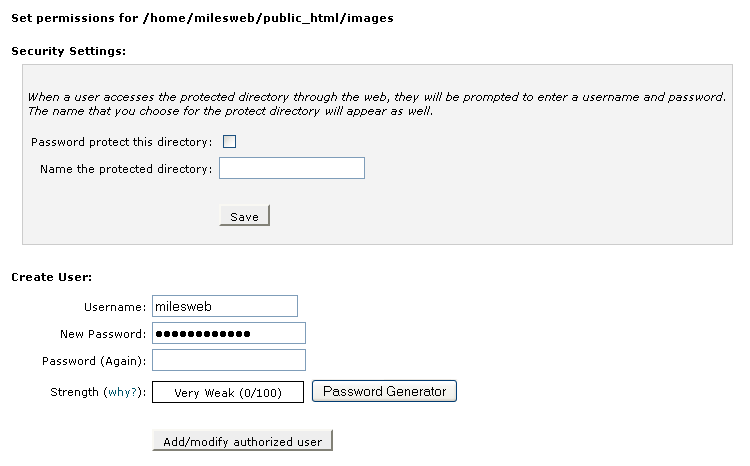
- Tick Password protect this directory.
- Type a name for the folder in the box. This name shows in the login box. Click Save.
- Under Create User, type a user name.
- Type a strong password, or click Password Generator.
- Click Save.
Test it
Open the folder's web address in a private browser window. A login box should appear. Type the user and password you made. If the right login opens the page, it works.
Add or remove users
- Go back to Directory Privacy and open the folder.
- Add another user under Create User.
- To remove one, choose Delete next to the user name.
- To remove all protection, untick Password protect this directory and click Save.
How it works behind the scenes
cPanel adds two hidden files. One is .htaccess in the folder. The other is .htpasswd, a list of users and scrambled passwords, stored outside the public web folder.
Warning: Do not delete these files by hand unless you know what you are doing. Use Directory Privacy to change them.
Quick recap
- Directory Privacy in cPanel adds a login to a folder.
- Pick the folder, tick the box, name it and create a user.
- Test in a private window.
- Untick the box to remove protection.