

What the error means
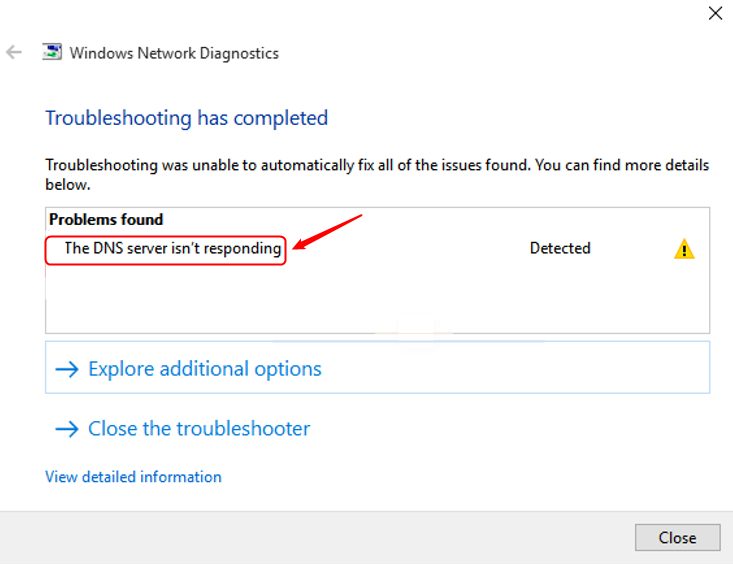
DNS turns a name such as example.com into an IP address. When your computer cannot reach its DNS server, pages do not load. The browser shows "DNS server isn't responding" or the Windows network troubleshooter shows the same message.
Fix it on Windows
1. Try another browser. If a page opens in another browser, the problem is in the first browser.
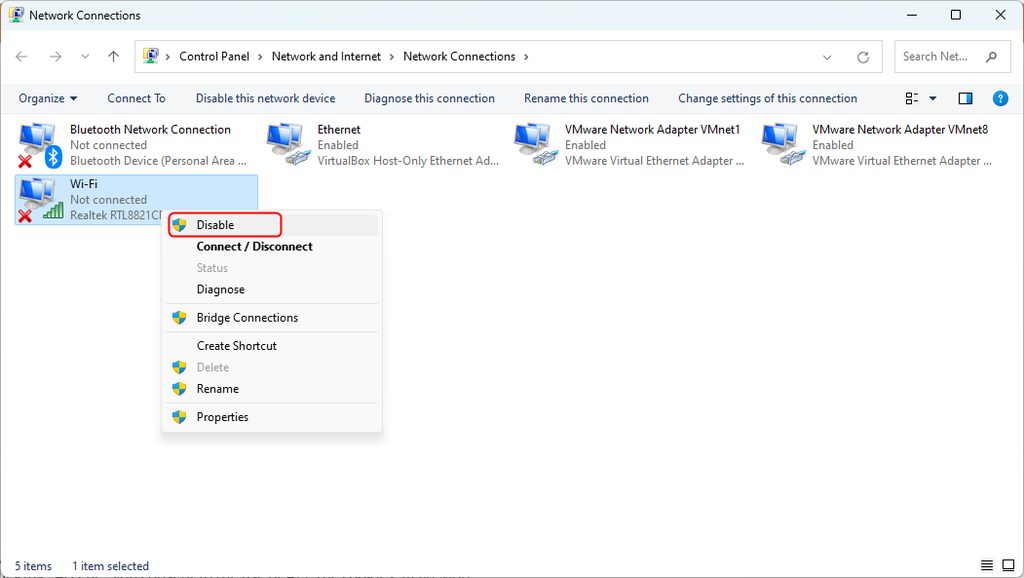
2. Turn off unused network connections. Open Control Panel, then Network and Sharing Center, then Change adapter settings. Disable adapters that you do not use, such as virtual adapters.
3. Restart your router. Turn it off for 30 seconds, then turn it on again.
4. Update the network driver. Open Device Manager, right-click your network adapter and choose Update driver.
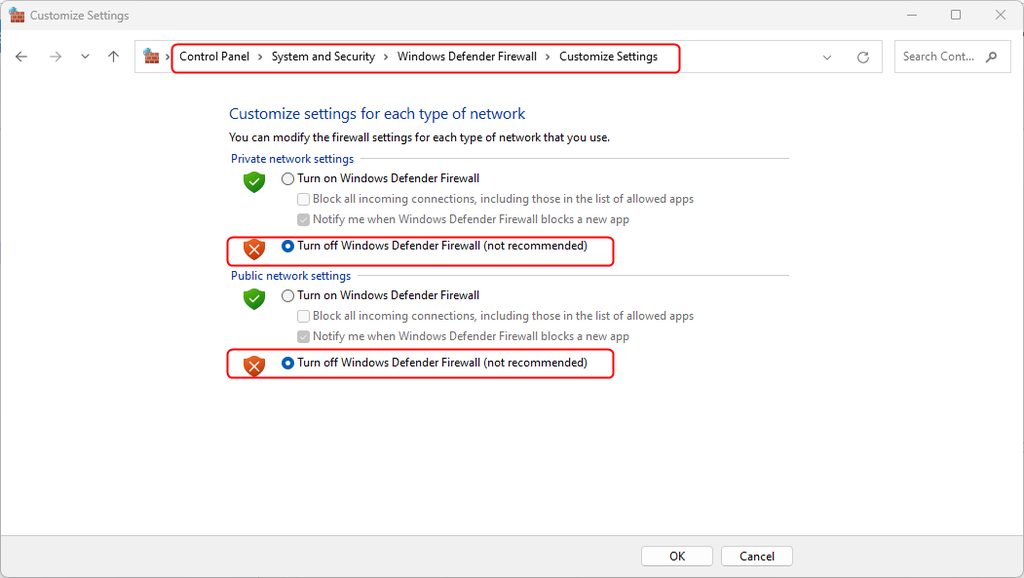
5. Turn off the firewall and antivirus for a moment. If the error goes, change the program settings and turn it on again.
6. Flush DNS and renew the IP address. Open Command Prompt as administrator and run:
ipconfig /flushdns
ipconfig /registerdns
ipconfig /release
ipconfig /renew
7. Disable IPv6. In the adapter properties, untick Internet Protocol Version 6 (TCP/IPv6) and click OK.
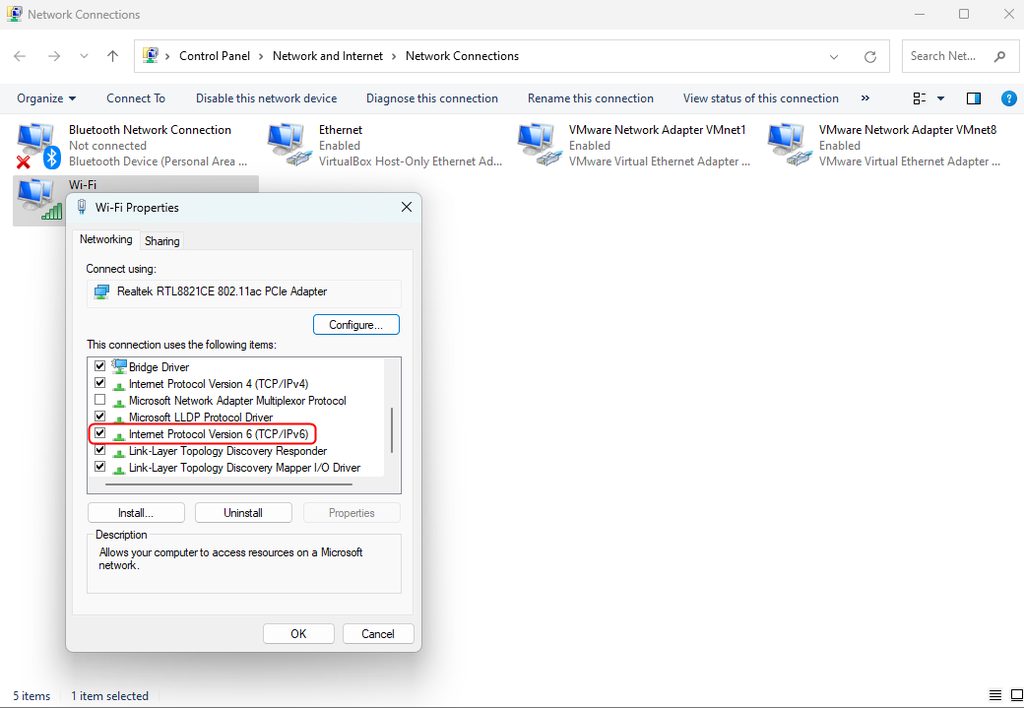
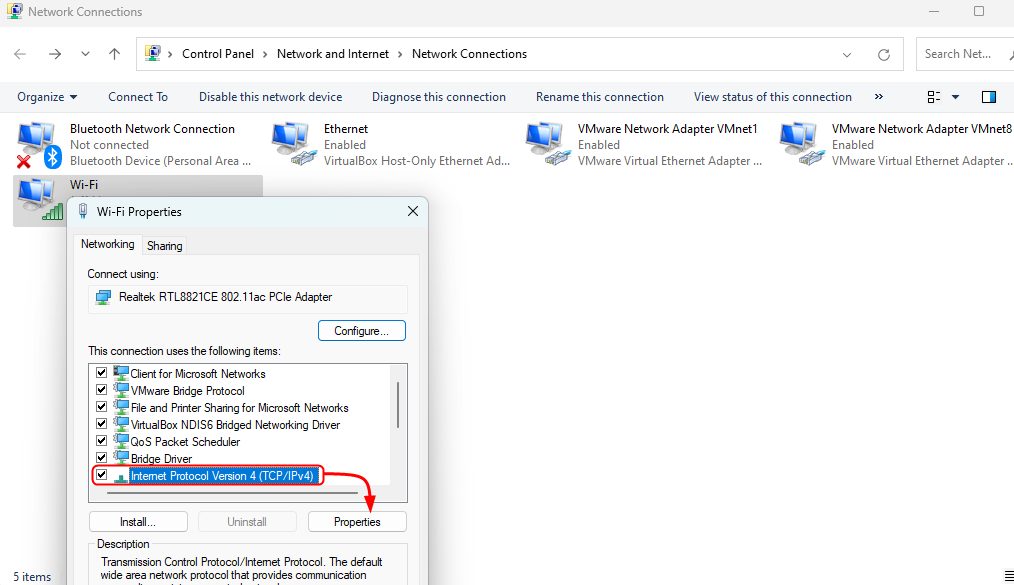
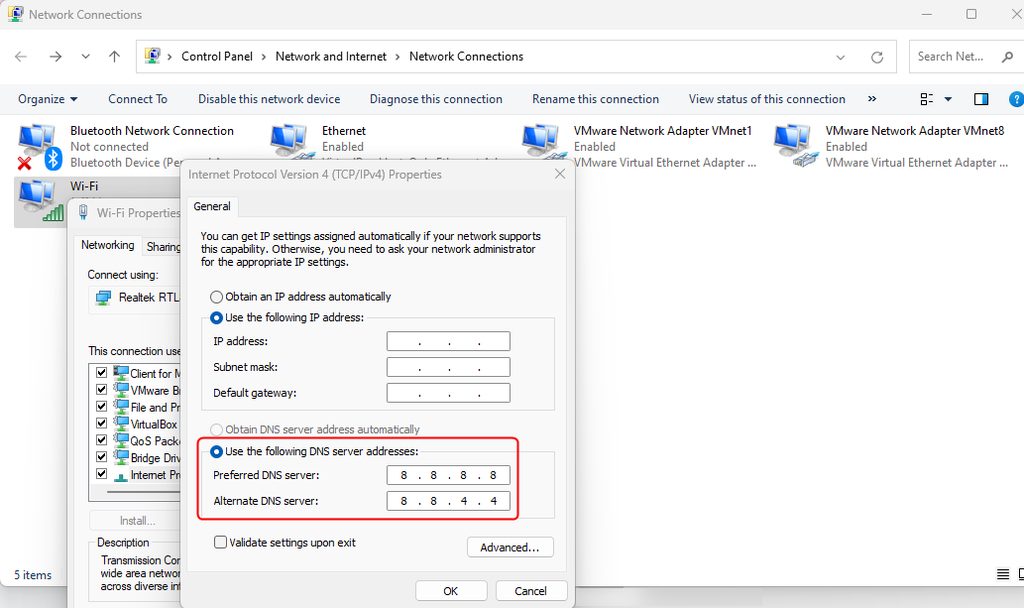
8. Change the DNS server. In the adapter properties, open Internet Protocol Version 4 (TCP/IPv4) and choose Use the following DNS server addresses. Enter a public DNS, for example:
- Preferred:
8.8.8.8 - Alternate:
8.8.4.4
(Cloudflare 1.1.1.1 and 1.0.0.1 also work.)
Fix it on Linux
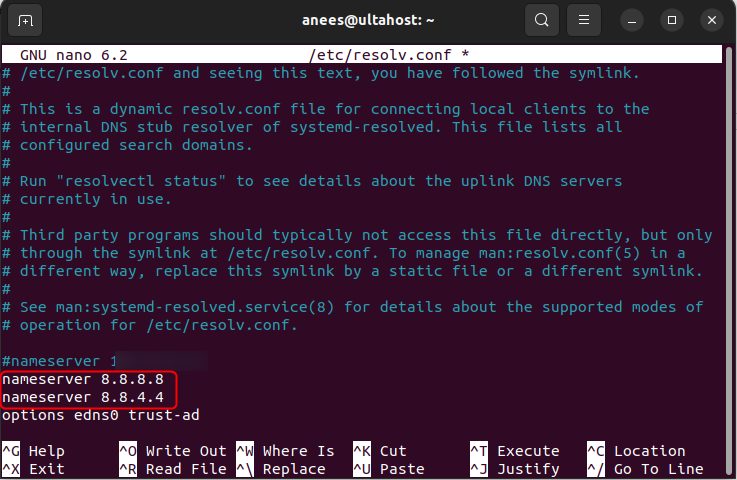
1. Use another DNS server. Open the network settings of your desktop and enter a public DNS such as 8.8.8.8. On a server using systemd-resolved, edit /etc/systemd/resolved.conf, set DNS=8.8.8.8 8.8.4.4 and restart the service.
2. Flush the DNS cache
sudo resolvectl flush-caches
3. Check the network settings
ip addr
nmcli device show
Make sure the interface has an IP address and a DNS server.
4. Check the firewall. To test, turn it off for a moment:
sudo ufw disable
Turn it on again when you are done:
sudo ufw enable
Quick recap
- Restart the router and flush the DNS cache.
- Switch to a public DNS such as 8.8.8.8 or 1.1.1.1.
- Check the firewall, drivers and adapters.