

What it means
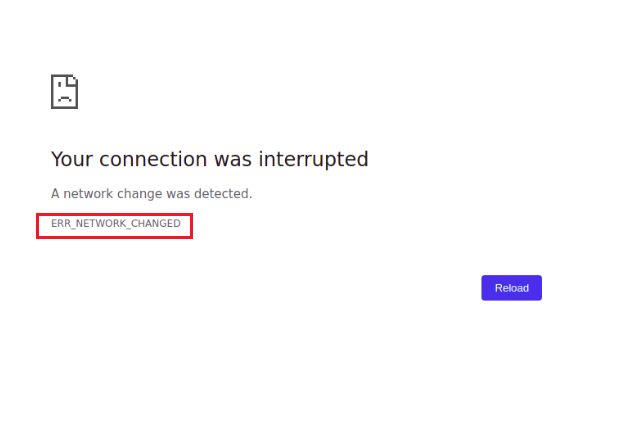
ERR_NETWORK_CHANGED appears when Chrome notices that your network connection changed in the middle of loading a page.
Common causes:
- A weak Wi-Fi signal, or a problem with the router or the internet provider.
- Old network drivers.
- A VPN, firewall or antivirus that interferes.
- A damaged Chrome cache.
- Wrong proxy settings.
- A buggy Chrome extension.
Fixes
1. Basic checks
Reload the page. Restart your router and your computer. Move closer to the router, or use a cable.
2. Flush the DNS cache
On Windows, open Command Prompt as administrator:
ipconfig /flushdnsOn macOS:
sudo dscacheutil -flushcacheOn Linux, use sudo resolvectl flush-caches.
Also release and renew the IP address on Windows:
ipconfig /release
ipconfig /renew
3. Turn off conflicting software
Turn off the VPN, proxy, firewall or antivirus for a moment and check the page again.
4. Clean up Chrome
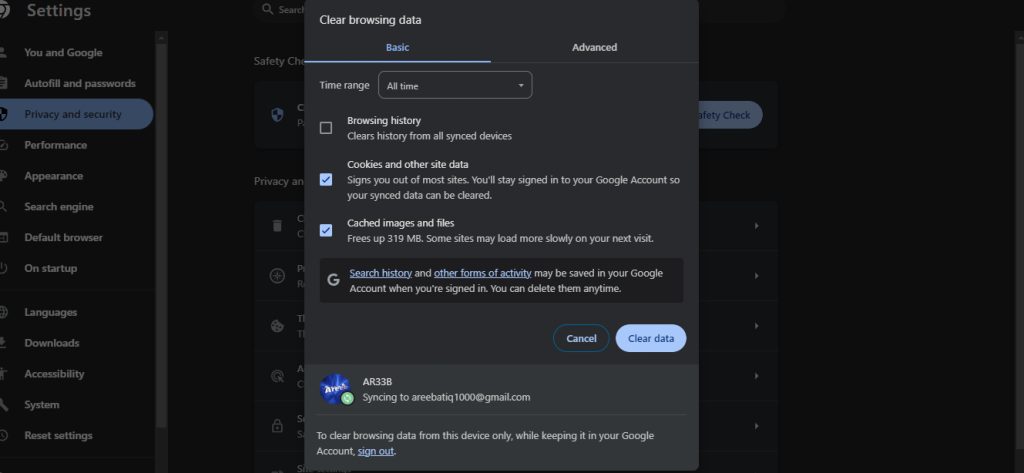
Press Ctrl + Shift + Delete. Choose Cookies and other site data and Cached images and files, then click Clear data.
5. Check extensions
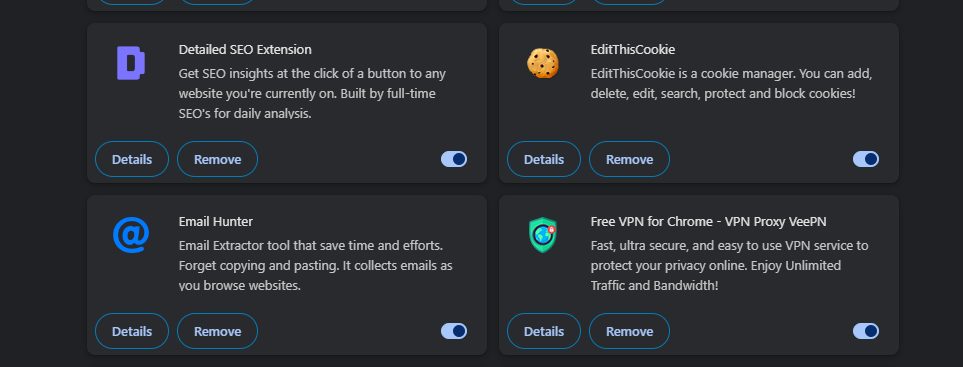
Go to chrome://extensions. Turn off all extensions, then turn them on one by one to find the guilty one.

6. More steps
- Update your network adapter driver.
- Check the proxy settings in Windows (Settings, then Network & Internet, then Proxy) and turn off any proxy you do not need.
- Reset the network with
netsh winsock reset(Windows, as administrator) and restart the PC. - Update or reinstall Chrome.
Quick recap
- The error is about a network that changed during loading.
- Restart the router, flush DNS and turn off VPNs.
- Clear the cache and check the extensions.