

Requirements
- An internet connection for the downloads.
- At least 4 GB of RAM (8 GB or more is better).
- At least 20 GB of free disk space.
- A 64-bit processor with virtualization support (turned on in the BIOS/UEFI).
- VirtualBox on the host.
Step 1: Download and install VirtualBox
Windows
- Go to virtualbox.org, click Downloads and choose Windows hosts.
- Run the installer as administrator and keep the defaults.
- Restart when asked.
macOS
- Download the macOS package (
.dmg) from the VirtualBox site. - Open it and run the
VirtualBox.pkginstaller. - Allow it in System Settings, Privacy & Security, if macOS blocks it.
Linux
Ubuntu and Debian:
sudo apt install virtualboxFedora: use the RPM Fusion repository or the package from virtualbox.org.
Arch Linux:
sudo pacman -S virtualboxStep 2: Download the Fedora ISO
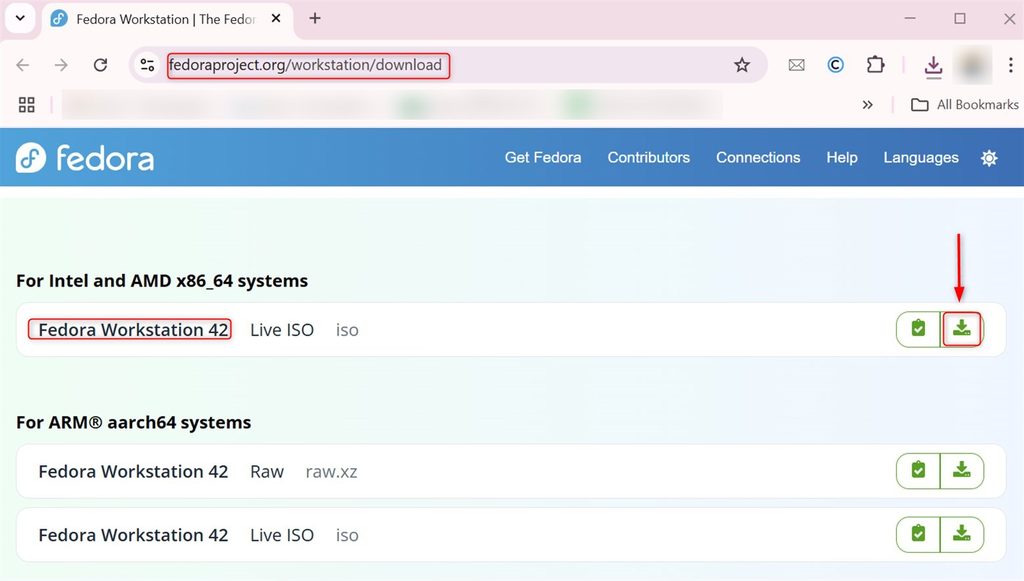
- Open the Fedora website.
- Choose Workstation for the desktop version.
- Click the download button for the standard ISO.
- Pick the architecture (x86_64 for most PCs).
- Wait for the download (about 2 GB).
Step 3: Create the virtual machine
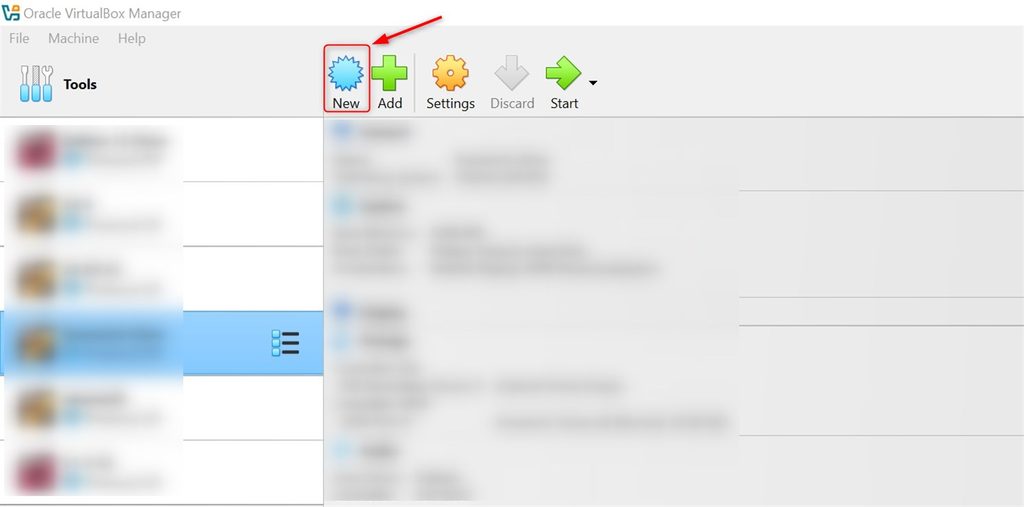
Click New in VirtualBox.
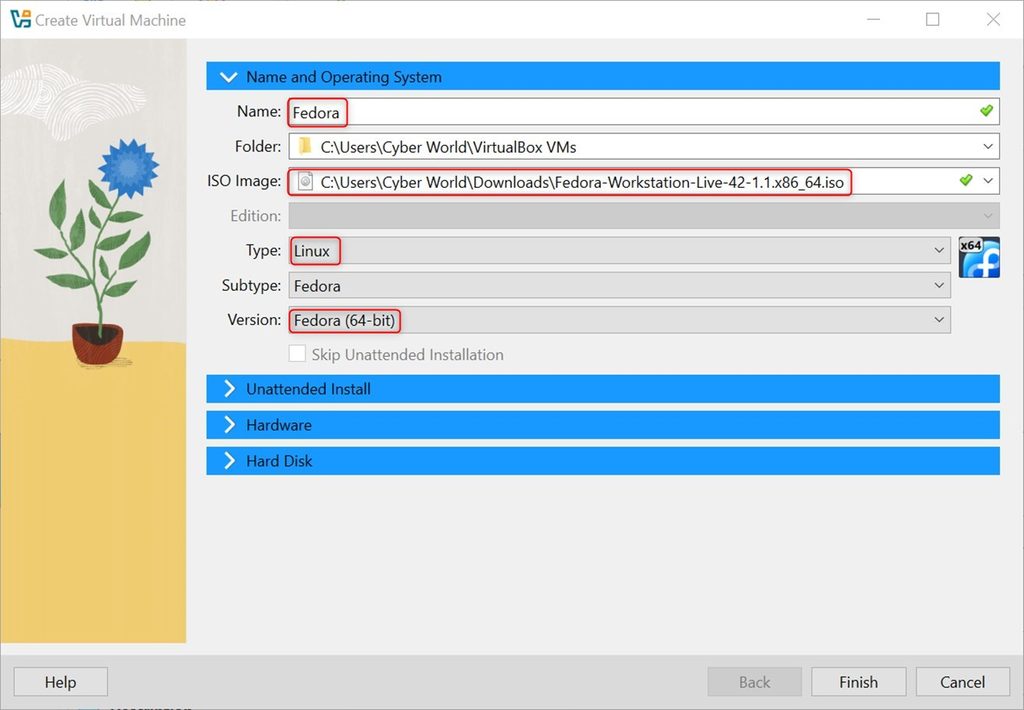
Enter a name, such as Fedora. Choose the Fedora ISO, and set Type to Linux and Version to Fedora (64-bit).
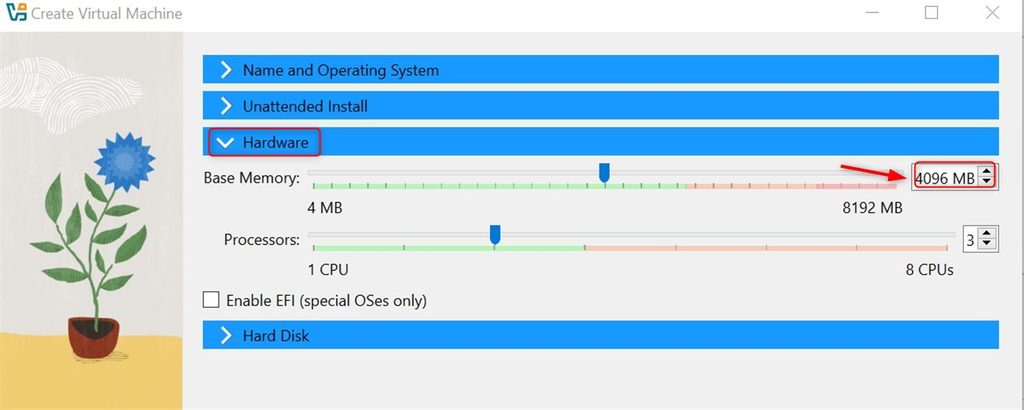
Memory. At least 2 GB (2048 MB). 4 GB or more is better. Do not give more than half of your host RAM.
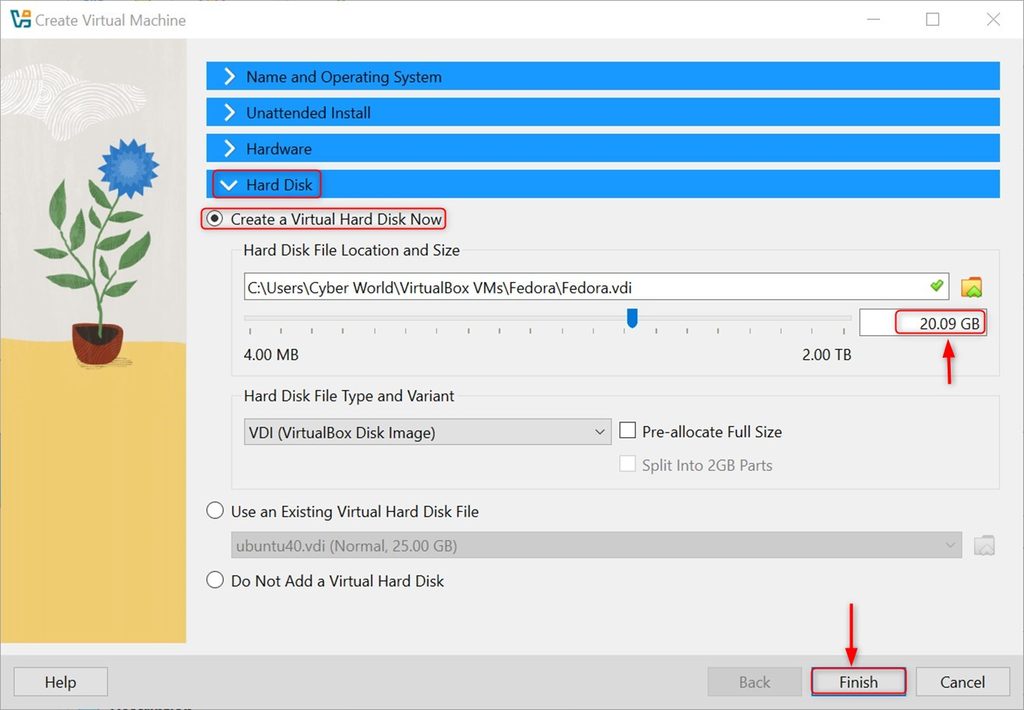
Virtual disk. Choose Create a virtual hard disk now, the type VDI, and a size of at least 20 GB (30 GB is better).
Step 4: Adjust the VM settings
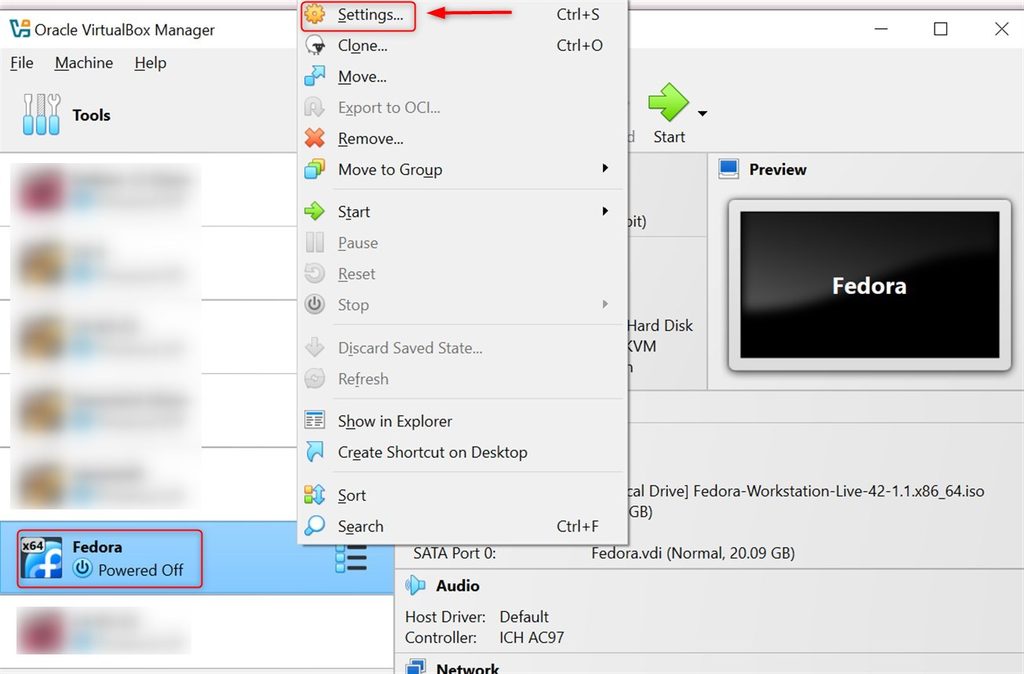
Select the VM and click Settings.
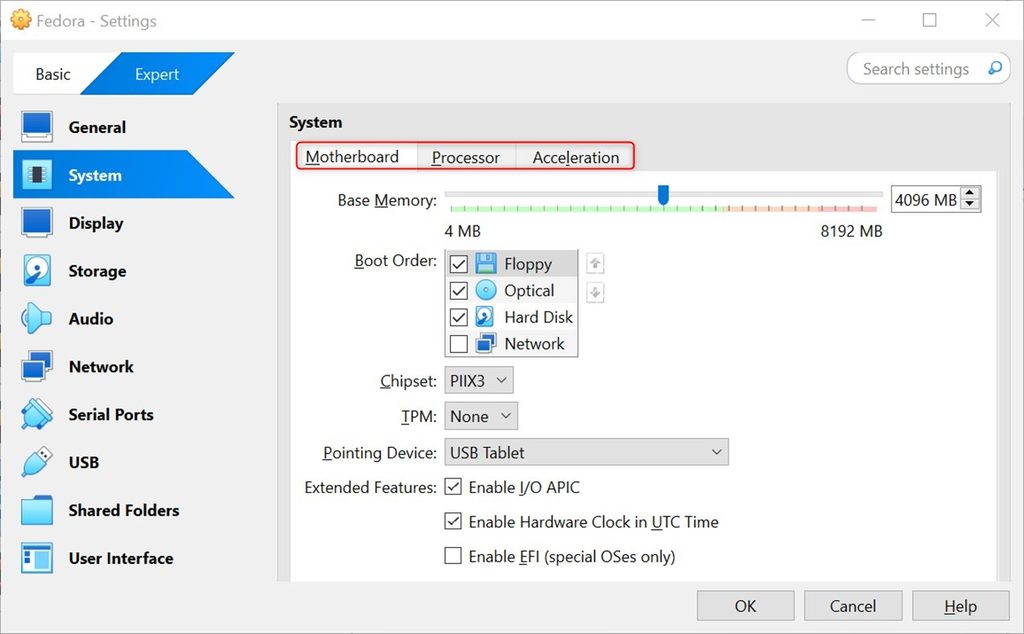
System. Check that Optical comes before Hard Disk in the boot order. On the Processor tab, give 2 or more CPU cores.
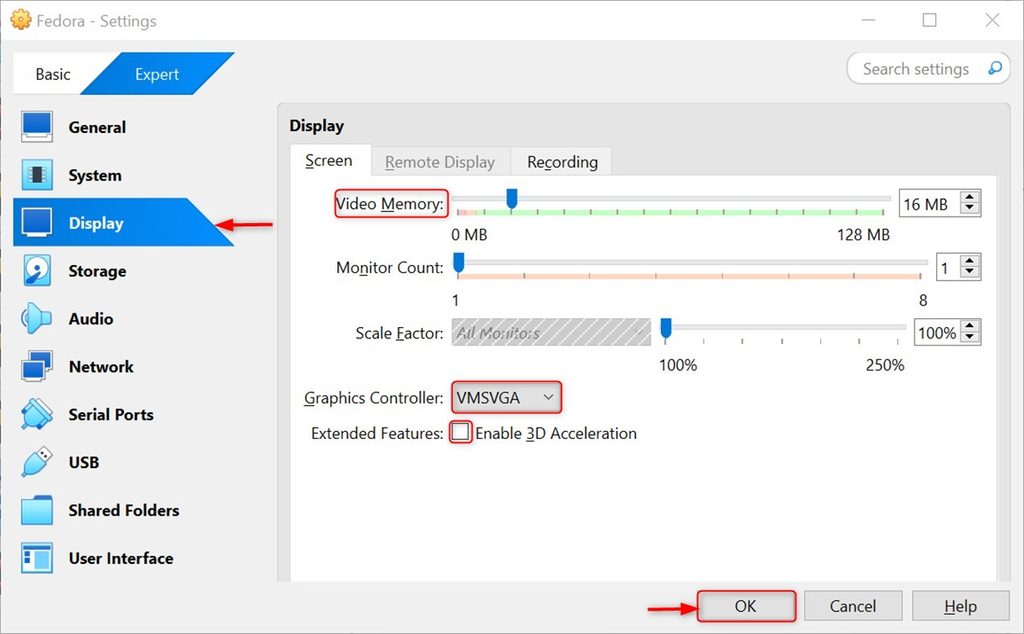
Display. Give 128 MB of video memory and turn on 3D acceleration if it is offered.
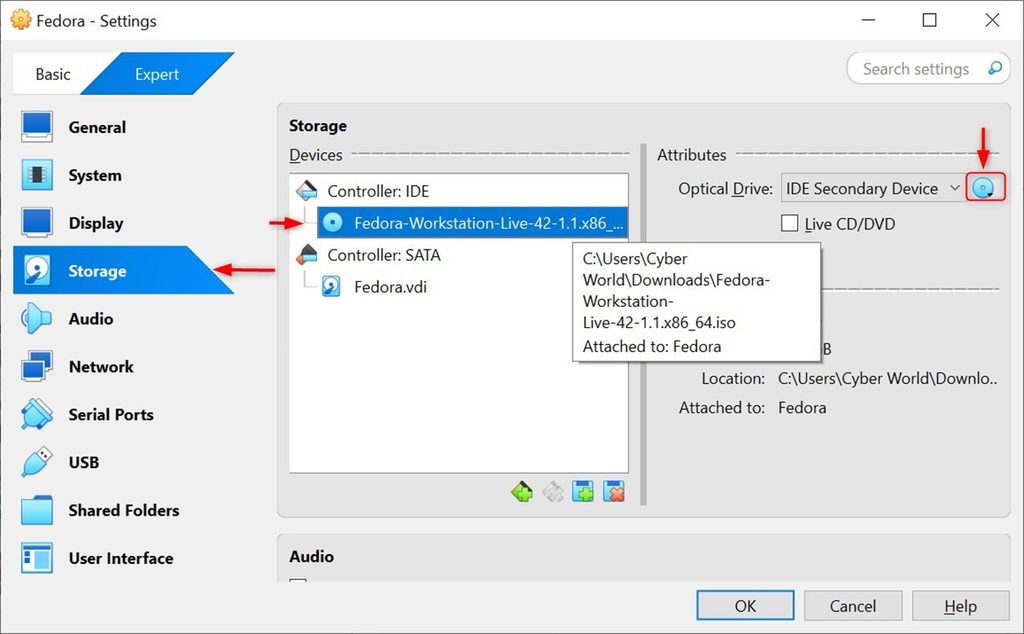
Storage. Check that the Fedora ISO is in the optical drive.
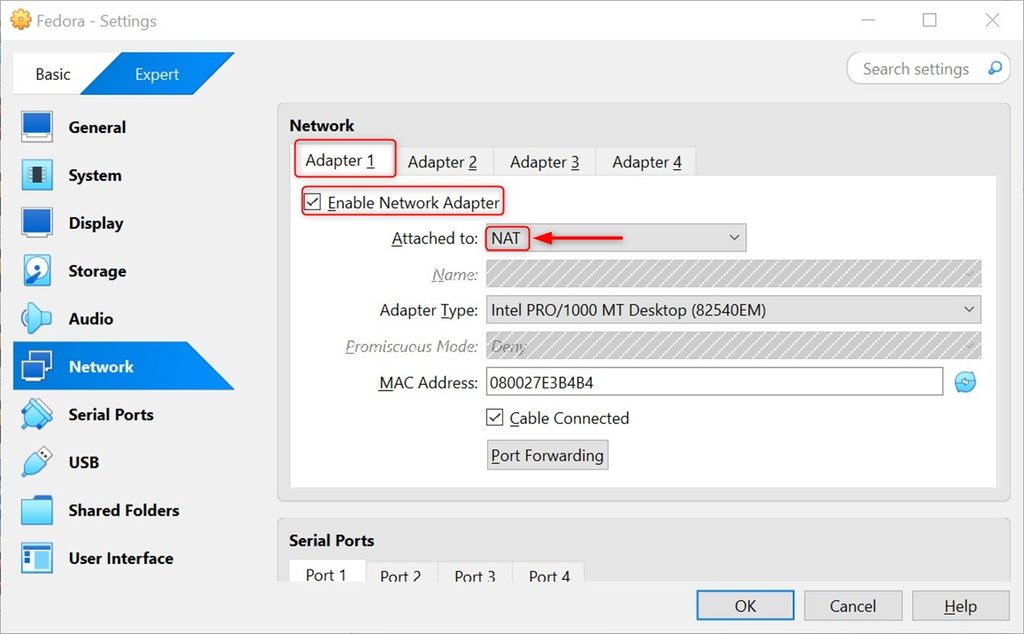
Network. The default NAT works for internet access. Use a bridged adapter if you need to reach the VM from the network.
Step 5: Install Fedora
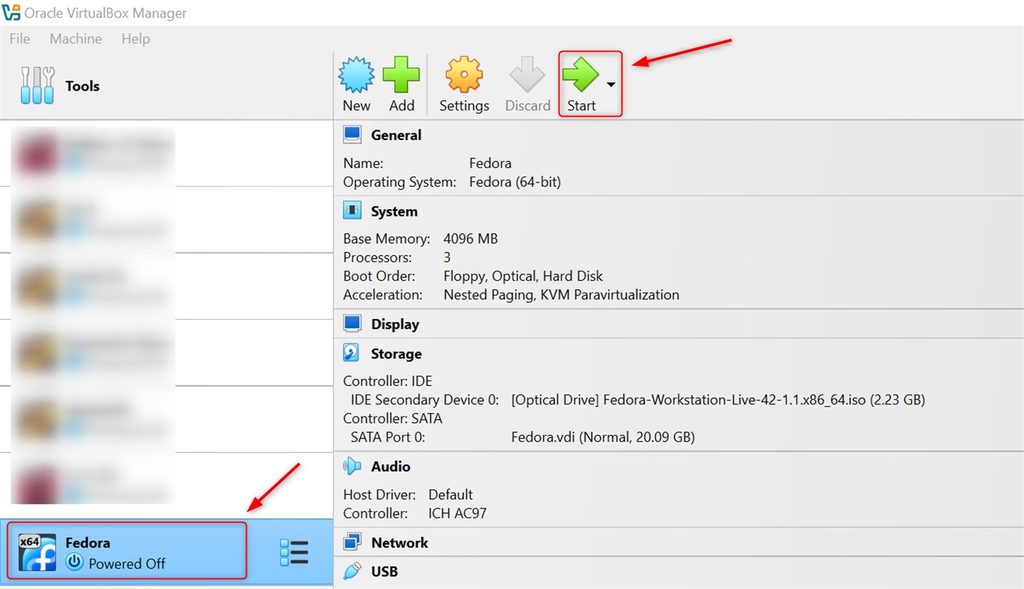
- Click Start to run the VM. Choose Start Fedora-Workstation-Live.
- Click Install to Hard Drive. Choose your language and keyboard.
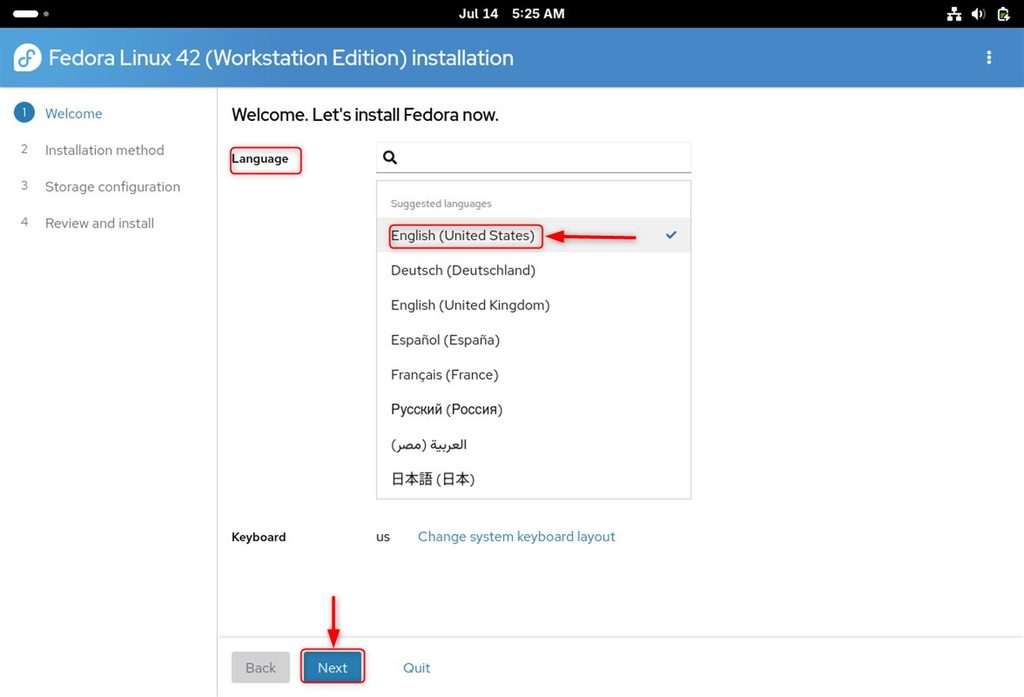
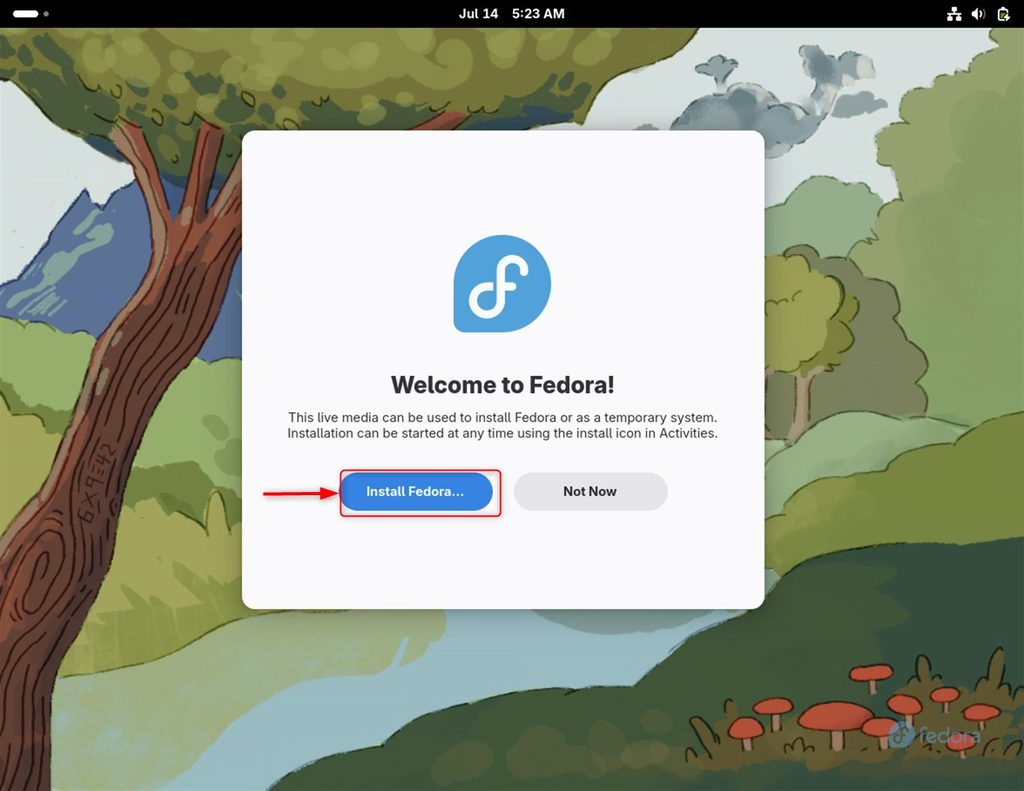
- Choose the installation destination (the virtual disk) and keep the automatic partitioning.
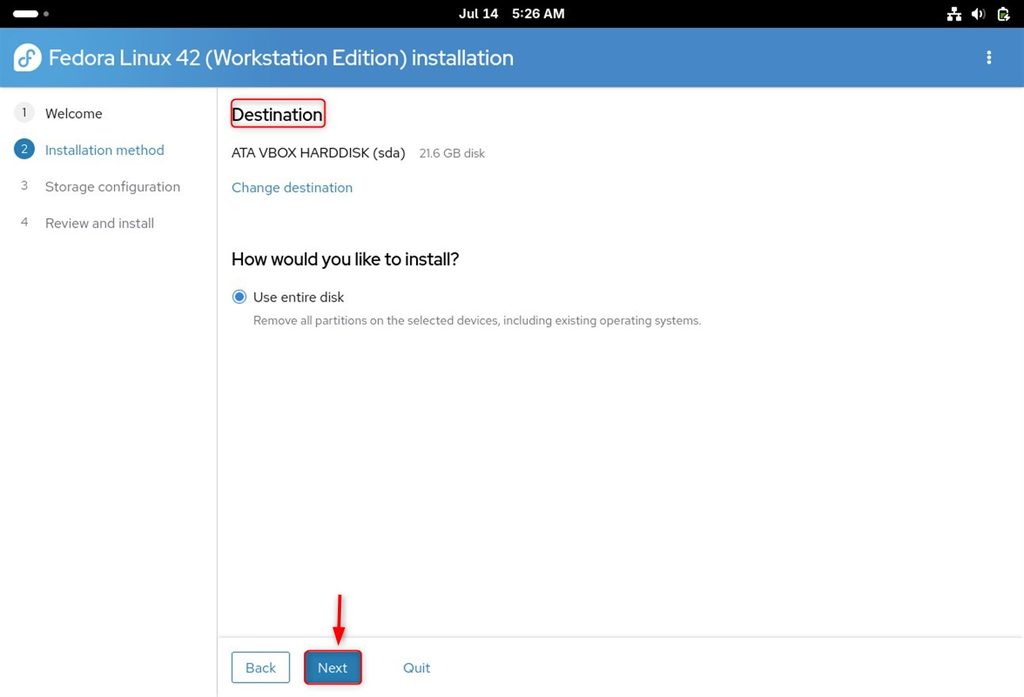
- Create a user account and click Install.
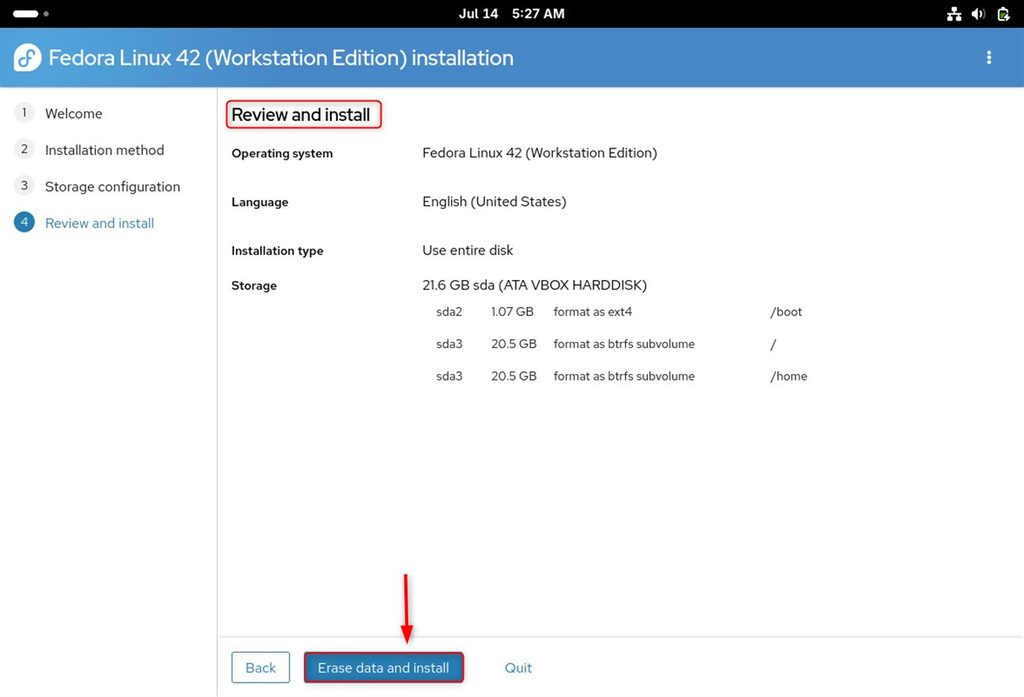
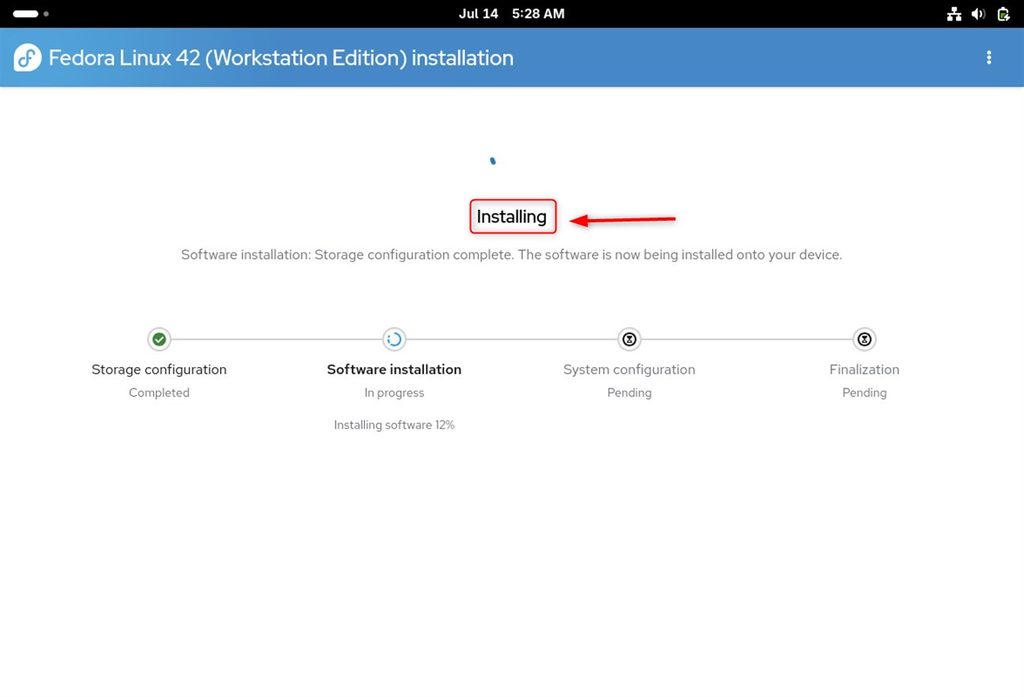
- When it ends, click Finish Installation, then shut down the VM, remove the ISO from the optical drive and start the VM again.
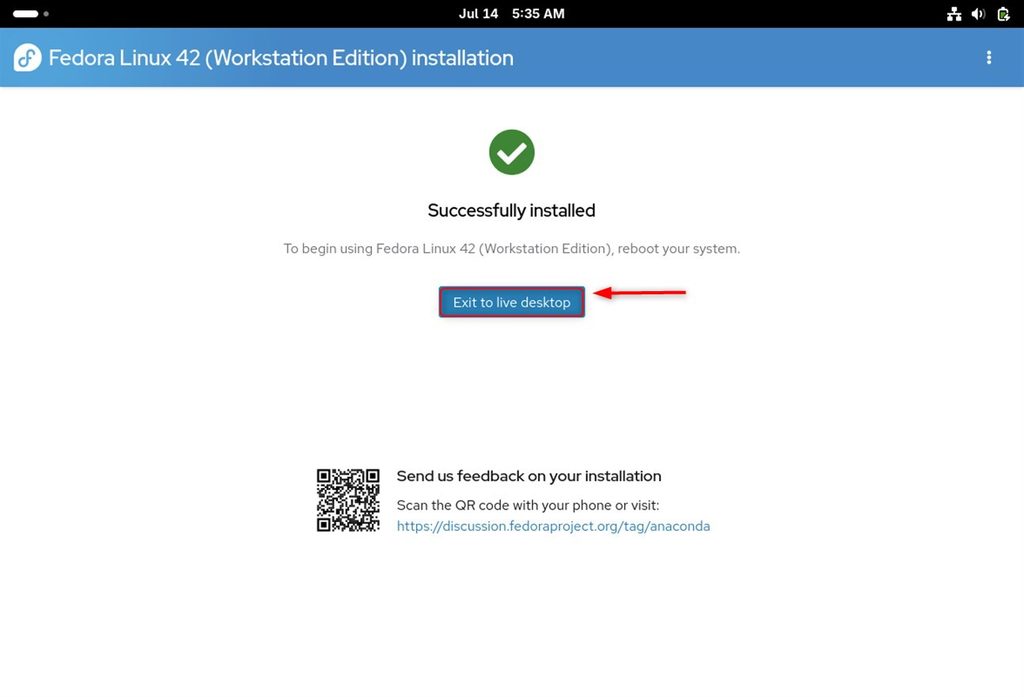
Step 6: After the first boot
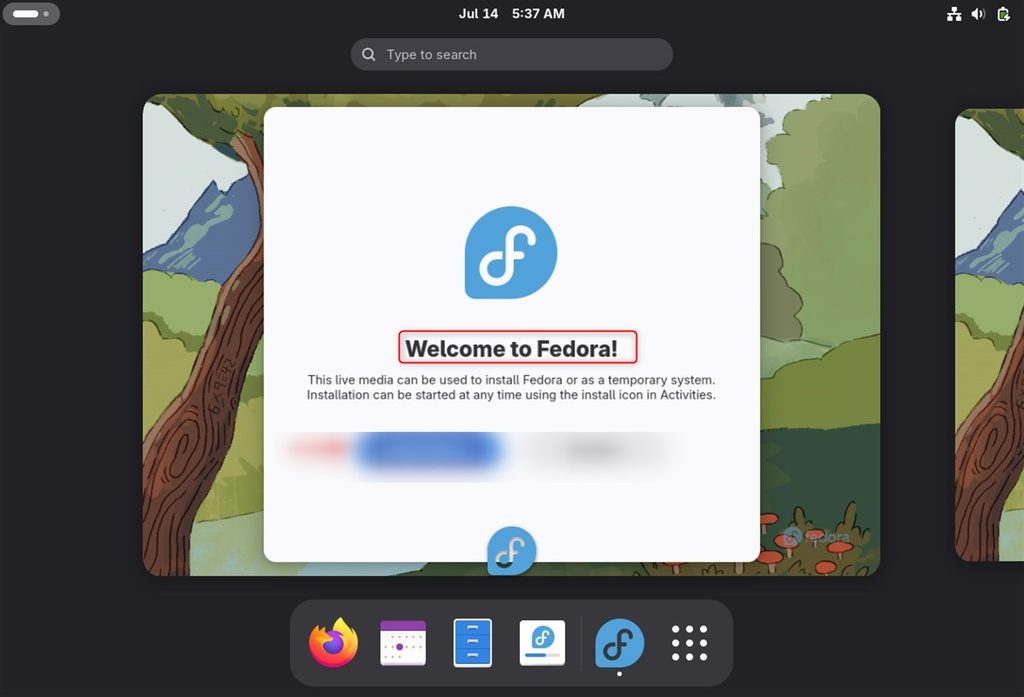
- Log in and follow the welcome steps.
- Update the packages:
sudo dnf update -y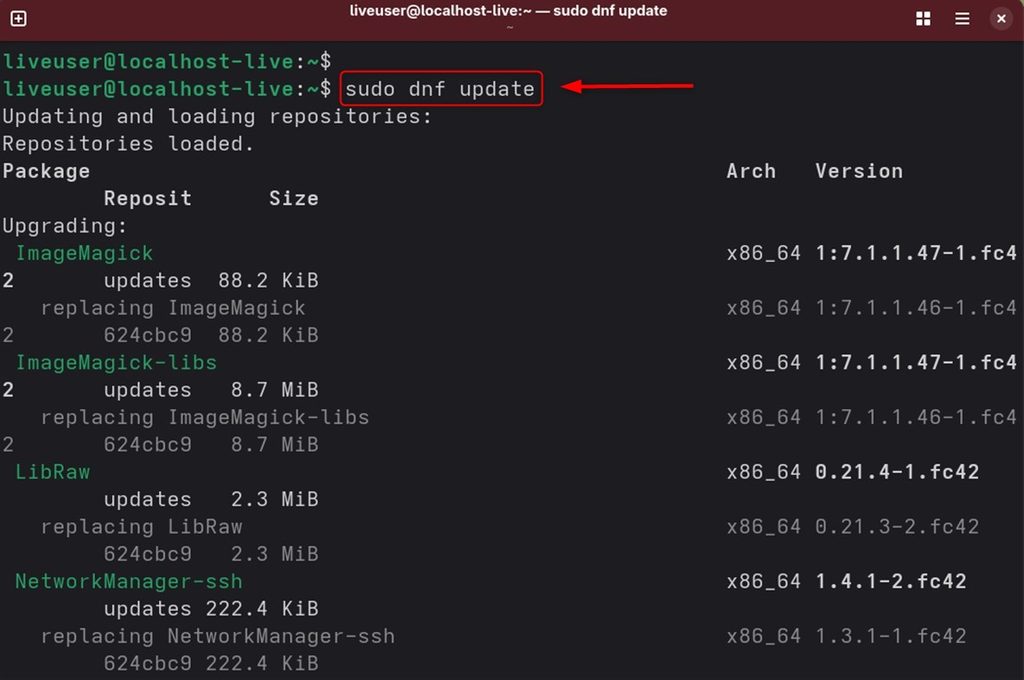
- Install the Guest Additions for a better screen size, shared clipboard and shared folders. In the VM menu choose Devices, then Insert Guest Additions CD image, and run the installer. You may first need:
sudo dnf install gcc kernel-devel kernel-headers make bzip2 perl elfutils-libelf-devel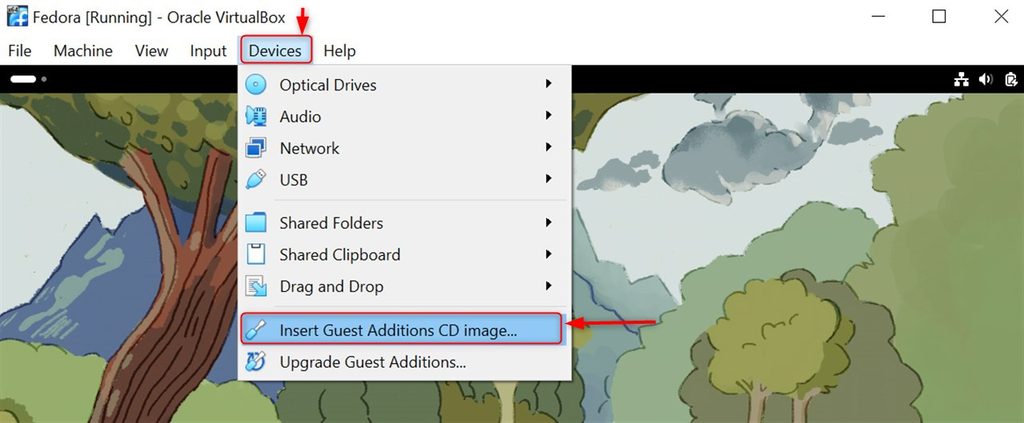

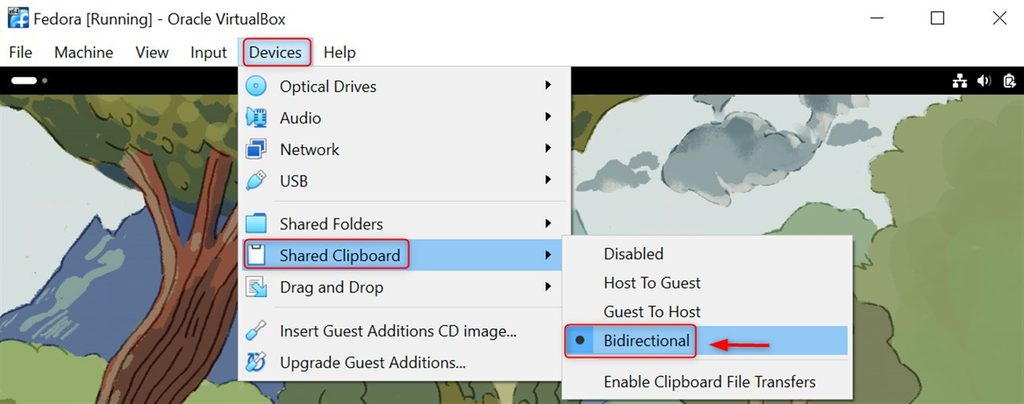
- Under Devices, set Shared Clipboard to Bidirectional.
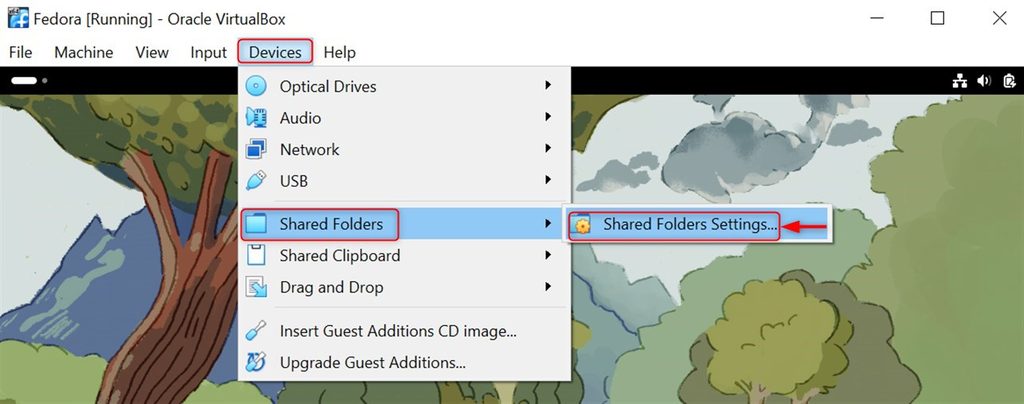
- In the VM Settings, Shared Folders, add a folder from the host and tick Auto-mount.
Quick recap
- Install VirtualBox, download the Fedora Workstation ISO.
- Make a VM with 4 GB RAM, 20 GB disk and 2 CPUs.
- Install Fedora, then add the Guest Additions.