

What is an extension?
AbanteCart is free software for running an online shop. An extension is an add-on that gives your shop a new feature. It might add a payment method, a shipping option or a new look. It is like an app on a phone.
Menu names can change slightly between versions. If you cannot find an item, look for a similar name.
Before you start
- Back up your store files and database. A bad extension can break your shop.
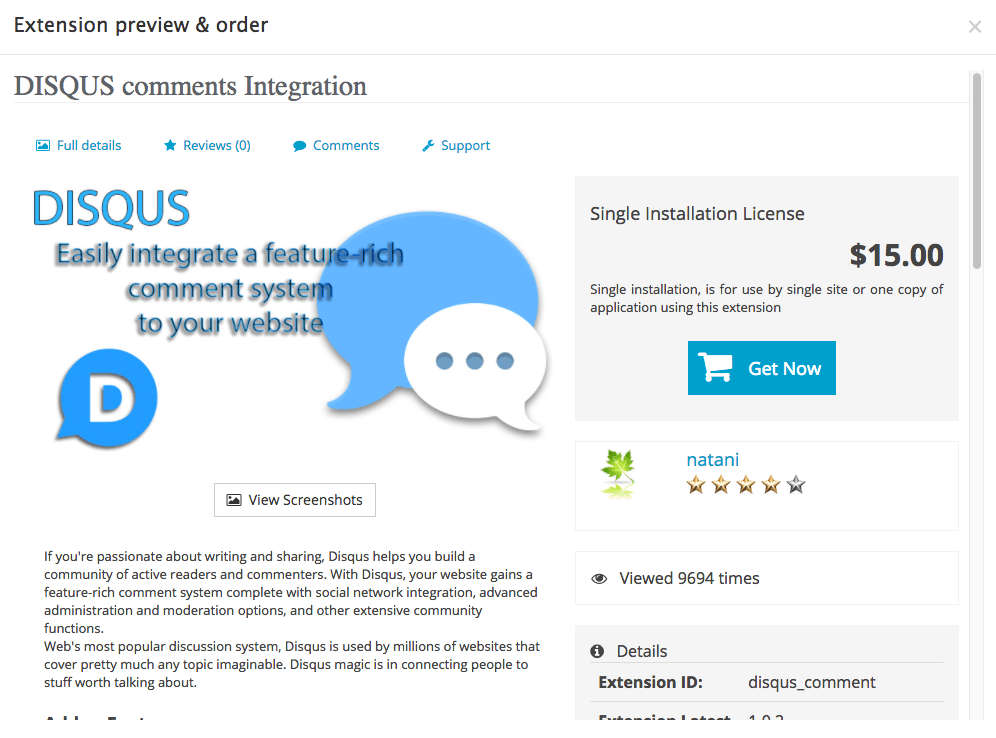
- Download the extension from a trusted place, such as the official AbanteCart marketplace.
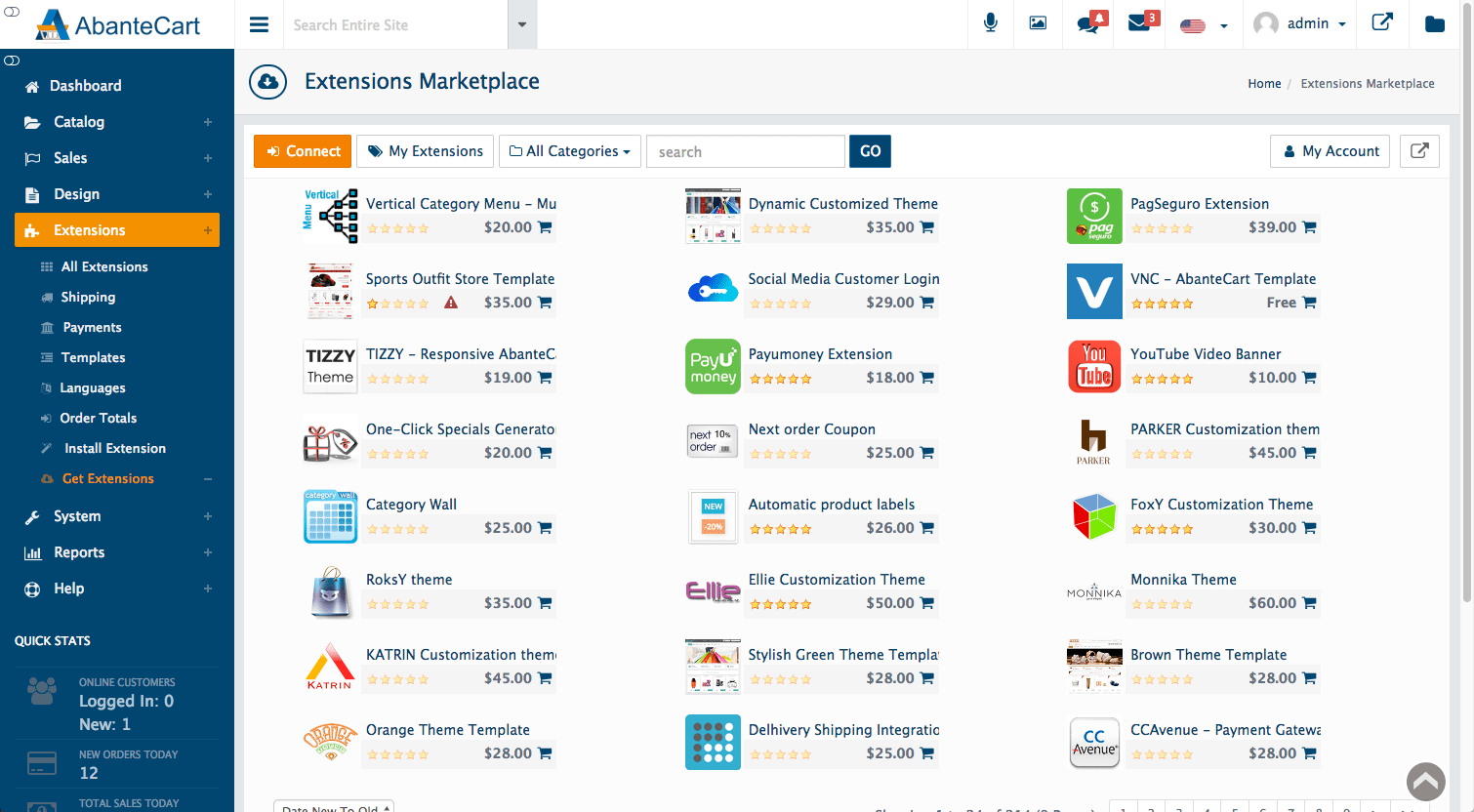
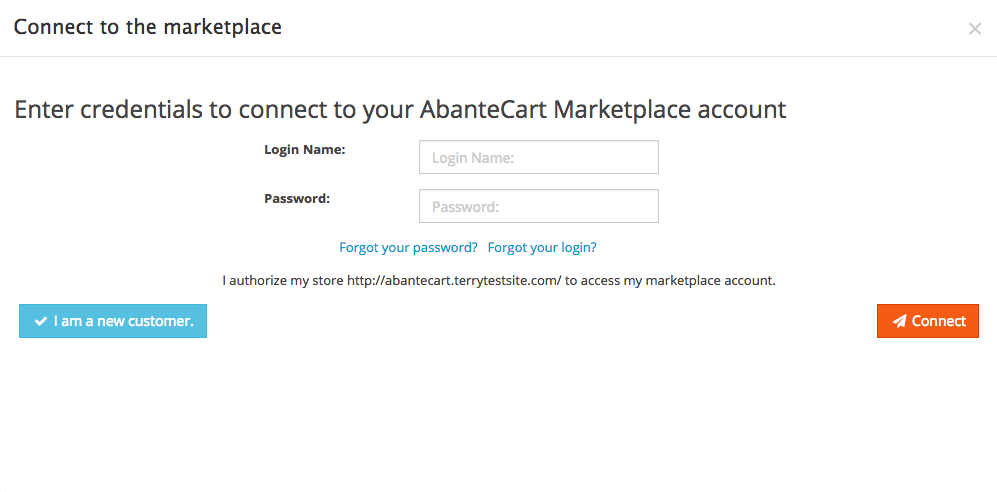
- Check that it supports your AbanteCart version.
- The extension usually comes as a .tar.gz or .zip file. Do not unzip it yet.
Install by uploading
- Log in to your AbanteCart admin panel.
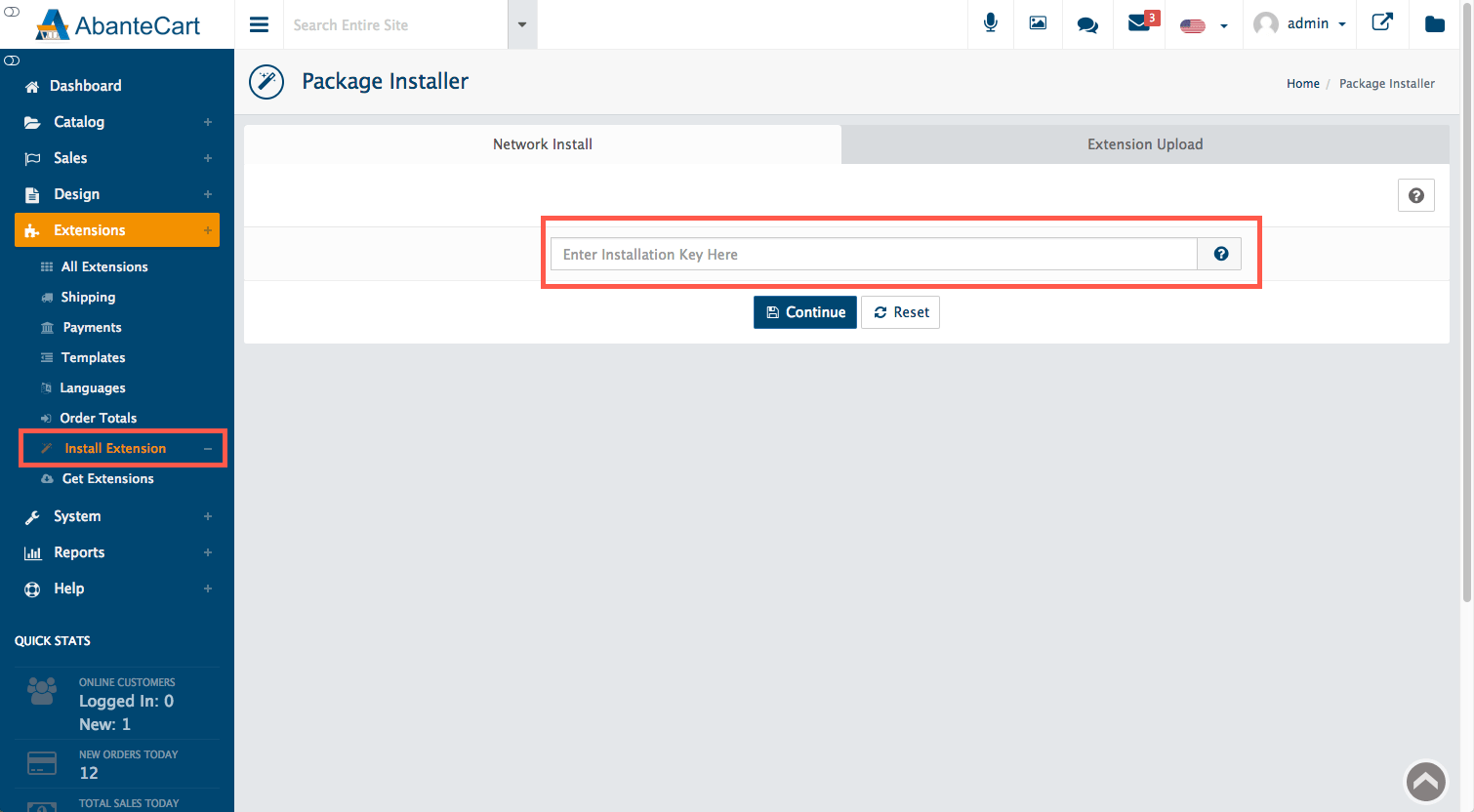
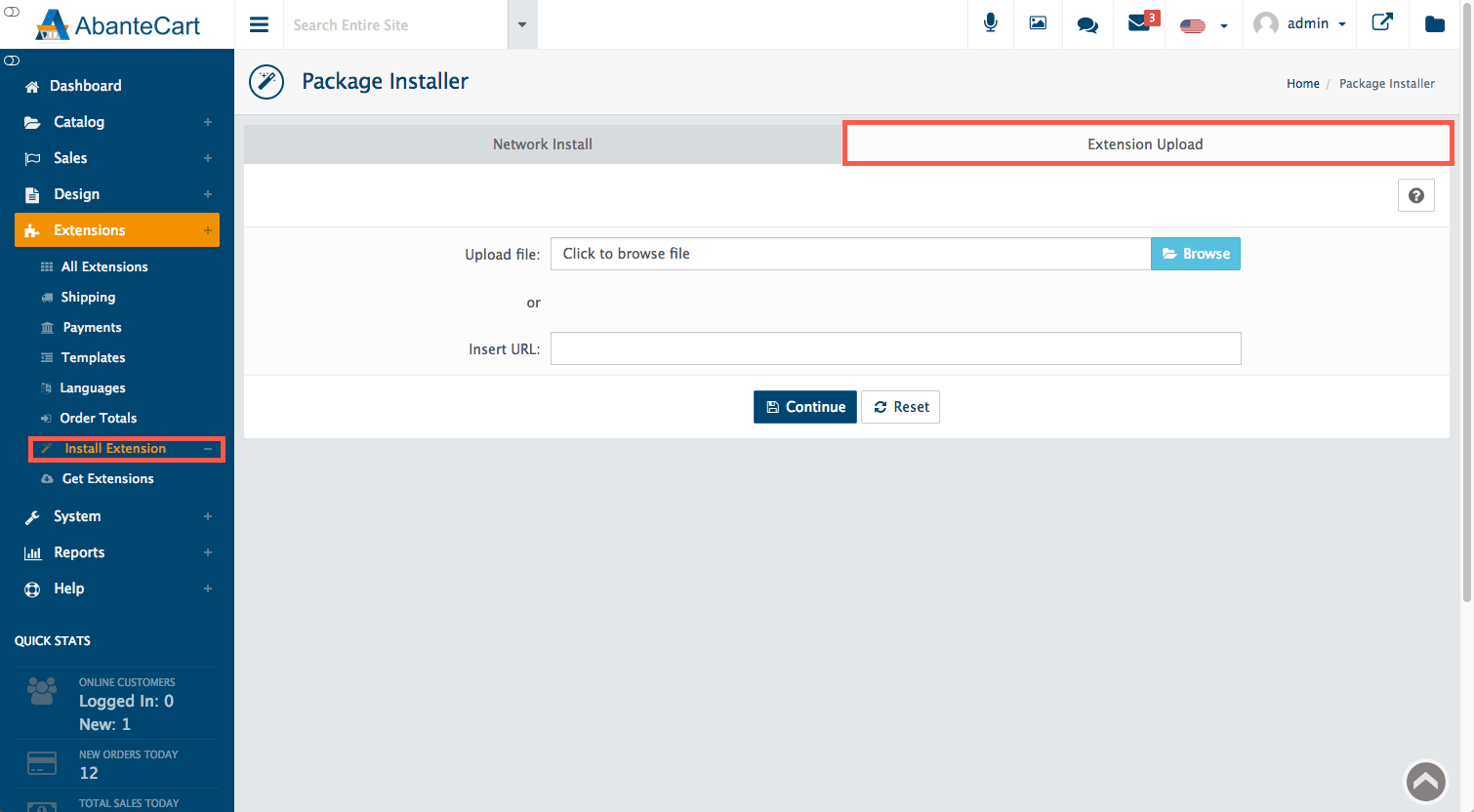
- Open the Extensions menu.
- Click Add new extension, or look for an Install Extensions option.
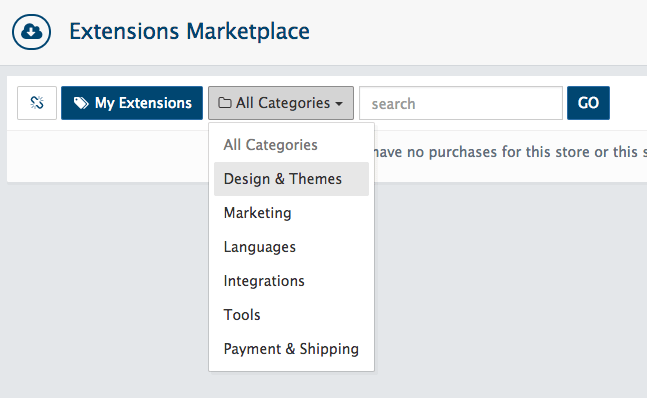
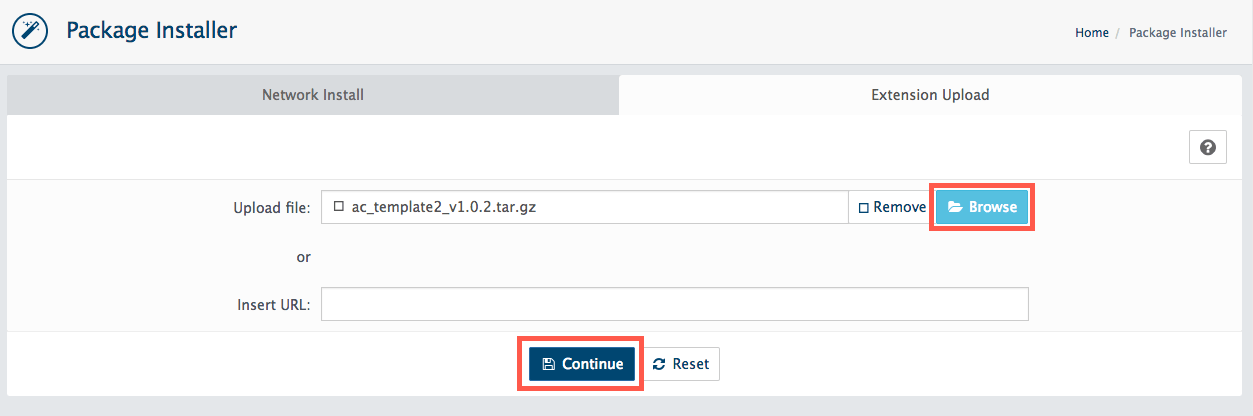
- Click the upload button and choose your extension file.
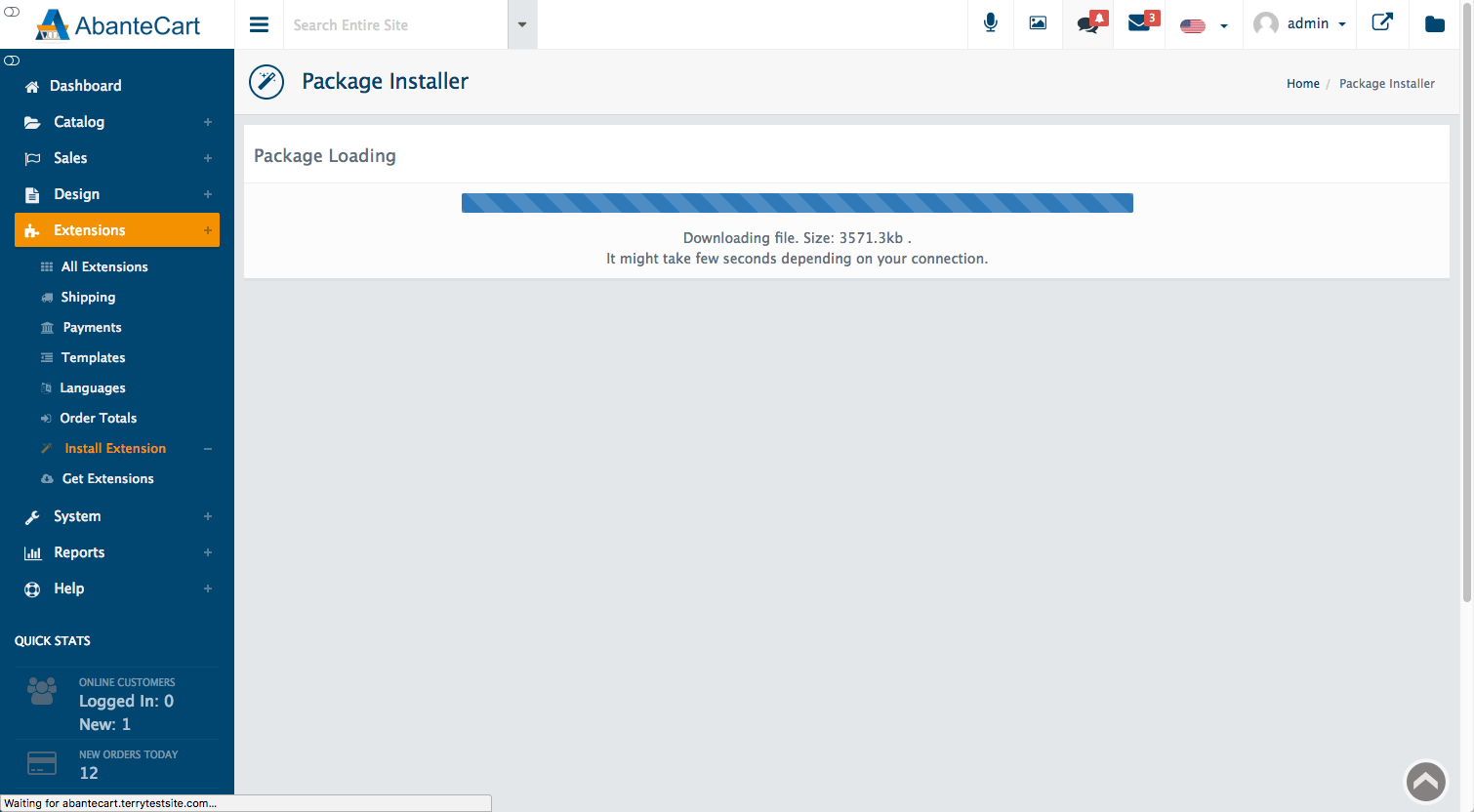
- Click Upload.
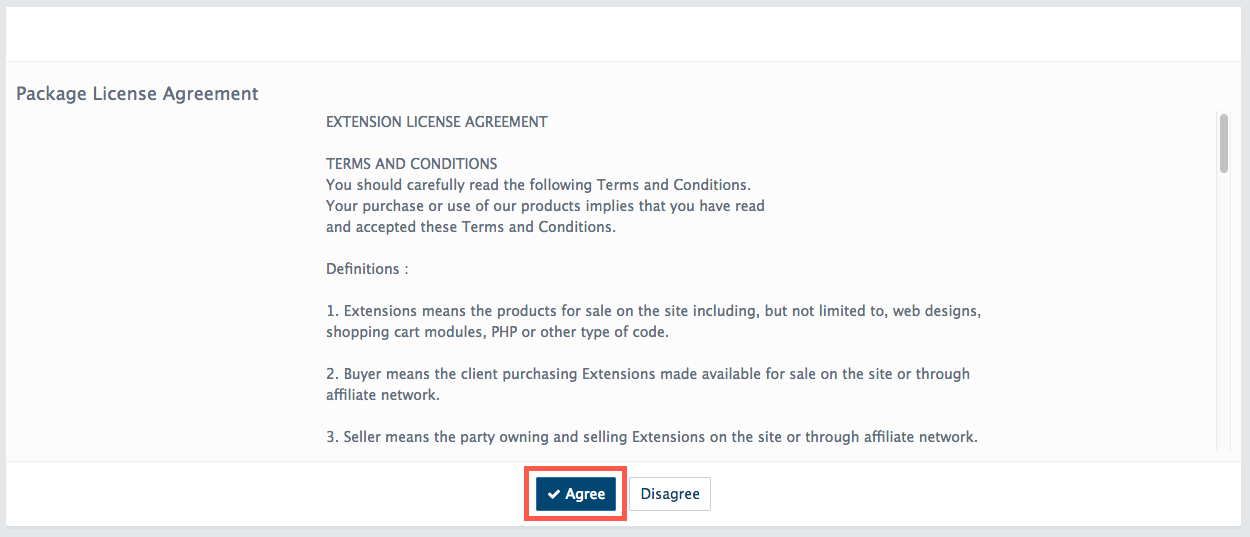
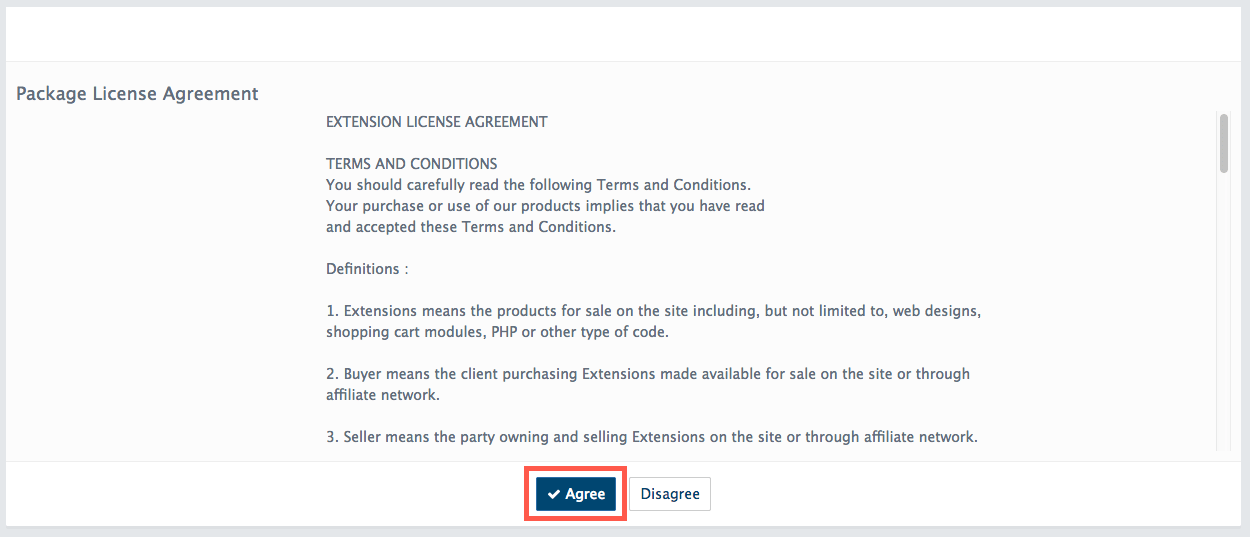
- Read any message that appears. It may show the files to be installed or ask you to agree to terms.
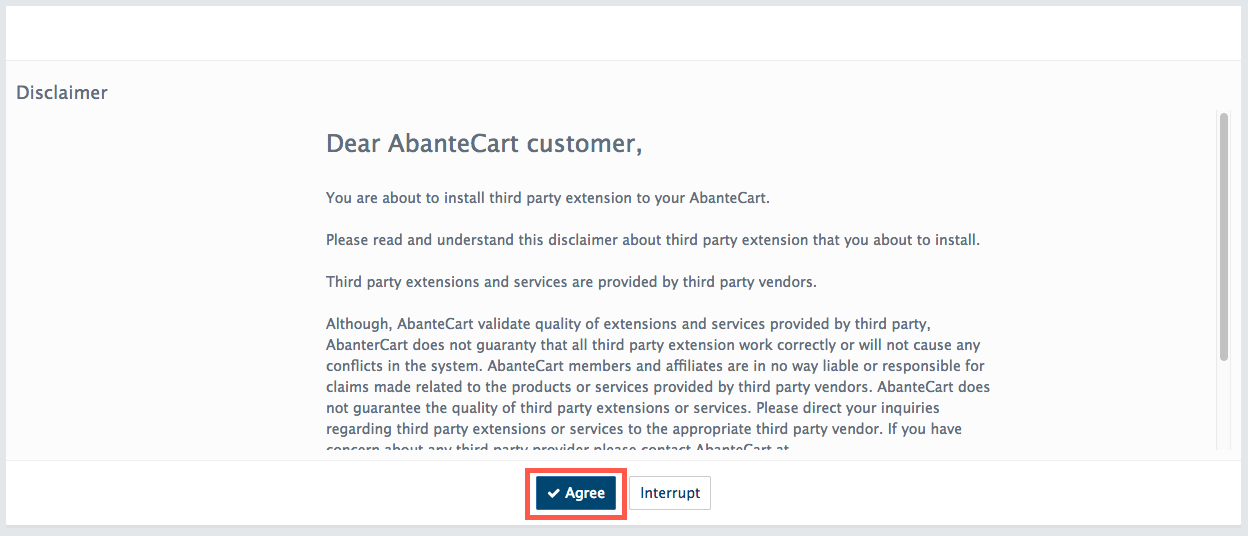
- Click Install to continue.
- Fill in any settings the screen asks for.
- Click Save.
Turn the extension on
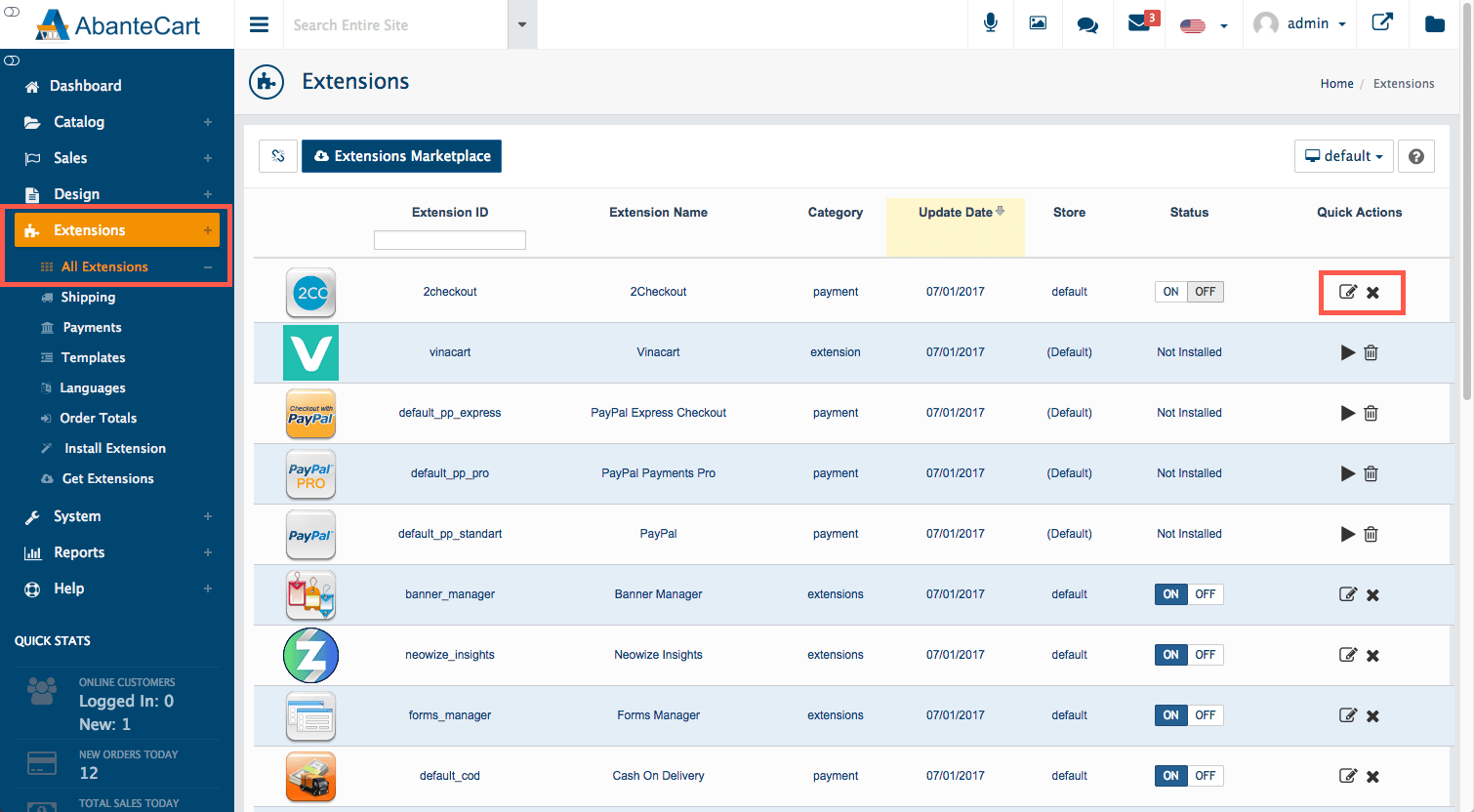
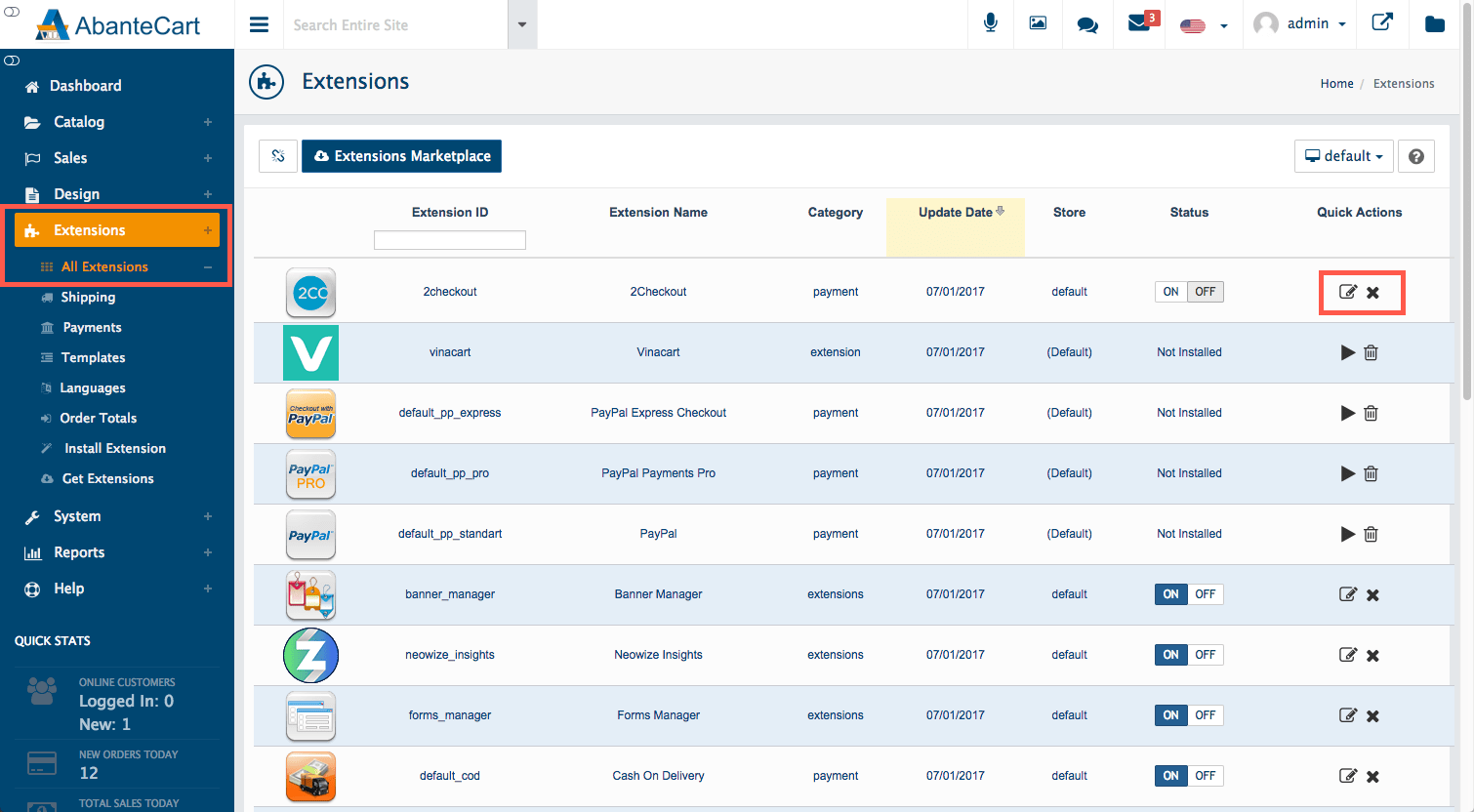
- Go to Extensions, then Extensions.
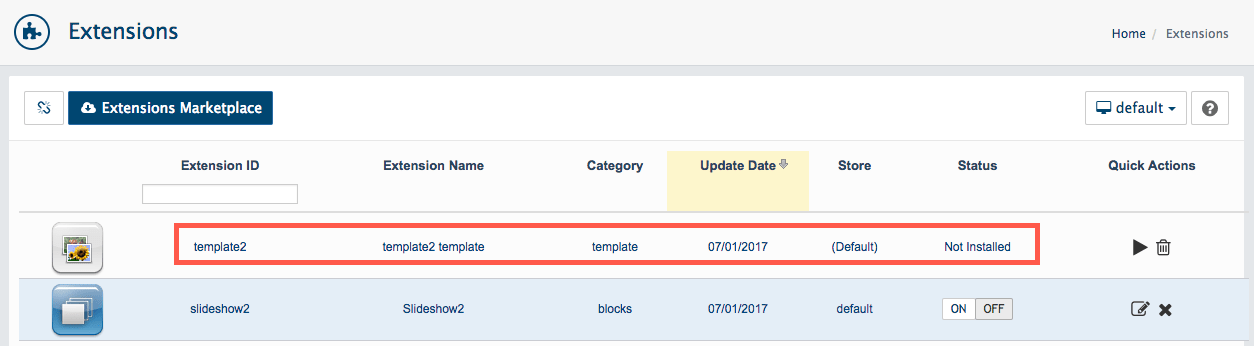
- Find the new extension in the list.
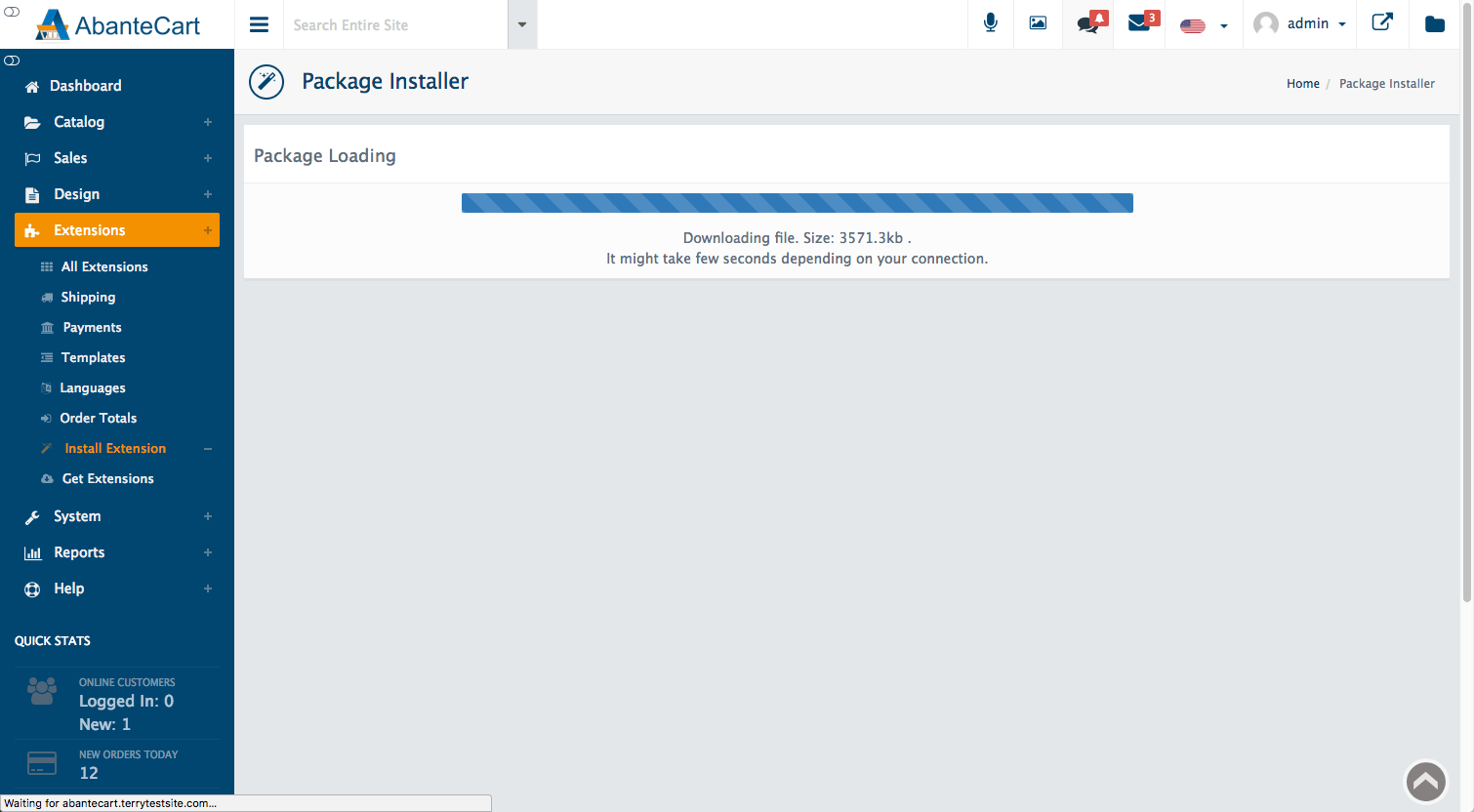
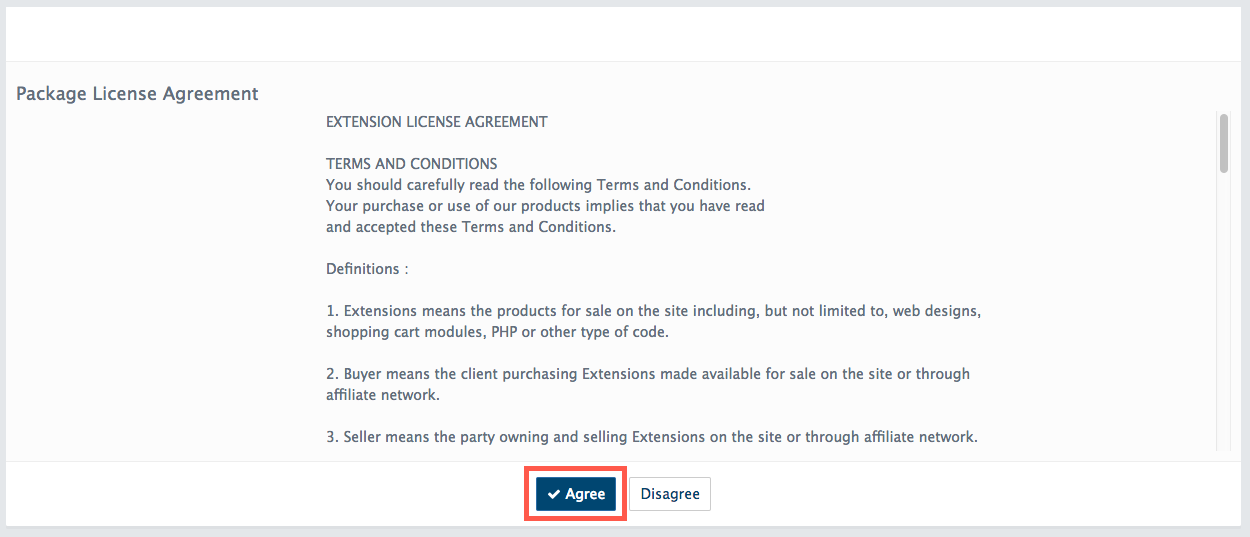
- Switch its status to On, or click the enable button.
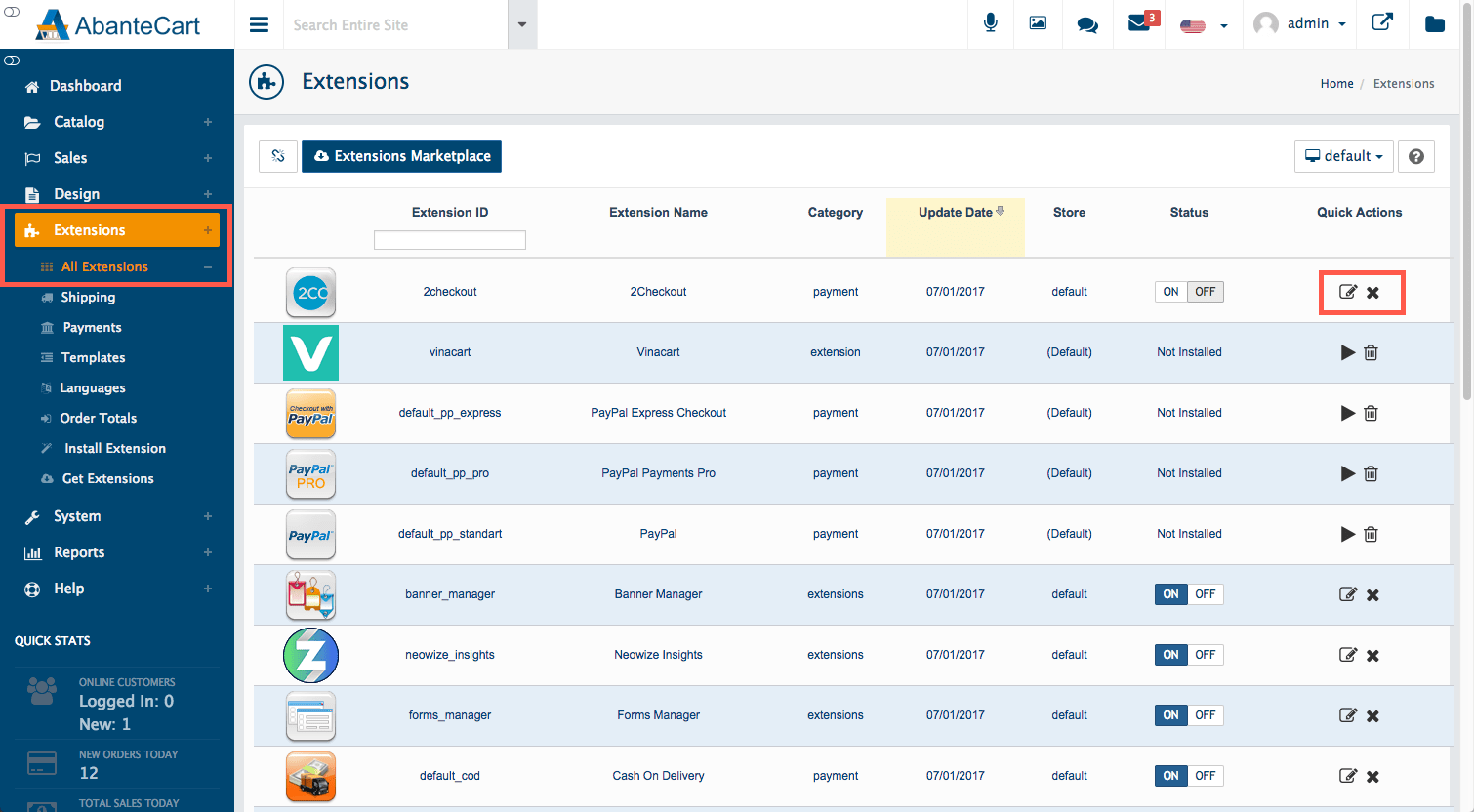
- Open the extension's settings and fill them in.
- Click Save.
Install through file manager (if upload fails)
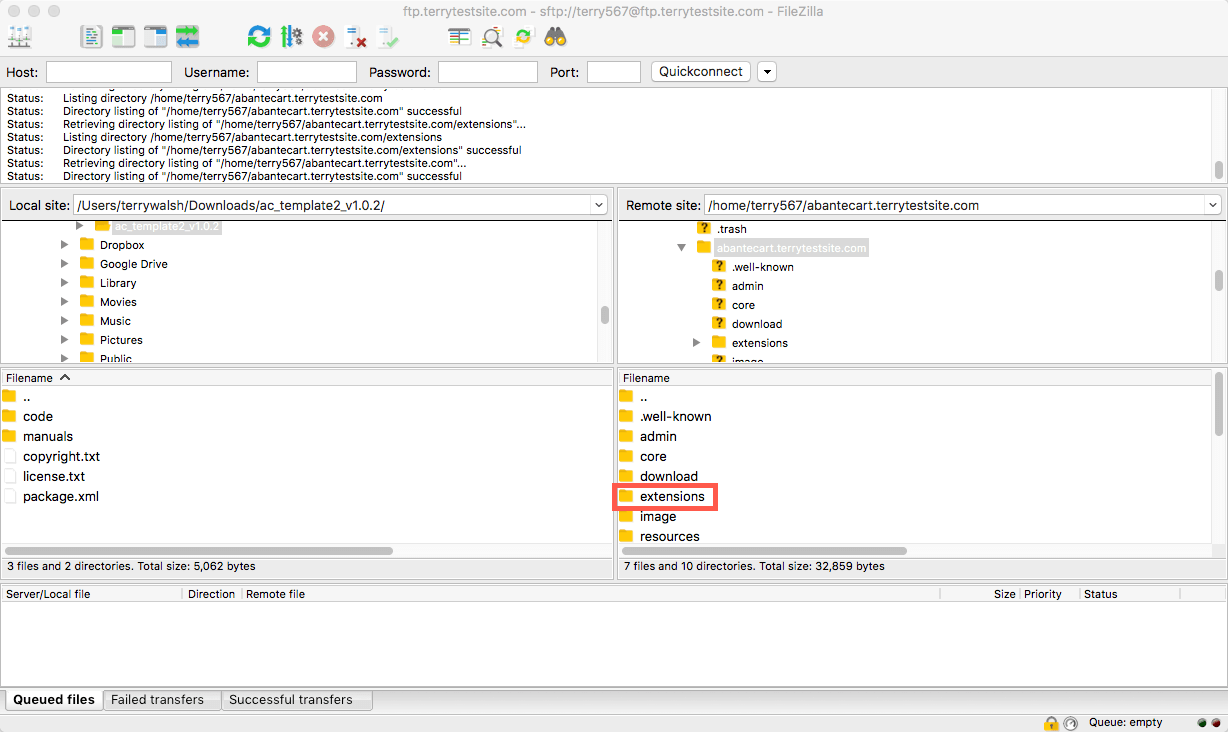
- Open your hosting control panel and go to File Manager.
- Go to your store folder and find the
extensionsfolder. - Upload your extension file there and extract it.
- Go back to the admin panel. The extension should now show in the Extensions list.
- Click Install next to it.
Upload may fail because a folder is not writable, or the file size is too large. Ask Hostvento support to check your folder permissions and upload limits.
Test it
- Visit your shop as a customer.
- Check the new feature works.
- Check the checkout still works.
Tip: If your shop breaks, switch the extension off. If that does not help, restore your backup.
Quick recap
- Extensions add features to your AbanteCart shop.
- Back up first and use a trusted source.
- Upload from the Extensions menu, then install and enable.
- Test your shop and checkout afterwards.