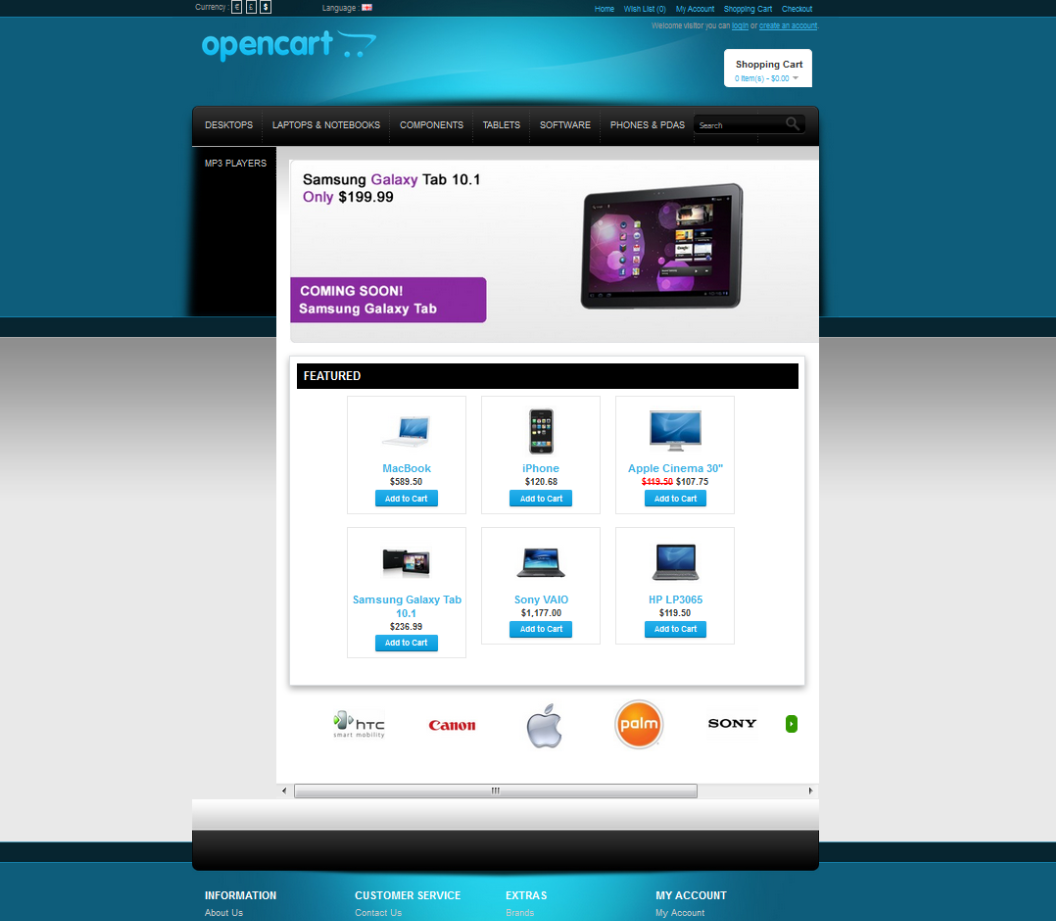
What is a theme?
A theme is a set of files that controls how your shop looks. It sets the colors, fonts and layout. Think of it as new clothes for your store. Your products stay the same.
OpenCart is a free tool for building online shops. Most themes come as one ZIP file. A ZIP file is a folder squeezed into one small file.
Before you start
Take a backup first. A backup is a saved copy of your site. If the theme breaks something, you can go back. Make one in your hosting control panel.
You need the theme ZIP file from the shop where you got it. Check that it supports your OpenCart version.
Steps
- Log in to your OpenCart admin area. It is usually at your site address followed by
/admin. - Go to Extensions and then Installer. Some versions show it under Extensions > Installer only.
- Click the Upload button.
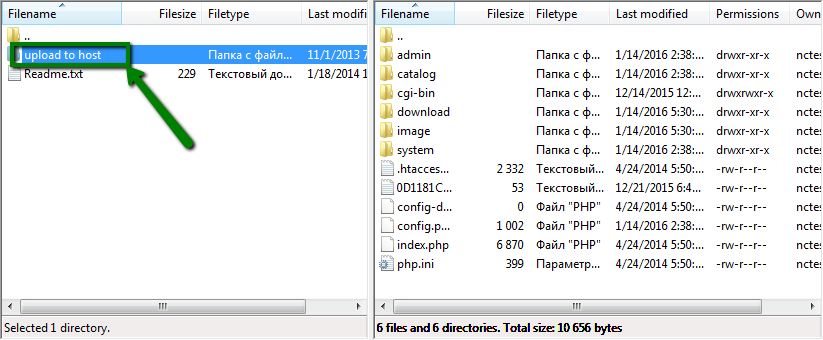
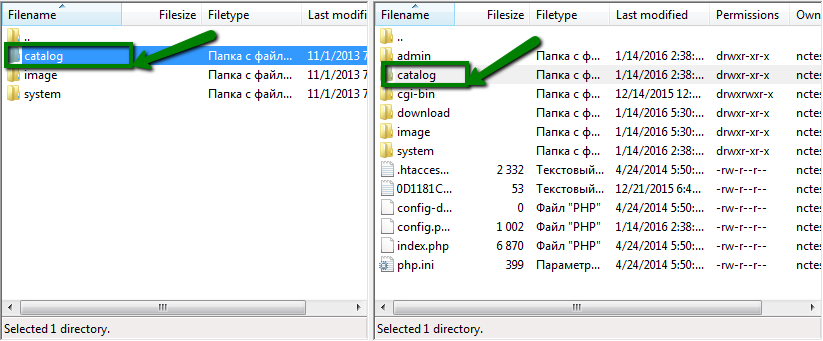
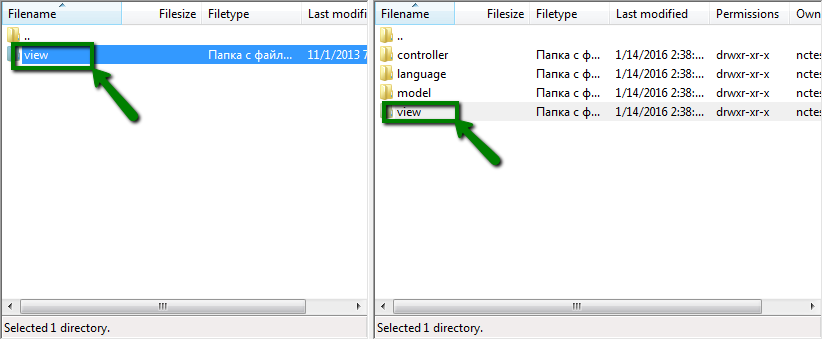
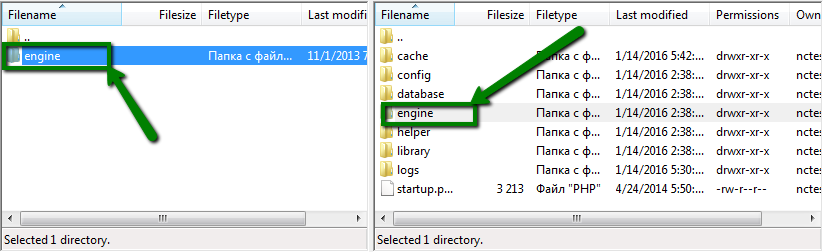
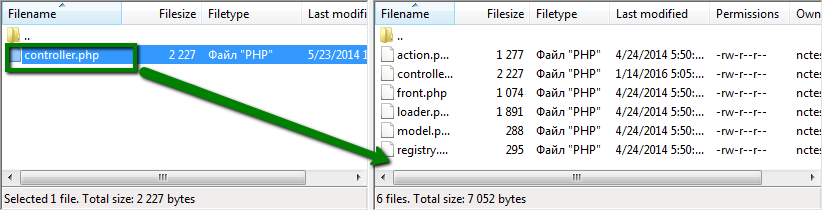
- Pick the theme ZIP file from your computer. If the ZIP holds other folders inside, unzip it first and upload the file named like
something.ocmod.zip. - Wait until the upload finishes. You will see a green success message.
- Click the green Install button next to the theme in the list.
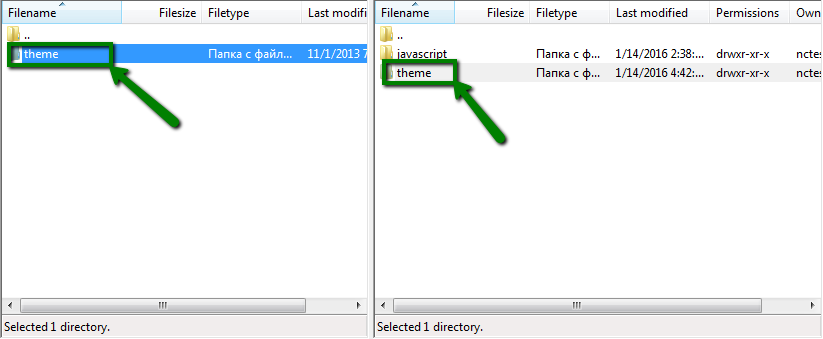
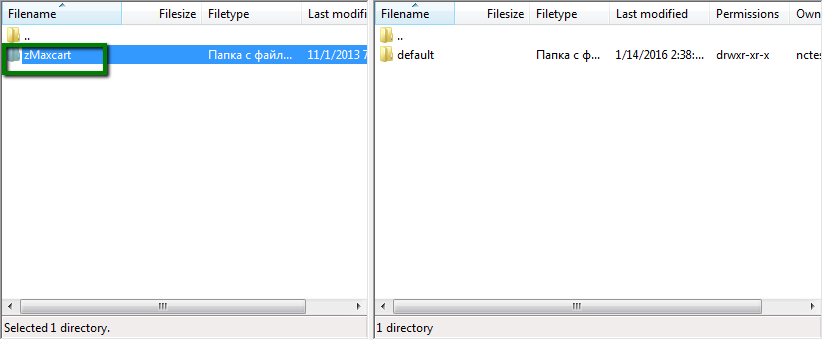
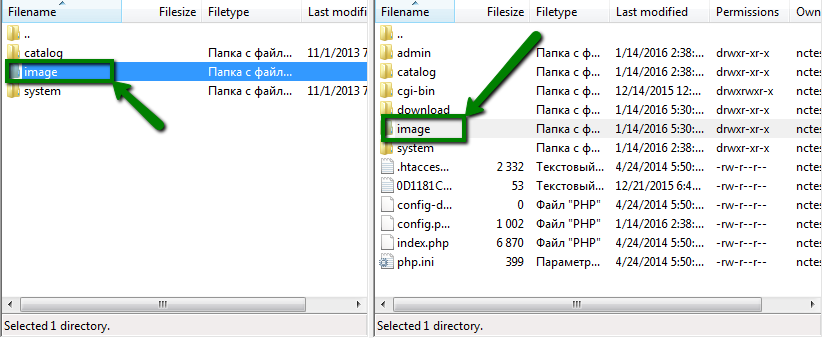
- Go to Extensions, then choose Themes from the type list.
- Find your new theme. Click the green Install button, then the blue Edit button.
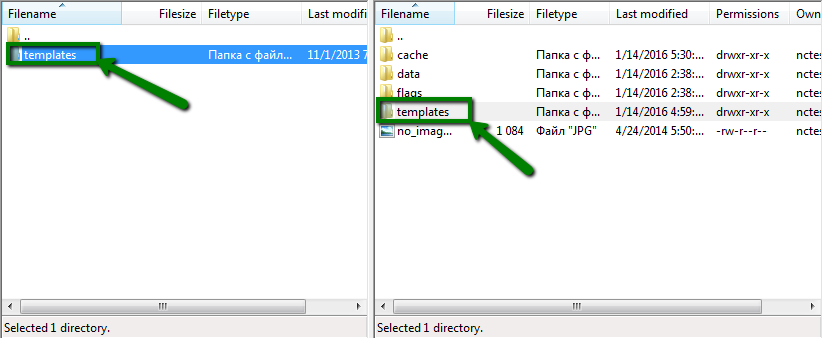
- Set the Status to enabled and click Save.
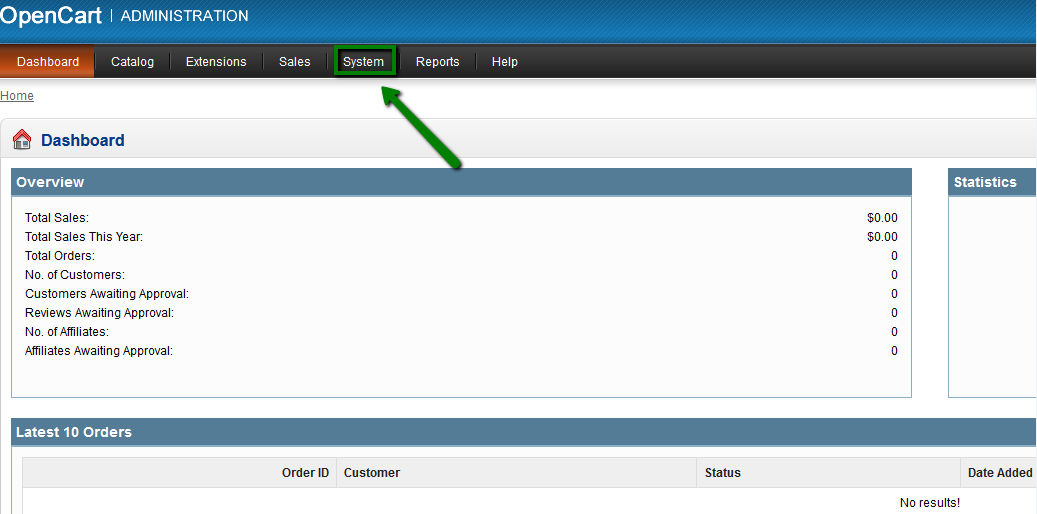
- Go to System > Settings and click the edit icon for your store.
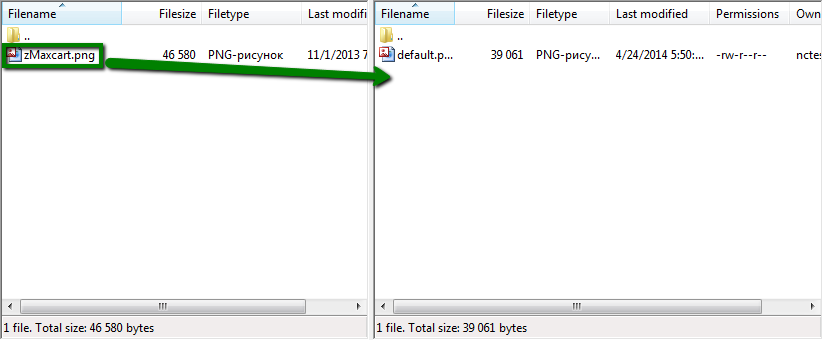
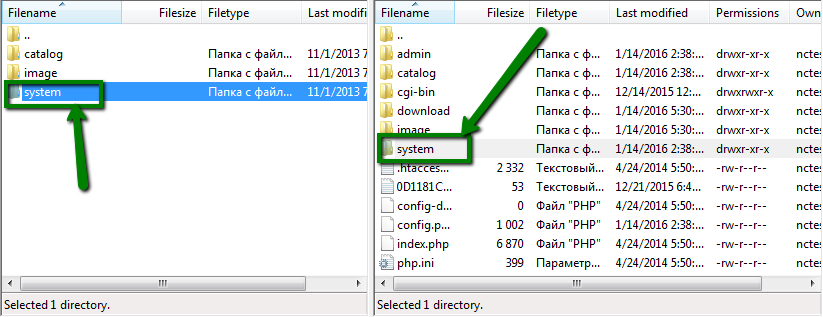

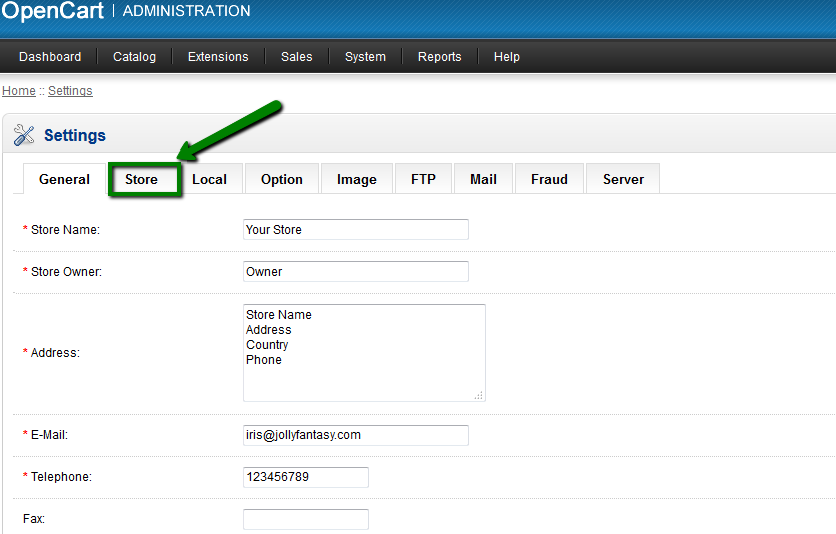
- Open the Option tab. Find the theme setting and choose your new theme.
- Click Save.
Check your shop
Open your shop in a new browser tab. Press Ctrl and F5 together to reload it fresh. You should see the new look.
If the theme does not show
- Go to the Dashboard and click the blue gear button. Refresh the theme cache.
- Check that the theme matches your OpenCart version.
- Make sure the theme status is enabled.
Tip: Try new themes on a test copy of your shop first. This keeps your real customers safe from a broken page.
Still stuck? Open a support ticket and we will help.
Quick recap
- Take a backup before you start.
- Upload the theme ZIP in Extensions > Installer.
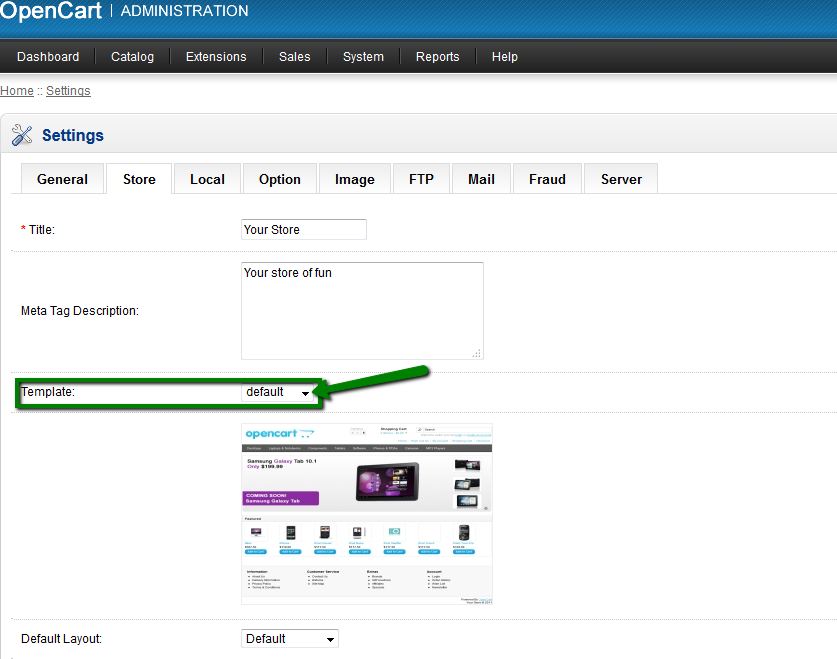
- Install and enable it under Extensions > Themes.
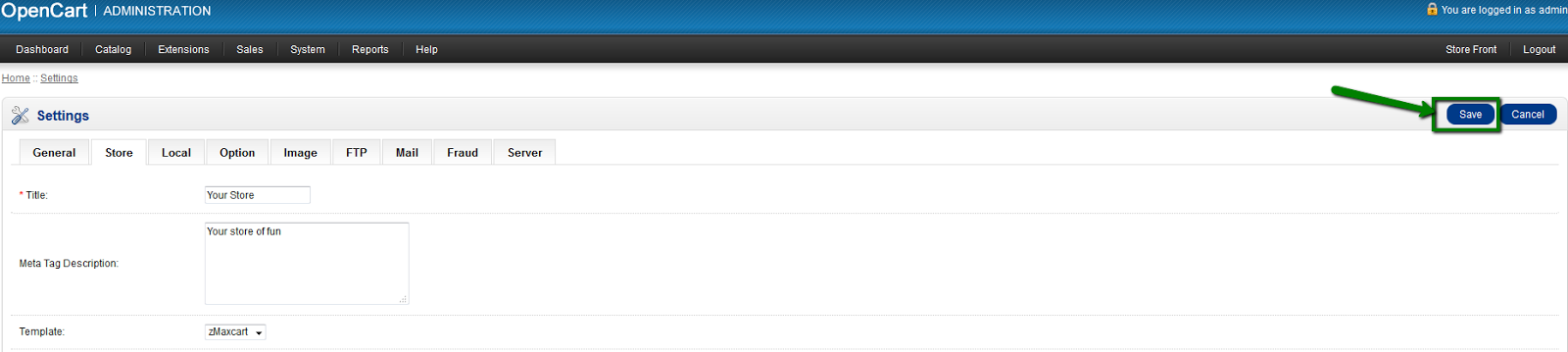
- Pick it in System > Settings and save.
- Refresh the theme cache if you see no change.