

Export products
With the built-in exporter
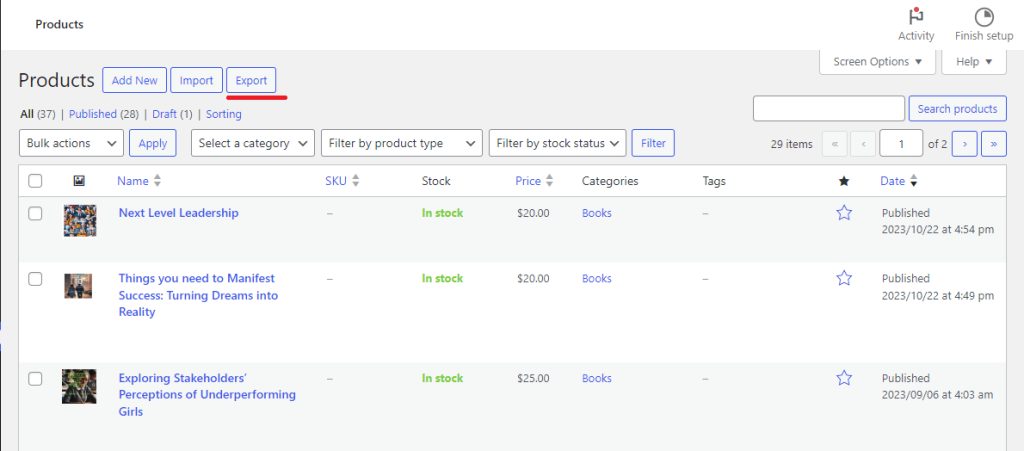
- In the dashboard, go to Products, then click Export at the top.
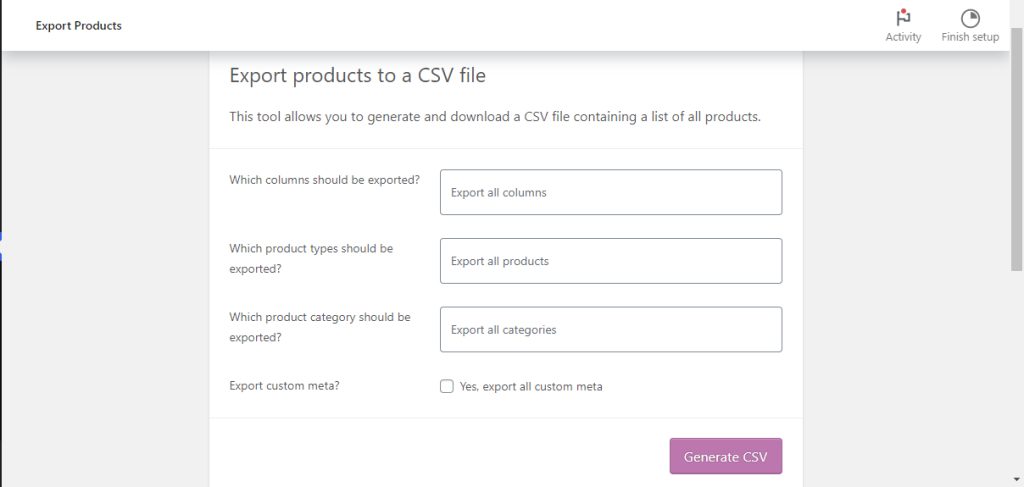
- Choose which columns to export, and which product types and categories. You can also choose to export custom meta data.
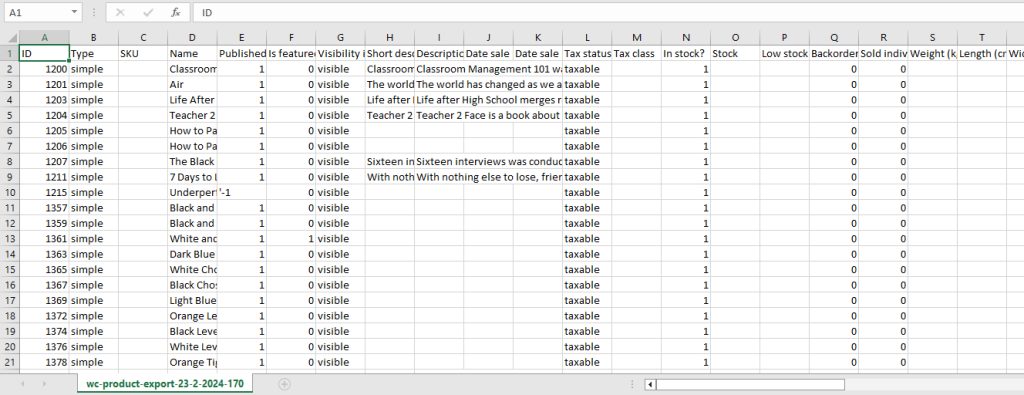
- Click Generate CSV and save the file.
With plugins
An export plugin can:
- Export only products that match a rule.
- Change and format data while it exports.
- Run exports on a schedule, for backups or to connect with other systems.
Import products
With the built-in importer
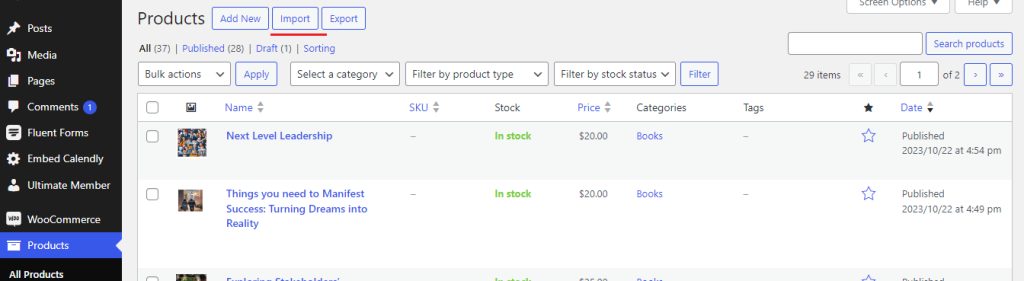
- Go to Products, then click Import at the top.
- Choose your CSV file. It must be UTF-8 encoded, with commas as separators.
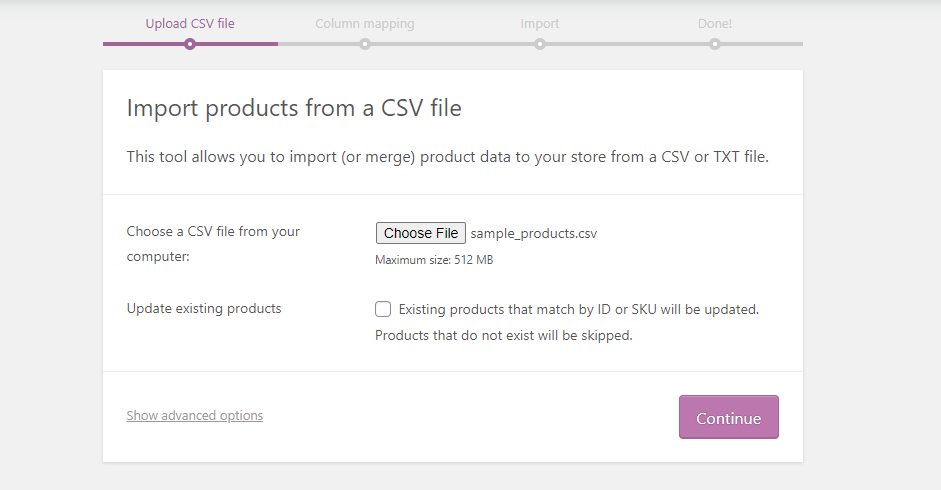
- Tick Update existing products if you want to change products that already exist. WooCommerce matches them by ID or SKU.
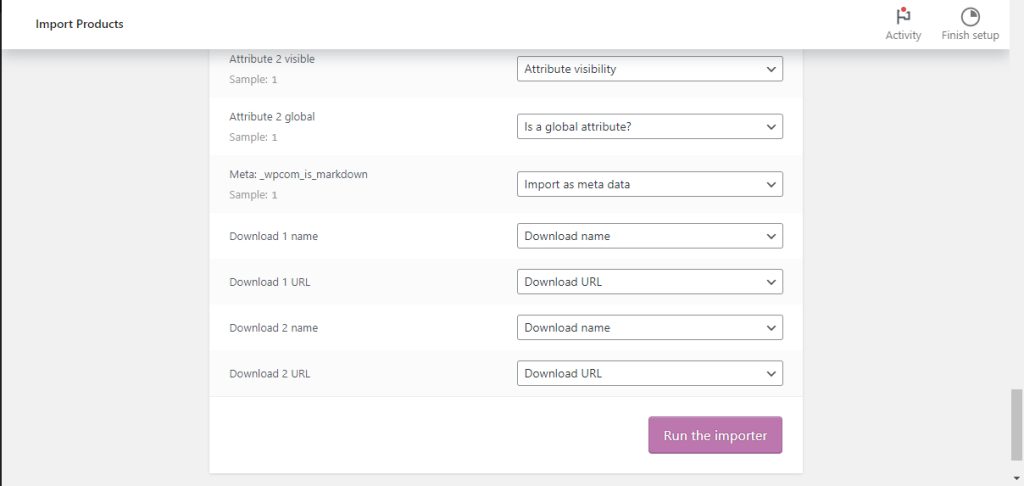
- Click Continue. WooCommerce tries to match the columns of the file to product fields. Check the matches and fix them if needed.
- Click Run the importer and wait until it finishes.
With plugins
An import plugin can:
- Map complex fields, such as variations and custom fields.
- Update products on a schedule from a file or a URL.
- Show and help fix errors during the import.
Tips
- Always back up your store before a big import.
- Test with a small file of 5-10 products first.
- Use a unique SKU for every product.
- For images, put full URLs in the Images column. They must be reachable by the website.
- If the import times out, split the file in smaller parts.
- Open the CSV in a tool that keeps UTF-8 (such as LibreOffice or Google Sheets). Excel may change the encoding.
Quick recap
- Products, then Export or Import is built in.
- Use SKU to update existing products.
- Test with a small file and keep a backup.