

What is CyberPanel?
CyberPanel is a control panel for servers. A control panel is a dashboard where you manage websites with buttons instead of commands. CyberPanel runs on OpenLiteSpeed, a fast web server. That is why shops on it can load quickly.
It has a one-click app installer. Ask Hostvento support whether CyberPanel is on your plan. It is usually used on a VPS, which is your own private slice of a server.
Before you start
- Have your CyberPanel login ready. It is often on port 8090 of your server address. Your welcome email or support has the exact details.
- Create a website for your domain first, if you have not.
- Your domain should point to the server.
Create the website
- Log in to CyberPanel.
- Click Websites in the left menu, then Create Website.
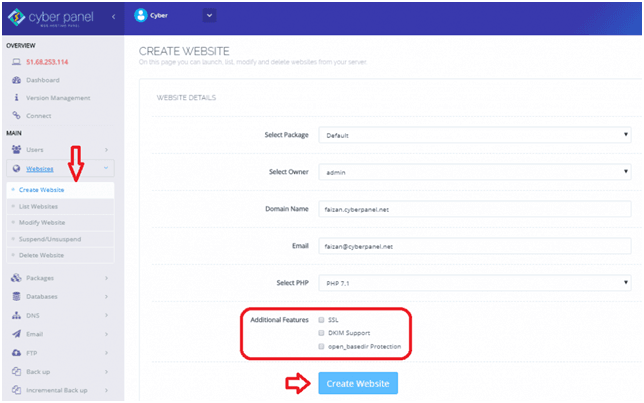
- Pick a package and an owner.
- Type your domain name and your email.
- Choose a PHP version that PrestaShop supports.
- Tick the SSL option if you want a free SSL certificate. SSL keeps your shop private and safe.
- Click Create Website.
Install PrestaShop
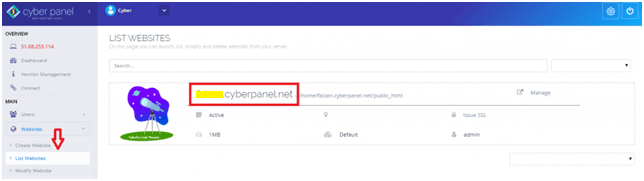
- Open Websites and then List Websites.
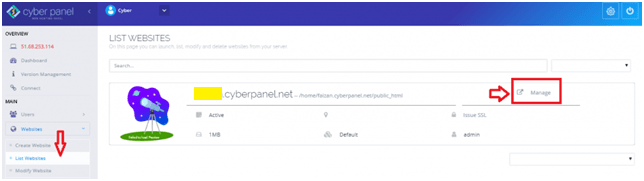
- Click Manage next to your domain.
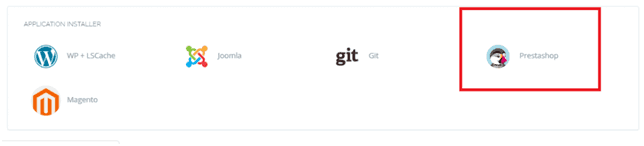
- Scroll to the application installer section. It may be named Application Installer.
- Click PrestaShop.
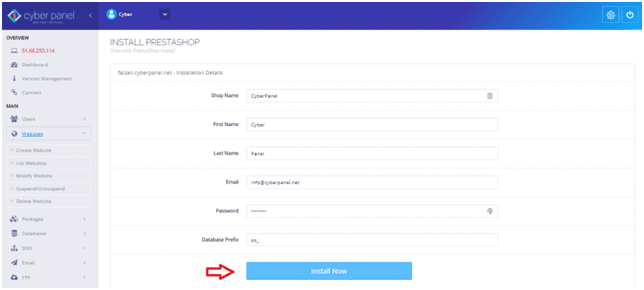
- Type your shop name, admin email and admin password.
- Click Install Now.
- Wait for the green success message.
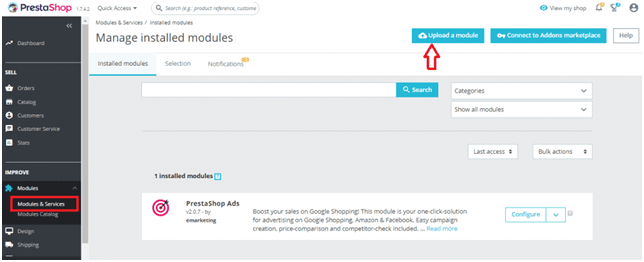
If your CyberPanel version has no PrestaShop button, install it by hand. Upload the PrestaShop ZIP to the site folder and run its installer in the browser.
Log in to your shop
- Open your domain in a browser to see the shop.
- Use the admin link shown after the install to enter the admin area.
Tip: Save your admin link and password right away. PrestaShop admin links are long and hard to guess.
Need help? Open a support ticket.
Quick recap
- CyberPanel is a fast control panel for servers.
- Create your website first and issue SSL.
- Use the installer on the website page to add PrestaShop.
- Save your admin link and password.