

What is a theme?
A theme controls how your shop looks. It sets colors, fonts and layout. Your products stay the same. Magento is a popular tool for building online shops.
Themes come in two main ways. Some are free or paid files you upload. Others come from the Magento Marketplace. Installing a theme in Magento 2 usually needs the command line, which is a text window where you type commands. This means you need SSH access. SSH is a safe way to reach your server with text commands. Ask Hostvento support if SSH is on your plan.
Before you start
Back up your files and database first. A broken theme can make your shop show an error page.
Steps with a theme ZIP file
- Download the theme ZIP from the seller. Check that it fits your Magento version.
- Connect to your hosting with SSH, or use File Manager in your control panel.
- Go to your Magento folder. It often holds folders named
appandpub. - Open
app/design/frontend. Upload the theme ZIP here and extract it. The seller's guide shows the exact folder. Follow it.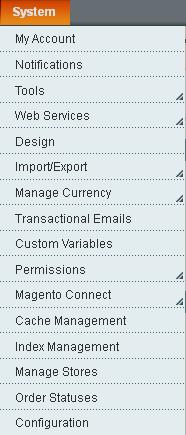
- In SSH, move to your Magento folder and run this command.
php bin/magento setup:upgradeThis command tells Magento to find the new theme.
- Run this next.
php bin/magento setup:static-content:deploy -fThis command builds the images and style files for the theme.
- Run this to clear the cache.
php bin/magento cache:flushThis command throws away old saved pages so you see the new look.
Turn the theme on
- Log in to the Magento admin panel.
- Go to Content and then Design and click Configuration.
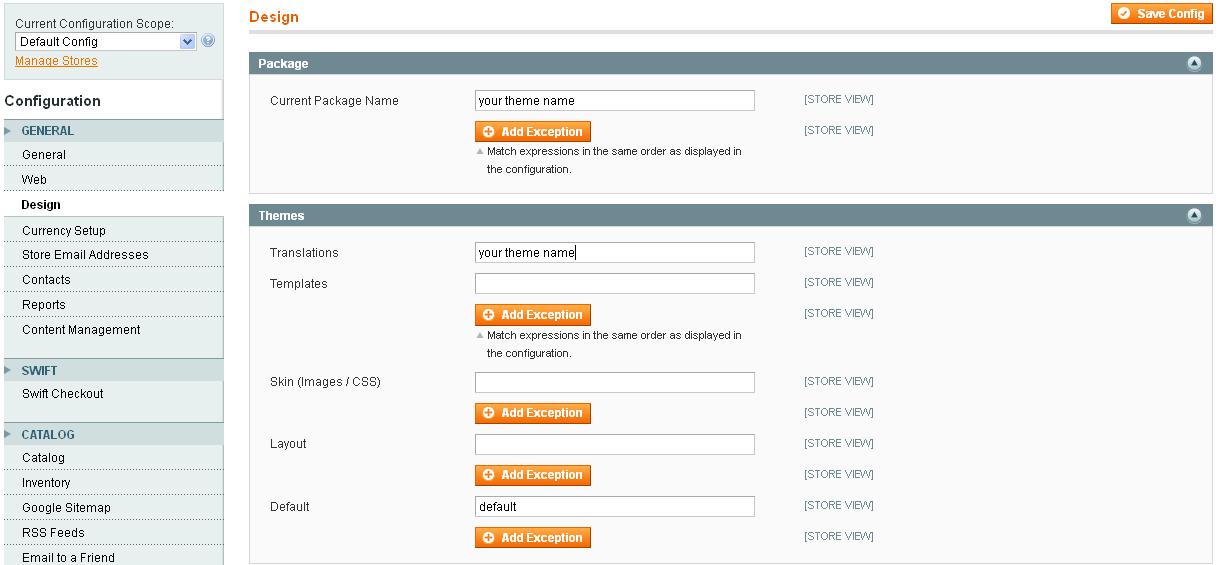
- Click Edit on the row for your store view.
- In Applied Theme, choose your new theme.
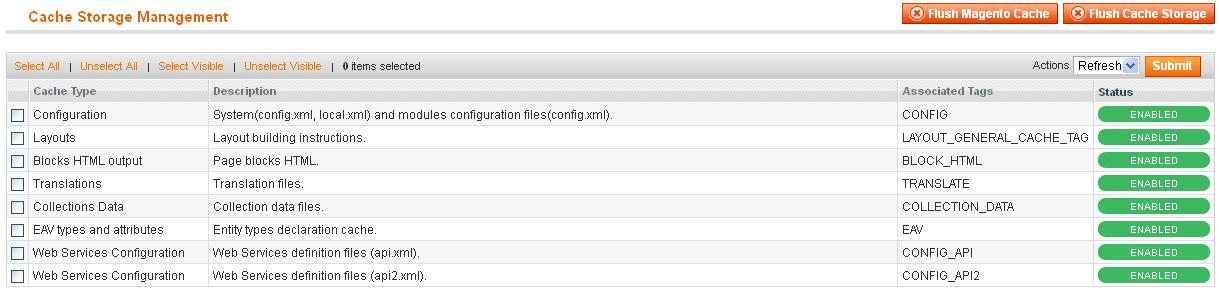
- Click Save Configuration.
Some themes ship with their own install guide or an extension. Follow that if it says something different. Stuck? Open a support ticket.
Quick recap
- Back up first.
- Put the theme in
app/design/frontend. - Run the upgrade, deploy and cache commands.
- Apply the theme in Content > Design > Configuration.