

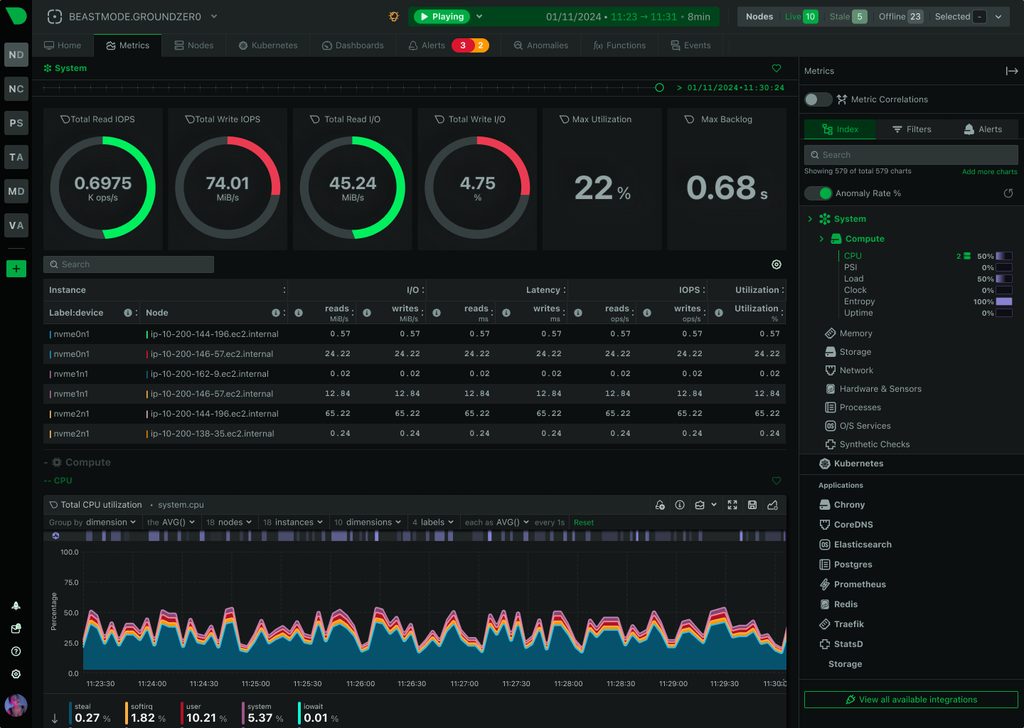
Netdata is an open-source monitoring agent. It shows CPU, memory, disk, network, processes and many applications with charts that update every second.
What can Netdata monitor
- System resources: CPU, RAM, swap, disk and network.
- Processes and services.
- Web servers like Nginx and Apache.
- Databases like MySQL and MariaDB.
- PHP-FPM, containers and more.
Before you install
- Use an SSH account with sudo rights and keep access to the recovery console.
- Check the supported operating systems and the free disk space.
- Back up the configuration files you will change.
- Keep TCP port 19999 closed in the firewall. The dashboard can show private information about your system, so do not make a public rule to view it.
Step 1: Prepare the VPS
sudo apt update
sudo apt install curl ca-certificates
Check your system with cat /etc/os-release. These steps target a normal systemd installation.
Step 2: Install the Netdata agent
Download the official installer script and read it before you run it:
curl -fSL https://get.netdata.cloud/kickstart.sh -o /tmp/netdata-kickstart.sh
less /tmp/netdata-kickstart.sh
Run it:
sh /tmp/netdata-kickstart.shConnecting to Netdata Cloud is optional. Do not paste a Cloud claim token into a shared terminal.
Check that the service runs and which address it uses:
sudo systemctl status netdata --no-pager
sudo ss -lntp | grep 19999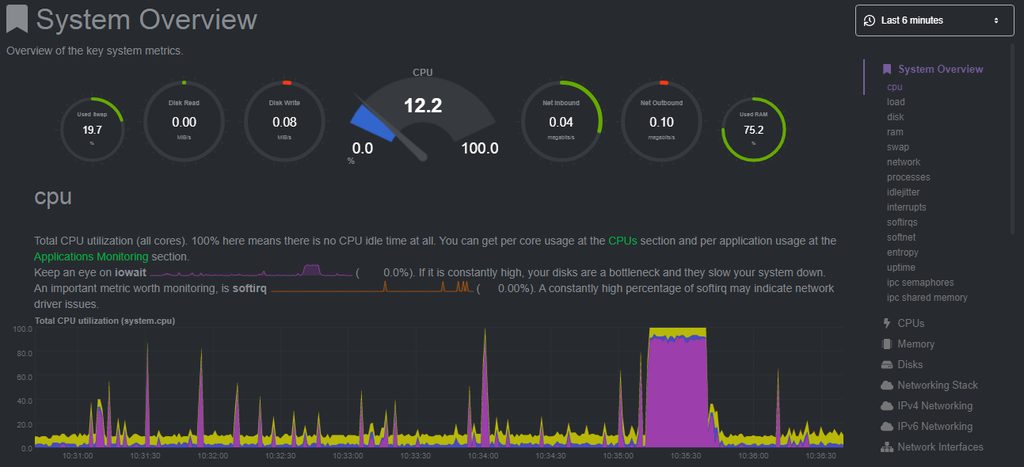
Step 3: Keep the dashboard private
cd /etc/netdata
sudo ./edit-config netdata.conf
If that folder does not exist, use the configuration folder of your installation, such as /opt/netdata/etc/netdata. Add:
[web]
    bind to = 127.0.0.1
Restart and check:
sudo systemctl restart netdata
sudo ss -lntp | grep 19999
curl -fsS http://127.0.0.1:19999/api/v1/info
The listener must show 127.0.0.1, not 0.0.0.0.
Step 4: Open the dashboard through SSH
On your own computer, in a separate terminal:
ssh -N -L 127.0.0.1:19999:127.0.0.1:19999 username@YOUR_SERVER_IPKeep that session open and browse to http://127.0.0.1:19999. If port 19999 is busy on your computer, use another local port, for example 127.0.0.1:20000:127.0.0.1:19999.
Step 5: Optional Nginx reverse proxy
An SSH tunnel is enough for one admin. If a team needs a browser address, use an authenticated HTTPS reverse proxy.
Create a password file:
sudo apt install apache2-utils
sudo htpasswd -c /etc/nginx/netdata.htpasswd netdataadmin(-c creates or replaces the file; leave it out when adding more users.) In an HTTPS server block for monitor.example.com add:
location / {
    auth_basic "Netdata Monitoring";
    auth_basic_user_file /etc/nginx/netdata.htpasswd;
    proxy_set_header Host $host;
    proxy_set_header X-Real-IP $remote_addr;
    proxy_set_header X-Forwarded-For $proxy_add_x_forwarded_for;
    proxy_set_header X-Forwarded-Proto $scheme;
    proxy_pass http://127.0.0.1:19999;
}
Test and reload:
sudo nginx -t && sudo systemctl reload nginxCheck that a request without a login does not show metrics, and that port 19999 is not reachable from outside.
Step 6: Monitor Nginx
Add a local-only status page (a new file in /etc/nginx/conf.d/):
server {
    listen 127.0.0.1:8081;
    server_name localhost;
    location = /stub_status {
        stub_status;
        allow 127.0.0.1;
        deny all;
    }
}
sudo nginx -t && sudo systemctl reload nginx
curl -fsS http://127.0.0.1:8081/stub_statusTell Netdata where it is:
cd /etc/netdata
sudo ./edit-config go.d/nginx.conf
jobs:
- name: local
url: http://127.0.0.1:8081/stub_statusRestart Netdata and look for the new Nginx charts.
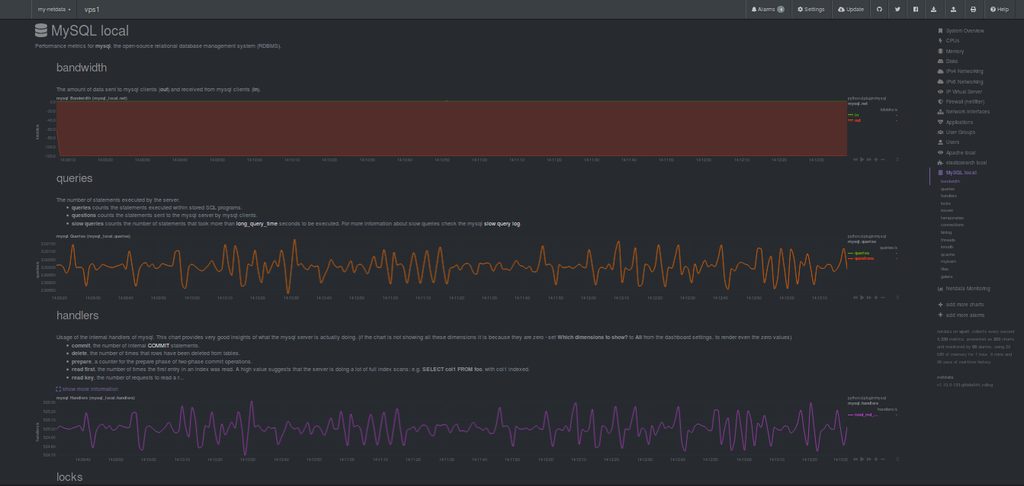
Step 7: Monitor MySQL or MariaDB
Use a separate monitoring user, not the admin user:
CREATE USER 'netdata'@'localhost' IDENTIFIED BY 'REPLACE_WITH_A_UNIQUE_SECRET';
GRANT USAGE, REPLICATION CLIENT, PROCESS ON *.* TO 'netdata'@'localhost';
On MariaDB 10.5.9 and later, the collector asks for SLAVE MONITOR instead of REPLICATION CLIENT. Check the collector's requirements for your version.
cd /etc/netdata
sudo ./edit-config go.d/mysql.conf
jobs:
- name: local
dsn: 'netdata:REPLACE_WITH_A_UNIQUE_SECRET@unix(/run/mysqld/mysqld.sock)/'Check the real socket path of your database first. Protect the file, restart Netdata and look for the database charts.
Step 8: Monitor PHP-FPM
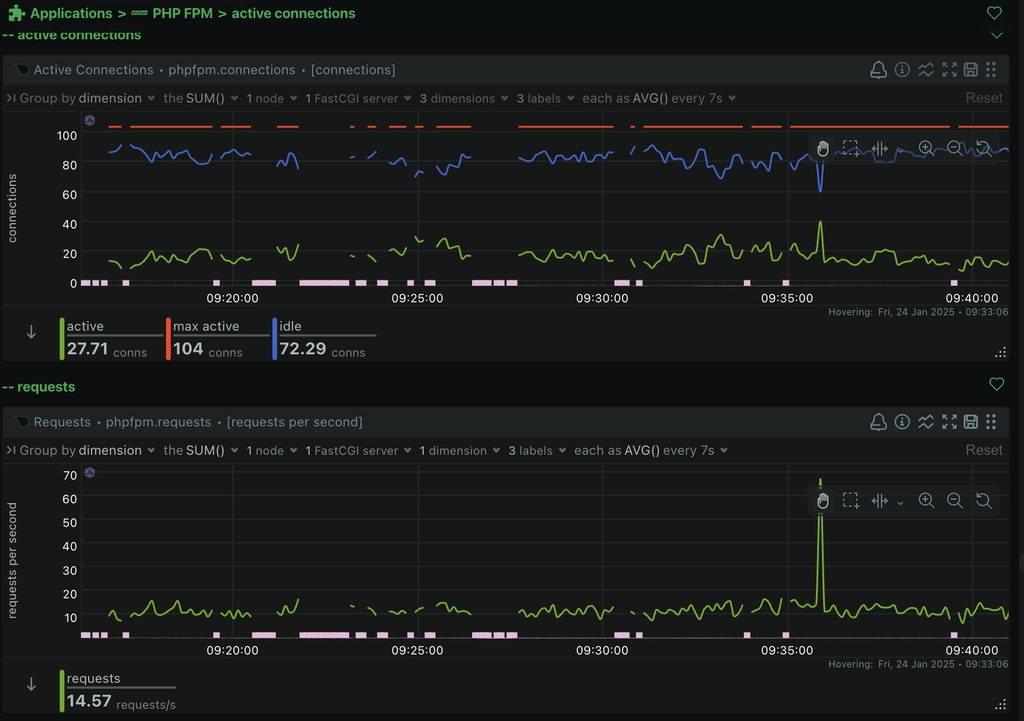
Do this only if you use PHP-FPM. Find your PHP version, pool and socket first. In the pool file (for example /etc/php/8.3/fpm/pool.d/www.conf) set:
pm.status_path = /php-fpm-statusExpose the status page only on a local listener, with a loopback-only Nginx block that passes /php-fpm-status to your PHP-FPM socket. Then point the Netdata PHP-FPM collector (go.d/phpfpm.conf) at that local address, restart PHP-FPM and Netdata, and check the charts.
Alerts
Netdata ships with ready-made alerts for high CPU, full disks and more. To send notifications, edit health_alarm_notify.conf with sudo ./edit-config health_alarm_notify.conf and add your email or chat settings. Test with:
sudo /usr/libexec/netdata/plugins.d/alarm-notify.sh test(The path can differ by installation.)
Quick recap
- Install with the kickstart script and bind the dashboard to
127.0.0.1. - View it through an SSH tunnel and keep port 19999 closed.
- Add Nginx, MySQL and PHP-FPM collectors as you need.