

What are query strings
A query string is the part of a URL after the ?. WordPress adds the version of a file, for example:
https://example.com/wp-content/themes/mytheme/style.css?ver=6.5Some caches and CDNs do not store files with a query string. Tools like GTmetrix then warn: "Remove query strings from static resources".
Why remove them
- Files cache better, so repeat visits are faster.
- Faster pages can help your search ranking.
- Visitors enjoy a quick site and stay longer.
Note: The version in the URL is what makes browsers load a new file after an update. If you remove it, clear your cache after you change a CSS or JS file, or you may see old files.
Method 1: Use a plugin
Autoptimize
- Go to Plugins > Add New, search for
Autoptimize, then install and activate it.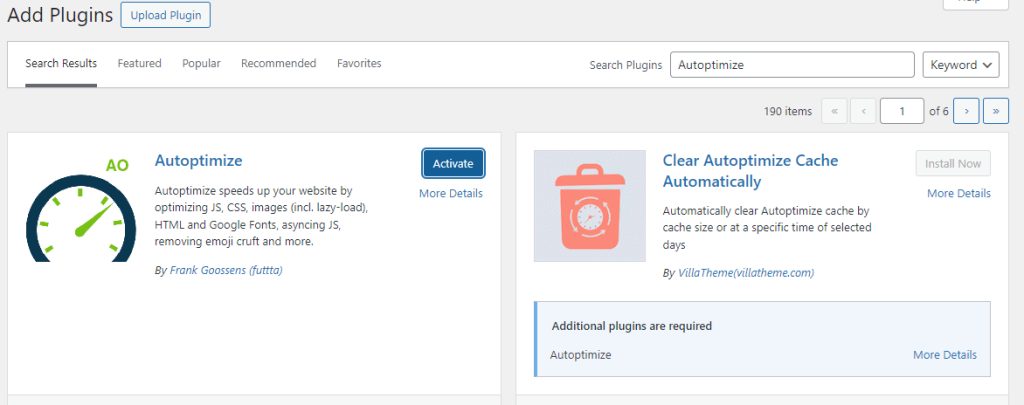
- Open Settings > Autoptimize. Under JavaScript Options, CSS Options and Misc Options choose the options you want, for example optimize CSS and JS. Autoptimize removes the query strings from the files it processes.
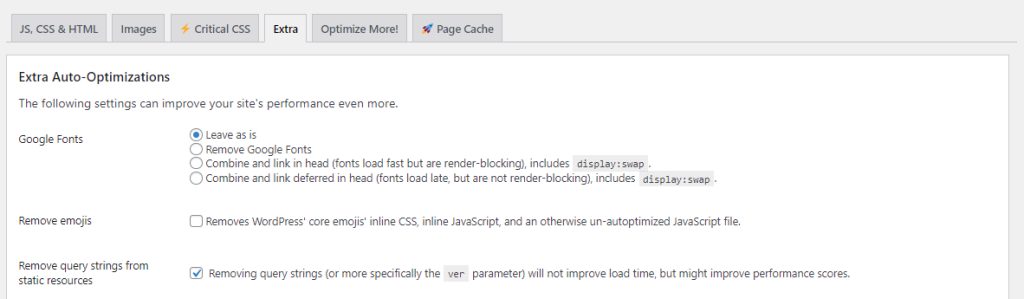
WP Super Minify
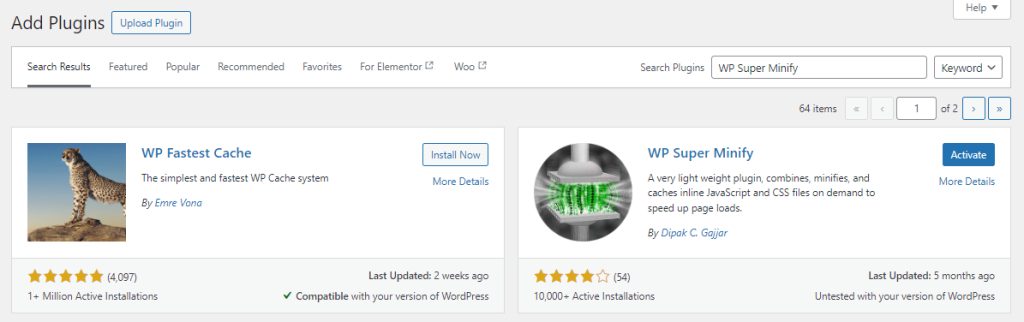
- Install and activate WP Super Minify.
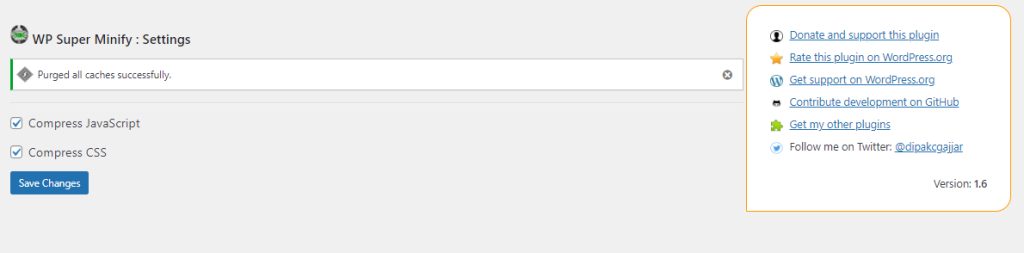
- Open its settings and turn on compression of JavaScript and CSS.
Other plugins that do this: WP Rocket, LiteSpeed Cache and W3 Total Cache.
Method 2: Add custom code
Add this code to the functions.php of a child theme, or use a code snippets plugin:
function remove_query_strings_1( $src ) {
    if ( strpos( $src, '?ver=' ) ) {
        $src = remove_query_arg( 'ver', $src );
    }
    return $src;
}
add_filter( 'script_loader_src', 'remove_query_strings_1', 15, 1 );
add_filter( 'style_loader_src', 'remove_query_strings_1', 15, 1 );
It removes ver from script and style URLs.
Warning: Always back up the site before you edit theme files. A mistake in
functions.php can show a white screen.Check the result
Open your page, view the source and look at the CSS and JS URLs. They should end without ?ver=. You can also test with a speed tool.
Quick recap
- Use a plugin like Autoptimize, or add the small filter.
- Clear your cache after changing files.