

What reCAPTCHA is
reCAPTCHA is a free service by Google that tells humans from bots. It protects login, contact and sign-up forms from spam. There are three main types:
- v2 Checkbox. The familiar "I'm not a robot" box.
- v2 Invisible. It works in the background and asks only when it is unsure.
- v3 Score-based. It gives each visit a score and needs no user action.
Create the keys
- Open the Google reCAPTCHA Admin Console on the official Google website.
- Sign in with your Google account (a free account is enough).
- Click the + button at the top right.
- Fill in the registration form:
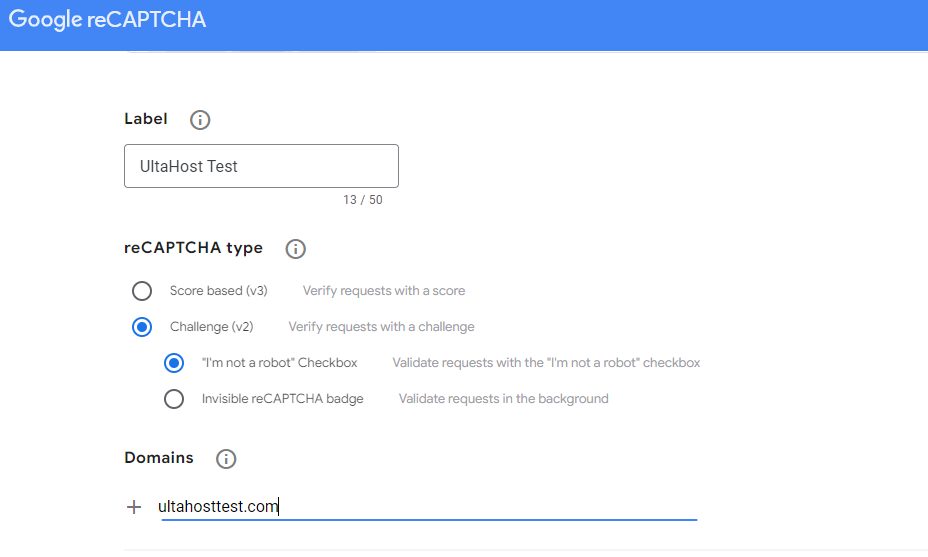
- Label. A name that helps you remember the site.
- reCAPTCHA type. The version you want to use.
- Domains. The domain names where you will use the keys.
- Owners. Your email address is filled in. You can add more owners. - Read and accept the reCAPTCHA terms of service, and click Submit.
- Google shows a Site Key and a Secret Key.
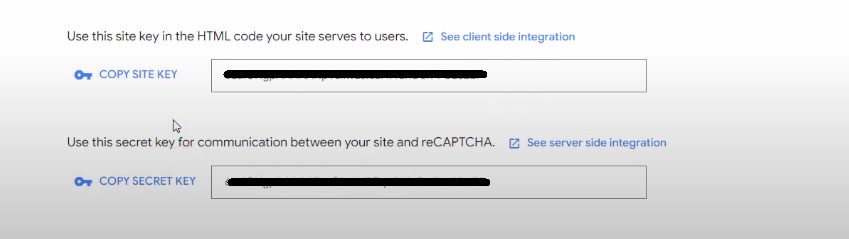
Warning: The Site Key is public and goes into your page. The Secret Key is private. Never show it in a page or in public code.
Use the keys
- Add the reCAPTCHA JavaScript library to your pages (Google gives you the code).
- Use the Site Key to show the reCAPTCHA in your form.
- Send the response token with the form to your server.
- On your server, send a verification request to Google with the Secret Key and the token.
- Google answers with JSON that says if the check passed. For v3 it also gives a score.
In WordPress, plugins such as Contact Form 7 or a dedicated reCAPTCHA plugin only need the two keys. Paste them in the plugin settings.
Notes
- reCAPTCHA Enterprise is a paid service with more features.
- Add
localhostto the domain list if you test on your own computer. - Test the form after you add reCAPTCHA.
Quick recap
- Register your site in the reCAPTCHA Admin Console.
- Use the Site Key in the page and the Secret Key on the server.
- Keep the Secret Key private.