

What is Vault
Vault stores and controls secrets such as passwords, API keys and certificates.
Step 1: Prepare the system
sudo apt update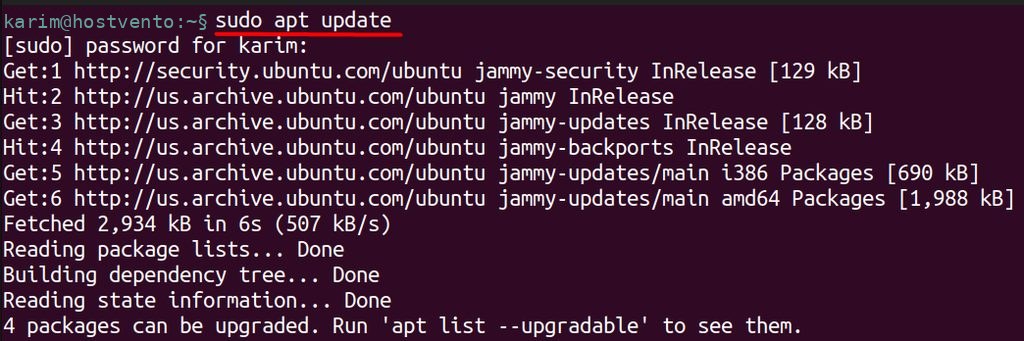
sudo apt install gpg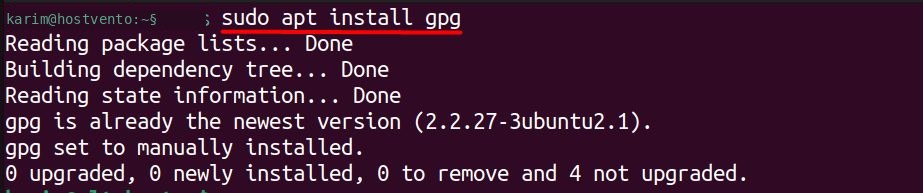
Step 2: Add the signing key
wget -O- https://apt.releases.hashicorp.com/gpg | sudo gpg --dearmor -o /usr/share/keyrings/hashicorp-archive-keyring.gpg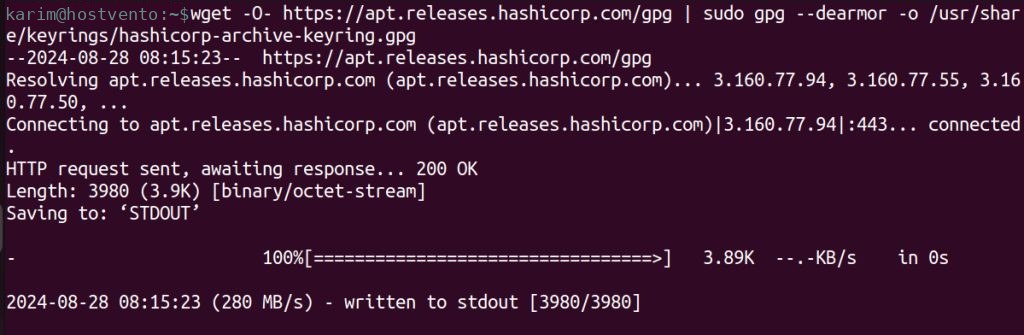
wget -O-downloads the key and prints it.gpg --dearmorconverts it to a keyring format.-osaves it ashashicorp-archive-keyring.gpg.
Step 3: Check the key
gpg --no-default-keyring --keyring /usr/share/keyrings/hashicorp-archive-keyring.gpg --fingerprint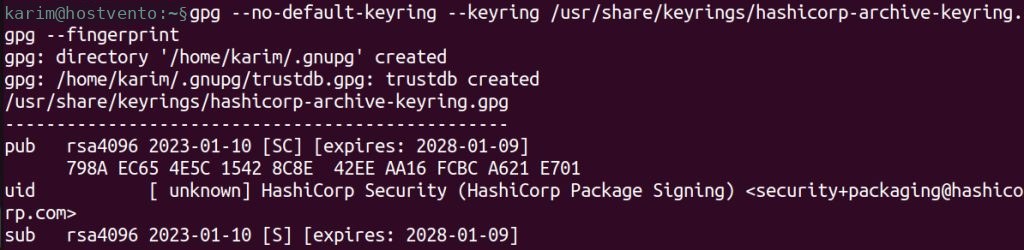
Compare the fingerprint with the one on the HashiCorp website.
Step 4: Add the repository
echo "deb [arch=$(dpkg --print-architecture) signed-by=/usr/share/keyrings/hashicorp-archive-keyring.gpg] https://apt.releases.hashicorp.com $(lsb_release -cs) main" | sudo tee /etc/apt/sources.list.d/hashicorp.list
This adds the repository and tells apt to trust only packages signed with the key.
Step 5: Install Vault
sudo apt update
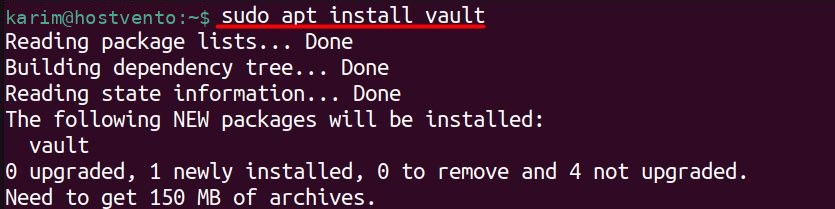
sudo apt install vault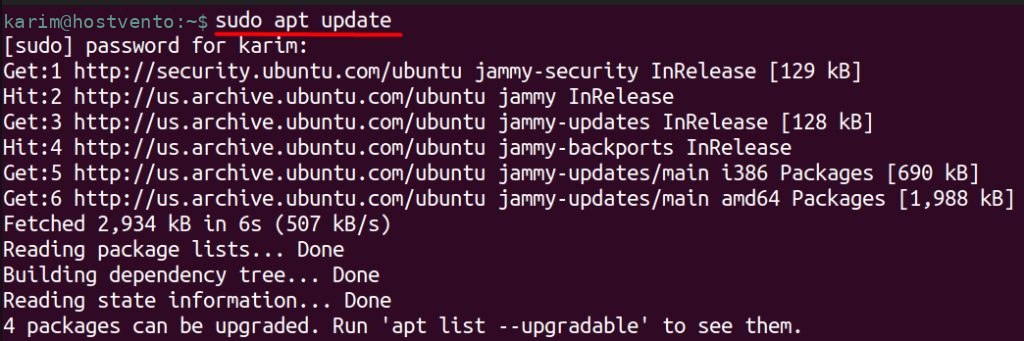
Step 6: Check it
vault --version
Quick recap
- Add the key and the repository, then
sudo apt install vault. - Check with
vault --version.