

Automatic updates save time and keep your system safe, which matters most on servers.
Method 1: Terminal (unattended-upgrades)
Step 1: Install the tool
sudo apt install unattended-upgrades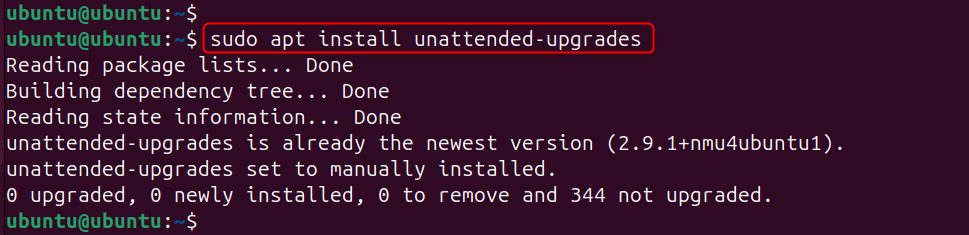
It is often installed by default.
Step 2: Check the configuration file
The settings are in /etc/apt/apt.conf.d/50unattended-upgrades. Open it:
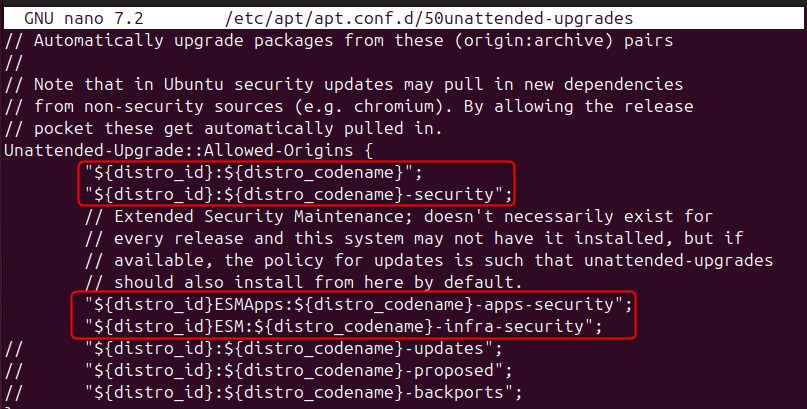
sudo nano /etc/apt/apt.conf.d/50unattended-upgradesIn the Allowed-Origins section these lines (without a // in front) enable security updates:
"${distro_id}:${distro_codename}";
"${distro_id}:${distro_codename}-security";
"${distro_id}ESMApps:${distro_codename}-apps-security";
"${distro_id}ESM:${distro_codename}-infra-security";- The first line allows updates of the current release.
- The second allows security updates.
- The last two are for Extended Security Maintenance (ESM), which gives security patches after the normal support ends.
Step 3: Set how often
Edit /etc/apt/apt.conf.d/20auto-upgrades:
sudo nano /etc/apt/apt.conf.d/20auto-upgradesAPT::Periodic::Update-Package-Lists "1";
APT::Periodic::Unattended-Upgrade "1";The first line refreshes the package list every day, and the second installs the allowed updates every day. The number is the number of days.
You can create this file with sudo dpkg-reconfigure --priority=low unattended-upgrades.

Step 4: Restart the service
sudo systemctl restart unattended-upgrades
sudo systemctl status unattended-upgrades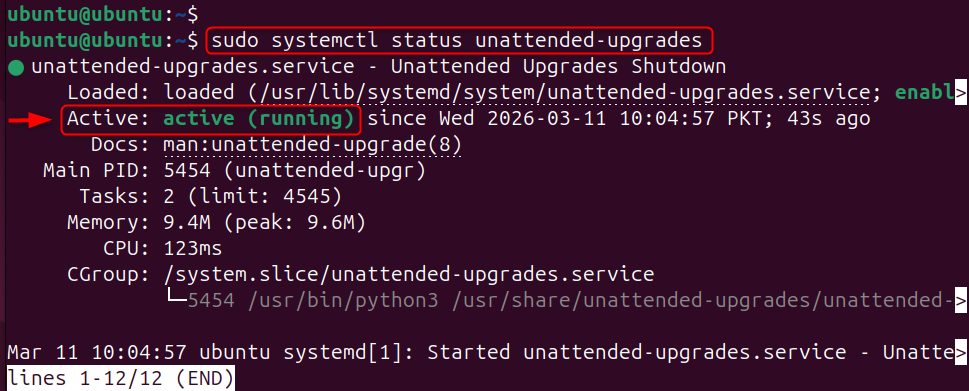
The status should be active.
Step 5: Test
sudo unattended-upgrades --dry-run --debug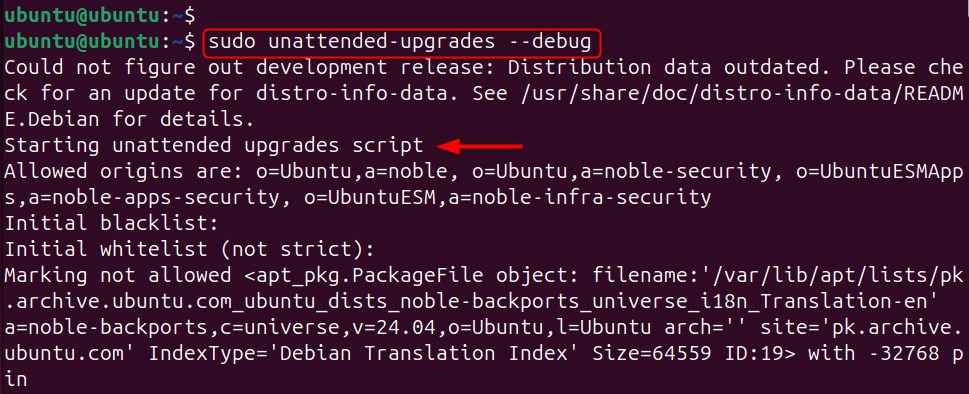
--dry-run shows what would happen without installing anything.
Method 2: Software & Updates (graphical)
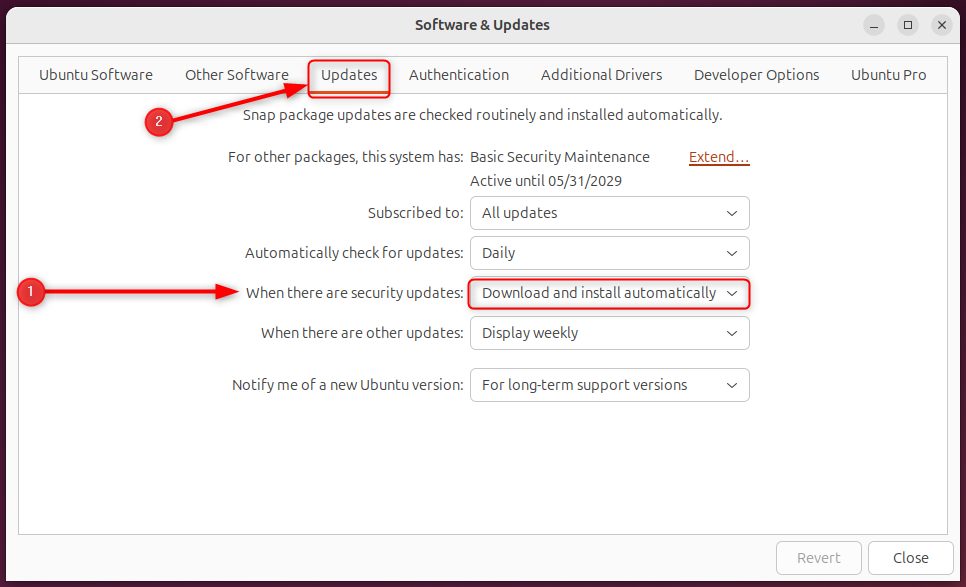
Open Software & Updates and go to the Updates tab. Set Automatically check for updates to Daily, and under When there are security updates choose Download and install automatically.
Method 3: A startup script
Step 1: Create the script
touch ~/autoupd.sh && chmod +x ~/autoupd.sh
Step 2: Add the commands
#!/bin/bash
sudo apt update && sudo apt -y upgrade
sudo snap refresh
flatpak update -y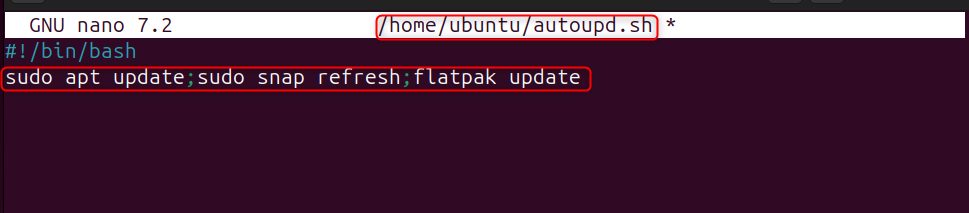
The script needs sudo without a password prompt, so this method suits desktops where you set that up. For servers use Method 1.
Step 3: Run it at login
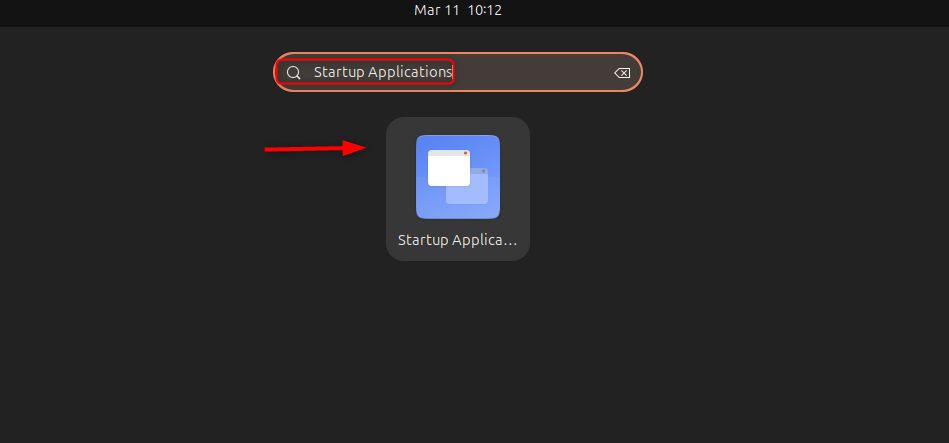
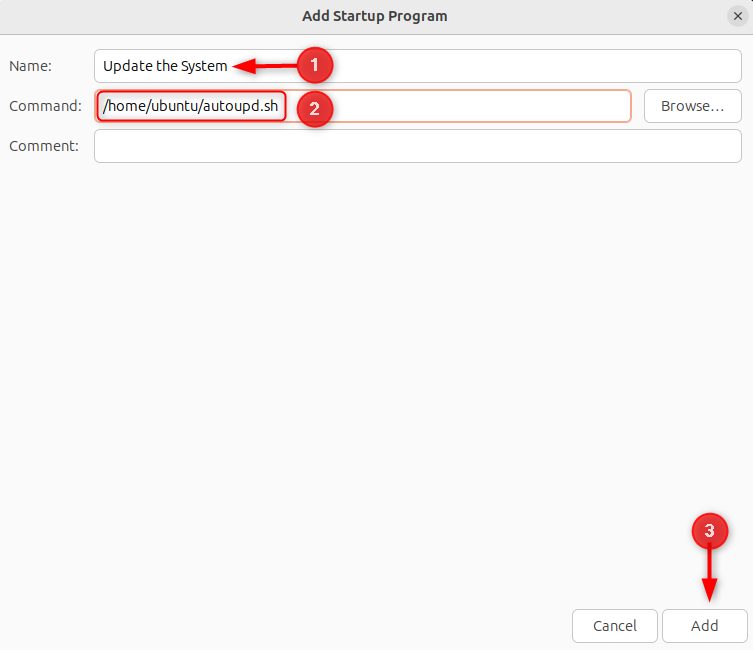
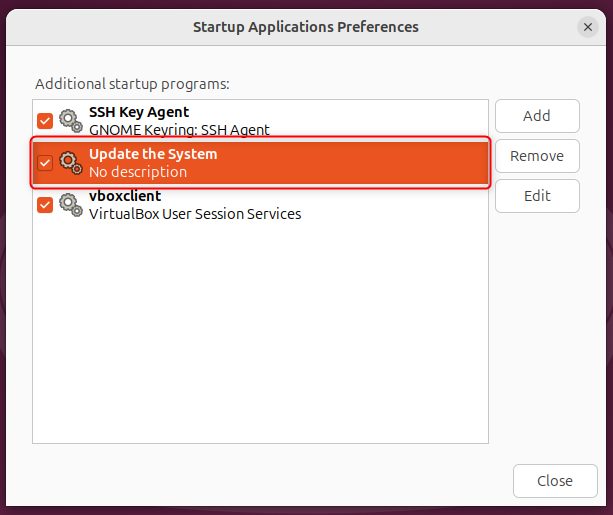
Open Startup Applications from the application menu.
Click Add.
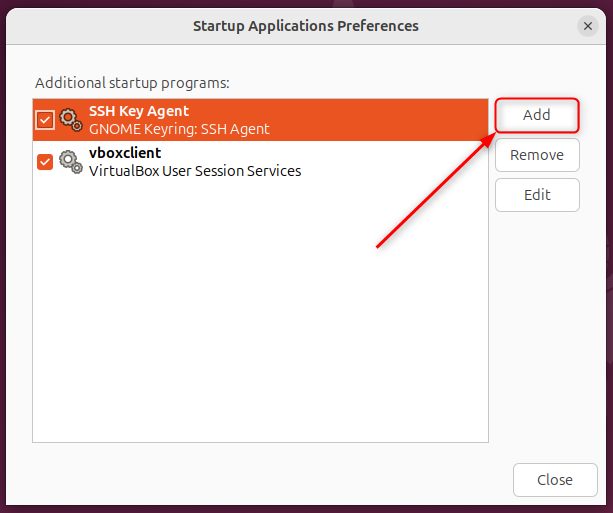
Enter a name, browse to the script and click Add.
Advanced settings
Edit /etc/apt/apt.conf.d/50unattended-upgrades.
Email reports
Unattended-Upgrade::Mail "you@example.com";
Choose when to send mail:
Unattended-Upgrade::MailReport "on-change";The values are always, only-on-error and on-change.

A mail program such as mailutils must be installed. Restart the service after changes:
sudo systemctl restart unattended-upgrades
Reboot after upgrades
Some updates (like a new kernel) need a reboot. The file /var/run/reboot-required tells you. To reboot automatically:
Unattended-Upgrade::Automatic-Reboot "true";
Set it to false to never reboot by itself.
Reboot even when users are logged in:
Unattended-Upgrade::Automatic-Reboot-WithUsers "true";
Reboot at a set time:
Unattended-Upgrade::Automatic-Reboot-Time "02:00";
Clean up
Remove dependencies that were installed with an upgrade and are no longer needed:
Unattended-Upgrade::Remove-New-Unused-Dependencies "true";
Remove unused packages in general:
Unattended-Upgrade::Remove-Unused-Dependencies "true";
Remove old kernels:
Unattended-Upgrade::Remove-Unused-Kernel-Packages "true";
Check the logs in /var/log/unattended-upgrades/.
Quick recap
- Install
unattended-upgradesand keep20auto-upgradesat "1". - Test with
--dry-run, and set the reboot time you want.