

RTMP (Real-Time Messaging Protocol) is used to send live video to a server. The Nginx RTMP module turns Nginx into a streaming server that can receive streams and pass them on.
What you need
- An Ubuntu server with root or sudo access.
- Basic knowledge of the Linux command line.
- A domain name (optional) for outside access.
- A video source such as OBS Studio or a camera.
Step 1: Update the system
sudo apt update && sudo apt upgrade -y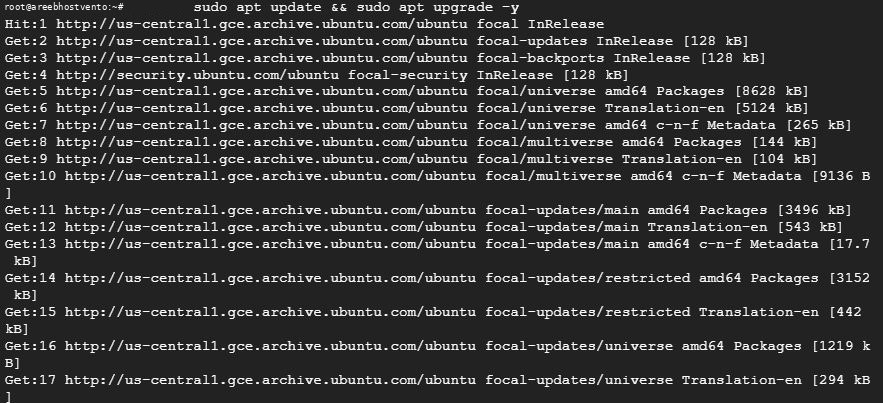
Step 2: Install Nginx and the RTMP module
sudo apt install nginx libnginx-mod-rtmp -y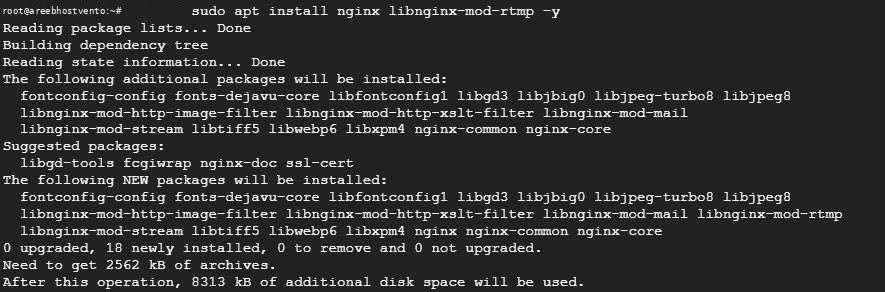
Step 3: Configure RTMP
Open the main config file:
sudo nano /etc/nginx/nginx.confAdd this block at the end of the file, outside the http { ... } block:
rtmp {
    server {
        listen 1935;
        chunk_size 4096;

        application live {
            live on;
            record off;
        }
    }
}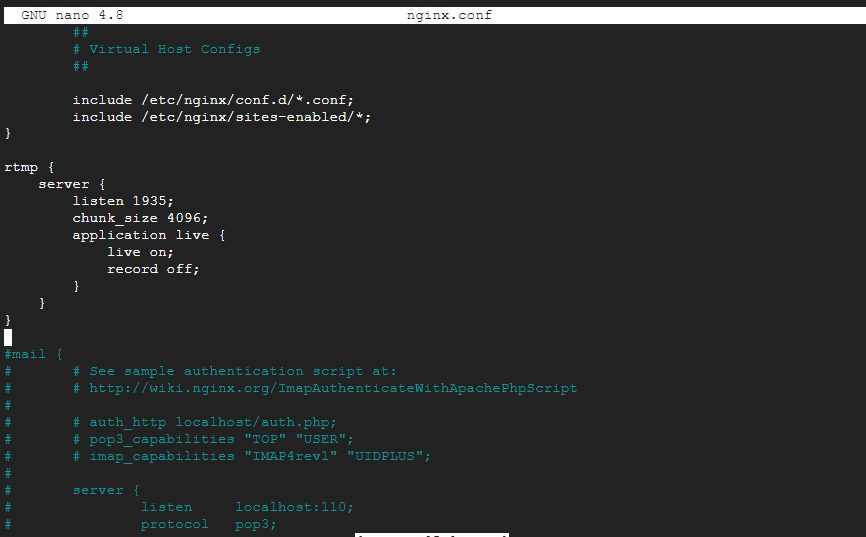
listen 1935is the default RTMP port.chunk_size 4096is the size of the data pieces.application livecreates an application named "live".live onallows live streaming.record offdoes not save the stream to disk.
Test the file and restart Nginx:
sudo nginx -t
sudo systemctl restart nginx
Step 4: Check Nginx
sudo systemctl status nginx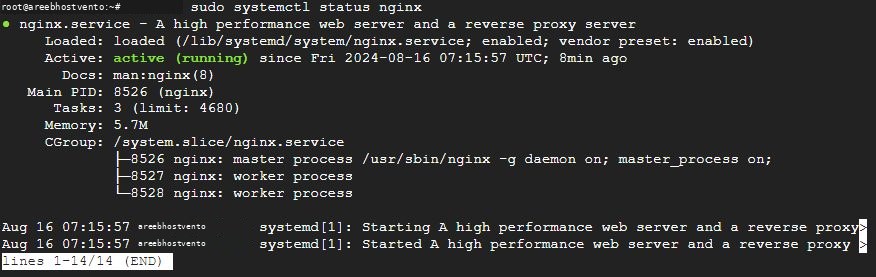
Step 5: Open the firewall
sudo ufw allow 1935/tcpStep 6: Send a stream
In OBS Studio go to Settings > Stream:
- Service: Custom
- Server:
rtmp://your-server-ip/live - Stream key: any name, for example
mystream
Click Start Streaming.
Step 7: Watch the stream
In VLC, choose Media > Open Network Stream and enter:
rtmp://your-server-ip/live/mystreamOptional settings
Restrict who can publish (only your IP) inside the application block:
allow publish 203.0.113.10;
deny publish all;
Record streams to files:
record all;
record_path /var/www/recordings;
For playback in web browsers, add HLS output (hls on; hls_path /var/www/hls;) and serve that folder with Nginx.
Quick recap
- Install
nginxandlibnginx-mod-rtmp, add thertmp {}block and open port 1935. - Stream to
rtmp://server/live/key.