

Why check
- To make sure you get the right security updates.
- To check that software will work with your release.
- To plan an upgrade.
- To give correct details when you ask for support.
Connect to your server with SSH, or open a terminal on the desktop.
With the rpm command
rpm -q centos-release
The version of the centos-release package is the CentOS version.
With hostnamectl
hostnamectl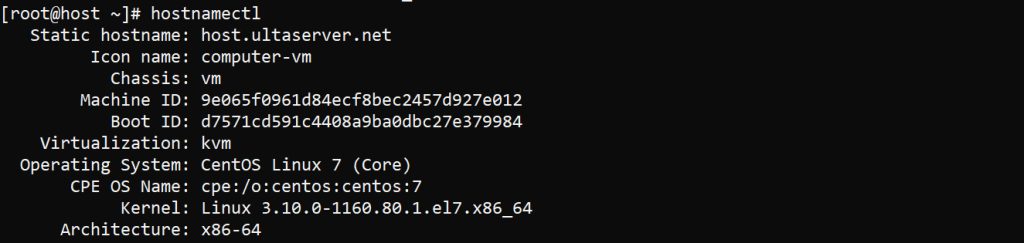
It prints the operating system name and version, and a lot more.
With the os-release file
cat /etc/os-release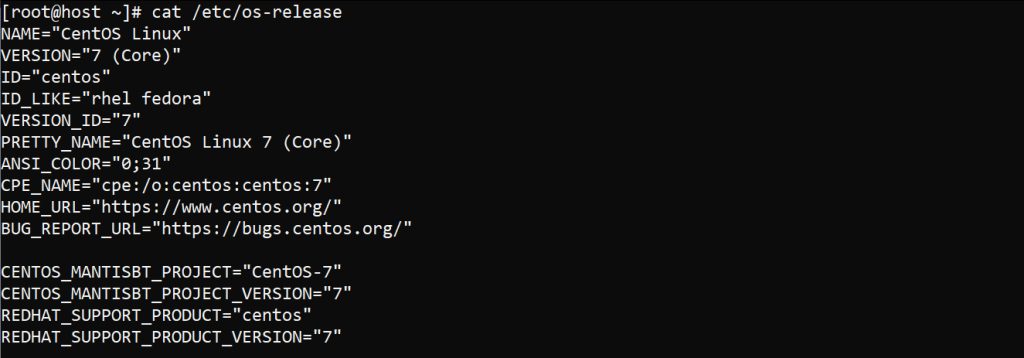
Look at the lines NAME and VERSION.
With the centos-release file
cat /etc/centos-release
With the redhat-release file
CentOS is built from Red Hat Enterprise Linux, so this file exists too:
cat /etc/redhat-release
With lsb_release
lsb_release -aIf the command is missing, install it with sudo yum install redhat-lsb-core. The output shows the distributor, description and release.
With the kernel version
uname -r
This shows the kernel version only. It points to the release but is less exact than the other ways.
With the desktop
On a CentOS desktop, open Settings, then Details or About.
Tip: To see the version of one package, run
rpm -qi package_name.Quick recap
cat /etc/centos-releaseis the fastest way.hostnamectland/etc/os-releasegive more detail.- Keep CentOS updated with
yumordnf.