

What you need
- A Kubernetes cluster (Minikube works for tests).
kubectl, set up for the cluster.- Helm (optional, for charts).
Step 1: Start a cluster
Use a driver you have installed, such as docker:
minikube start --driver=docker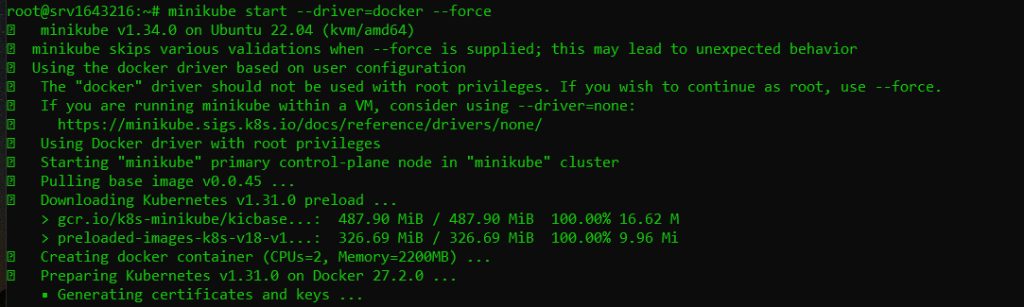
Step 2: Install Helm
curl https://raw.githubusercontent.com/helm/helm/main/scripts/get-helm-3 | bash
Step 3: Deploy MySQL
WordPress needs a database. First store the password as a secret:
kubectl create secret generic mysql-pass --from-literal=password=YOUR_PASSWORD
Create the storage. Save as mysql-pv.yaml:
apiVersion: v1
kind: PersistentVolume
metadata:
  name: mysql-pv
spec:
  capacity:
    storage: 10Gi
  accessModes:
    - ReadWriteOnce
  hostPath:
    path: "/mnt/data"
---
apiVersion: v1
kind: PersistentVolumeClaim
metadata:
  name: mysql-pv-claim
spec:
  accessModes:
    - ReadWriteOnce
  resources:
    requests:
      storage: 10Gi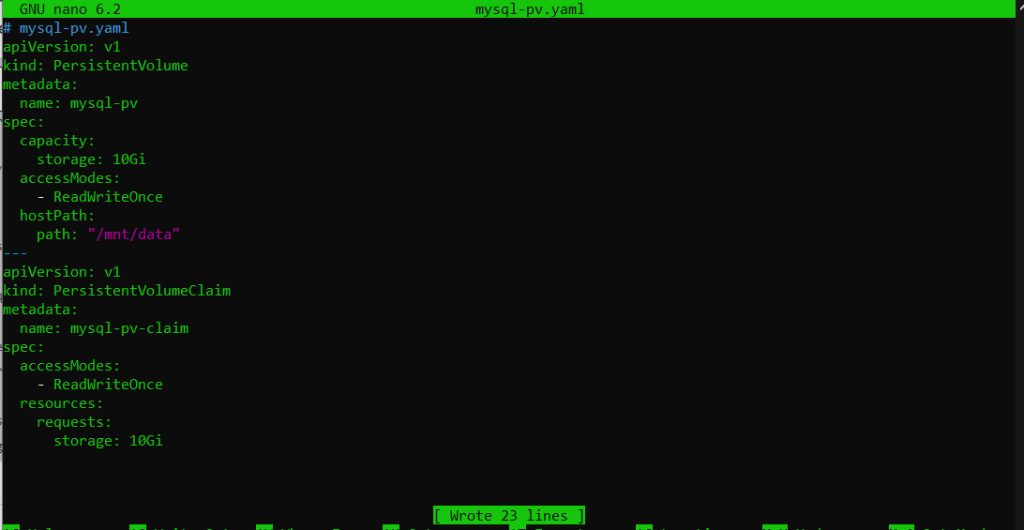
kubectl apply -f mysql-pv.yaml
Create the MySQL deployment and service. Save as mysql-deployment.yaml:
apiVersion: v1
kind: Service
metadata:
  name: wordpress-mysql
spec:
  ports:
    - port: 3306
  selector:
    app: wordpress
    tier: mysql
  clusterIP: None
---
apiVersion: apps/v1
kind: Deployment
metadata:
  name: wordpress-mysql
spec:
  selector:
    matchLabels:
      app: wordpress
      tier: mysql
  strategy:
    type: Recreate
  template:
    metadata:
      labels:
        app: wordpress
        tier: mysql
    spec:
      containers:
        - image: mysql:8.0
          name: mysql
          env:
            - name: MYSQL_ROOT_PASSWORD
              valueFrom:
                secretKeyRef:
                  name: mysql-pass
                  key: password
            - name: MYSQL_DATABASE
              value: wordpress
          ports:
            - containerPort: 3306
              name: mysql
          volumeMounts:
            - name: mysql-persistent-storage
              mountPath: /var/lib/mysql
      volumes:
        - name: mysql-persistent-storage
          persistentVolumeClaim:
            claimName: mysql-pv-claim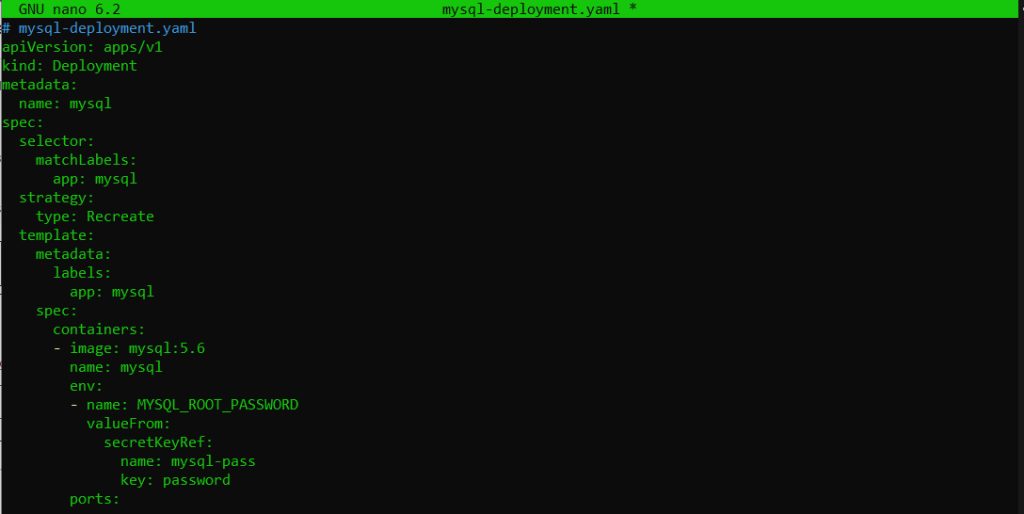
kubectl apply -f mysql-deployment.yamlStep 4: Deploy WordPress
Create the storage. Save as wordpress-pv.yaml:
apiVersion: v1
kind: PersistentVolume
metadata:
  name: wp-pv
spec:
  capacity:
    storage: 10Gi
  accessModes:
    - ReadWriteOnce
  hostPath:
    path: "/mnt/wpdata"
---
apiVersion: v1
kind: PersistentVolumeClaim
metadata:
  name: wp-pv-claim
spec:
  accessModes:
    - ReadWriteOnce
  resources:
    requests:
      storage: 10Gi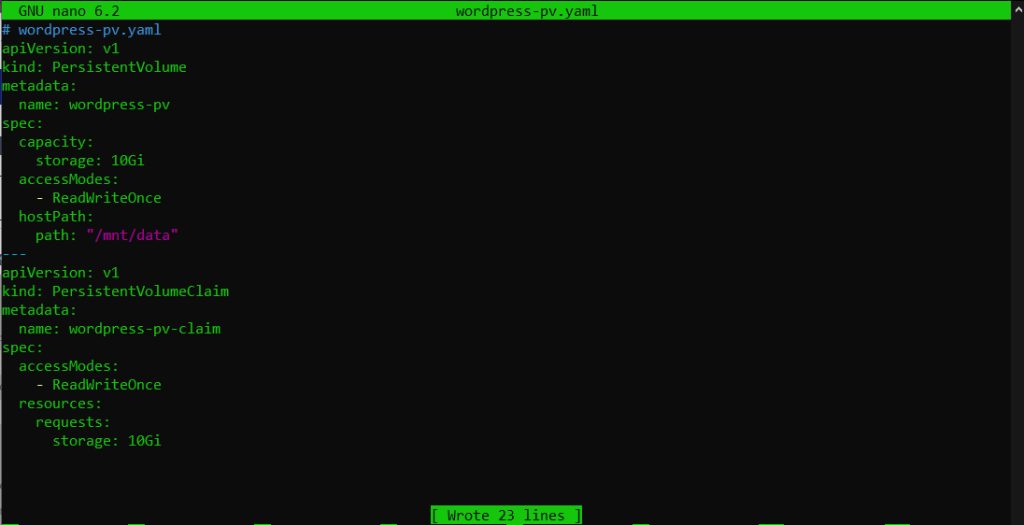
kubectl apply -f wordpress-pv.yaml
Create the WordPress deployment and service. Save as wordpress-deployment.yaml:
apiVersion: v1
kind: Service
metadata:
  name: wordpress
spec:
  ports:
    - port: 80
  selector:
    app: wordpress
    tier: frontend
  type: LoadBalancer
---
apiVersion: apps/v1
kind: Deployment
metadata:
  name: wordpress
spec:
  selector:
    matchLabels:
      app: wordpress
      tier: frontend
  strategy:
    type: Recreate
  template:
    metadata:
      labels:
        app: wordpress
        tier: frontend
    spec:
      containers:
        - image: wordpress:latest
          name: wordpress
          env:
            - name: WORDPRESS_DB_HOST
              value: wordpress-mysql
            - name: WORDPRESS_DB_PASSWORD
              valueFrom:
                secretKeyRef:
                  name: mysql-pass
                  key: password
          ports:
            - containerPort: 80
              name: wordpress
          volumeMounts:
            - name: wordpress-persistent-storage
              mountPath: /var/www/html
      volumes:
        - name: wordpress-persistent-storage
          persistentVolumeClaim:
            claimName: wp-pv-claim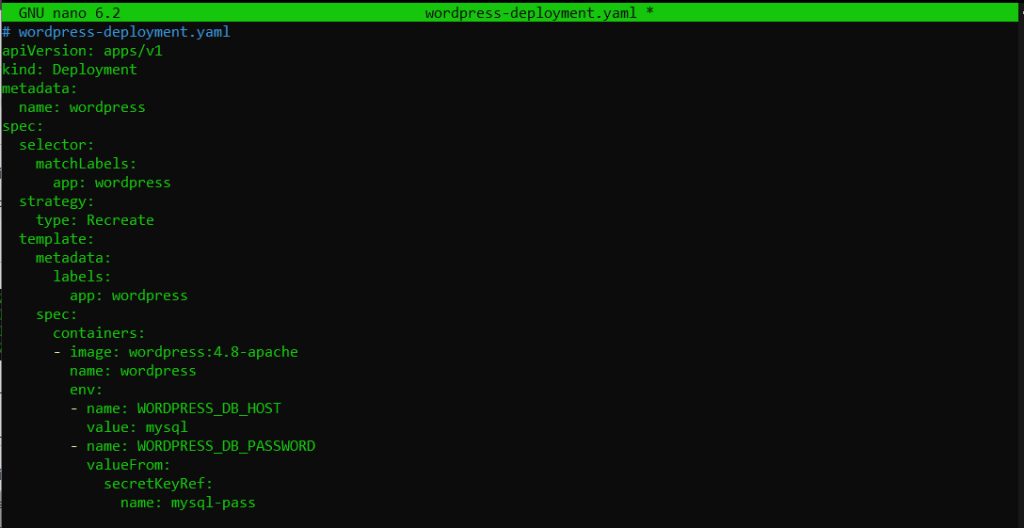
kubectl apply -f wordpress-deployment.yaml
Step 5: Open the site
Check the pods and services:
kubectl get pods
kubectl get svc wordpress
On Minikube, get the address with:
minikube service wordpress --urlOpen it in a browser and finish the WordPress setup.
Note:
hostPath volumes are fine for tests. On a real cluster, use a storage class of your cloud provider so the data survives node loss.Quick recap
- A secret holds the database password.
- MySQL and WordPress each get a volume, a deployment and a service.
- Expose WordPress with a LoadBalancer service.