

What dmesg is
dmesg prints the messages in the kernel ring buffer. These messages come from the boot process, drivers and hardware. They are the first place to look for disk errors, USB problems or out-of-memory kills.
dmesg [options]| Option | Meaning |
|---|---|
-C | Clear the buffer |
-c | Print and then clear the buffer |
-H | Human-readable output |
-T | Human-readable time stamps |
-l | Filter by log level (for example err, warn) |
-k | Show only kernel messages |
-s | Set the size of the buffer to read |
-f | Filter by facility |
-r | Raw output |
-x | Show facility and level as text |
Read the manual with:
man dmesg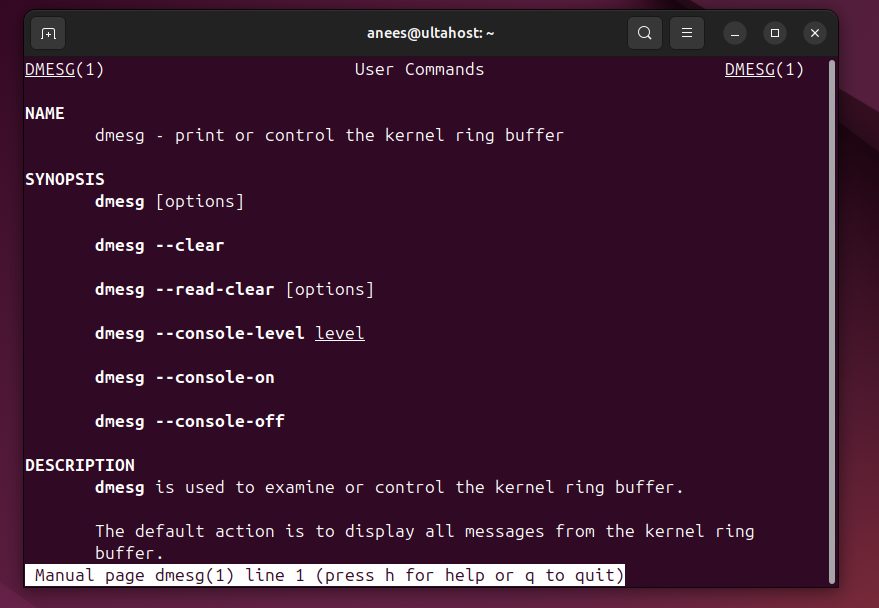
Examples
Show all messages
sudo dmesg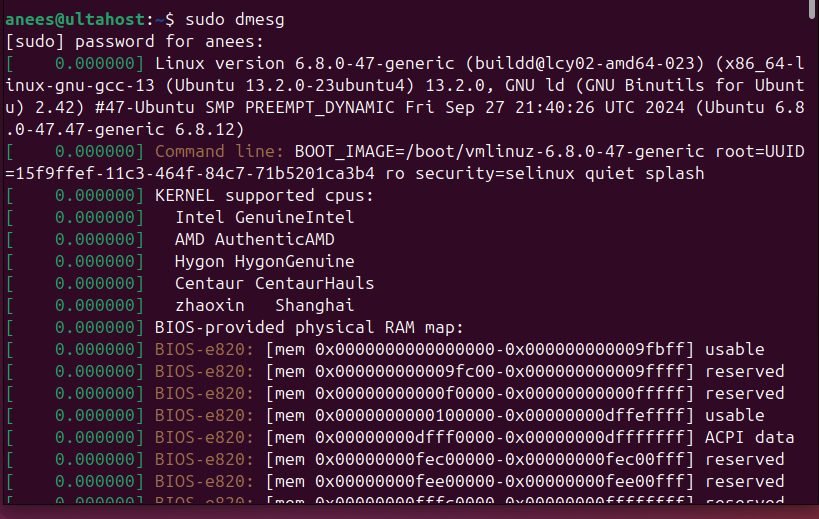
Page by page. The output is long. Pipe it to less:
sudo dmesg | less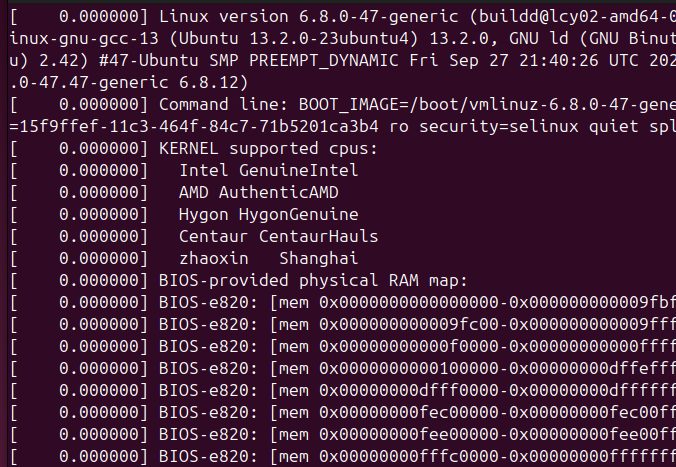
Use the arrow keys to scroll and q to quit.
Colors
sudo dmesg -L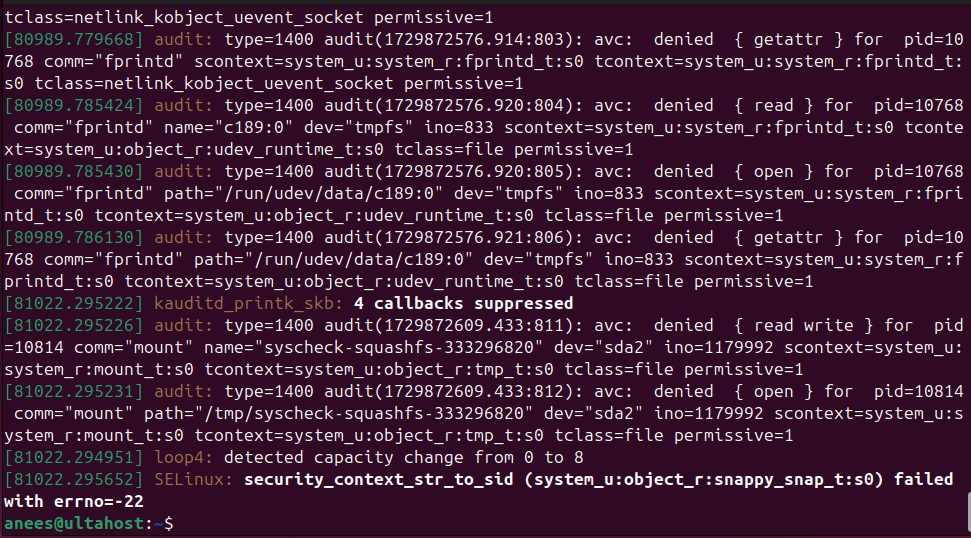
Turn colors off:
sudo dmesg --color=never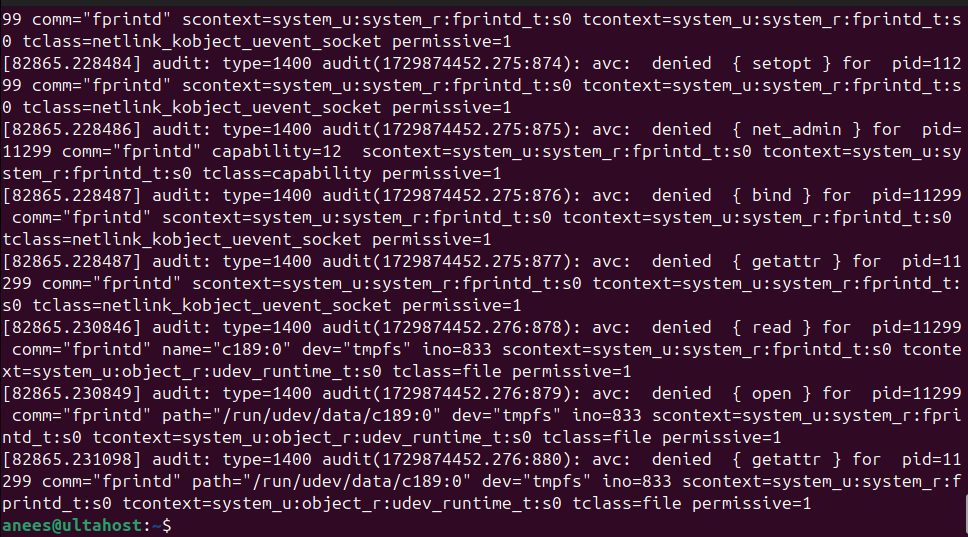
Easier time format. Kernel time stamps are seconds since boot. Use -H for a friendlier format:
sudo dmesg -H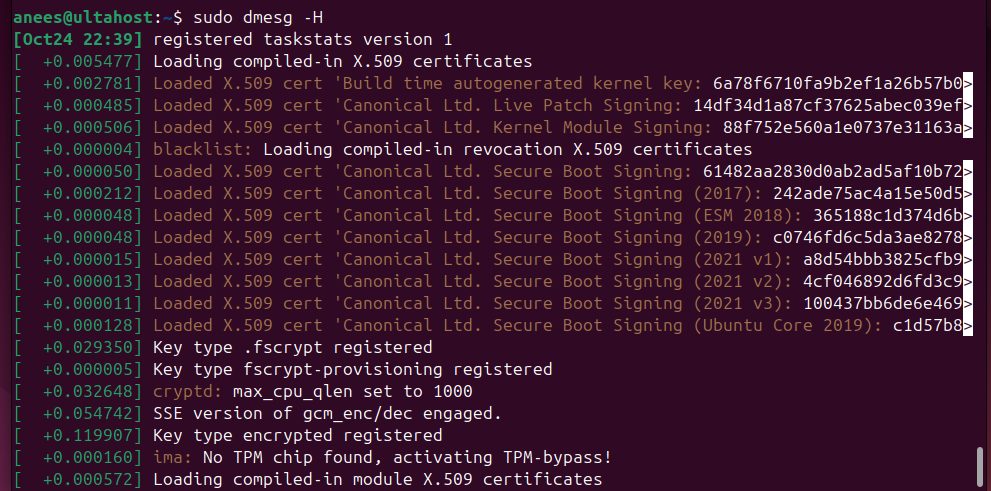
Real date and time
sudo dmesg -T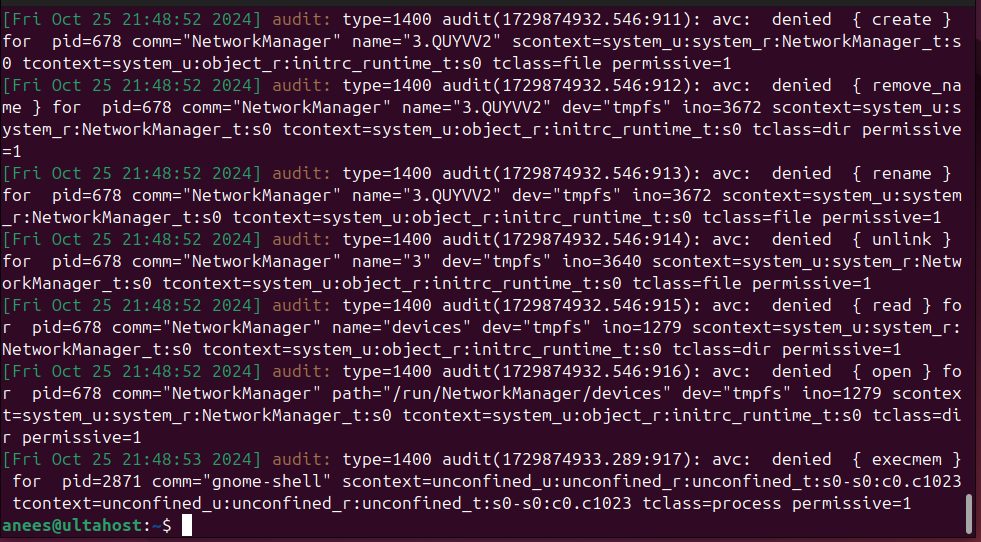
First or last lines
sudo dmesg | head
sudo dmesg | tail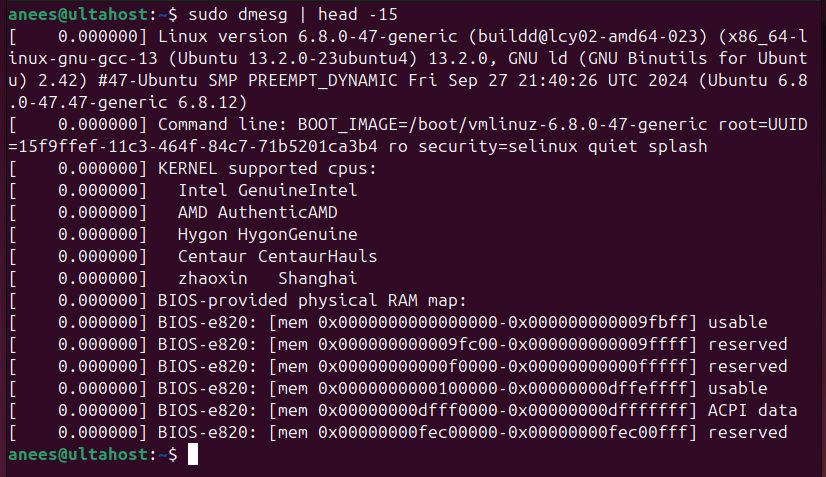
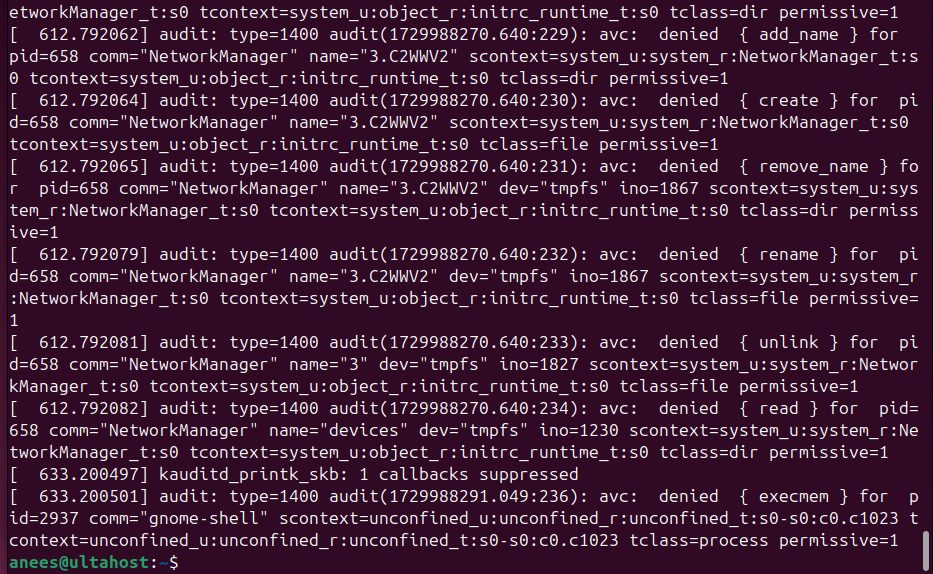
Only errors and warnings
sudo dmesg -l err,warn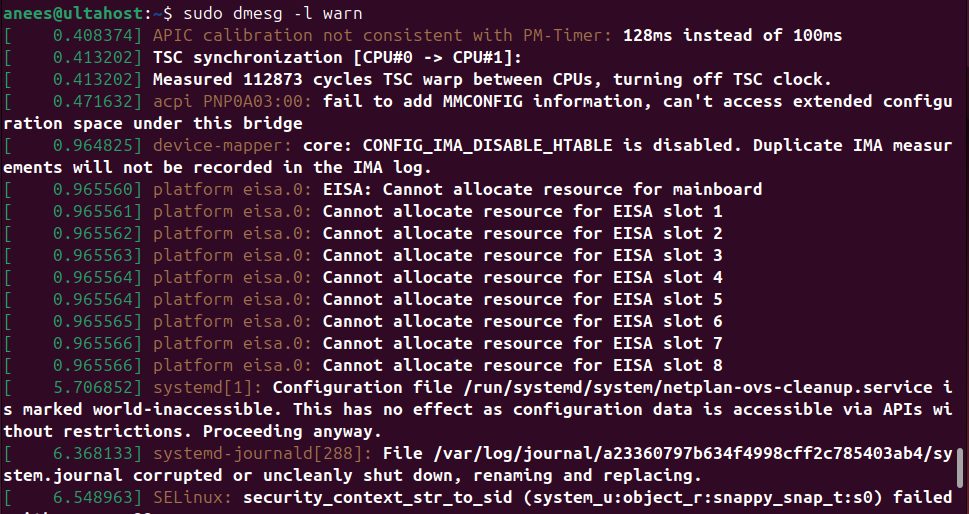
Search for a word
sudo dmesg | grep -i usb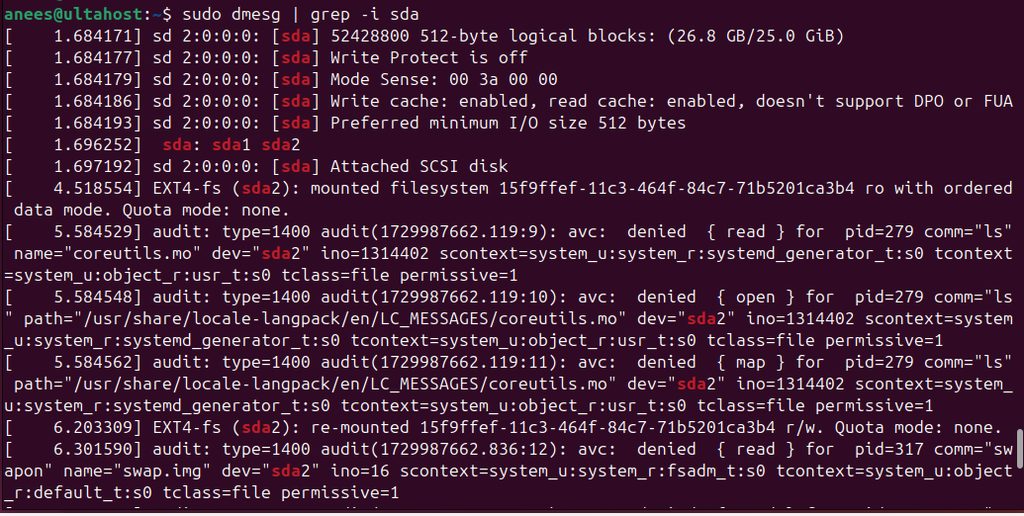
Level and facility as text
sudo dmesg -x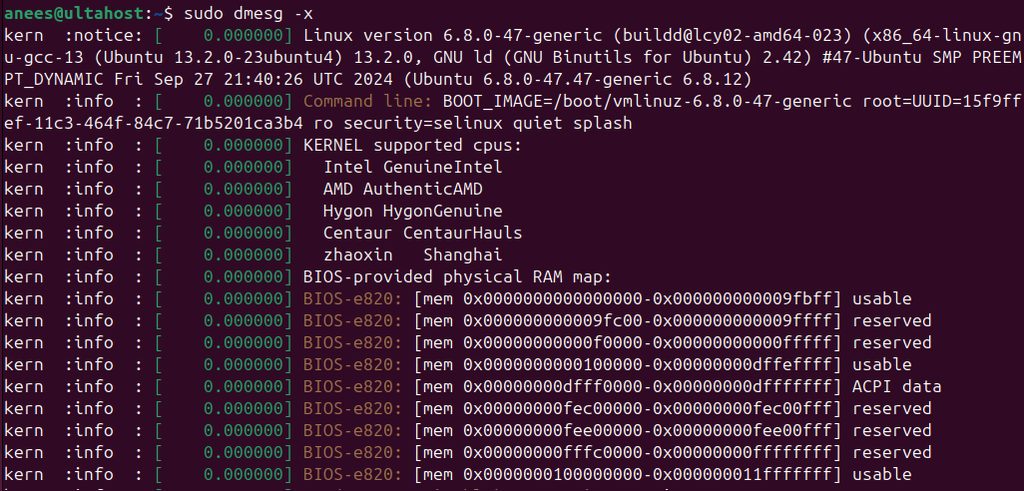
The saved boot log. On many systems, the messages from the last boot are also saved in a file:
less /var/log/dmesg
Tip: On newer systems,
sudo journalctl -k shows kernel messages with history across reboots.Quick recap
dmesgshows kernel and hardware messages.- Use
-Tfor dates and-l err,warnfor problems. - Pipe to
lessorgrepto make the output easier to read.