

When to reinstall
apt-get reinstall installs a package again, even if it is already there. Use it when:
- Files of a package are damaged after a failed update.
- You changed a config file by mistake and want the default back.
- A package has dependency problems.
- A package was removed only in part.
Syntax
sudo apt-get reinstall package_nameYou can list several packages, separated by spaces.
Examples
Restore the default settings of Nginx
sudo apt-get reinstall nginx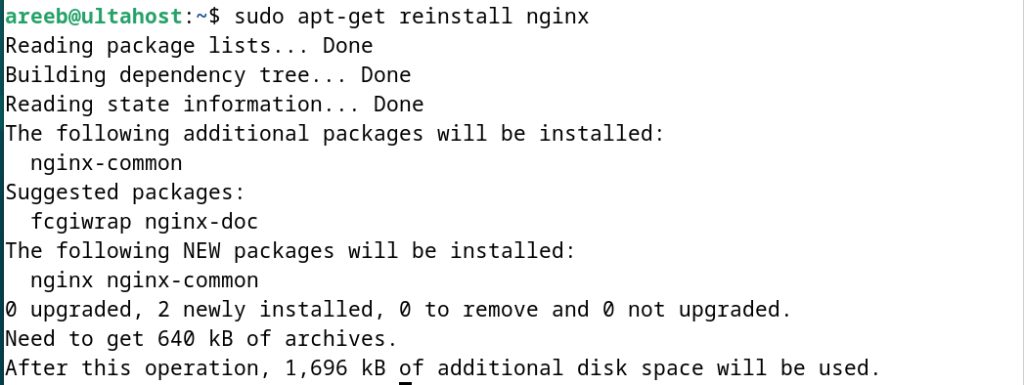
Note: Reinstalling restores missing config files. To overwrite files that you edited, add the option
-o Dpkg::Options::="--force-confmiss,confnew", or move your own file away first.Fix a package that no longer works
sudo apt-get reinstall htop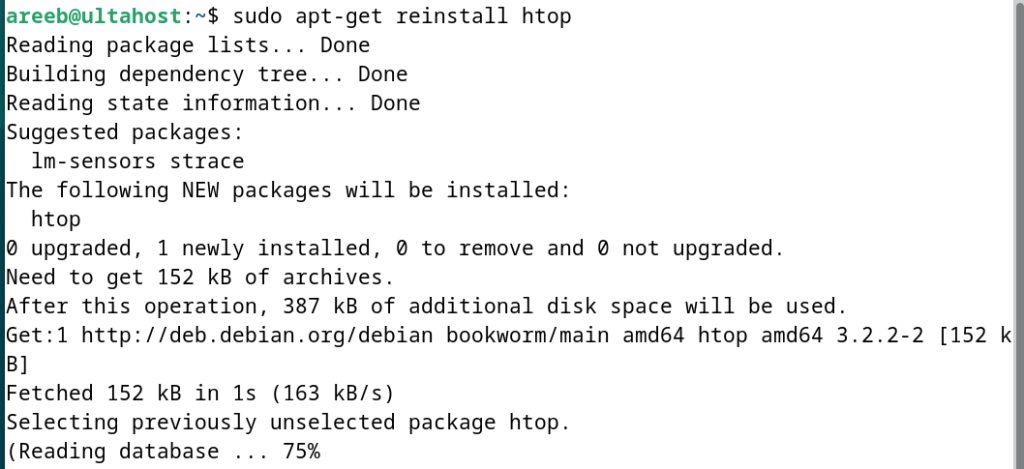
Fix dependency problems
sudo apt-get reinstall curlReinstall the Vim editor
sudo apt-get reinstall vim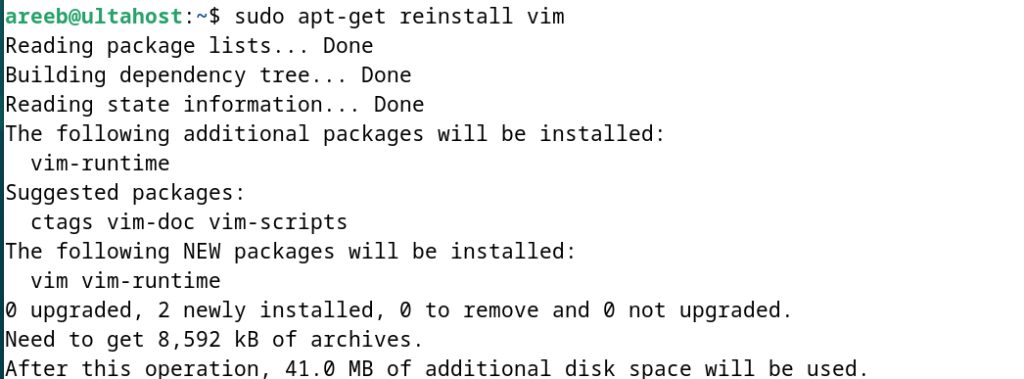
Reinstall several packages at once
sudo apt-get reinstall git wget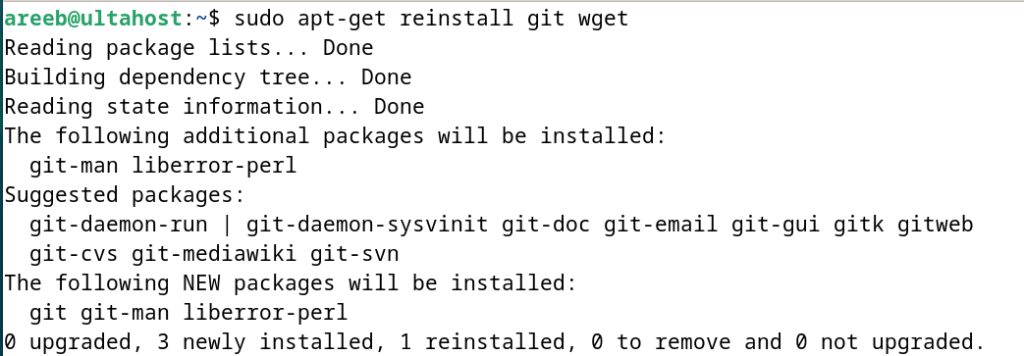
Helpful tips
- Run
sudo apt-get updatefirst so you get the newest package lists. - Back up your config files before you reinstall.
- If the reinstall fails, try
sudo apt-get install -fto repair broken dependencies.
Quick recap
- Use
sudo apt-get reinstall package_nameto repair a package. - Update the package lists first and keep a copy of your config files.