

What htop is
htop is a better version of top. It shows the CPU cores, memory, swap, load average and a list of processes, with colors, and lets you scroll and act on processes with the keyboard.

Install it if you do not have it:
sudo apt install htopOn CentOS, Rocky and AlmaLinux use sudo dnf install htop (you may need the EPEL repository first).
Start htop
htopPress q or F10 to quit.
Common options
| Option | Meaning |
|---|---|
-d <delay> | Refresh time between updates, in tenths of a second |
-u <user> | Show only the processes of one user |
-p <pid> | Show only the given process IDs |
-s <column> | Sort by a column |
-t | Show processes as a tree |
--no-color | Plain, black-and-white mode |
Examples
Set the update interval. The delay is in tenths of a second, so 10 means 1 second:
htop -d 10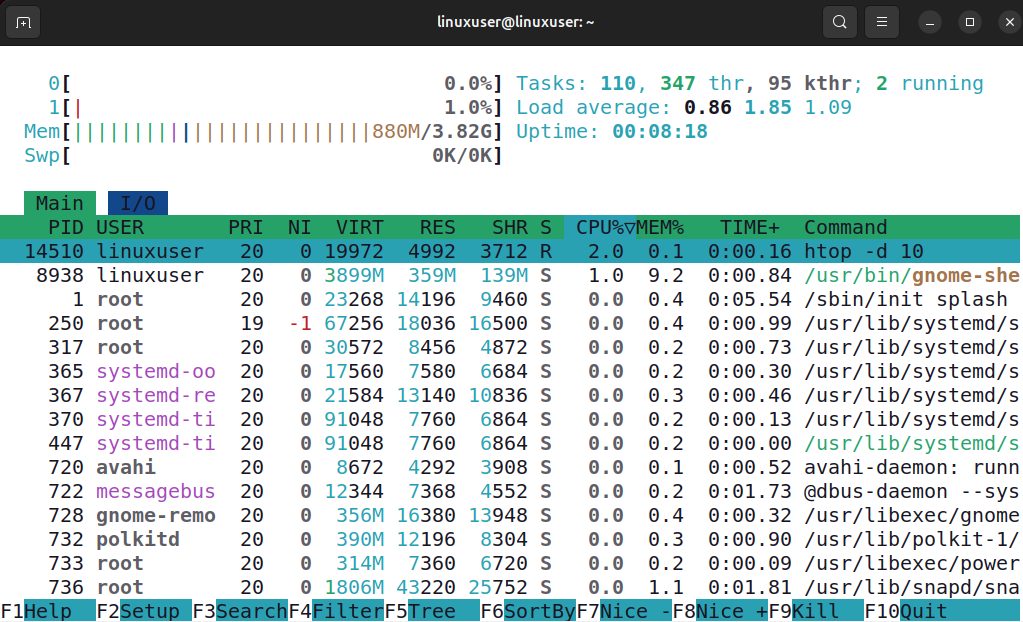
Show the processes of one user
htop -u linuxuser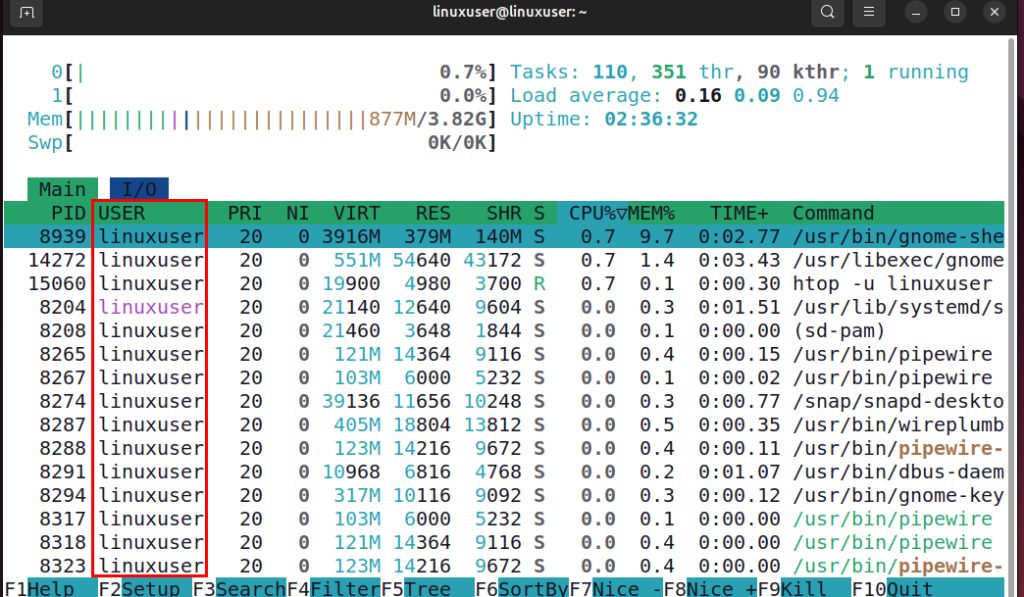
Watch a certain process
htop -p 8759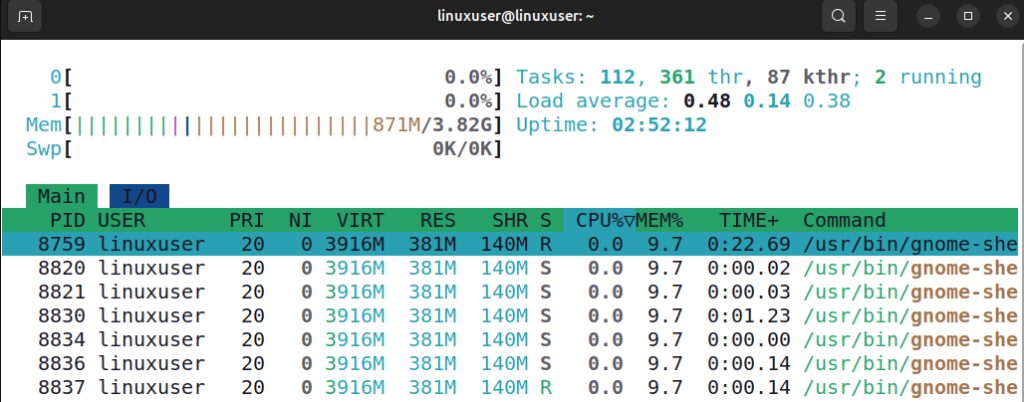
Sort by a column
htop -s PID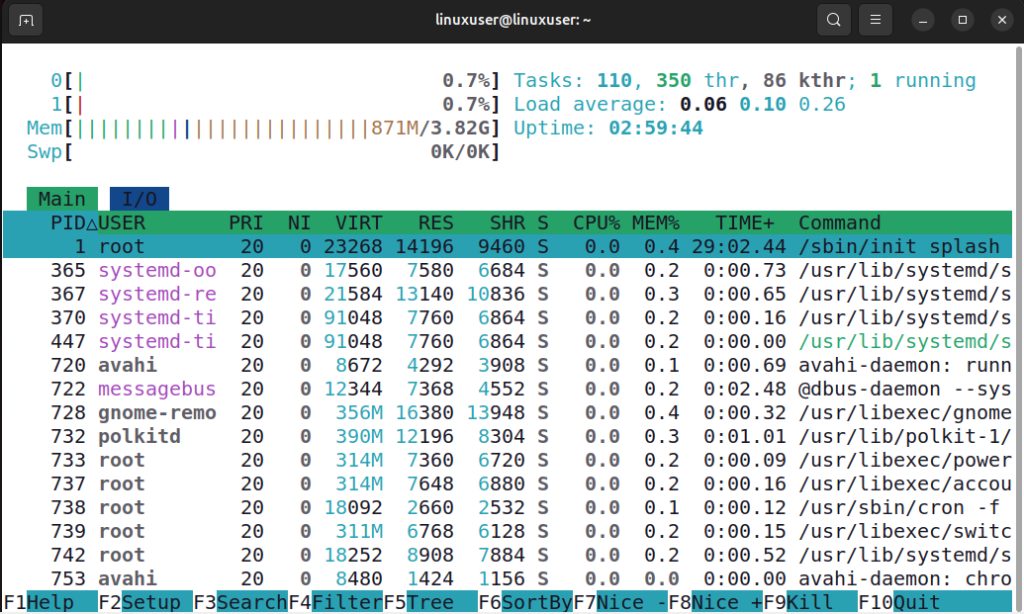
You can use column names such as PERCENT_CPU or PERCENT_MEM.
Show a process tree
htop -t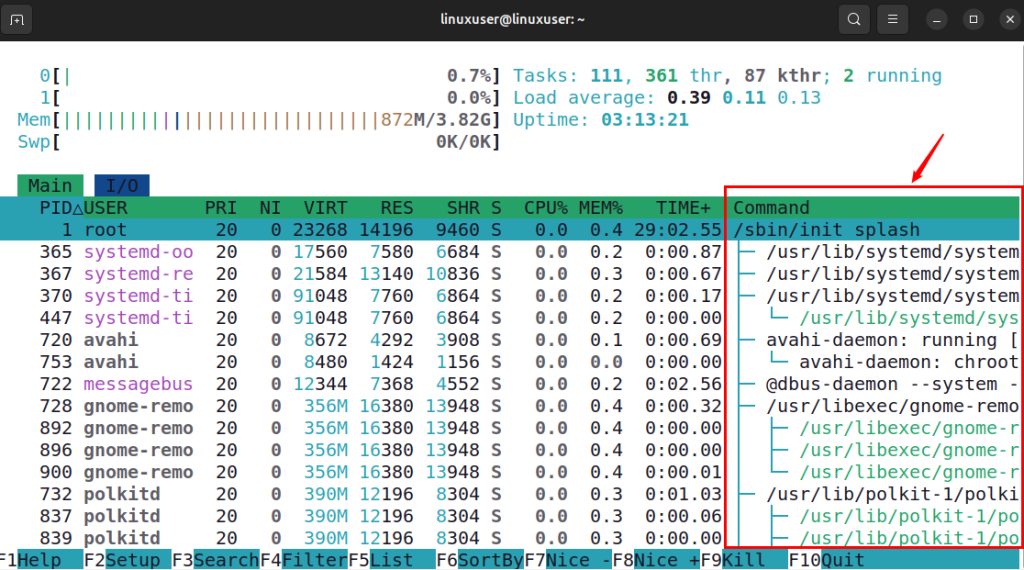
Without colors
htop --no-color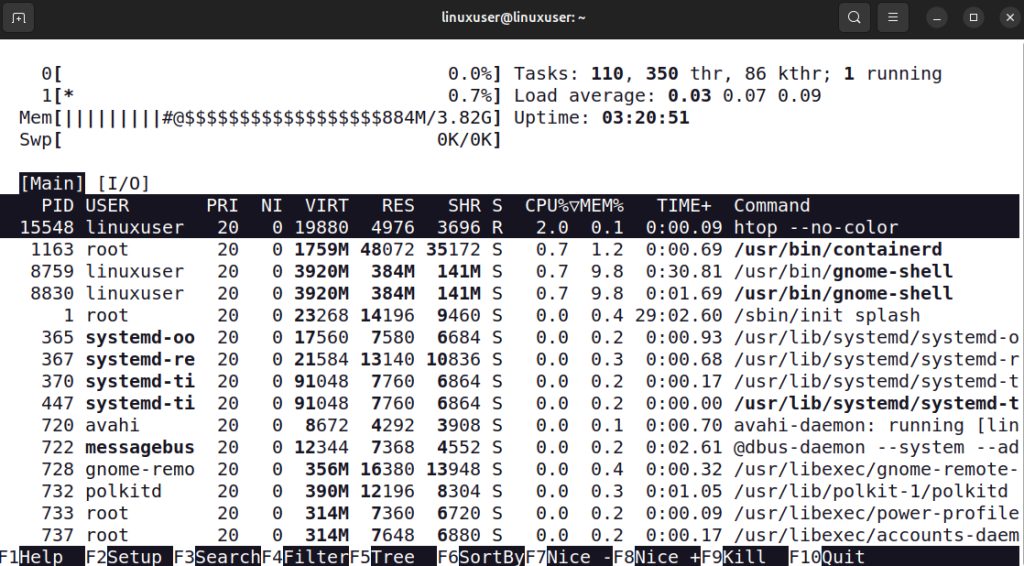
Keys inside htop
| Key | Action |
|---|---|
Arrow keys, PgUp, PgDn, Home, End | Move through the list |
Space | Mark (tag) or unmark a process |
U | Remove all tags |
F3 or / | Search for a process by name |
F4 | Filter the list |
F5 or t | Switch the tree view |
F6 | Choose the sort column |
F9 | Send a signal (kill) to the selected process |
F7 / F8 | Lower or raise the priority (nice value) |
P, M, T | Sort by CPU, memory or time |
H | Show or hide user threads |
F2 | Open the setup screen |
q or F10 | Quit |
Quick recap
htopshows the load of the server and each process.- Filter with
-uand-p, view the tree with-t. - Use
F9carefully to stop a process.