

Syntax
find [path] [options] [expression]pathis the folder where the search starts. If you leave it out,findstarts in the current folder.optionschange howfindworks.expressionis the search rule.
Find by name
find /home/ubuntu/Documents -name filename.txt
The search is case sensitive. Wildcards work if you put them in quotes: -name "*.txt".
Find by name and ignore case
Use -iname:
find /home/ubuntu/Documents -iname newfile.txt
Find by type
-type f finds files and -type d finds folders:
find /home/ubuntu/Documents -type f
Find by size
Files bigger than 100 MB:
find /home/ubuntu/Documents -type f -size +100M
+ means bigger than, - means smaller than. Units are k, M and G.
Find by time
Files changed in the last day:
find . -type f -mtime -1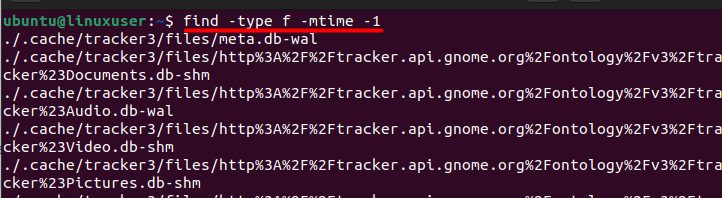
-mtime -1 means less than one day ago. Use -mtime +30 for files older than 30 days.
More ideas
By permission
find /var/www -type f -perm 777By owner
find /home -user ubuntuCombine rules. Use -and, -or and -not:
find . -type f \( -name "*.log" -o -name "*.tmp" \)Do something with the results. Delete old log files (check the list first!):
find /var/log -name "*.log" -mtime +30 -exec ls -l {} \;Replace ls -l with rm only when you are sure.
Why use find
- It searches by permissions, owner, size and time.
- It combines rules with logical operators.
- It can run a command on every file it finds.
Quick recap
find path -name "name"finds by name,-inameignores case.- Use
-type,-sizeand-mtimeto narrow the search. - Use
-execto act on the results, with care.