

Signs of high CPU use
- CPU stays above 80-90% for a long time.
- The load average is higher than the number of CPU cores.
- SSH is slow.
- Your website is slow.
Check the load average:
uptime
Solution 1: Find the process
top shows live use:
top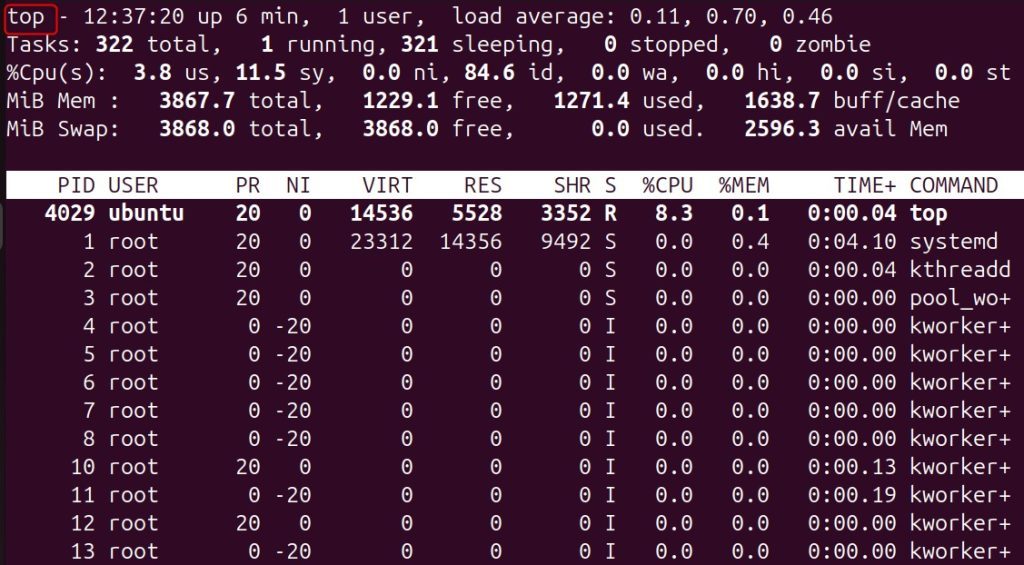
Press P to sort by CPU. Press q to quit.
htop is easier to read:
sudo apt install htop -y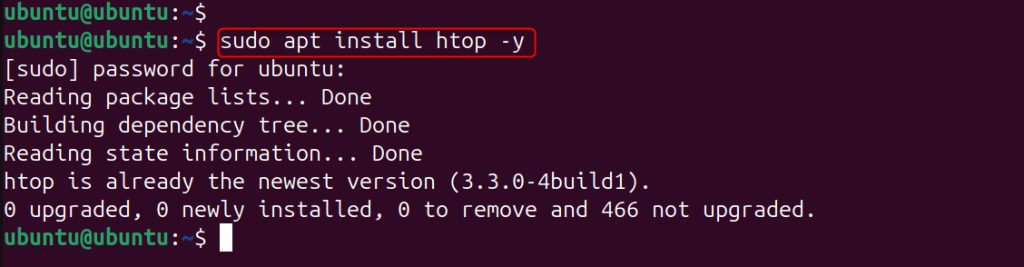
htop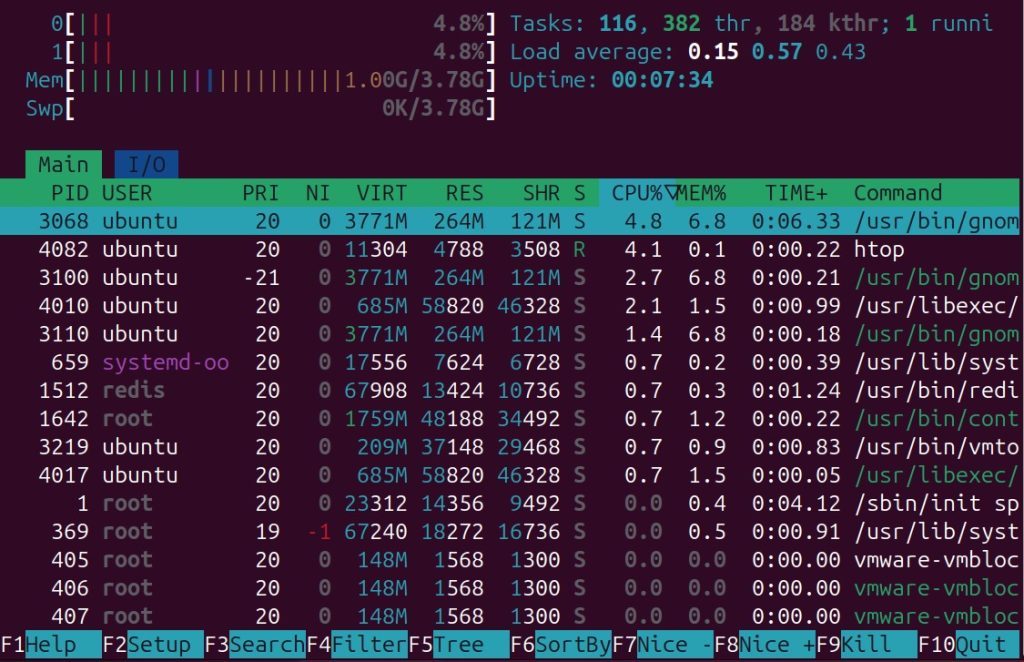
Solution 2: Stop or restart the cause
Stop one process (use the PID from top):
sudo kill -9 PID
Try sudo kill PID first. It lets the program close in a clean way.
Restart a service
sudo systemctl restart apache2
sudo systemctl restart nginx
Solution 3: Tune the web server
Apache
sudo nano /etc/apache2/apache2.confAdd or change:
KeepAlive On
MaxRequestWorkers 50
KeepAliveTimeout 2
sudo systemctl restart apache2
Nginx
sudo nano /etc/nginx/nginx.confSet:
worker_processes auto;
worker_connections 1024;
sudo systemctl restart nginx
Solution 4: Tune the database
Turn on the slow query log, so you can find heavy queries:
sudo nano /etc/mysql/my.cnf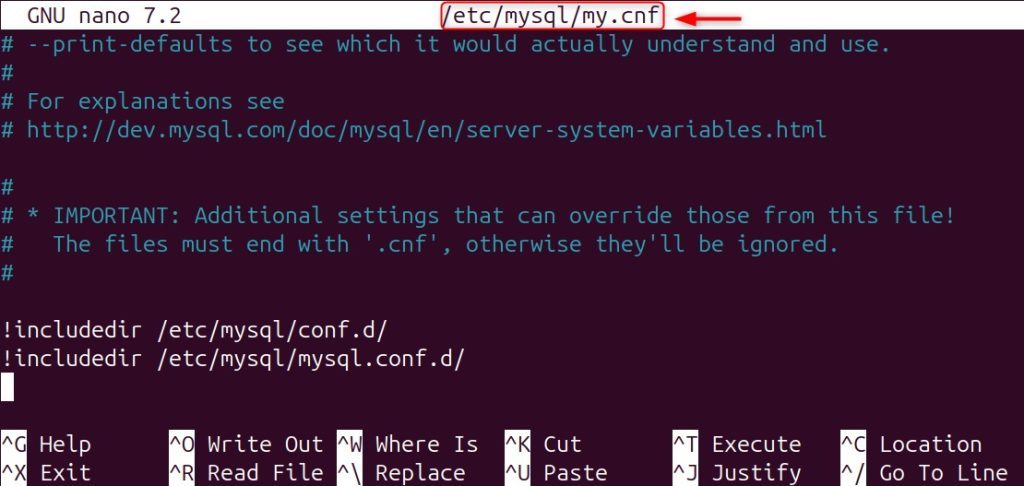
slow_query_log = 1
long_query_time = 2
Restart MySQL:
sudo systemctl restart mysql
Then read the slow query log and add indexes or fix the slow queries.
Solution 5: Limit Docker containers
In a Compose file, add a CPU limit:
deploy:
  resources:
    limits:
      cpus: '1.0'
Or on the command line: docker run --cpus="1.0" image.
More ideas
- Use caching (a page cache, OPcache, Redis).
- Block bad bots and abusive IP addresses.
- Check for malware or a crypto miner if an unknown process uses the CPU.
- Upgrade your plan if the load is real and constant.
Quick recap
- Find the process with
toporhtop. - Restart it, tune Apache, Nginx or MySQL, and limit containers.
- Add caching, or add more CPU if you need it.