

What npm is
npm is the package manager for Node.js. It installs the libraries your projects need. It comes together with Node.js. If your shell says npm: command not found, Node.js is missing or not in the PATH.
Step 1: Check if it is installed
node -v
npm -v
If both print a version, check your PATH (see below). If not, install Node.js.
Install on Windows
- Download the LTS installer from the official Node.js website.
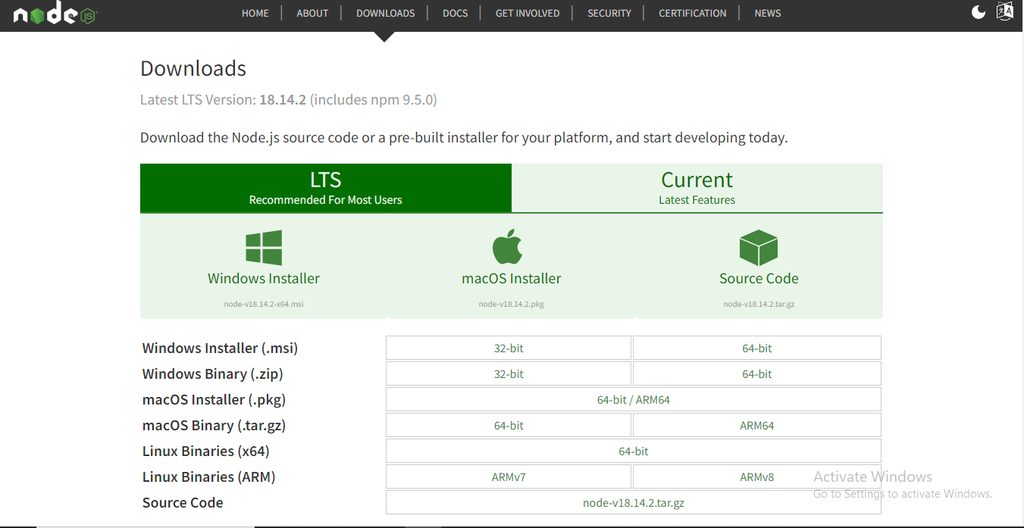
- Run the installer. Keep the option Add to PATH ticked.
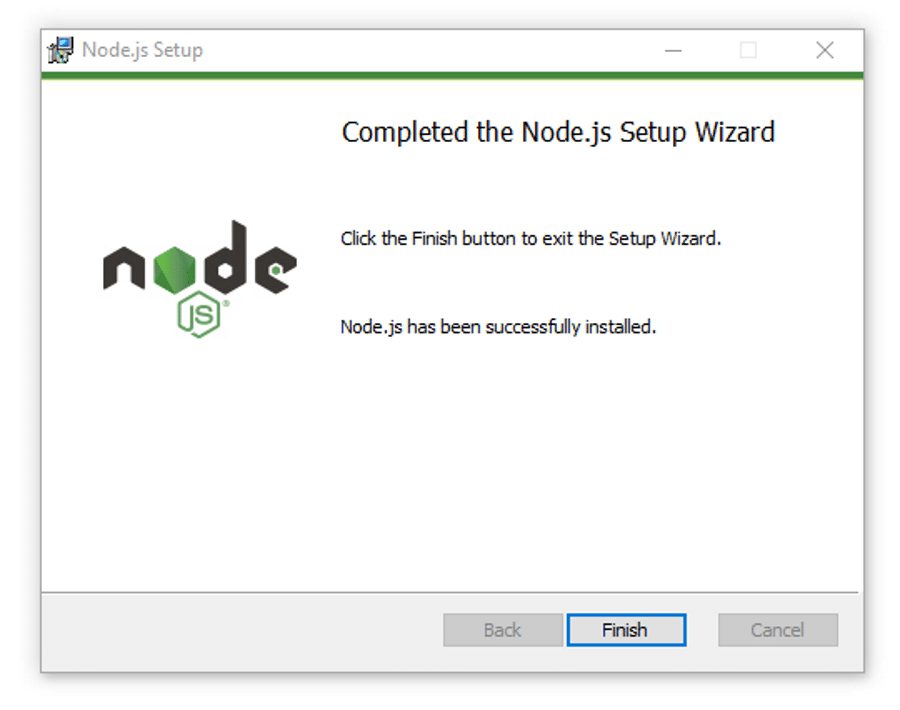
- Open a new Command Prompt and run
node -vandnpm -v.
Fix the PATH on Windows
If Node.js is installed but npm is not found:
- Search for environment variables and open Edit the system environment variables. Click Environment Variables.
- Select Path and click Edit.
- Make sure the folders
C:\Program Files\nodejs\and%APPDATA%\npmare in the list. Add them if not.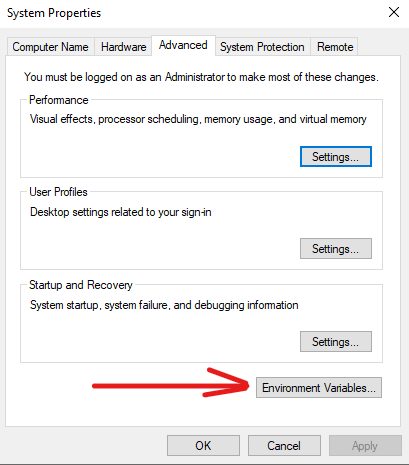
- Open a new Command Prompt.
Install on Linux
Debian and Ubuntu
sudo apt update
sudo apt install nodejs npm
For a newer version, use the NodeSource repository or nvm (Node Version Manager).
CentOS, Rocky and Fedora
sudo dnf install nodejs npmWith nvm (no sudo needed):
curl -o- https://raw.githubusercontent.com/nvm-sh/nvm/v0.39.7/install.sh | bash
source ~/.bashrc
nvm install --lts
Permission errors
If npm install -g gives a permission error, do not use sudo npm. Change the global folder of npm:
mkdir ~/.npm-global
npm config set prefix '~/.npm-global'
echo 'export PATH=~/.npm-global/bin:$PATH' >> ~/.bashrc
source ~/.bashrc
Quick recap
- Install Node.js, because npm comes with it.
- Check that the folders are in the PATH.
- Use
nvmto avoid permission problems.