

About ISPConfig
ISPConfig is a free control panel for Linux servers. It manages websites, email, DNS and databases from a web interface. It is a popular free alternative to paid panels.
Prepare the VPS
- ISPConfig runs on common Linux distributions, such as Debian and Ubuntu. Use a clean VPS with a supported OS and no other control panel.
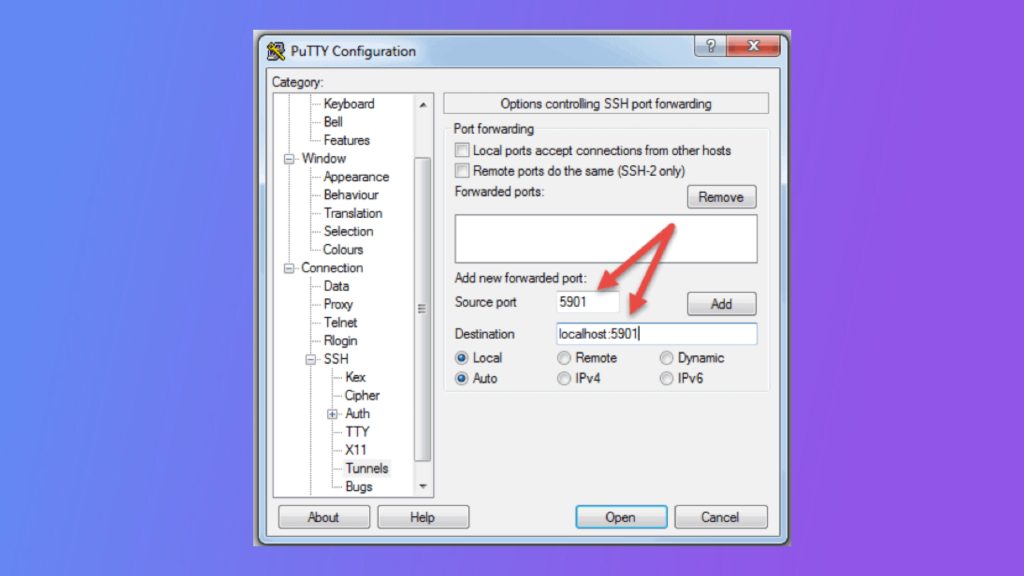
- Connect with SSH. Open your SSH client, enter the IP address or host name of your VPS, the port (22 by default), and your user name and password.
- Set a fully qualified host name, for example
server.example.com.
Install ISPConfig
The easiest way is the official auto-installer. It installs the whole stack (web server, mail, database, DNS) and ISPConfig itself.
Step 1: Update the server
sudo apt update && sudo apt upgrade -yStep 2: Download and run the installer
Use the instructions on the ISPConfig website for your version. The common method is:
wget -O - https://get.ispconfig.org | shYou can add options to choose the components, for example --no-roundcube. Read what a script does before you run it.
Manual install: download the package, unpack it and run the PHP installer.
wget https://www.ispconfig.org/downloads/ISPConfig-3-stable.tar.gz
tar -xzf ISPConfig-3-stable.tar.gz
cd ispconfig3_stable/install/
sudo php -q install.php
Step 3: Answer the questions
The installer asks you to set up:
- The language and the installation mode (standard or expert).
- The database root password.
- The host name.
- The admin password of ISPConfig. Write it down.
When it finishes, the installer shows the address of the panel, usually https://your_server_ip:8080.
Log in and add a domain
- Open the panel address in your browser and accept the certificate warning for now.
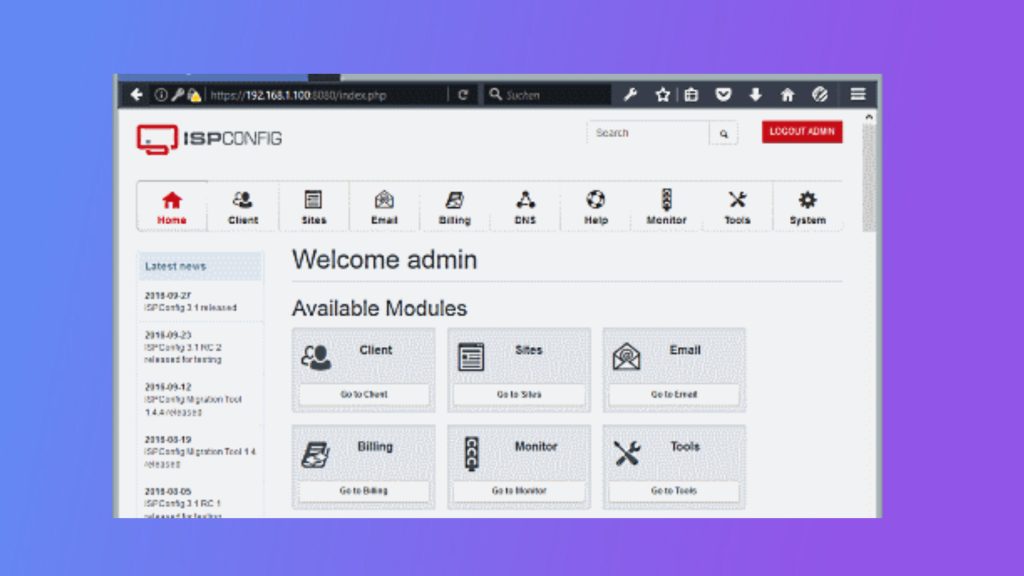
- Log in with the user
adminand the password you set.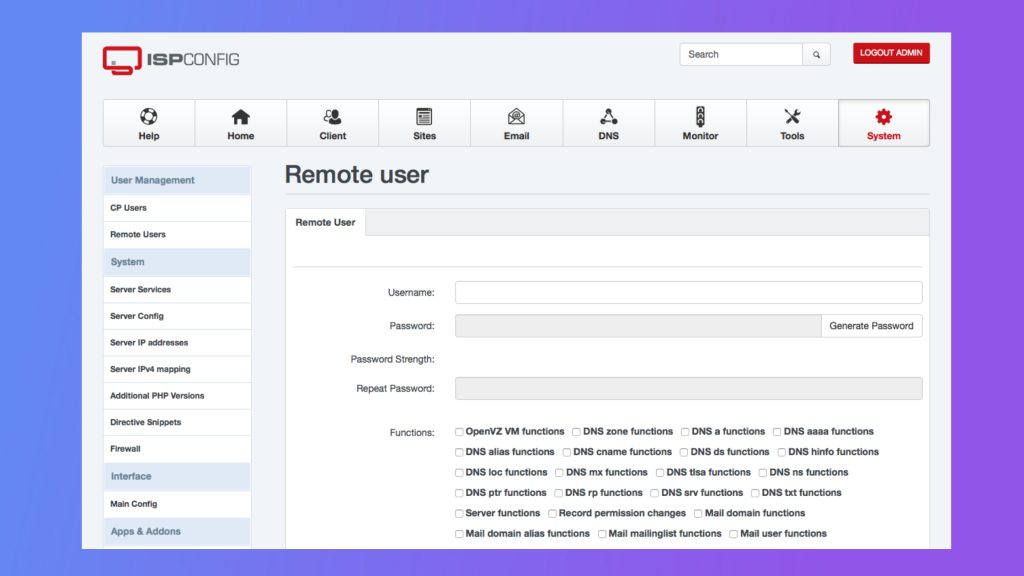
- Open Sites in the left menu and click Add new website.
- Enter the Domain, choose the document root, the PHP version and other options.
- Click Save.
Set the DNS records
Point the domain to your VPS:
- Add an A record for the domain that points to the IP address of the VPS (at your DNS provider or in the DNS of ISPConfig).
- Add records for
wwwand for email (MX) if you use them.
Manage databases
Use Sites and then Databases to create a database and a database user for the website.
Quick recap
- Start from a clean VPS with a proper host name.
- Run the ISPConfig installer and note the admin password.
- Log in on port 8080 and add your site.