

kubectl exec runs a command inside a container of a running pod. It is like docker exec for Kubernetes, and it is one of the main tools for troubleshooting, checking configuration and maintenance.
You need kubectl installed and access to a cluster.
Syntax
kubectl exec [OPTIONS] POD_NAME -- COMMAND [args...]- kubectl is the client for the cluster.
- exec runs a command in a container of a pod.
- OPTIONS are flags such as
-it,-c <container>or--namespace. - POD_NAME is the pod.
- -- separates the kubectl options from the command that runs in the container. It is required.
- COMMAND is what to run, such as
sh,bashorps. - args are the arguments of that command.
1. Run a simple command
List the files in the working directory of the container:
kubectl exec my-pod -- ls -la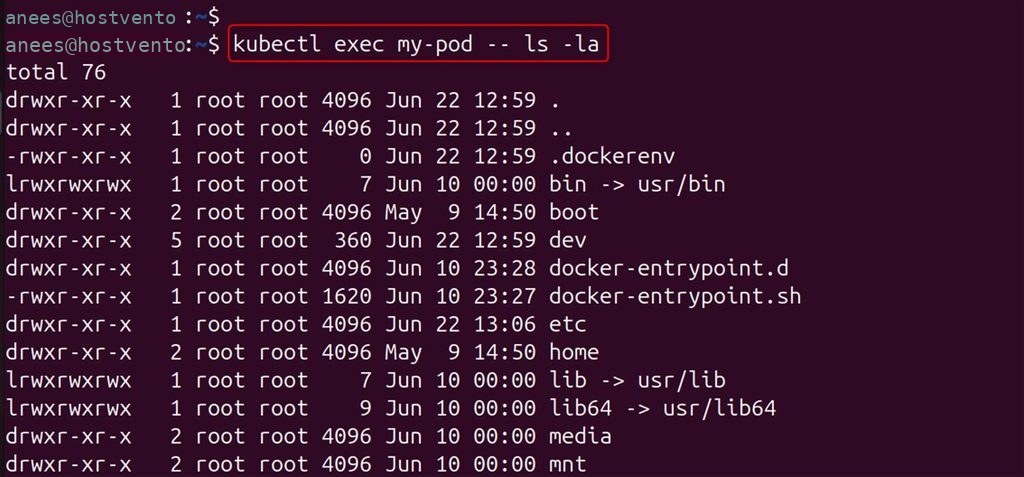
Print the current directory:
kubectl exec my-pod -- pwd
2. Open an interactive shell
kubectl exec -it my-pod -- /bin/bash
-i keeps standard input open and -t allocates a terminal. You can then run many commands.
Minimal images such as Alpine do not have bash. Use sh:
kubectl exec -it my-pod -- /bin/sh
To see which shells exist:
kubectl exec my-pod -- ls -la /bin/*sh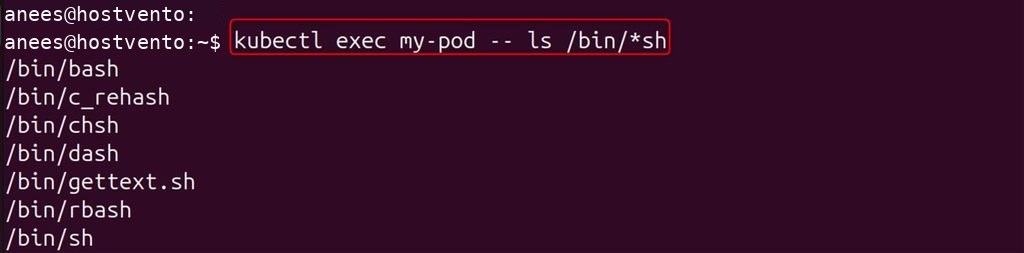
3. Choose the container in a multi-container pod
kubectl exec -it my-pod -c container-name -- /bin/bash
If you skip -c, kubectl uses the first container (or the default one set by an annotation). List the containers:
kubectl describe pod my-pod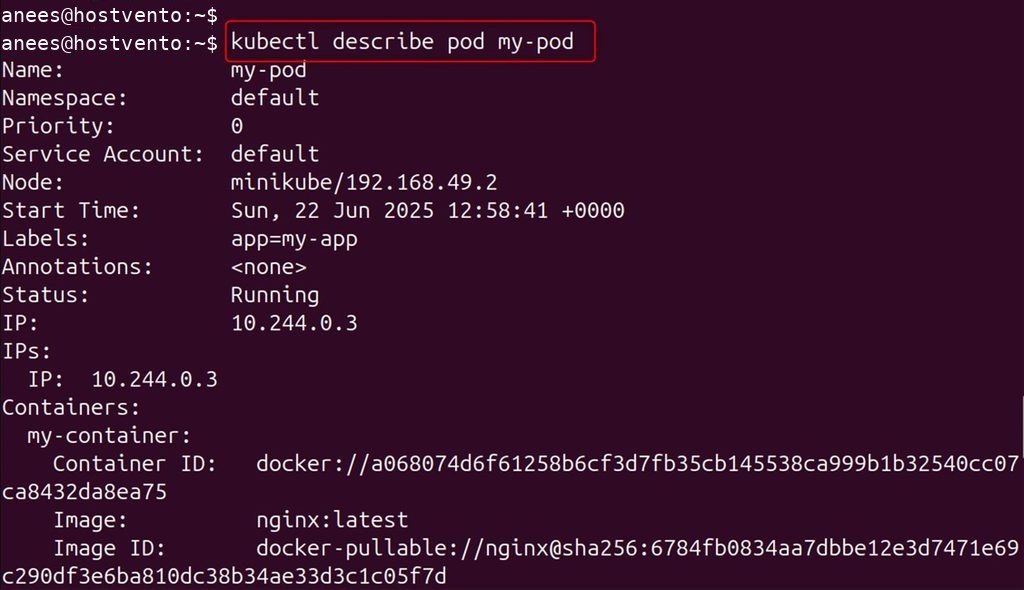
4. Use another namespace
kubectl exec -it my-pod -n my-namespace -- /bin/bash
5. Show environment variables
kubectl exec my-pod -- env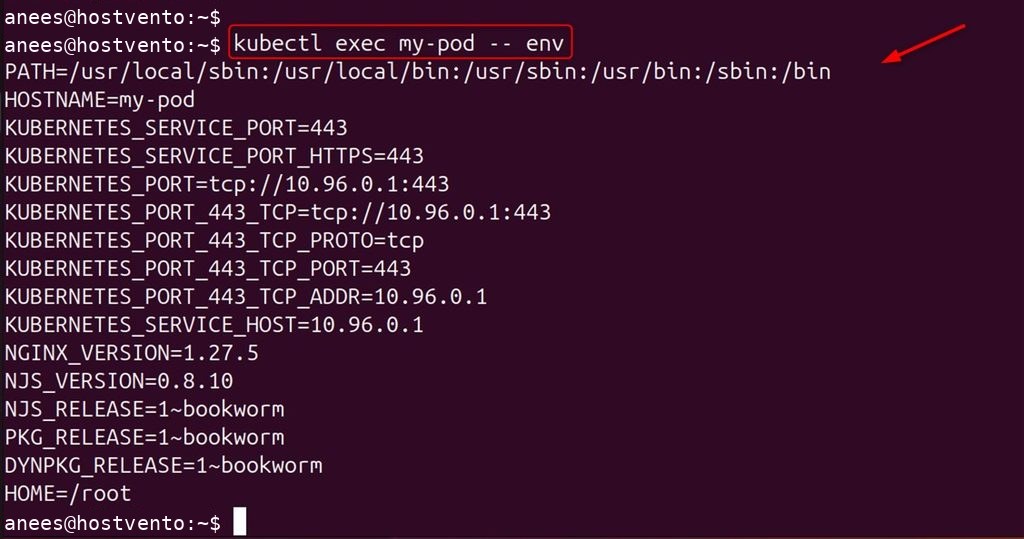
This helps when you debug configuration problems.
6. Work with files
Read a file:
kubectl exec my-pod -- cat /etc/hostname
Create a file:
kubectl exec my-pod -- touch /tmp/testfile
Check disk usage:
kubectl exec my-pod -- df -h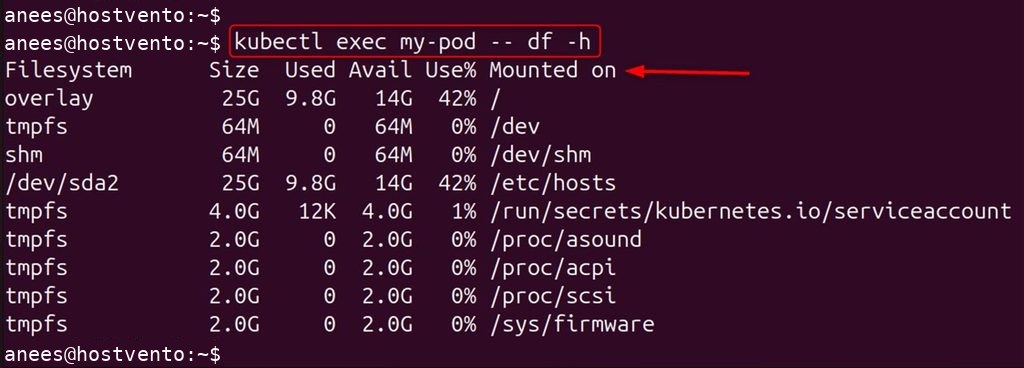
Find files:
kubectl exec my-pod -- find /var/log -name "*.log"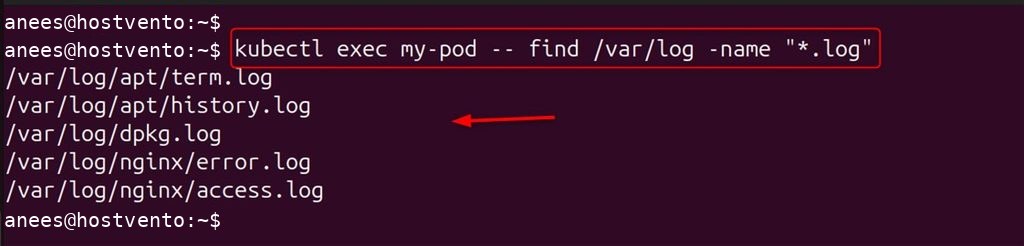
7. Network checks
Run a temporary pod and ping an address:
kubectl run pingbox --image=busybox -it --restart=Never -- ping 8.8.8.8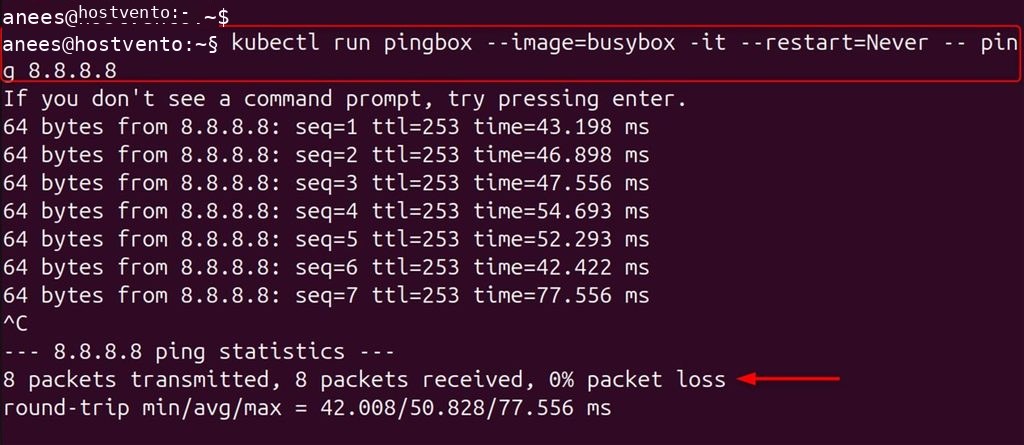
8. Read logs and config files
kubectl exec my-pod -- tail -f /var/log/apt/term.log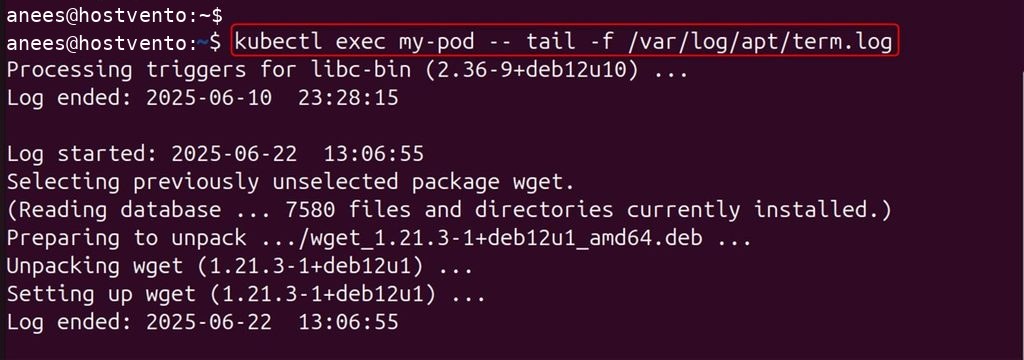
kubectl exec my-pod -- cat /etc/nginx/nginx.conf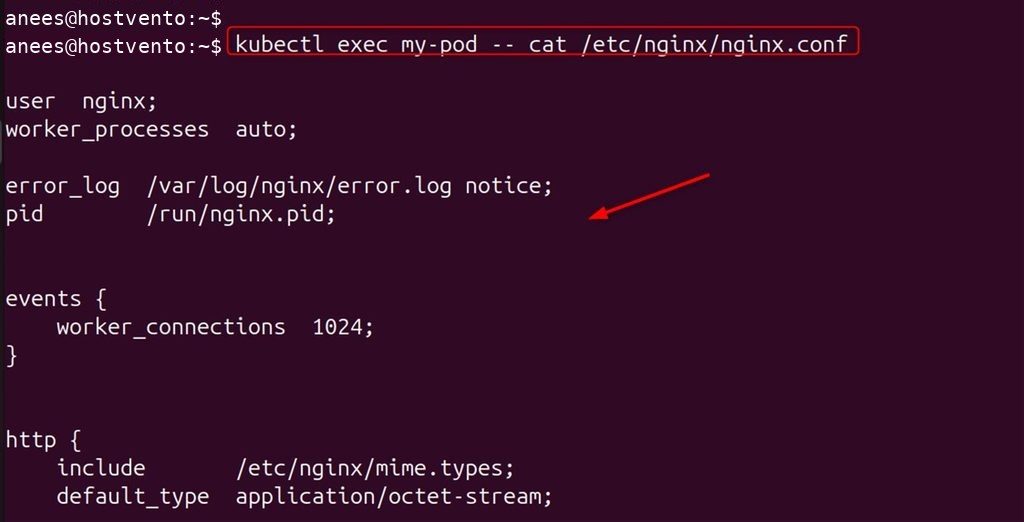
kubectl exec my-pod -- find /var -name "*.log"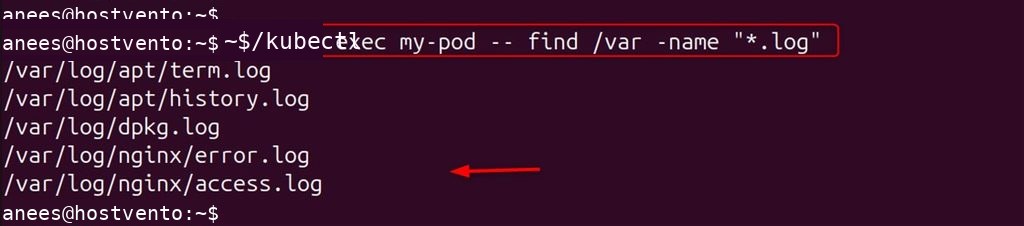
9. Install tools for debugging
kubectl exec my-pod -- apt-get update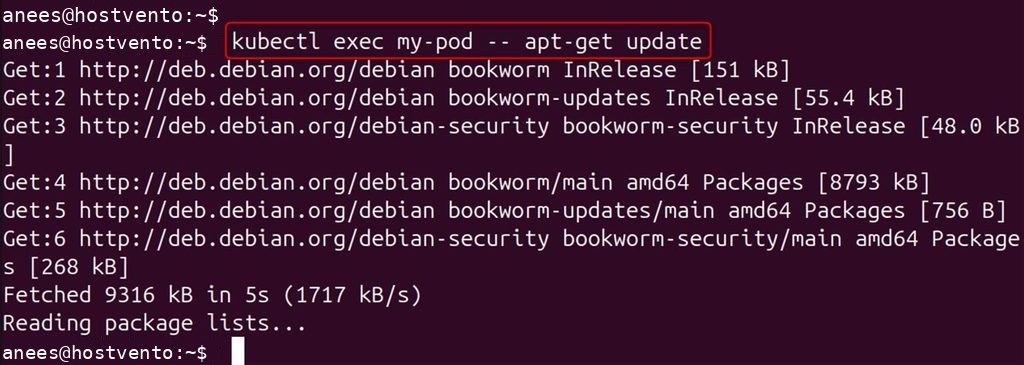
kubectl exec my-pod -- apt-get install -y curl wget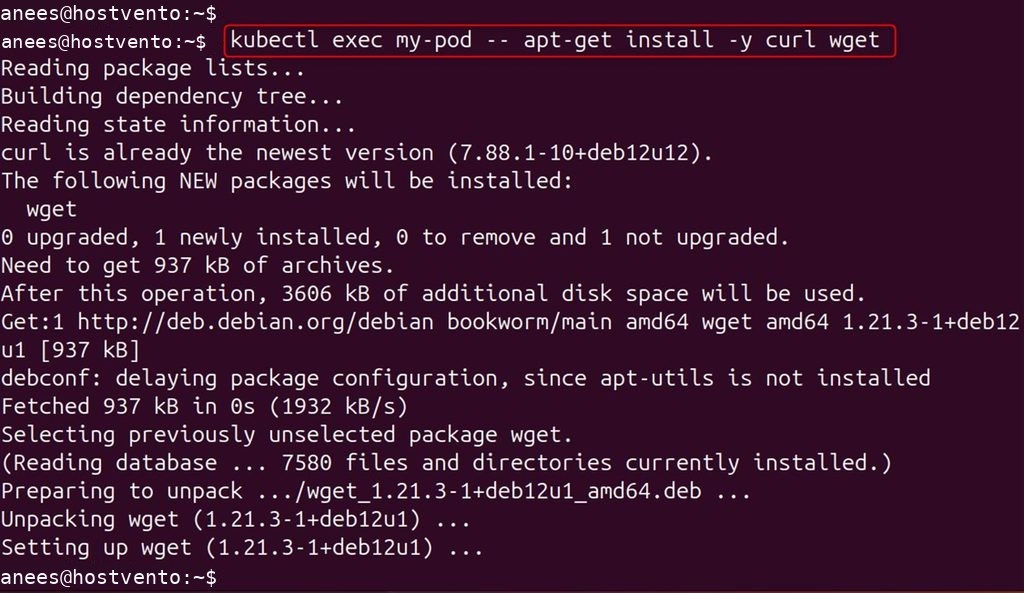
10. Reload and test a configuration
kubectl exec nginx-pod -- nginx -s reload
kubectl exec nginx-pod -- nginx -t
11. Files and directories
kubectl exec my-pod -- mkdir -p /tmp/test
kubectl exec my-pod -- chmod 755 /etc/nginx/nginx.conf
kubectl exec my-pod -- find /app -name "*.log"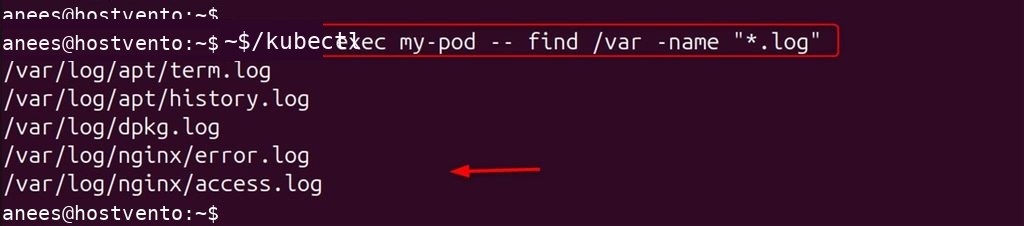
FAQ
What is the difference between kubectl exec and docker exec? kubectl exec works on pods in a cluster. docker exec works on Docker containers on one host.
Can I use another namespace? Yes, with -n or --namespace.
Which container does it use in a multi-container pod? The default one. Use -c to choose.
What does "exit code 126" mean? The command or shell does not exist in the container. Try /bin/sh instead of /bin/bash.
Can I exec into a pod that is not running? No. Check with kubectl get pods.
Can I set a timeout? Use the --request-timeout option or wrap the command in timeout 30 ... inside the container.
Quick recap
kubectl exec POD -- COMMANDruns one command.kubectl exec -it POD -- shopens a shell.- Use
-cfor the container and-nfor the namespace.