

Why update containers
A container never updates by itself. New images bring security fixes, bug fixes and new features, so you should update them regularly.
An existing container is built from a fixed image. To use a new image you must create a new container from it. Your data survives if it is stored in a volume or bind mount.
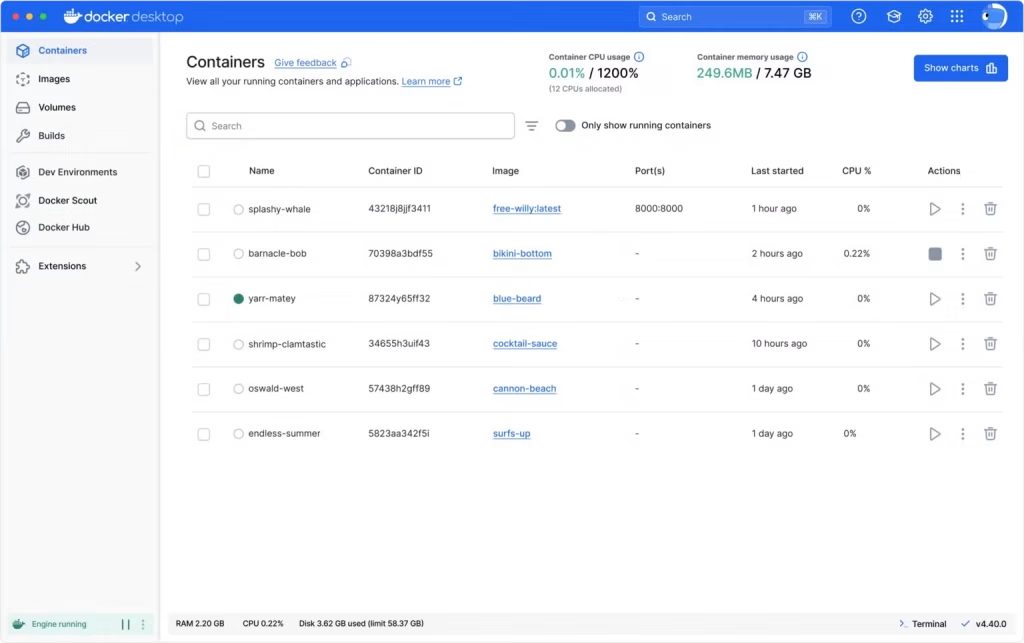
Basic workflow
- Download the latest image from the registry.
- Stop the running container.
- Remove the old container.
- Start a new container from the updated image with the same settings.
Update with Docker
Step 1: Pull the latest image
docker pull image_name:latestStep 2: Stop the container
docker stop container_nameStep 3: Remove the old container
docker rm container_nameStep 4: Start a new one from the updated image
docker run -d --name container_name image_name:latestdocker inspect container_name. Data inside the container that is not in a volume is lost when you remove it.Remove the old, unused images afterwards:
docker image pruneUpdate with Docker Compose
Compose keeps all the settings in docker-compose.yml, so updates are simple.
Go to the folder of the project and run:
docker compose pull
docker compose up -d
docker compose pull downloads the new images. docker compose up -d recreates only the containers whose image changed.
To update one service:
docker compose pull web
docker compose up -d web
Update automatically (optional)
Tools such as Watchtower check for new images and update containers for you. Use them with care on production servers, because an unplanned update can break an app. Pin version tags (for example nginx:1.27) when you need predictable changes.
Tips
- Back up volumes before major updates.
- Read the release notes of the image.
- Test the new version on a staging container first.
- Check the logs after the update:
docker logs container_name.
Quick recap
docker pull,stop,rm,runfor a single container.docker compose pull && docker compose up -dfor Compose.