

List installed packages
dpkg --list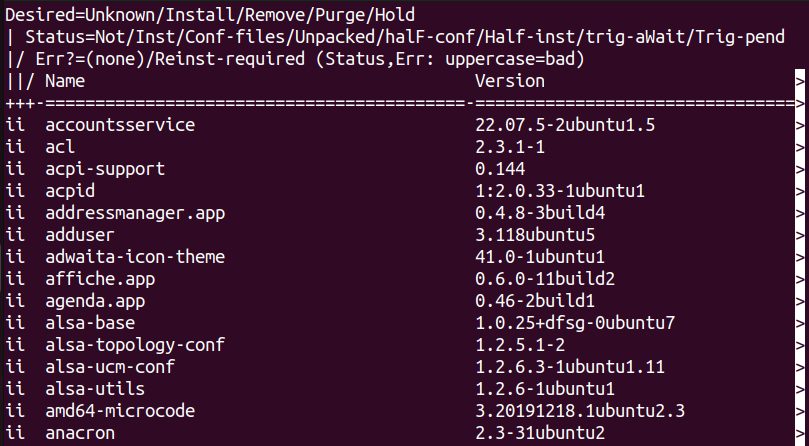
apt list --installed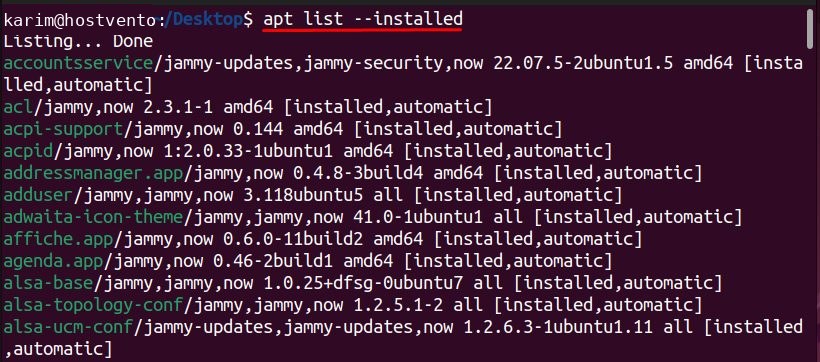
Show the 20 biggest packages:
dpkg-query -Wf '${Installed-Size}\t${Package}\n' | sort -n | tail -n 20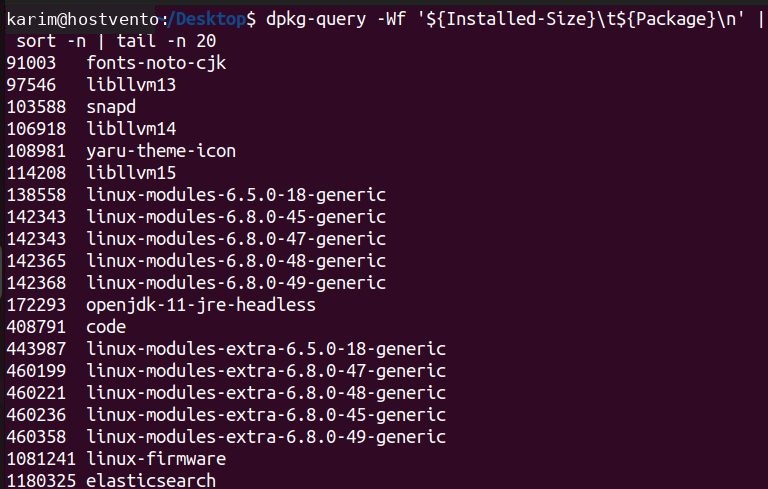
remove
remove deletes the program but keeps its configuration files.
sudo apt remove package-nameExample:
sudo apt remove firefox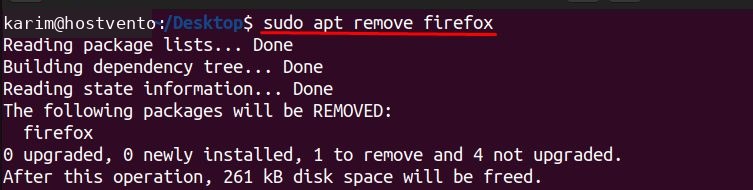
purge
purge deletes the program and its configuration files.
sudo apt purge package-name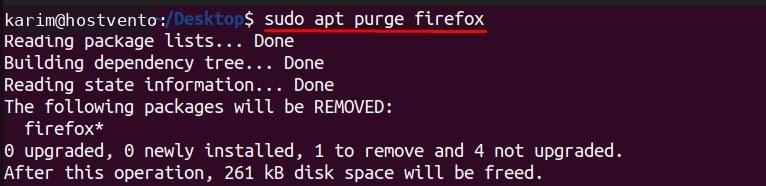
sudo apt purge firefoxautoremove
After a removal, some packages that were installed only as dependencies are no longer needed:
sudo apt autoremove
Remove them and their configuration files:
sudo apt autoremove --purge
Read the list before you confirm.
apt-get
apt-get works the same way:
sudo apt-get remove firefox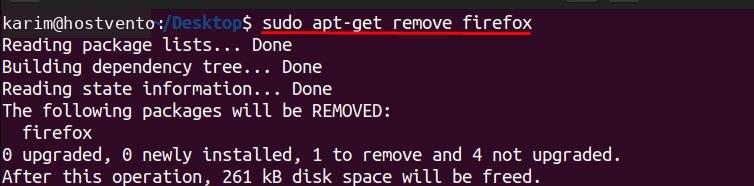
sudo apt-get purge firefox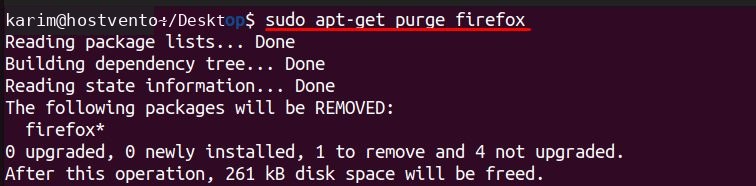
Snap packages
List the snaps:
snap list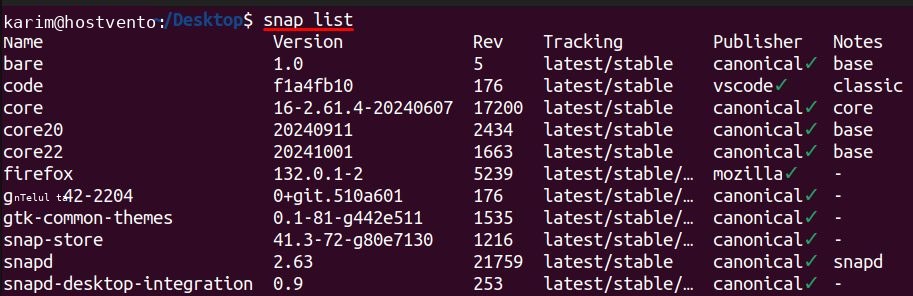
Remove one:
sudo snap remove package-name
Note: On current Ubuntu versions
apt install firefox installs a snap, so use snap remove firefox to remove it.Remove old kernels
First see the kernel you use:
uname -r
List the installed kernels:
dpkg --list | grep linux-image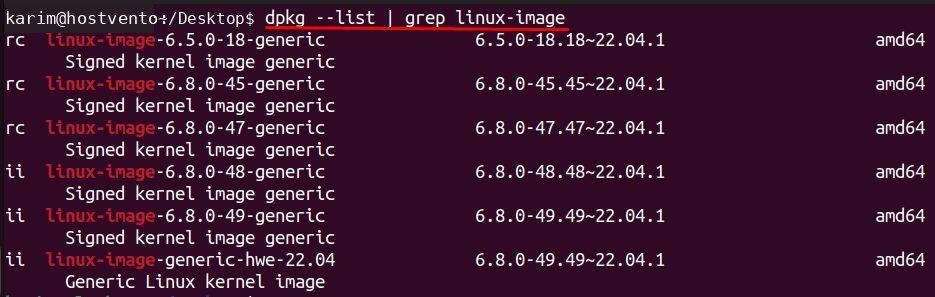
Remove an old one (never the one you run):
sudo apt remove --purge linux-image-5.15.0-91-generic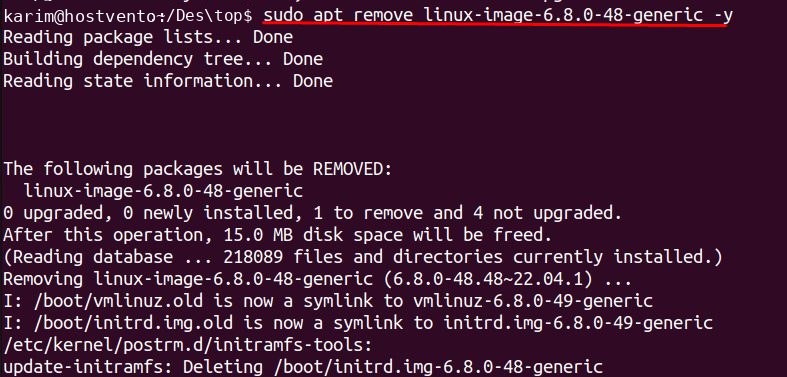
sudo apt autoremove also removes old kernels in most cases, and Ubuntu keeps the last two.
Clean the package cache
sudo apt cleanQuick recap
apt removekeeps the config,apt purgedeletes it too.- Run
apt autoremoveto clear unused dependencies.