

About TCP/IP
TCP/IP is the set of rules your PC uses to talk to other devices and to the internet. In most homes and offices the router hands out the settings automatically with DHCP. You set them by hand when you need a fixed address.
Open the network settings
- Open the Start menu, type
settingsand open the Settings app.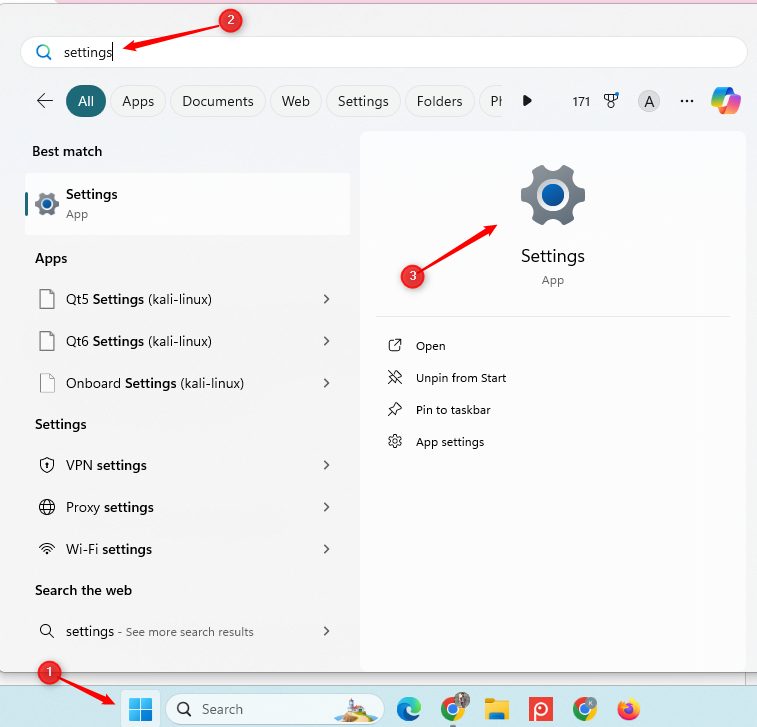
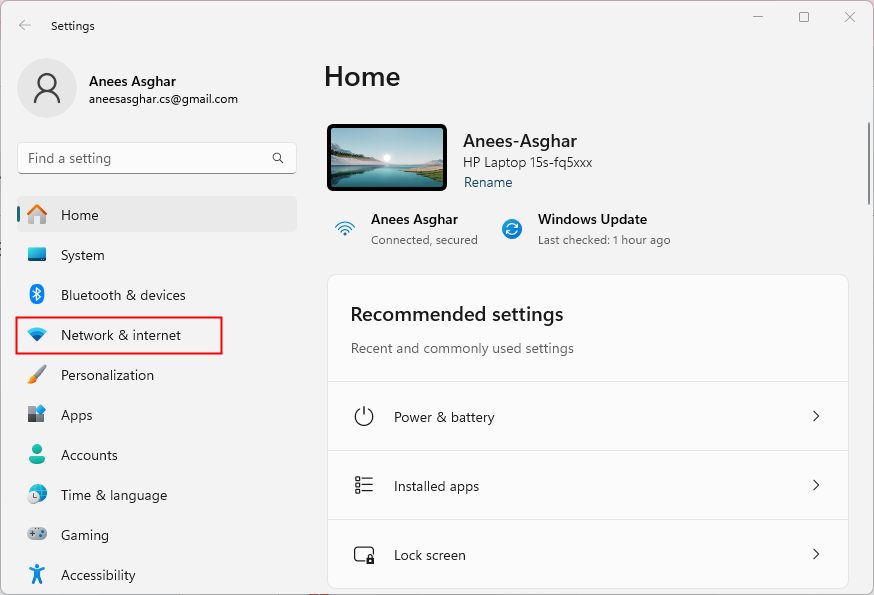
- Click Network & Internet.
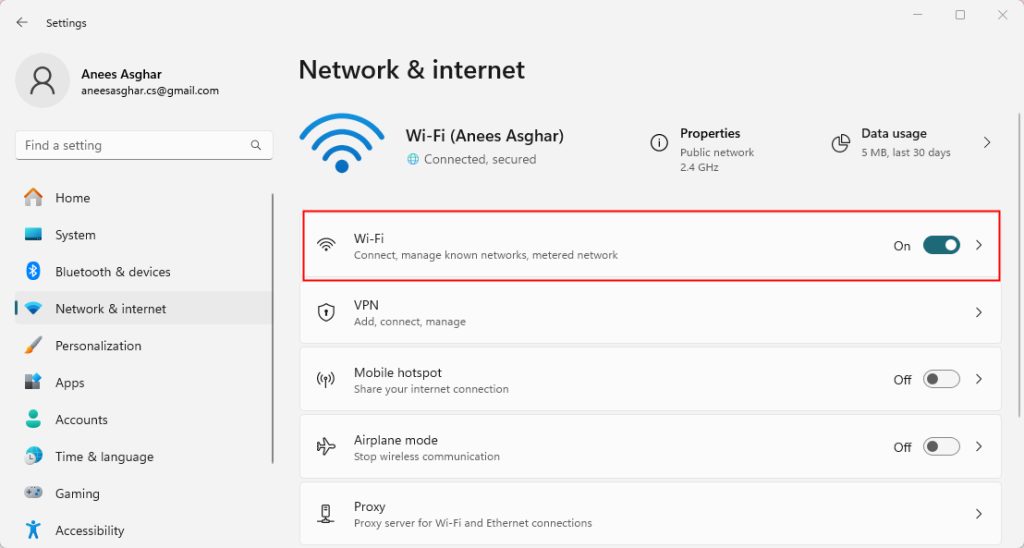
- Choose your connection type, Wi-Fi or Ethernet.
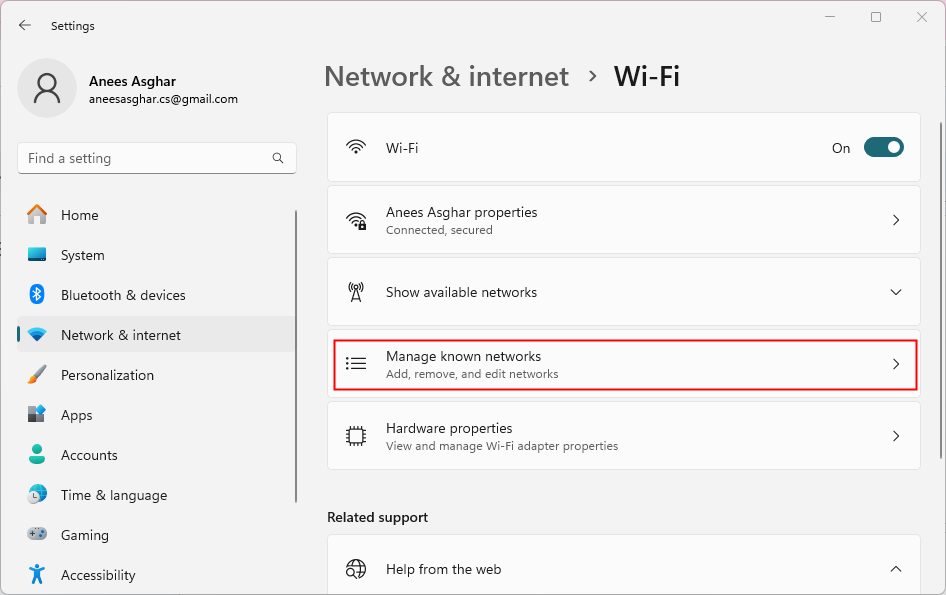
- For Wi-Fi, click Manage known networks. Click the network you use.
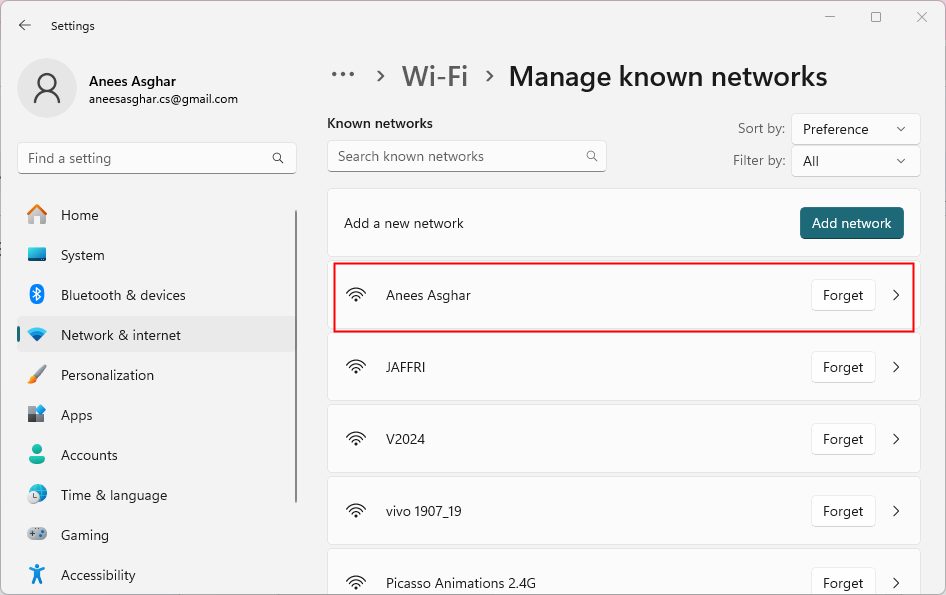
For Ethernet, click Ethernet and then the network you are connected to.
- Scroll to IP assignment and click Edit.
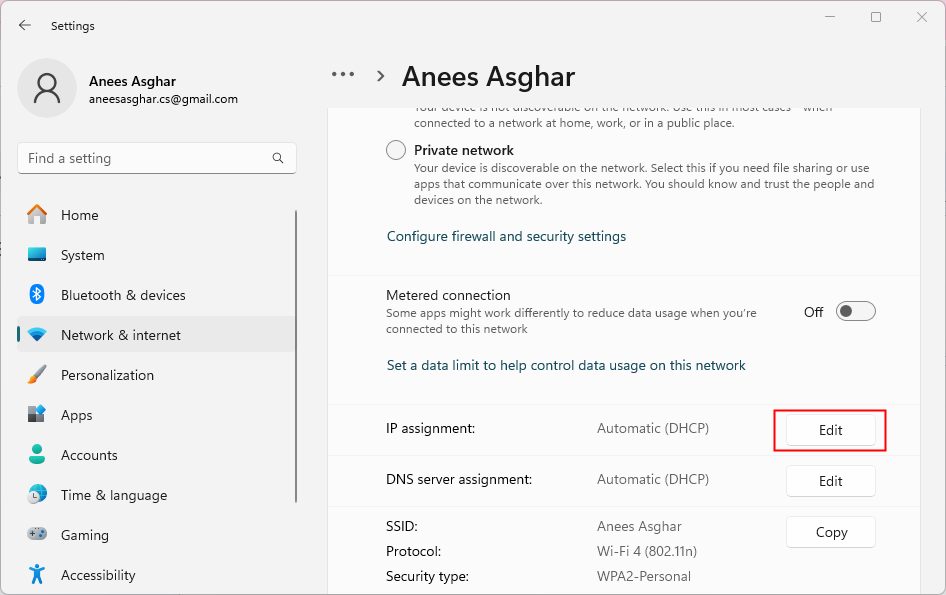
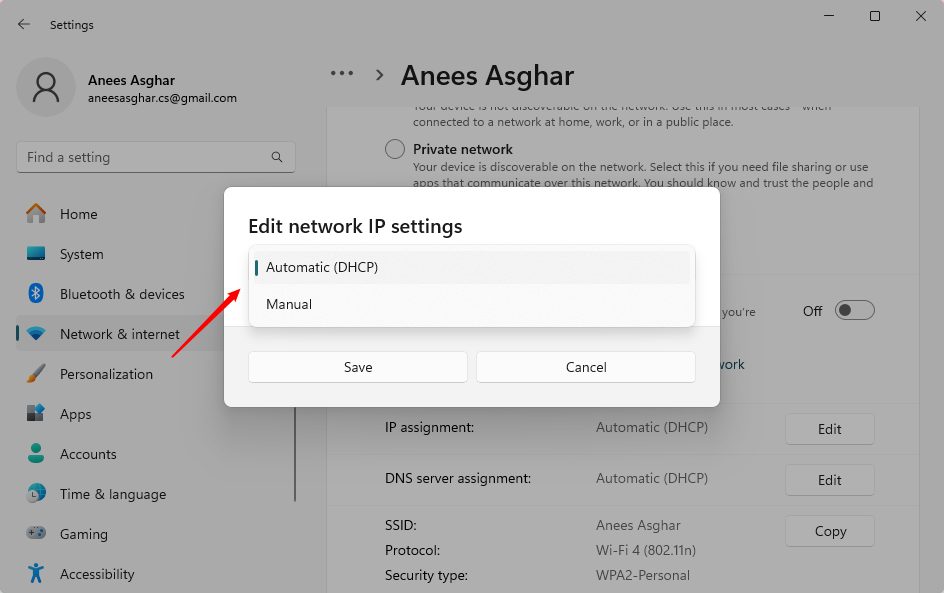
Method 1: Automatic (DHCP)
- In the Edit IP settings window, choose Automatic (DHCP).
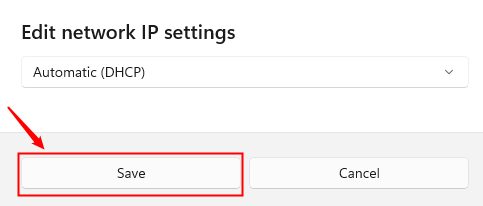
- Click Save.
Method 2: Manual
Use this when you need a static address.
- Open Edit IP settings as above and choose Manual. Switch on IPv4 or IPv6.
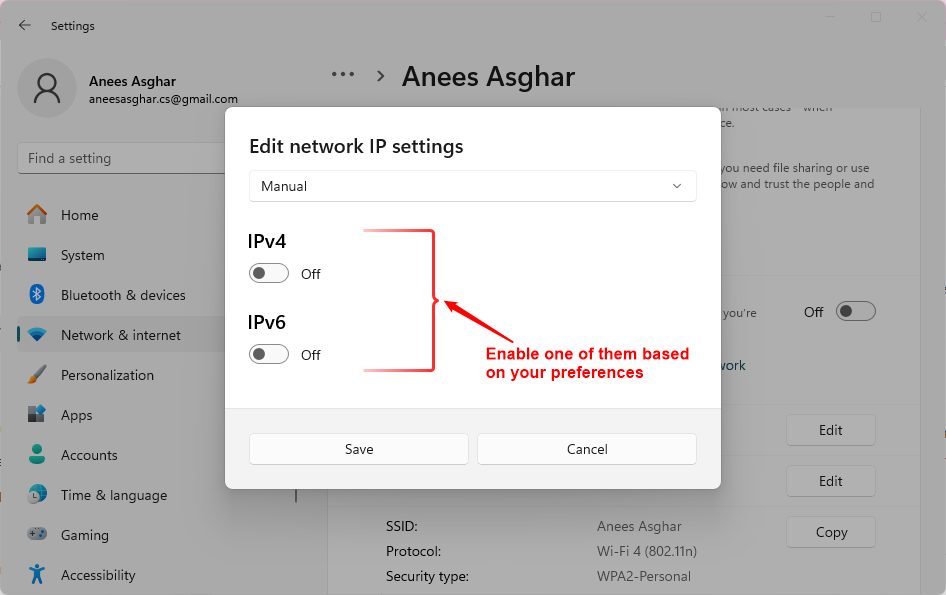
- Fill in:
- IP address, for example192.168.1.50
- Subnet prefix length (or subnet mask), for example24
- Gateway, usually your router, for example192.168.1.1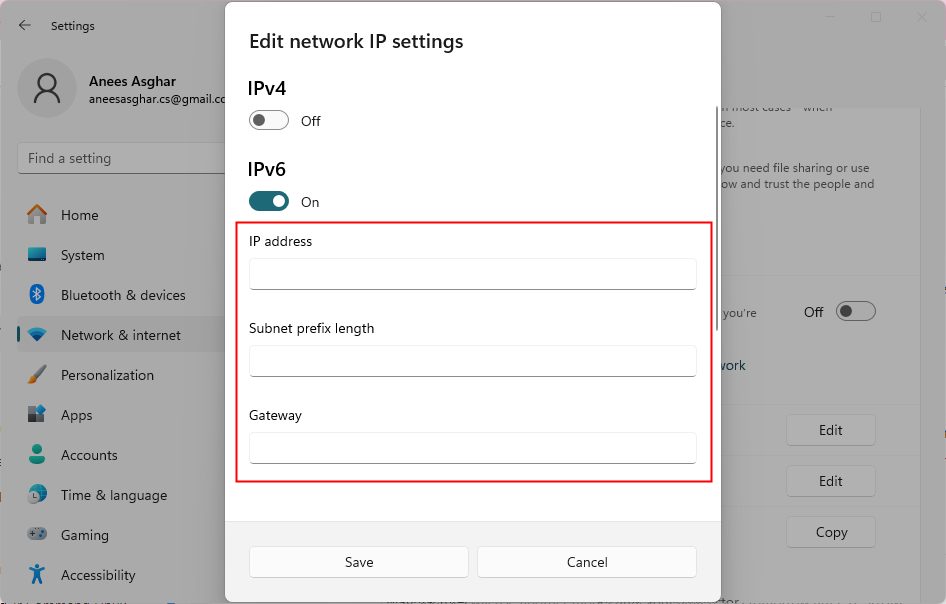
- Scroll down and fill in the Preferred DNS and Alternate DNS, for example
8.8.8.8and8.8.4.4.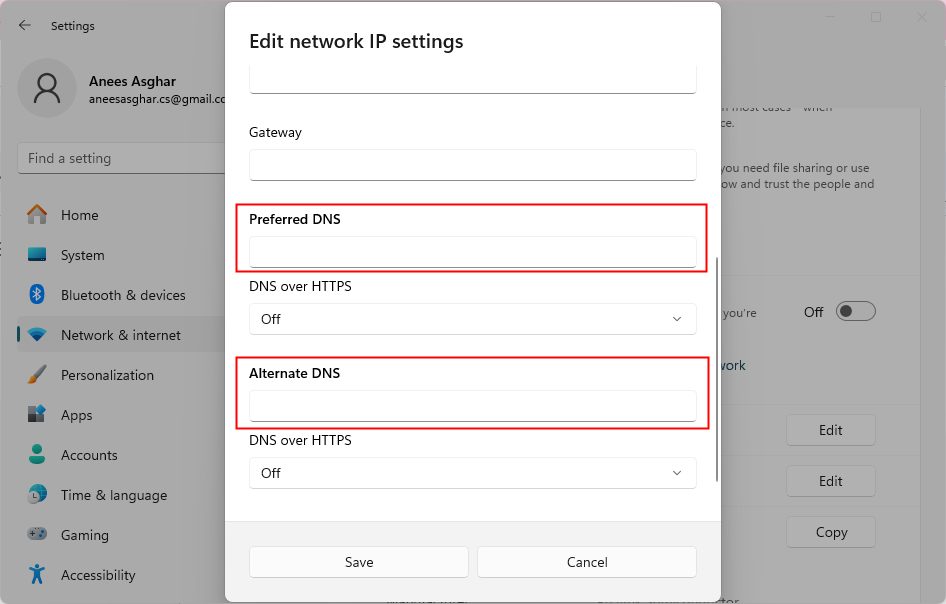
DNS over HTTPS (optional)
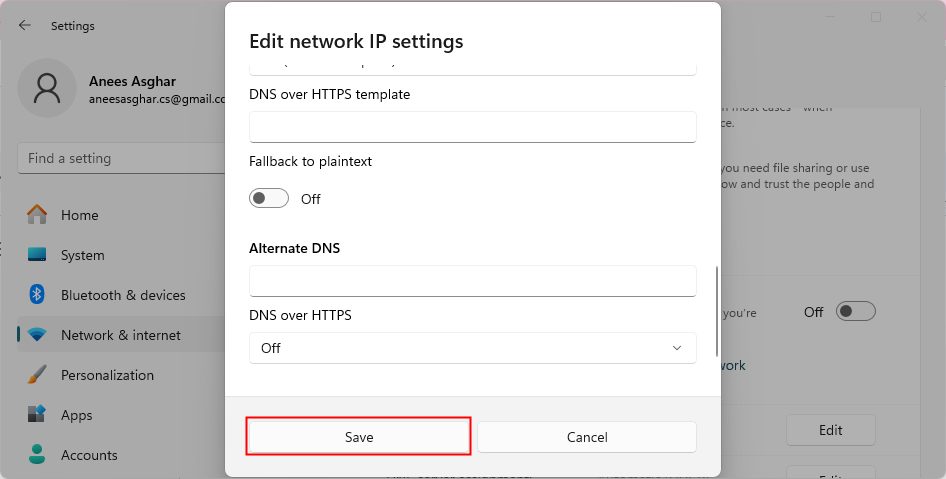
If your DNS server supports it, you can encrypt DNS requests. Turn on Preferred DNS encryption and choose Encrypted only (DNS over HTTPS).
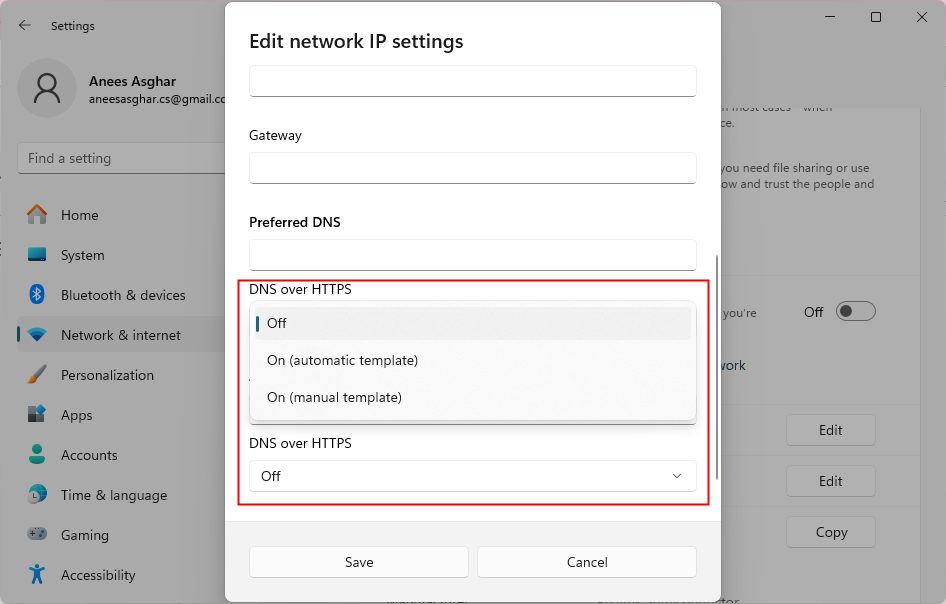
- If fallback to unencrypted is on, requests are sent without encryption when HTTPS is not possible.
- If it is off, a request is not sent at all when HTTPS is not possible.
- Click Save.
Tip: Choose an address outside the range your router gives out by DHCP. If two devices have the same address, both lose their connection.
Quick recap
- DHCP is the easy choice for most networks.
- Use Manual for a fixed IP address, and set the gateway and DNS.
- Save, then test with a web page or
ping.