

What you need
- A stable internet connection on the phone and the server.
- The IP address or host name of the VPS, plus a user name and password that may use Remote Desktop.
- The Microsoft Remote Desktop app from Google Play.
Steps
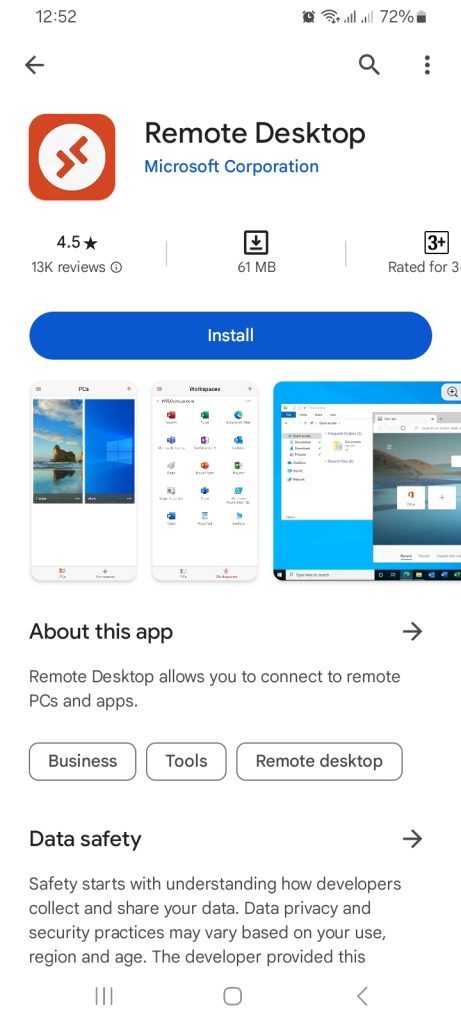
- Open Google Play, search for Microsoft Remote Desktop and install it.
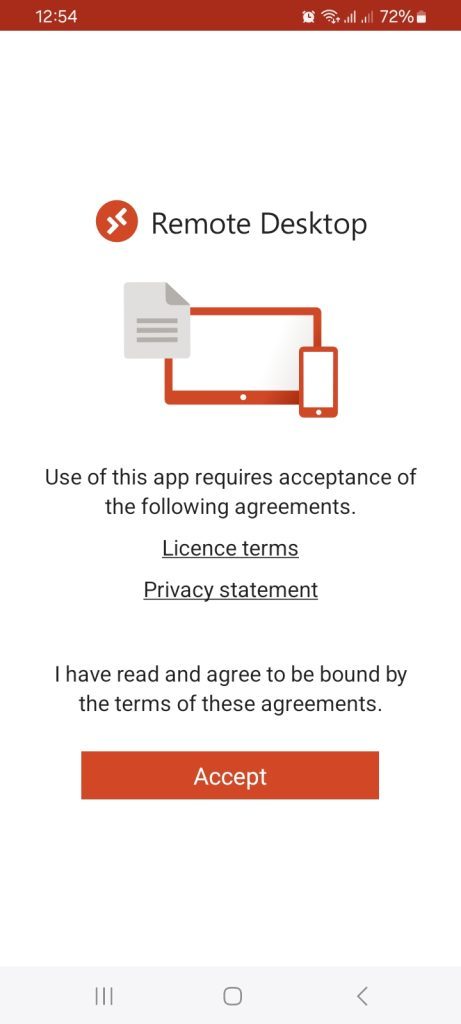
- Open the app. On the welcome screen, tap Accept if asked.
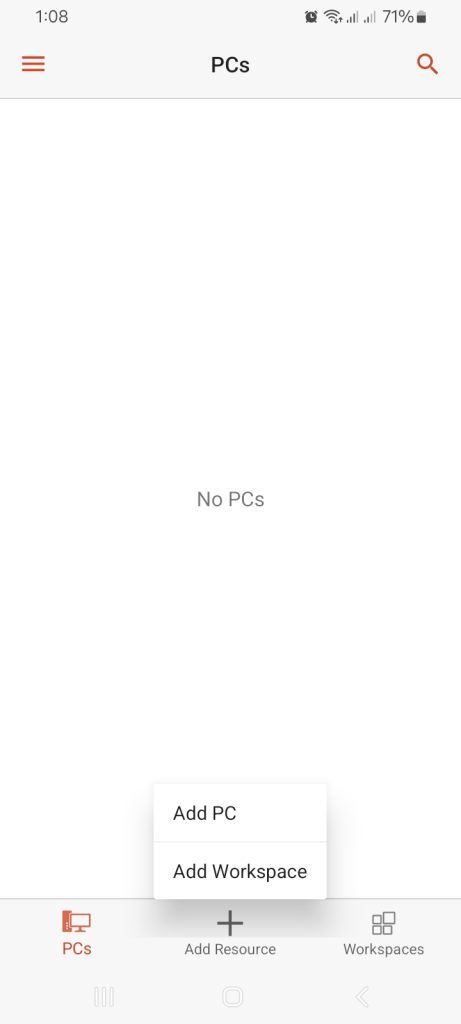
- Tap the + button, then Add PC (in some versions, choose the type of connection first and pick Desktop).
- Choose Add manually.
- In PC name, enter the IP address or host name of your VPS.
- Under User account, add the user name and password of your VPS user.
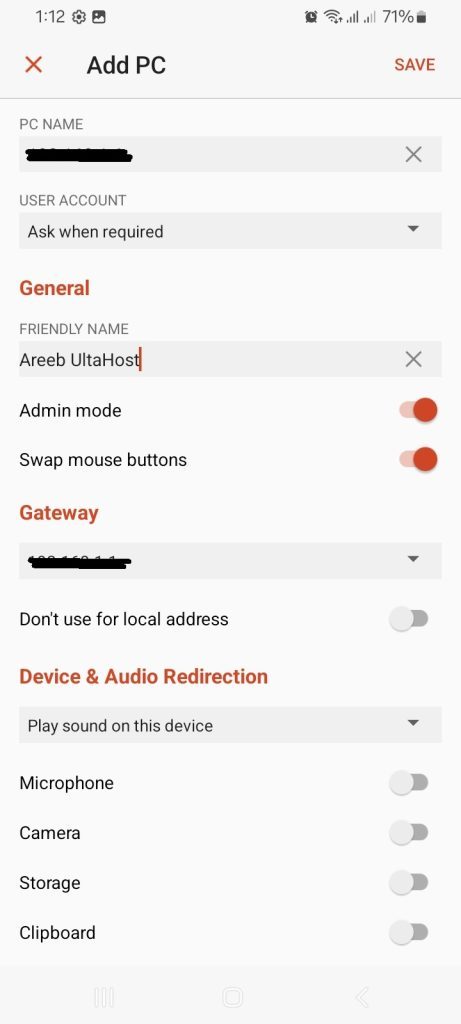
- Tap Save.
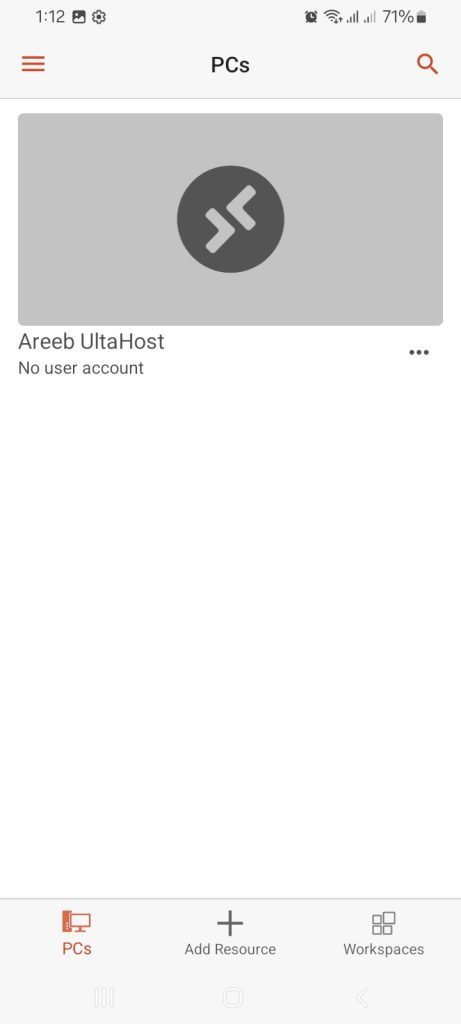
- Tap the connection to start the session.
- If the app shows a certificate warning, check the details. If you trust the server, accept it.
- After the login, the Windows desktop appears on your phone.
Tips
- Use the phone in landscape mode for more room.
- A mouse pointer mode in the app helps you tap small items.
- If the connection fails, check that RDP port 3389 is open and that your user may log in with Remote Desktop.
Quick recap
- Install Microsoft Remote Desktop and add your VPS as a PC.
- Enter the IP, user name and password.
- Tap the saved connection to log in.