

What is RDP?
RDP stands for Remote Desktop Protocol. It lets you see and control another computer's screen over the internet. It is like sitting in front of your server, even if it is far away. Your server is a computer that stays on all day to run your website.
What you need
- The server IP address.
- The user name, usually Administrator.
- The password.
You can find these in your welcome email. You can also look in your client area at https://secure.hostvento.com/clientarea.php under Services. If you cannot find them, ask Hostvento support.
Steps on Windows
- Click Start and type Remote Desktop Connection.
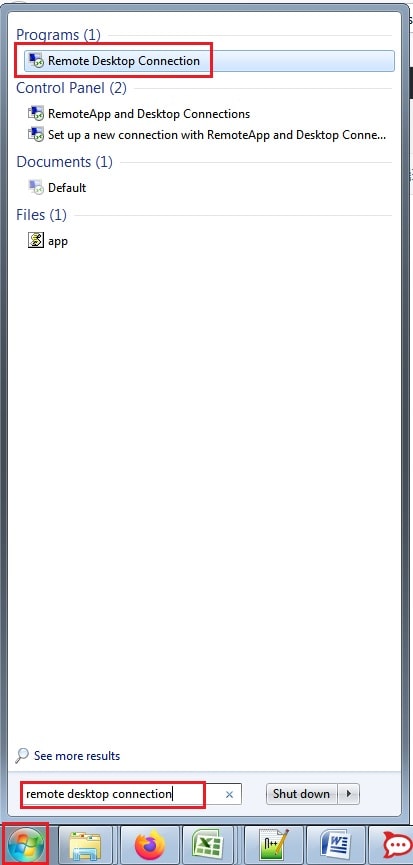
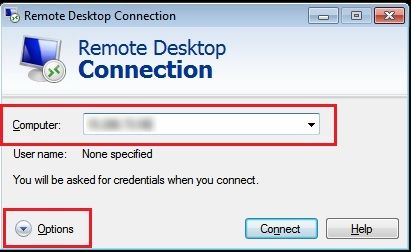
- Open the app. You can also press Windows + R, type
mstsc, and press Enter. - In the Computer box, type the server IP address.
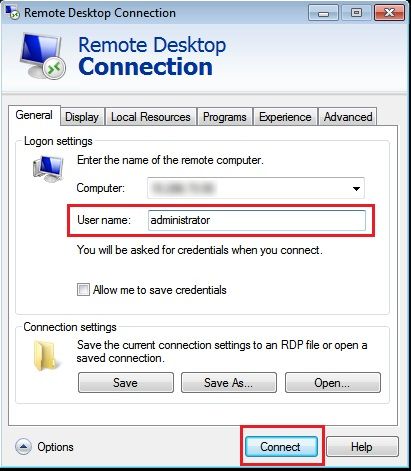
- Click Show Options and type the user name in the User name box.
- Click Connect.
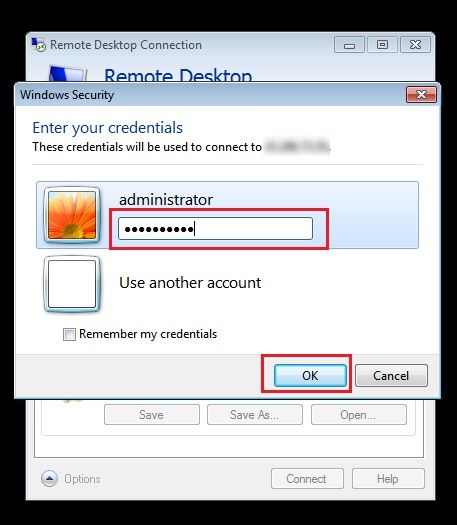
- Type the password when asked.
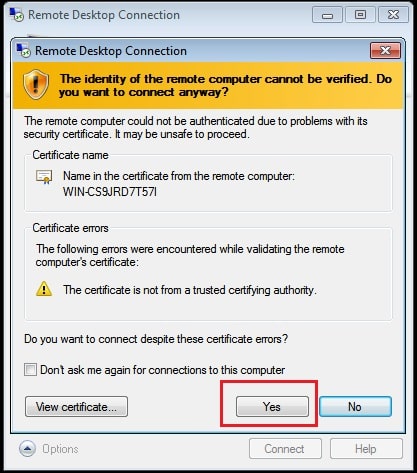
- A warning about a certificate may appear. A certificate is a digital ID card. If you trust your server, click Yes.
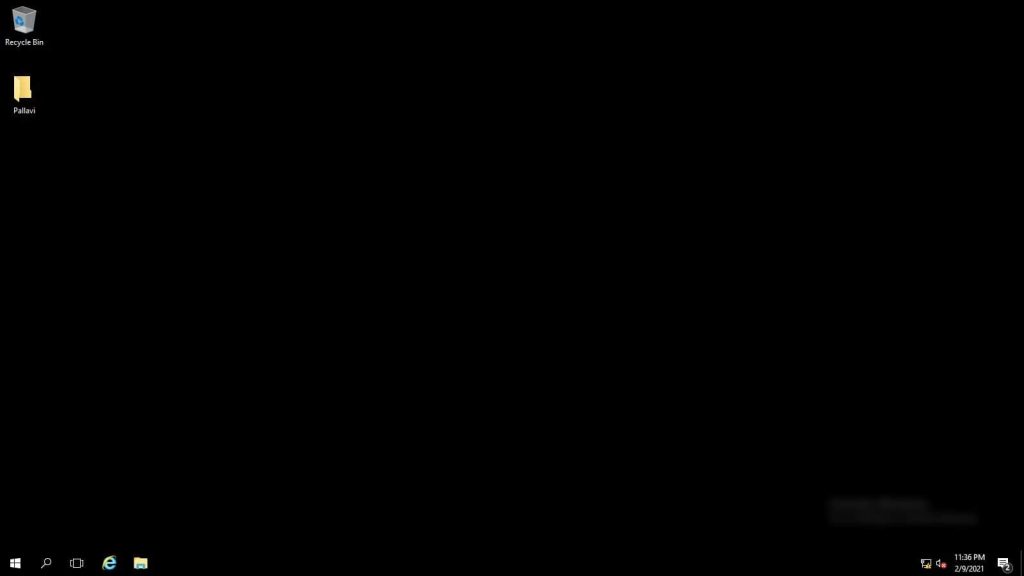
- Wait a few seconds. The server desktop opens in a window.
Steps on Mac
- Download Microsoft Remote Desktop (now called Windows App) from the App Store.
- Click Add PC and enter the server IP address.
- Add your user name and password.
- Double-click the new entry to connect.
If you cannot connect
- Check that the IP address has no typing mistake.
- Check your password. Capital letters matter.
- Make sure your internet works.
- Some office or school networks block RDP. Try another network.
- The server firewall may block RDP port 3389. A port is a numbered door on the server. Ask support if you are not sure.
Tip: When you finish, use Start, then the user icon, then Sign out. Do not just close the window if you want to free the session.
Tip: Change the Administrator password to a strong one after your first login. Strong passwords keep attackers out.
Quick recap
- RDP lets you control your server screen from home.
- Get the IP, user name and password from your welcome email.
- Open
mstsc, enter the IP, and click Connect. - If it fails, check the details, your network and the firewall.