

What is SSH?
SSH stands for Secure Shell. It is a safe way to control another computer by typing commands. Everything you send is scrambled so nobody can read it. A server is a computer that runs your website all day. PuTTY is a free Windows program that speaks SSH. If you do not have it yet, see our guide on installing PuTTY.
What you need
- The server IP address or host name.
- Your user name and password.
- The SSH port. It is usually 22.
These are in your welcome email. Check your client area at https://secure.hostvento.com/clientarea.php. If SSH is not turned on for your plan, ask Hostvento support.
Steps
- Click Start and open PuTTY.
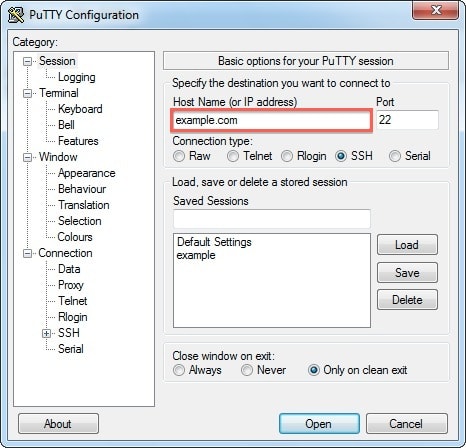
- In Host Name (or IP address), type your server IP.
- Check that Port is 22 and Connection type is SSH.
- Optional: type a name in Saved Sessions and click Save.
- Click Open.
- The first time, a PuTTY Security Alert appears. It asks if you trust the server's key. Click Accept if you are sure the address is right.
- A black window opens. At
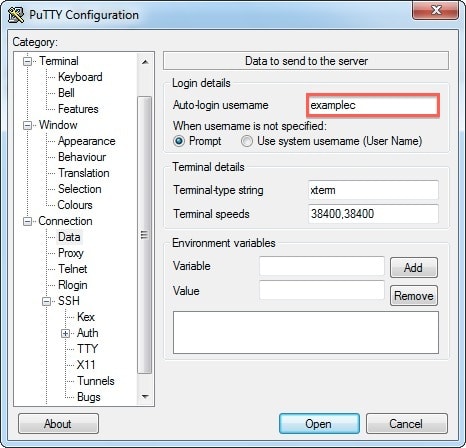
login as:, type your user name and press Enter. - Type your password and press Enter. Nothing shows while you type. This is normal.
When you see a line ending in $ or #, you are in.
A few first commands
pwd
ls
cd public_html
pwd shows the folder you are in. ls lists the files there. cd public_html moves into a folder named public_html.
To leave, type exit and press Enter.
Use a private key instead of a password
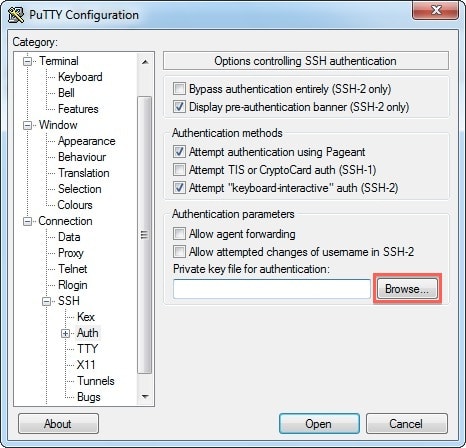
- In PuTTY, open Connection, then SSH, then Auth, then Credentials.
- Click Browse and select your
.ppkprivate key file.
- Go back to Session and click Open.
If it does not connect
- "Connection timed out": the IP or port may be wrong, or a firewall blocks it.
- "Connection refused": the SSH service may be off.
- "Access denied": the user name or password is wrong.
Warning: Commands run on a real server. Wrong commands, like those that delete files, can break your site. Take a backup first.
Quick recap
- SSH lets you control a server with typed commands.
- Enter the IP, keep port 22 and click Open.
- Log in with your user name and password, or a key.
- Type
exitto leave.