

What Ctrl+Alt+Del does
The Ctrl+Alt+Del shortcut opens a security screen on Windows with these options:
- Lock the computer.
- Switch user.
- Sign out.
- Change a password.
- Open Task Manager to see and close programs.
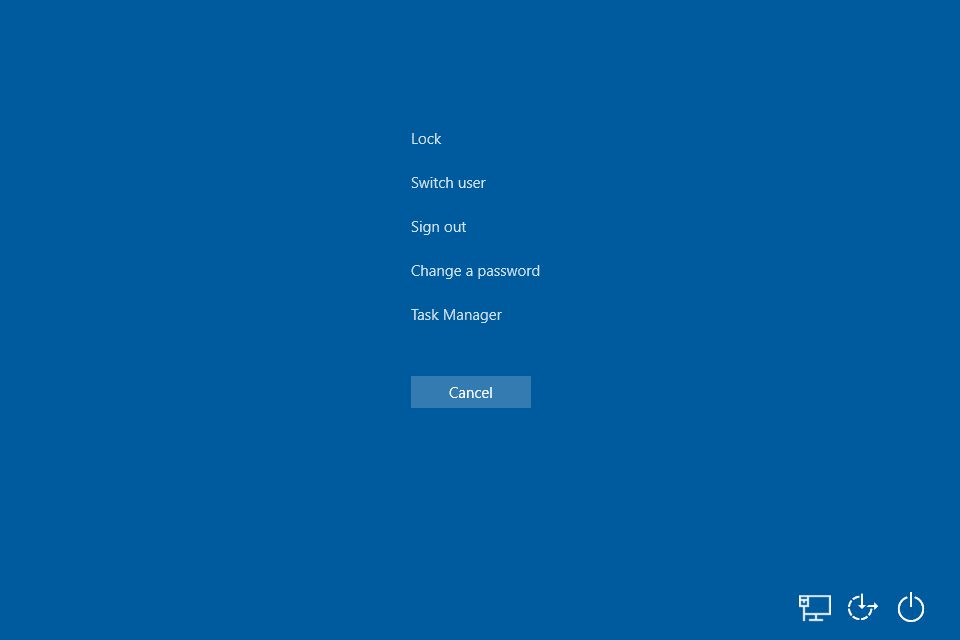
In the bottom right corner of the screen you can also change the network, open the accessibility options and use the power options (Sleep, Restart and Shut down).
It is also the way to close a frozen program when the system hangs.
The problem in RDP
When you press Ctrl+Alt+Del in a Remote Desktop window, your own computer handles the shortcut, not the remote one. These are two ways to send it to the remote computer.
Quick method: Ctrl+Alt+End
In a Remote Desktop session, press Ctrl+Alt+End. It does what Ctrl+Alt+Del does on the remote computer.
Method 1: Send Windows key combinations to the remote computer
This setting is done in the Remote Desktop client before you connect.
- Press Windows key + R to open the Run box.
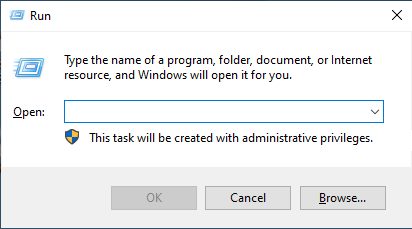
- Type
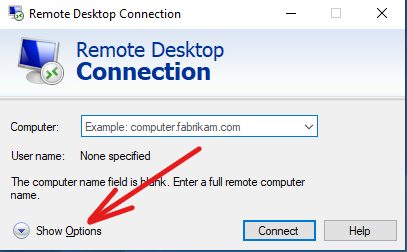
mstscand press Enter. The Remote Desktop Connection window opens. - Enter the IP address or name of the remote computer.
- Click Show Options.
- Open the Local Resources tab.
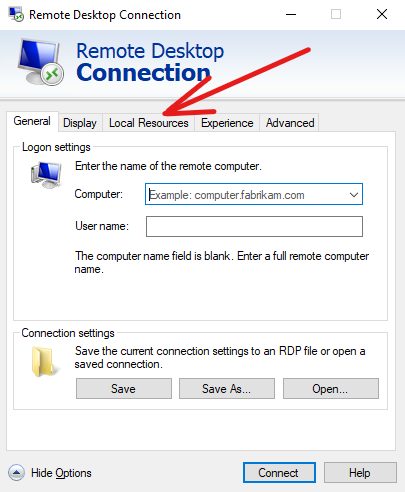
- In the Keyboard section, set Apply Windows key combinations to On the remote computer.
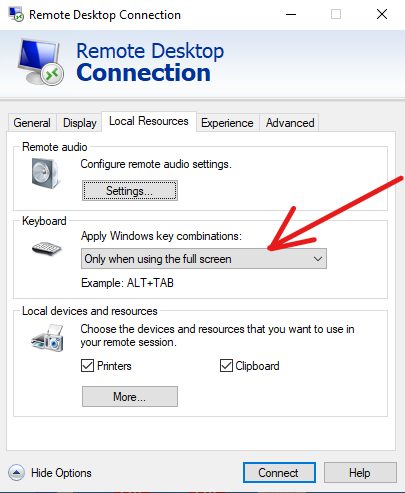
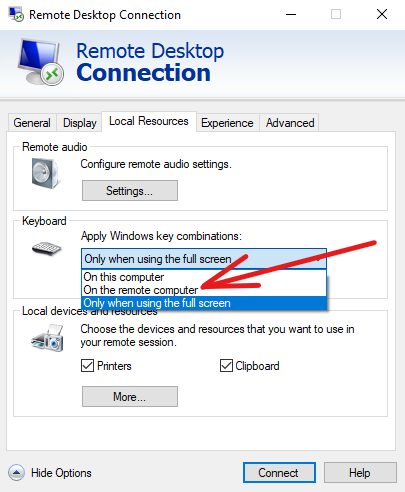
- Click Connect and enter your username and password.
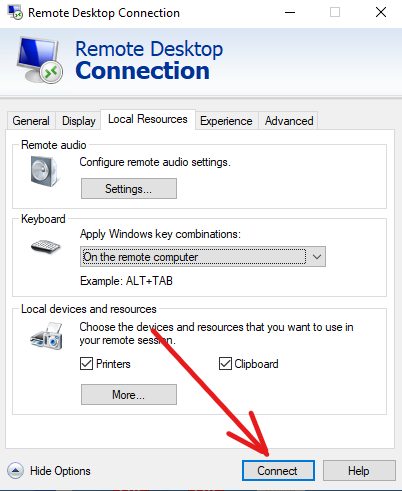
Windows shortcuts such as Alt+Tab and the Windows key now go to the remote computer. Ctrl+Alt+Del still goes to your own computer for security reasons, so use Ctrl+Alt+End for the remote one.
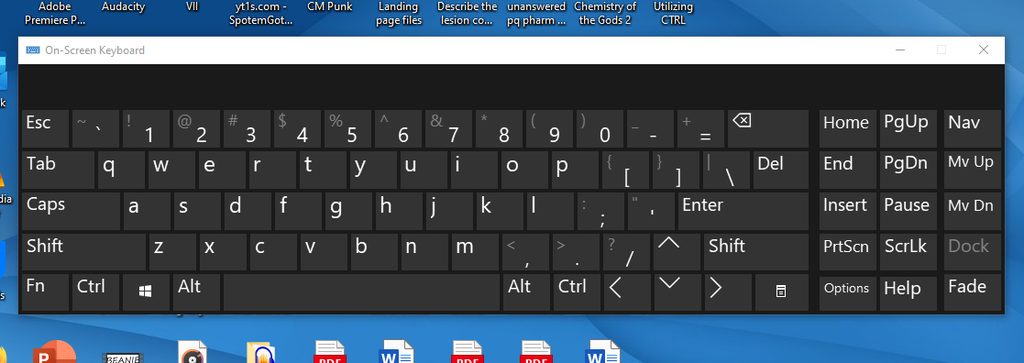
Method 2: On-screen keyboard
- In the remote session type
oskin the Windows search bar and open On-Screen Keyboard.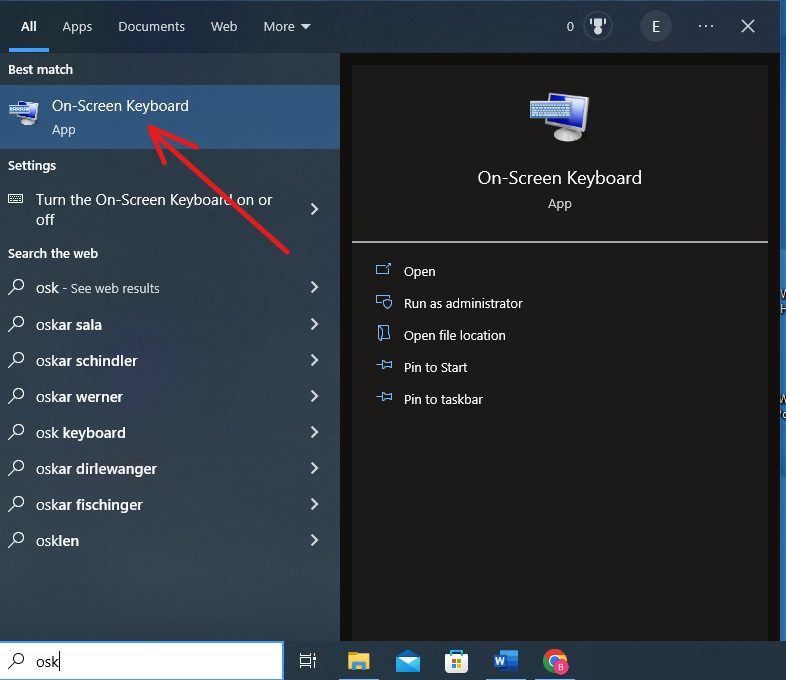
- Press Ctrl and Alt on your physical keyboard and click Del on the on-screen keyboard.
Other options
- Use the Remote Desktop app for Mac or mobile, which has a button for Ctrl+Alt+Del.
- In Windows Server you can also open Task Manager with Ctrl+Shift+Esc.
Quick recap
- Press Ctrl+Alt+End in the RDP window.
- Or use the on-screen keyboard.