

Windows does not have cron. The tool for scheduled tasks is Task Scheduler. You can also create tasks with PowerShell.
Method 1: Task Scheduler
- Press
Win + R, type the following and press Enter:
taskschd.msc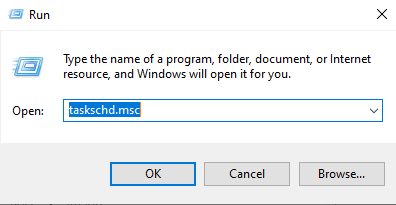
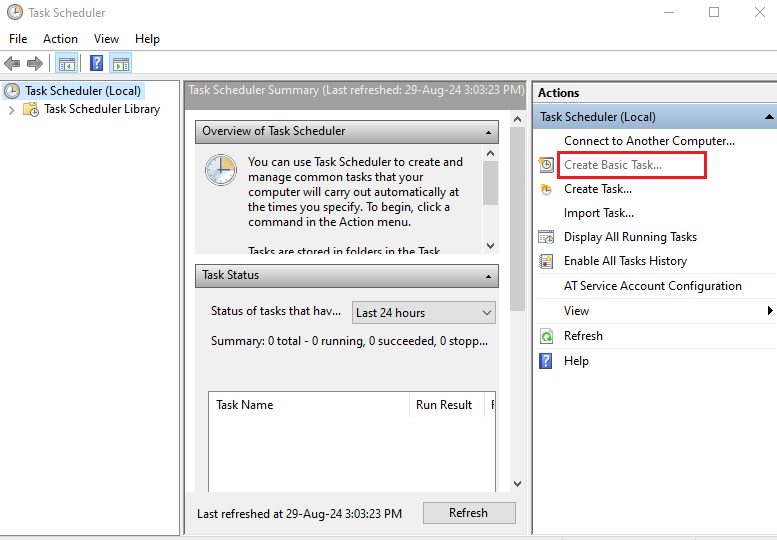
- Click Create Basic Task on the right.
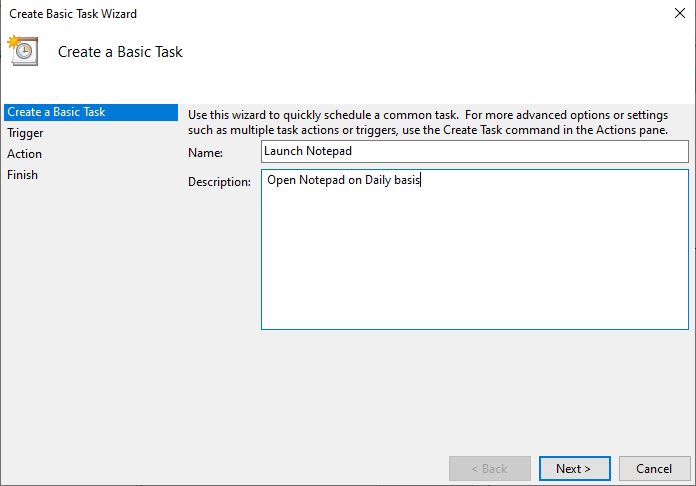
- Enter a name and a description for the task.
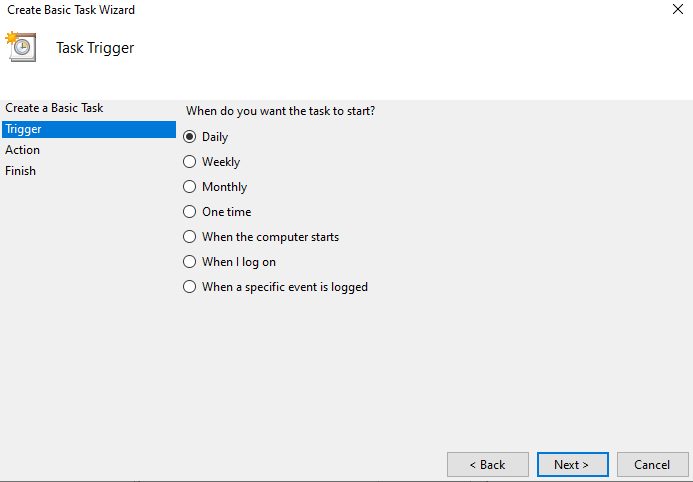
- Choose the trigger: daily, weekly, monthly, one time, at startup or at logon. Then set the time.
- Choose the action Start a program. Click Browse and pick the program or script, for example
notepad.exeor your.bator.ps1file. In Add arguments type any options.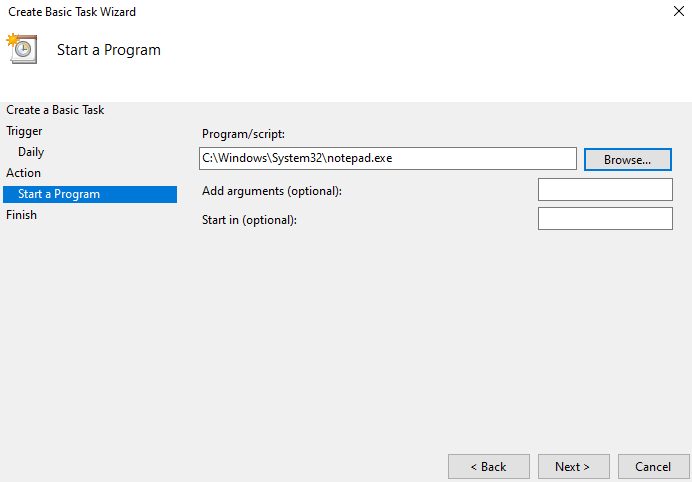
- Click Finish.
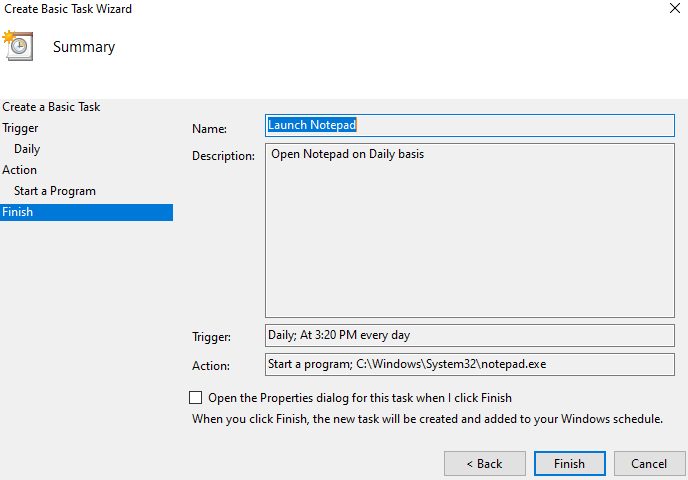
Right-click the task and choose Run to test it. In the task properties, tick Run whether user is logged on or not and Run with highest privileges for server jobs.
Method 2: PowerShell
$action = New-ScheduledTaskAction -Execute "cmd.exe" -Argument "/c your_command.exe"
$trigger = New-ScheduledTaskTrigger -Daily -At 00:00
$principal = New-ScheduledTaskPrincipal -UserId "SYSTEM" -RunLevel Highest
Register-ScheduledTask -TaskName "YourTaskName" -Action $action -Trigger $trigger -Principal $principal
Run PowerShell as administrator. List and remove tasks:
Get-ScheduledTask -TaskName "YourTaskName"
Unregister-ScheduledTask -TaskName "YourTaskName" -Confirm:$false
Method 3: schtasks
schtasks /create /tn "BackupJob" /tr "C:\scripts\backup.bat" /sc daily /st 02:00Third-party tools
If you want the real Linux cron syntax, use Windows Subsystem for Linux (WSL) and run cron there. Other schedulers with more options exist too. Pick a tool based on how complex your tasks are.
Best practices
- Test the command by hand first.
- Use full paths to programs and scripts.
- Write the output to a log file.
- Run important tasks with a service account and the least rights needed.
- Check the History tab if a task does not run.
Quick recap
- Use Task Scheduler (
taskschd.msc),schtasksor PowerShell.