

Step 1: Open a terminal
Windows 11 has the OpenSSH client built in. Open PowerShell or Command Prompt (or Windows Terminal). Go to your user folder. SSH keys are saved by default in C:\Users\YourName\.ssh.
If ssh-keygen is not found, install the client in Settings, then Apps, then Optional features, then Add a feature, and add OpenSSH Client.
Step 2: Generate the key pair
ssh-keygen -t rsa -b 4096You can use the newer ed25519 type, which is shorter and also strong:
ssh-keygen -t ed25519- Press
Enterto save the key in the default place. - Enter a passphrase for the private key. It adds a layer of safety. You can press
Enterto skip it. - Wait for the process to finish. SSH tells you where your files were saved.
Step 3: Find the keys
Open File Explorer and go to C:\Users\YourName\.ssh.
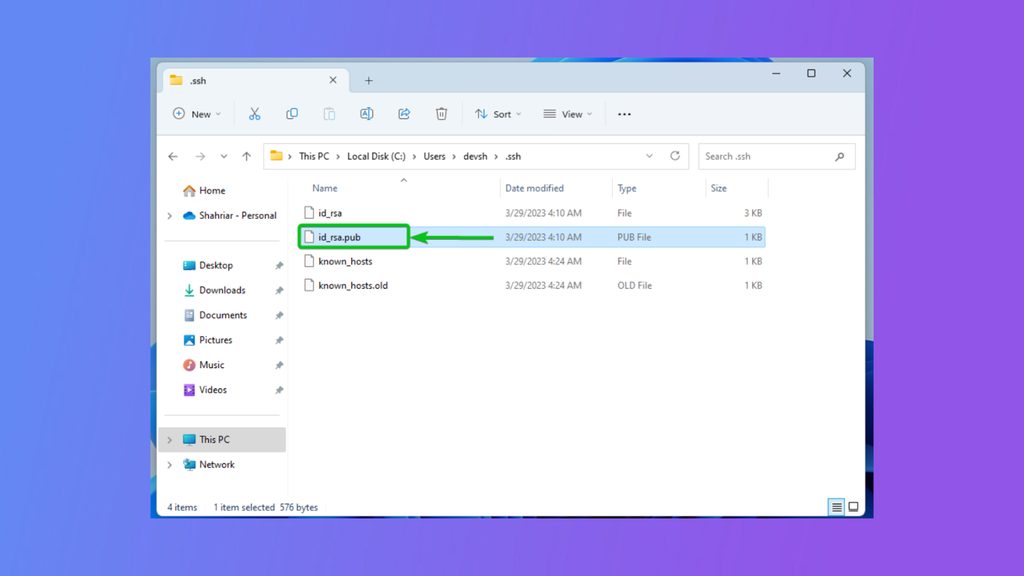
You will see two files:
id_rsais your private key. Keep it secret.id_rsa.pubis your public key. You can share it.
Make a backup of the keys in a safe place. You can open the public key in Notepad.
Step 4: Use the keys
- Copy the content of the public key file (
.pub). In PowerShell:
Get-Content $env:USERPROFILE\.ssh\id_rsa.pub | Set-Clipboard- Add the public key to the server or service. For a Linux server, add it to
~/.ssh/authorized_keys. For GitHub or GitLab, paste it into the SSH keys page of your account. - Connect with your private key:
ssh -i C:\Users\YourName\.ssh\id_rsa user@server_ipIf you set a passphrase, SSH asks for it.
Quick recap
- Run
ssh-keygenin PowerShell. - The public key (
.pub) goes on the server, the private key stays with you. - Back up the keys and use a passphrase.