

What FTP is
FTP (File Transfer Protocol) moves files between a client and a server. A user logs in to the server (some servers allow anonymous access), and then can upload, download, delete, rename and move files.
FTP has two modes:
- Active mode. The client opens a command channel, and the server opens the data channel back to the client.
- Passive mode. The server tells the client which port to use, and the client opens all connections. It works better through firewalls and routers.
Note: Plain FTP does not encrypt data or passwords. Use FTP over TLS (FTPS) or SFTP when you can.
Install on Windows Server 2019
- Press
Win + R, typeServerManagerand pressEnter.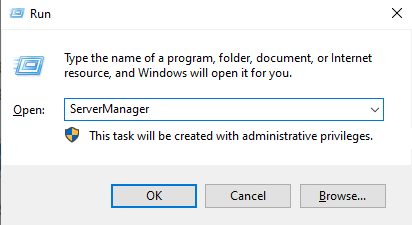
- Click Add roles and features in the dashboard.
- Read the first page of the wizard and click Next.
- Choose Role-based or feature-based installation and click Next.
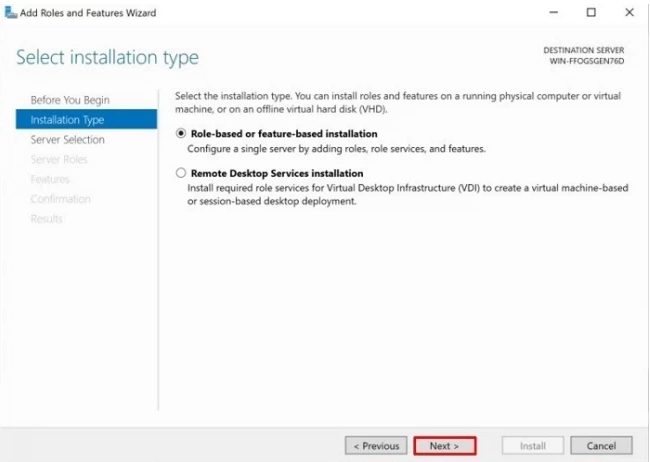
- Choose Select a server from the server pool and pick the server on which you want to install FTP. Normally it is the server you are on. Click Next.
- Under Server Roles, tick Web Server (IIS). Expand it and tick FTP Server, which includes FTP Service and FTP Extensibility. Click Next.
- Review the choices on the Confirmation page and click Install.
- When it finishes, close the wizard.
Install on Windows 10
- Press
Win + R, typeappwiz.cpland pressEnter.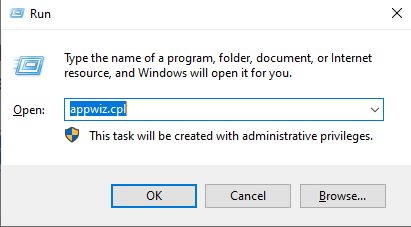
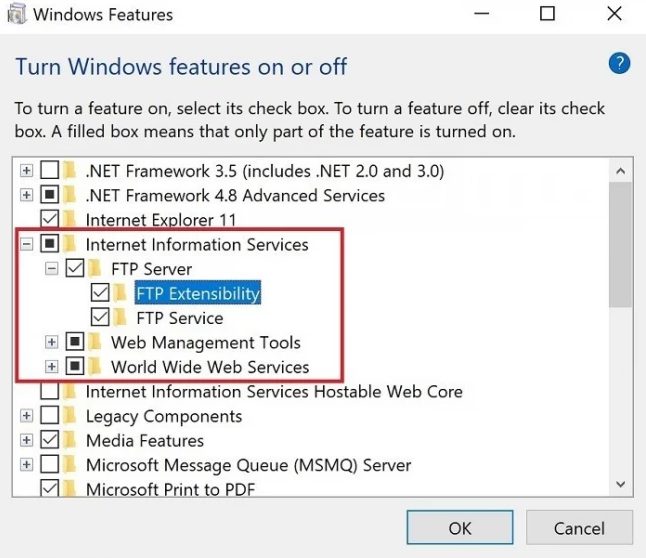
- Click Turn Windows features on or off on the left.
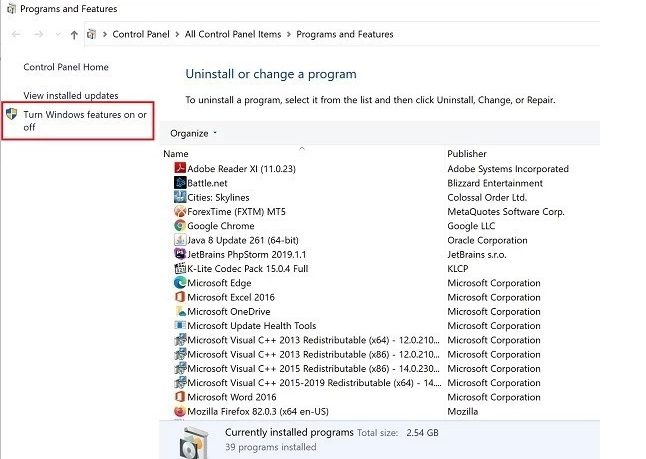
- Tick Internet Information Services, then expand it and tick FTP Server (with FTP Service) and IIS Management Console. Click OK.
- Restart the computer if Windows asks.
Add an FTP site in IIS
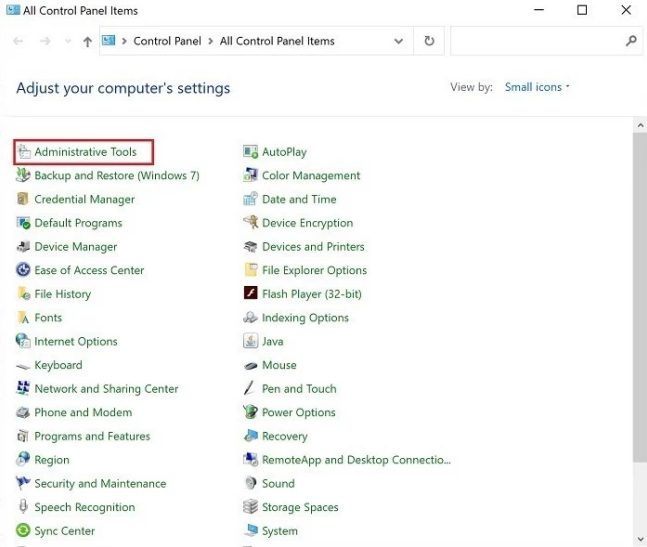
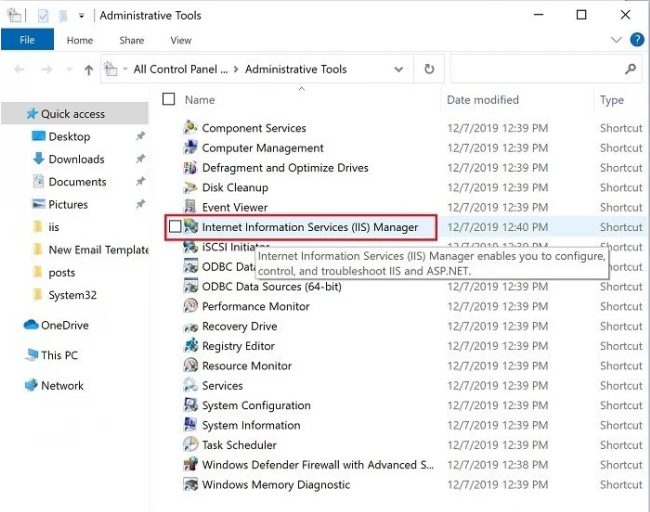
- Open Control Panel, then Administrative Tools, and start Internet Information Services (IIS) Manager.
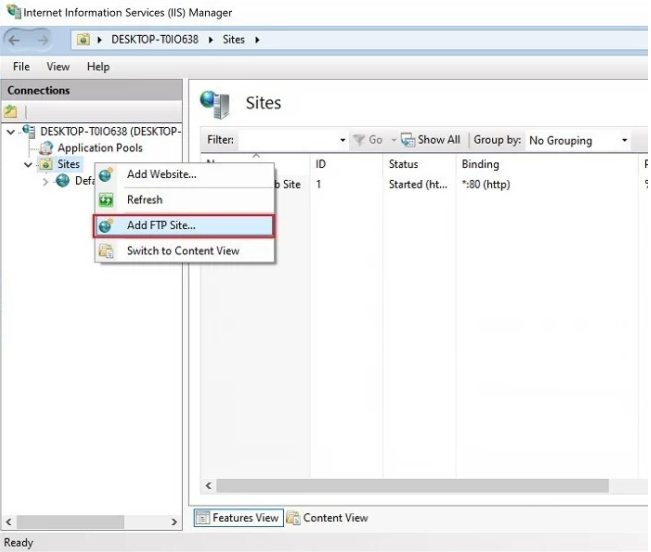
- Right-click Sites and choose Add FTP Site.
- Enter a name for the site and the physical path of the folder to share. Click Next.
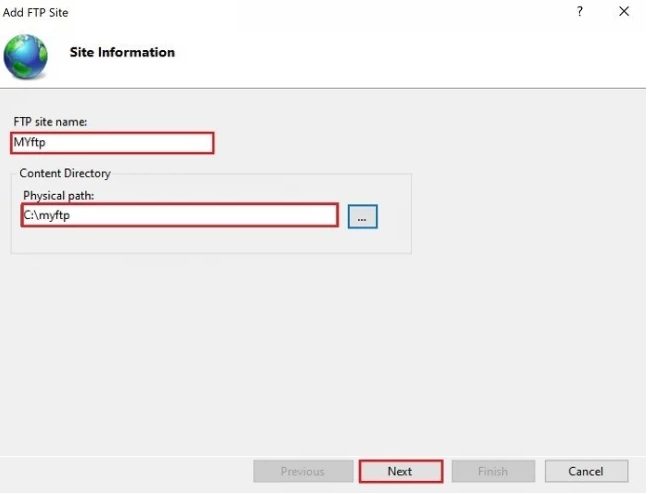
- Set the IP address and the port (21). Choose No SSL for a test only, or Require SSL (recommended) and choose a certificate. Click Next.
- Set the authentication (Basic) and the authorization: choose which users may access the site, and give them Read and/or Write rights. Click Finish.
- Allow FTP in Windows Firewall. Open Windows Defender Firewall, then Allow an app or feature through Windows Defender Firewall, and tick FTP Server.
- Test with an FTP client such as FileZilla.
Quick recap
- Install the FTP Server role (Server) or feature (Windows 10).
- Add an FTP site in IIS Manager.
- Allow FTP in the firewall, and use SSL when you can.