

What is an RDS CAL?
RDS means Remote Desktop Services. It lets several people log in to one server at the same time. Each person sees their own desktop. CAL means Client Access License. It is permission from Microsoft for a user or a device to use those services. Windows gives you two free admin sessions for maintenance. For more users, you need the RDS role, a licensing server and CALs.
You need admin rights. Get your CAL license details from the place where you bought them, or ask Hostvento support. This guide uses Windows Server with Server Manager.
Step 1: Install the licensing role
- Open Server Manager.
- Click Manage, then Add Roles and Features.
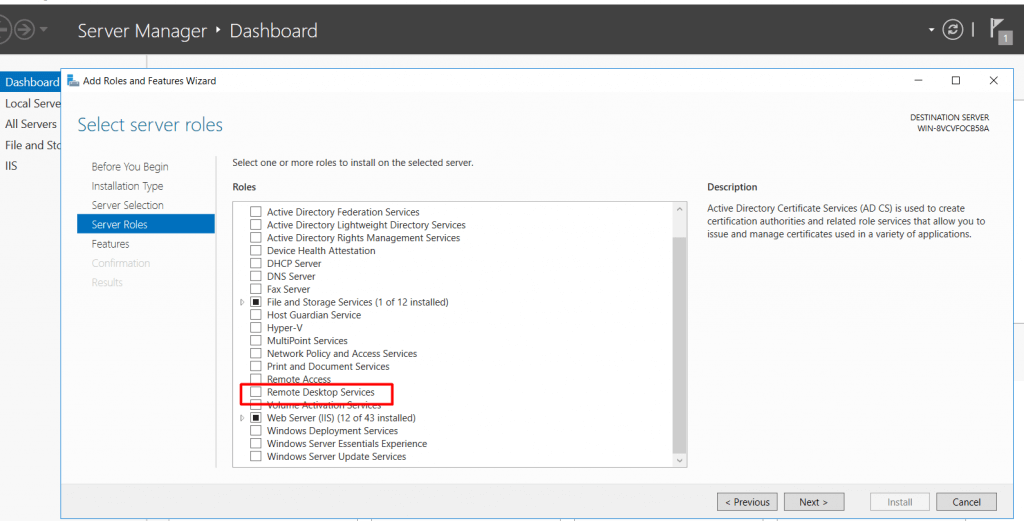
- Choose Role-based or feature-based installation and click Next until Server Roles.
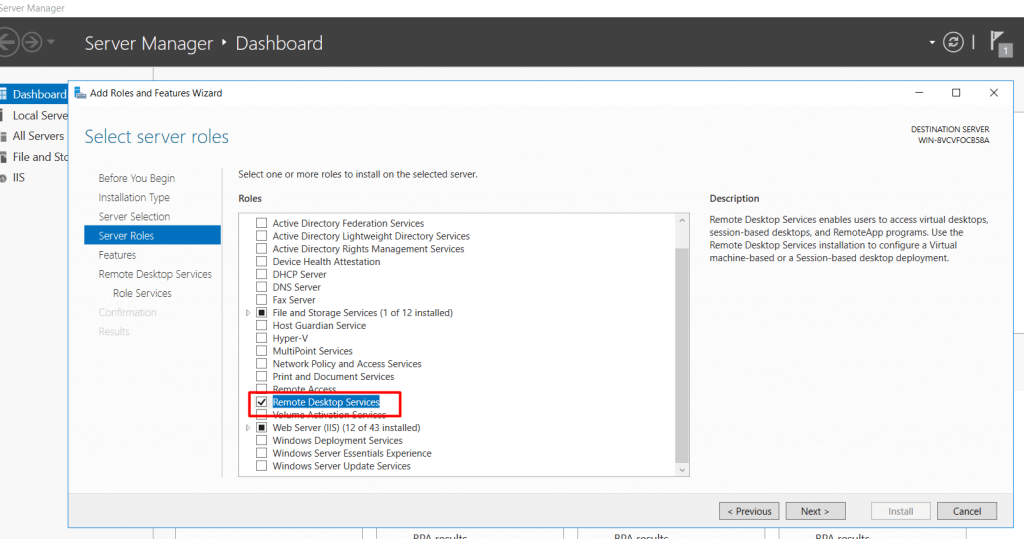
- Tick Remote Desktop Services and click Next.
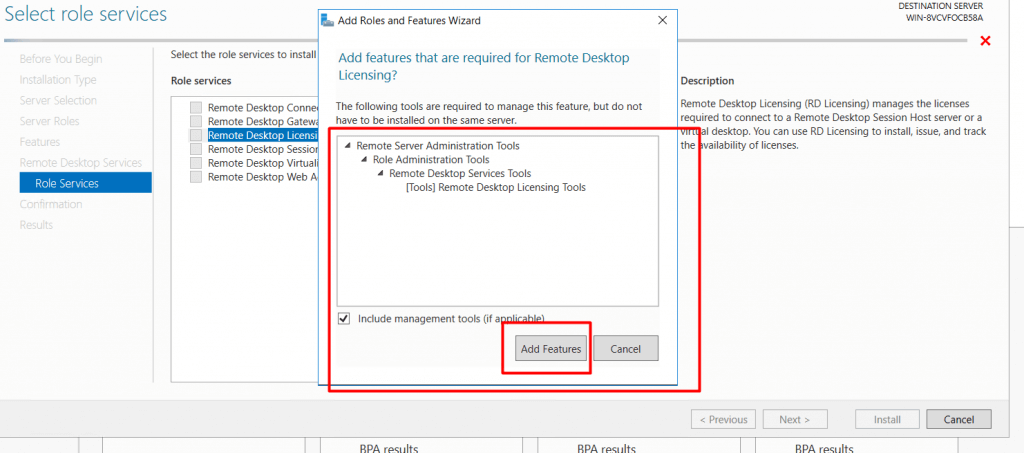
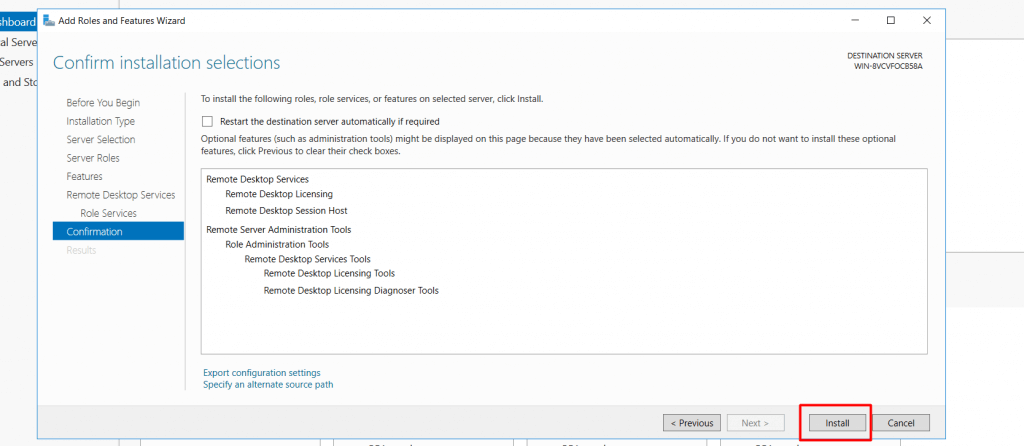
- On the Role Services page, tick Remote Desktop Licensing. Add Remote Desktop Session Host if it is not already there.
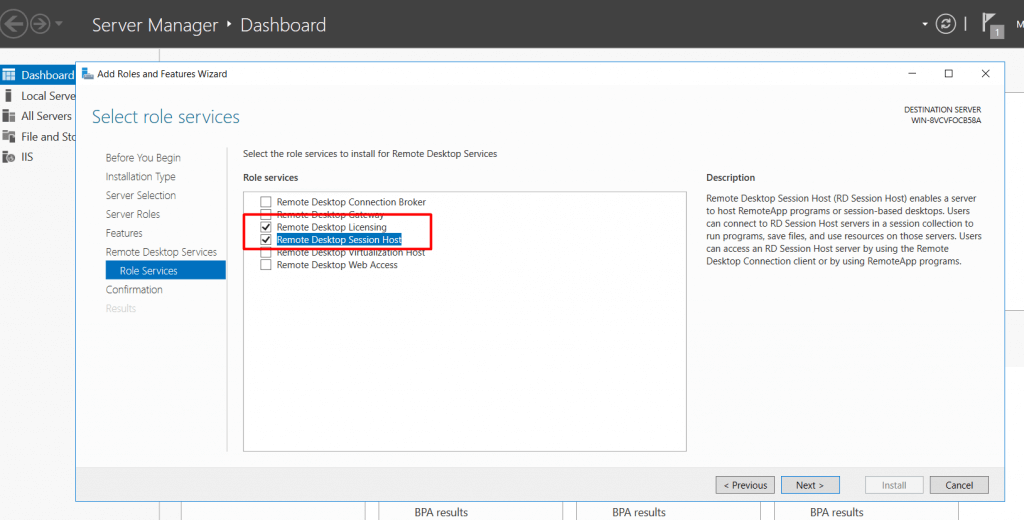
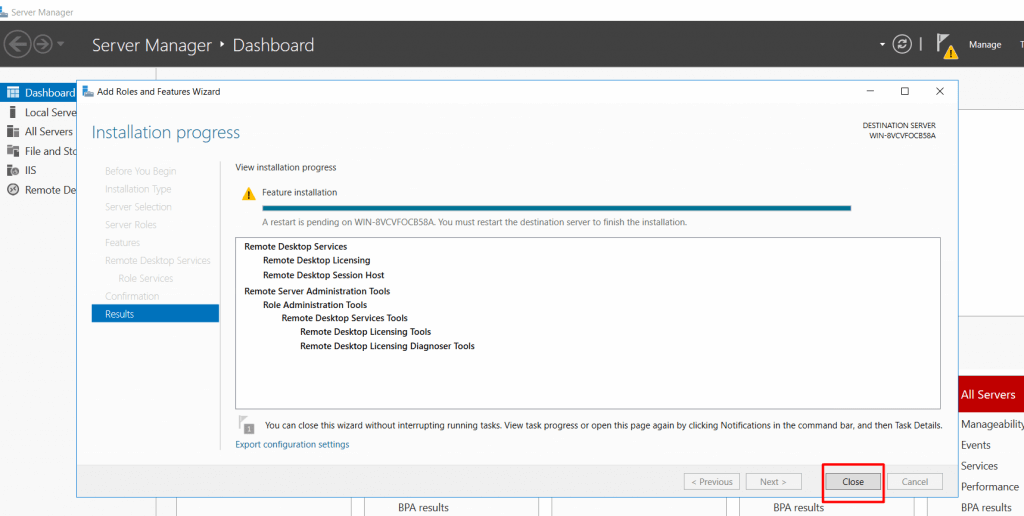
- Click Install and restart if asked.
Step 2: Activate the license server
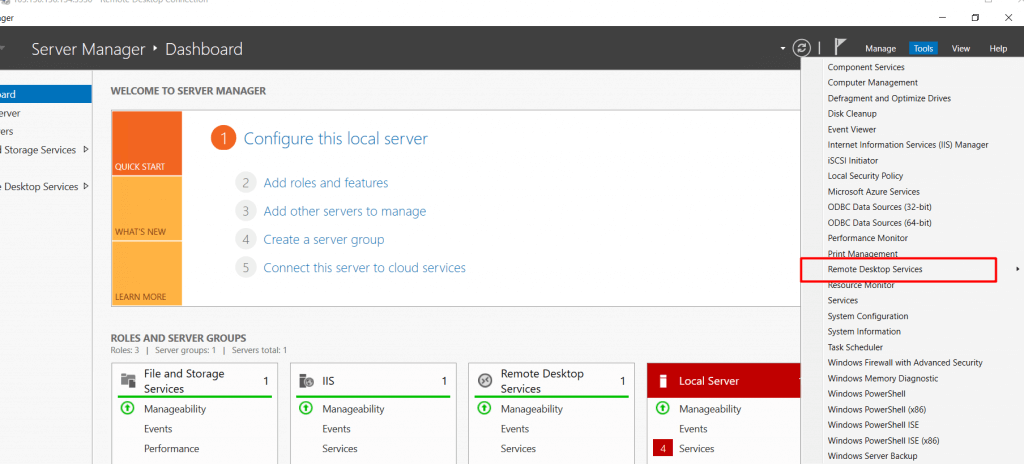
- Click Start, open Windows Administrative Tools, then Remote Desktop Licensing Manager.
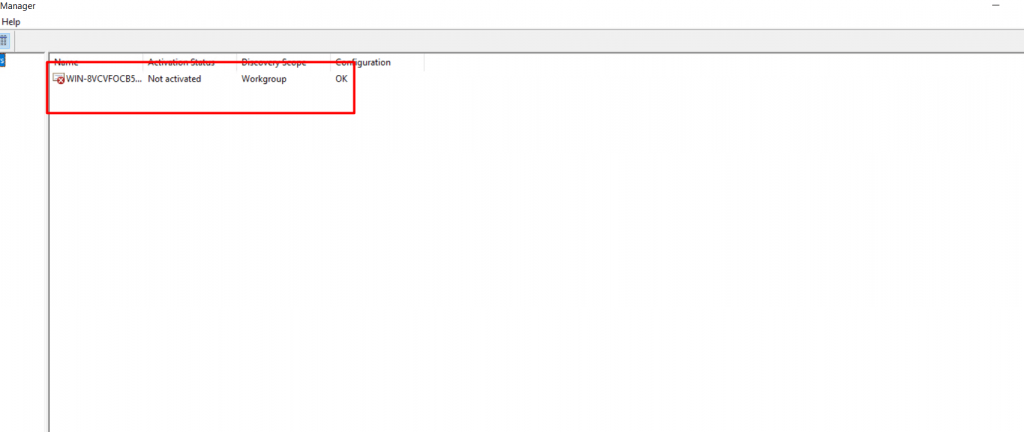
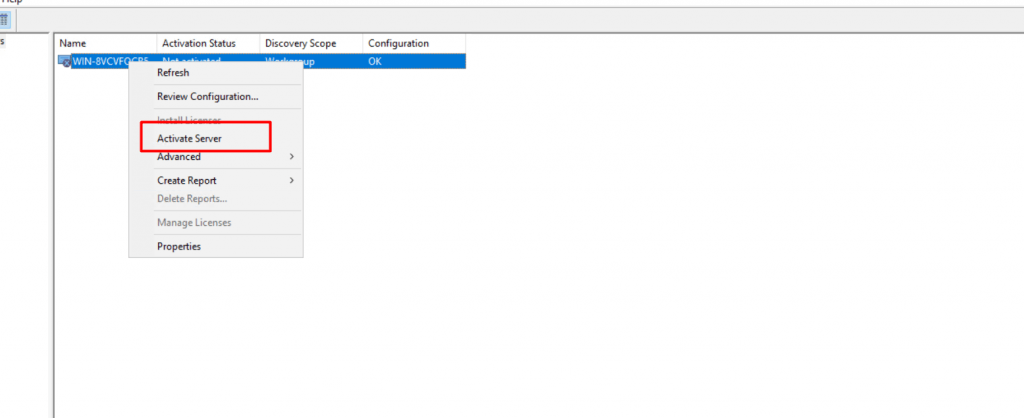
- Right-click your server and choose Activate Server.
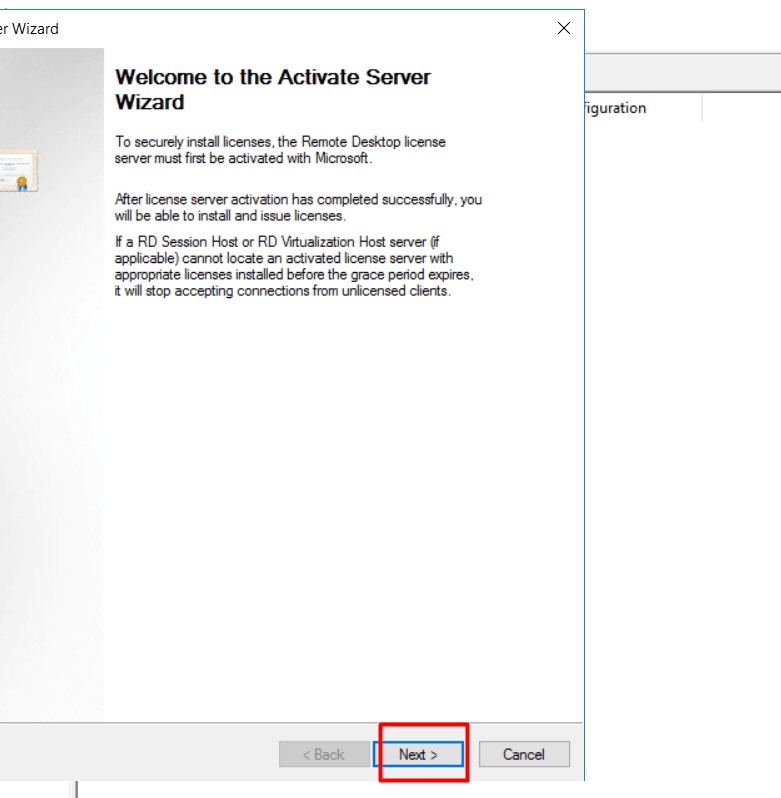
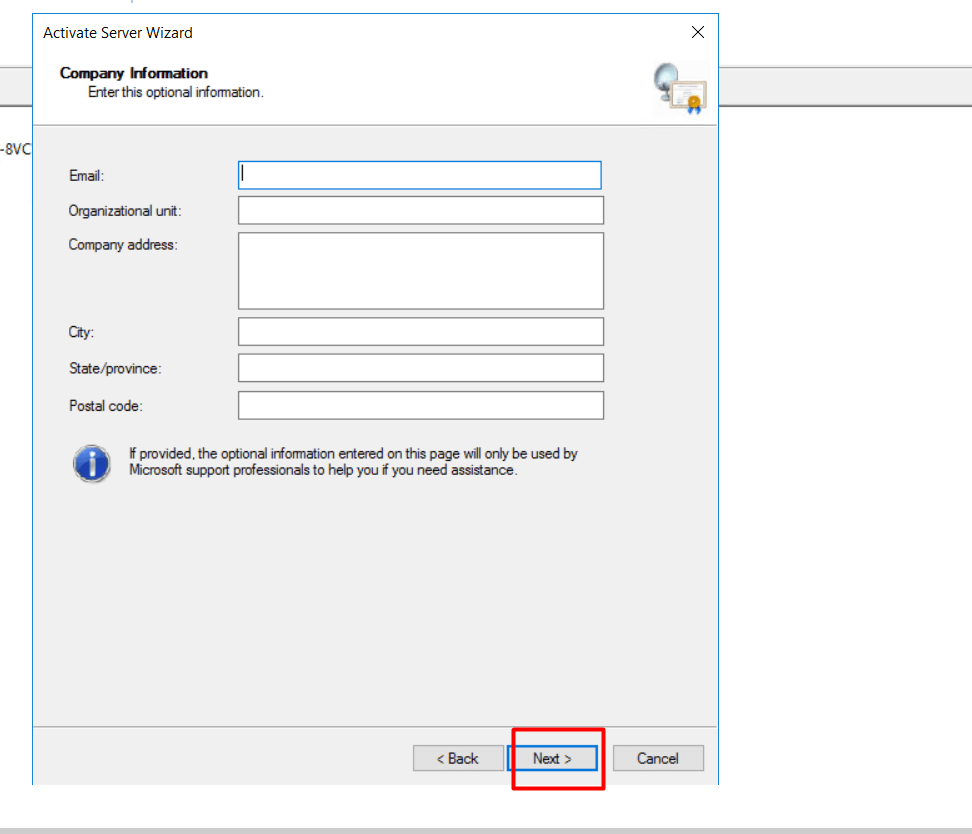
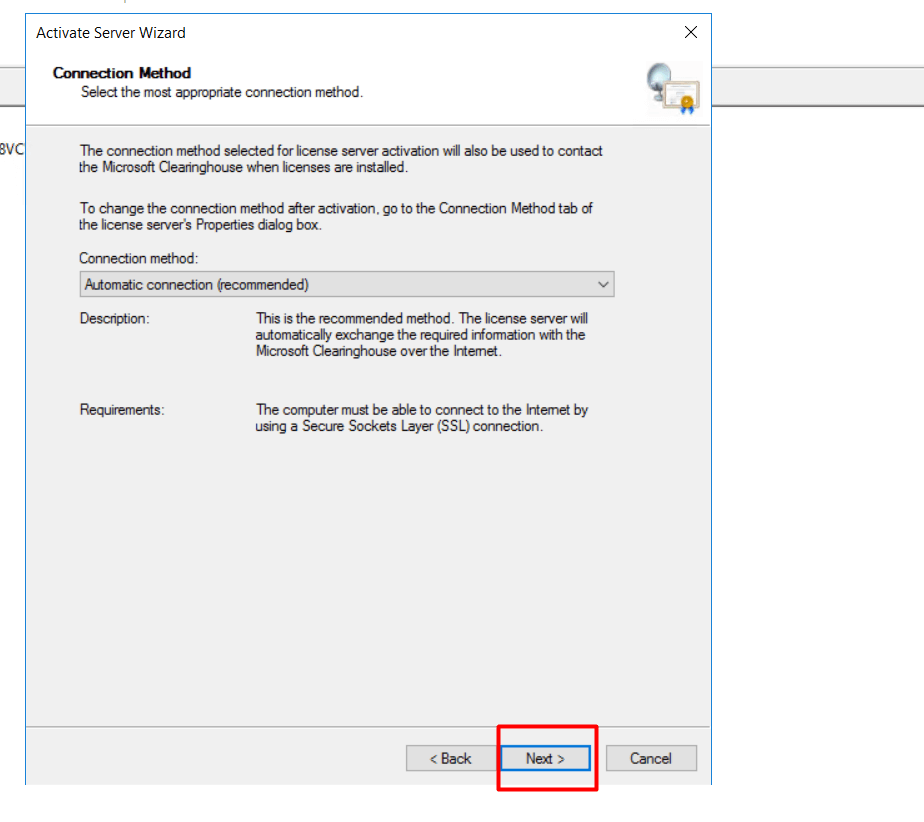
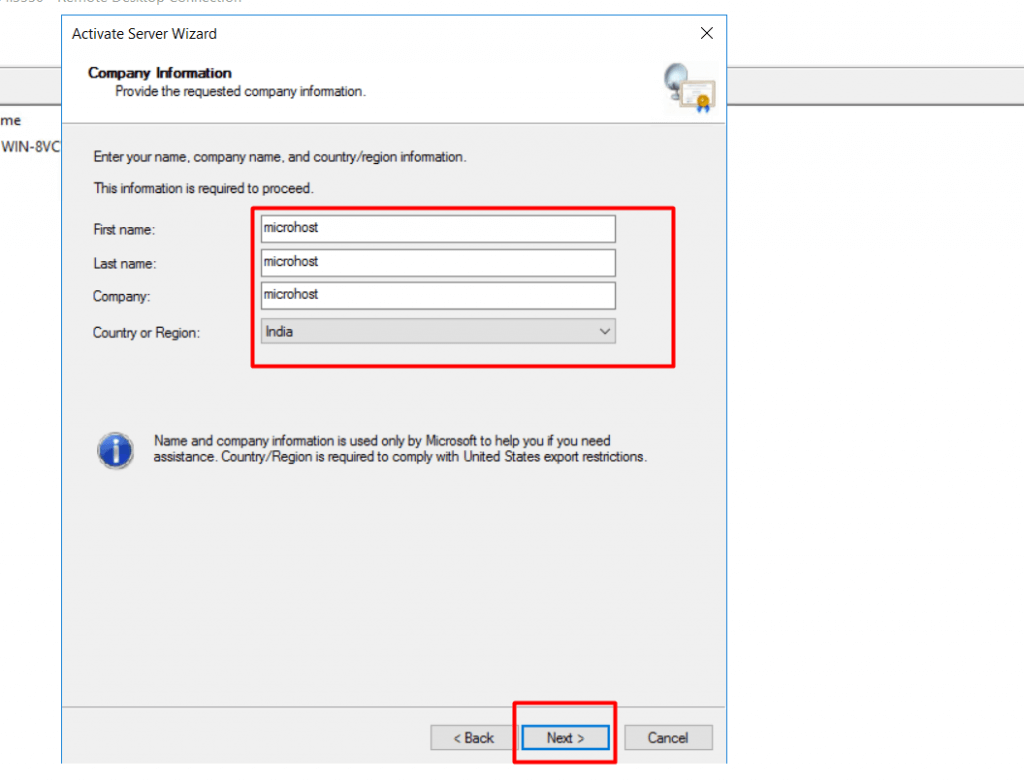
- Follow the wizard. Pick the Automatic connection method if the server has internet. Fill in the company details asked.
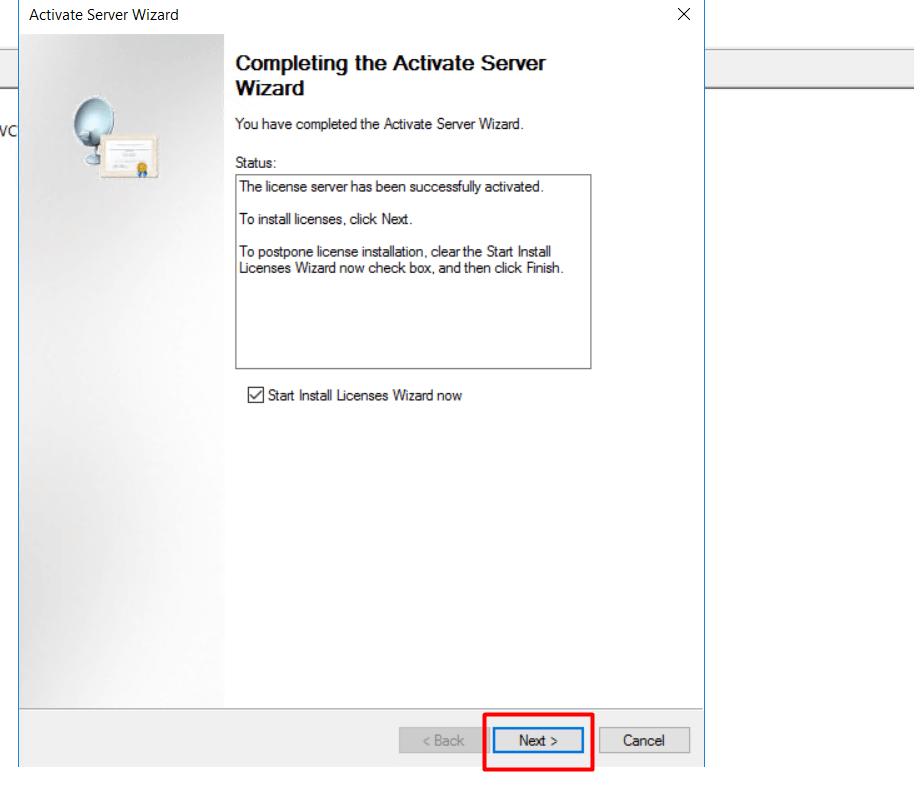
- Click Finish. Untick the box to start the Install Licenses Wizard if you want to do it later.
Step 3: Install the CALs
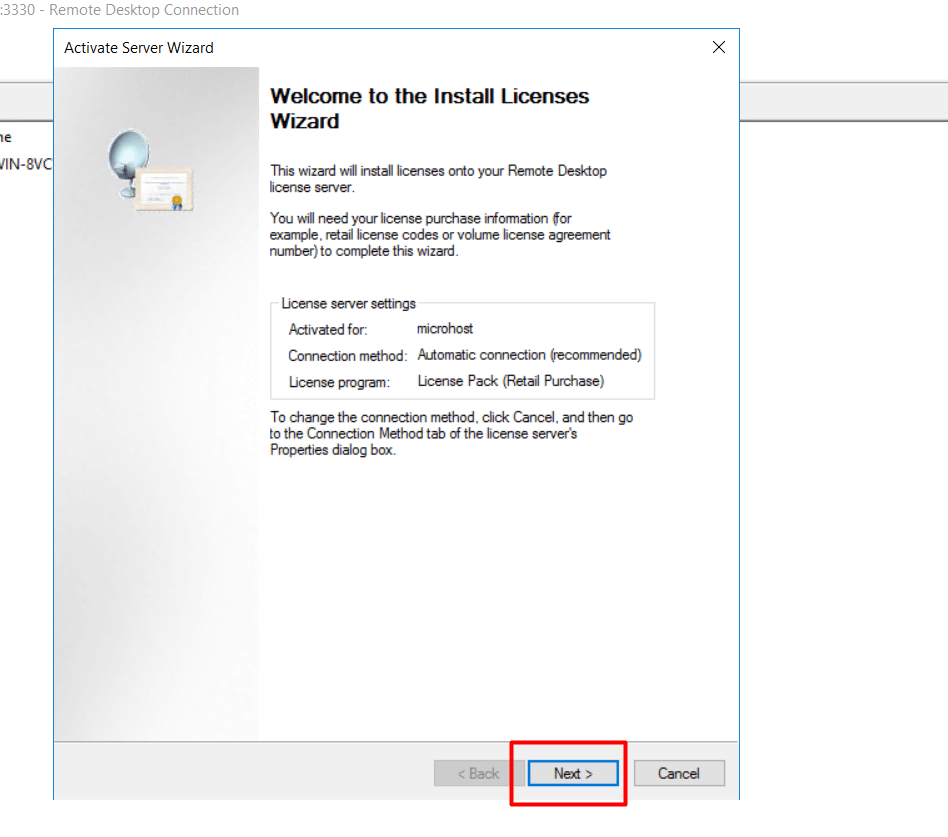
- Right-click the server in Licensing Manager and choose Install Licenses.
- Click Next.
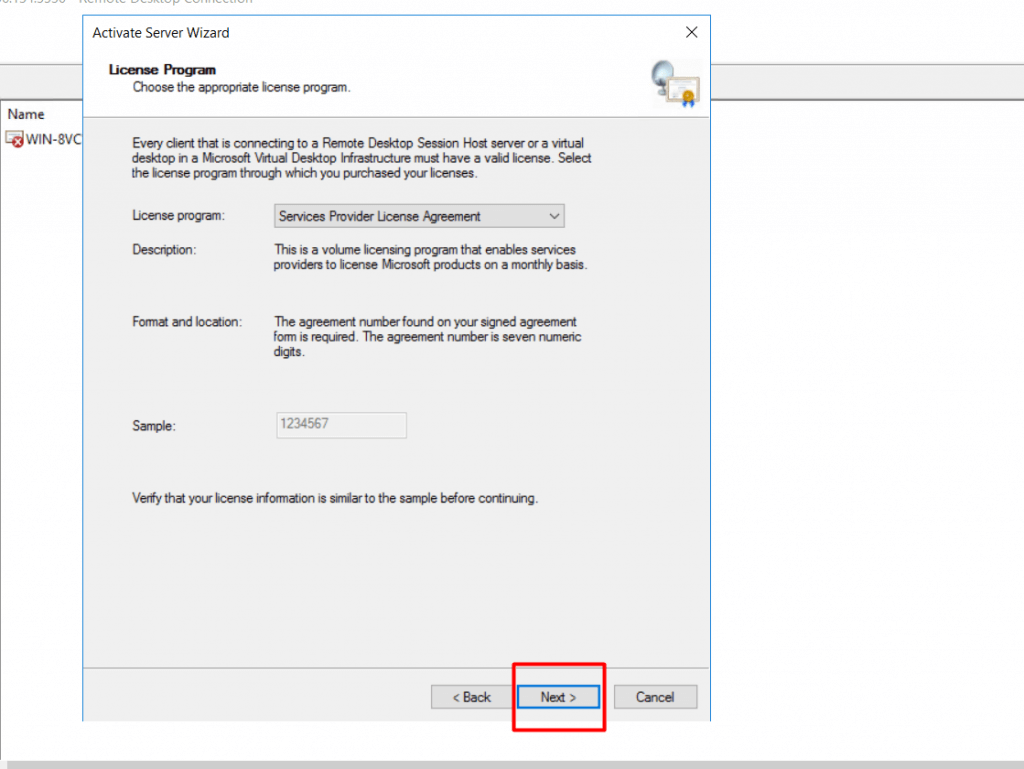
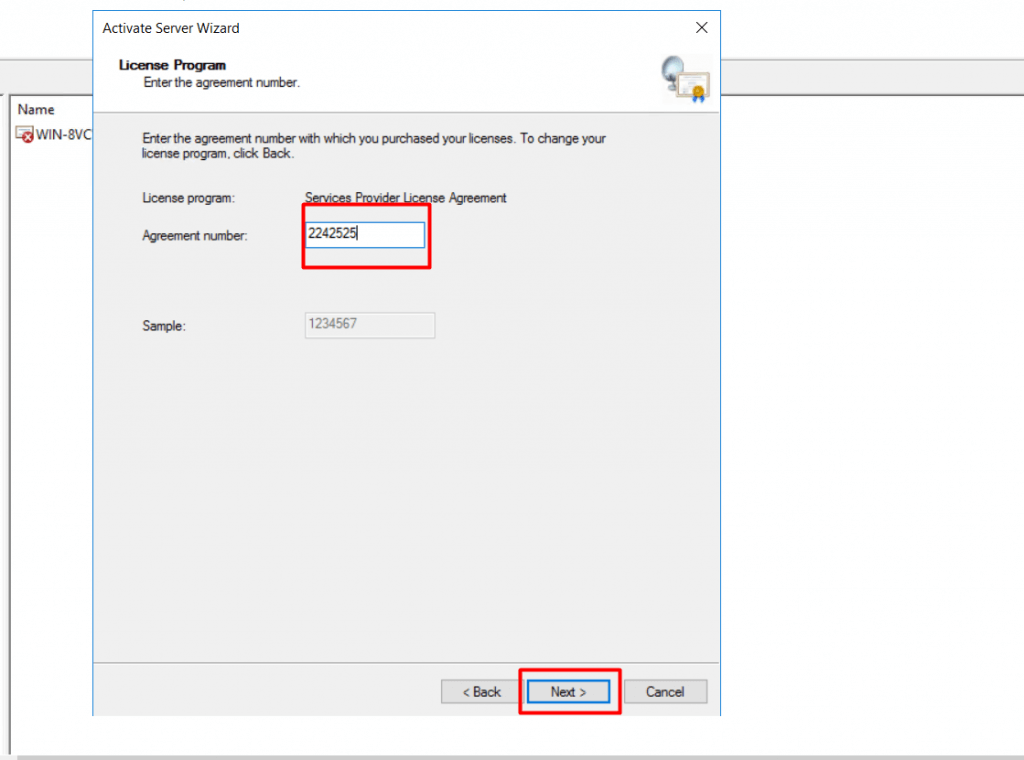
- Choose the license program you bought it under, for example Enterprise Agreement or Retail license.
- Enter the license code or agreement number.
- Pick the product version and the license type, Per User or Per Device, and the quantity.
- Click Next, then Finish.
Step 4: Tell the server where the license server is
- Press Windows + R, type
gpedit.mscand press Enter. - Go to Computer Configuration, Administrative Templates, Windows Components, Remote Desktop Services, Remote Desktop Session Host, Licensing.
- Open Use the specified Remote Desktop license servers. Choose Enabled and type the server name.
- Open Set the Remote Desktop licensing mode. Choose Enabled and pick Per User or Per Device to match your CALs.
- Click OK.
Check it
In Licensing Manager, click your server. The license list should show your CALs. Under the server's properties, run Review configuration to see any issue.
Warning: Without valid CALs, users may be blocked after a trial period of about 120 days. Match the license mode to what you bought.
Quick recap
- CALs give users permission to use RDS.
- Install the Remote Desktop Licensing role.
- Activate the server and install your CALs.
- Set the license server and mode in Group Policy.