

What WordPress cron does
Cron schedules tasks that run on their own. WordPress has its own system, WP-Cron, in the file wp-cron.php. It publishes scheduled posts, checks for updates, sends newsletters and runs tasks for plugins.
WP-Cron has one weakness: it only runs when someone visits the site. On a site with little traffic, tasks can run late. A very busy site can run it too often. The more reliable way is to call wp-cron.php from a real server cron job (see the last part of this guide).
Good
- Automates repeated jobs such as newsletters and spam cleaning.
- Many plugins need it to work.
- Saves you time.
Not so good
- Badly made plugin jobs can slow the server.
- Jobs can fail or run late.
- On low-traffic sites, jobs depend on visits.
Install WP Crontrol
WP Crontrol lets you view, add, edit and delete cron events in the dashboard.
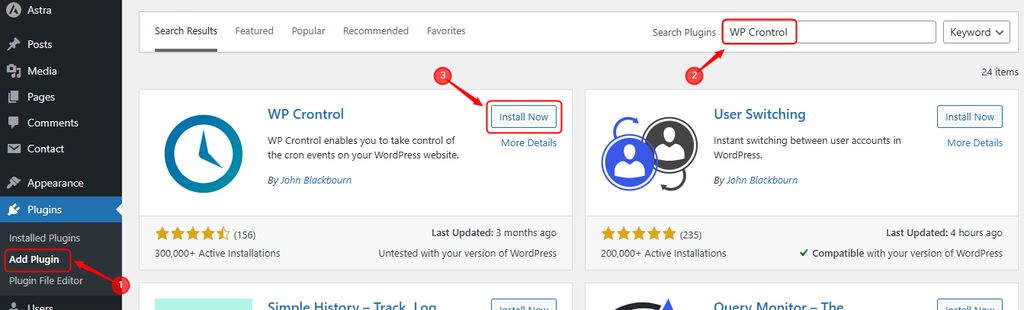
- Go to Plugins, then Add New. Search for WP Crontrol, then install and activate it.
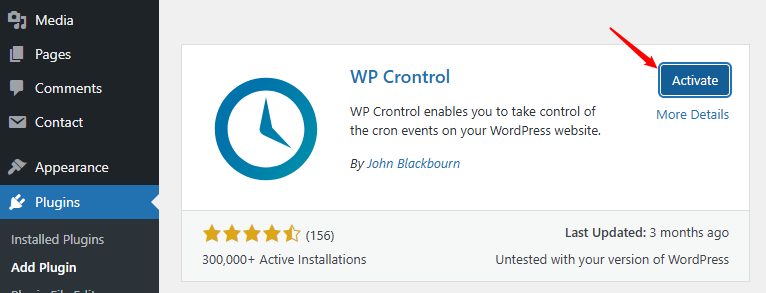
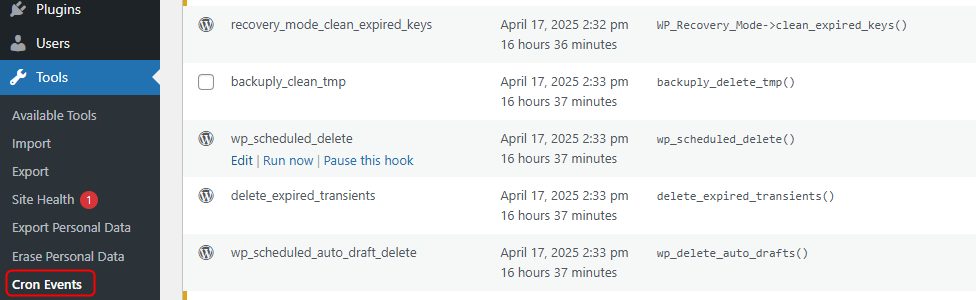
- You can now see all events under Tools, then Cron Events.
Add a schedule
Under Settings, then Cron Schedules, add a new interval, such as every five minutes.
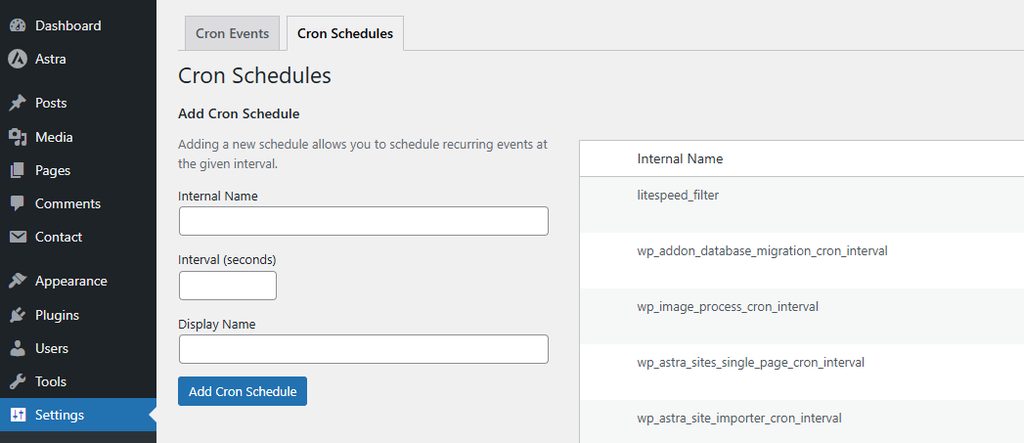
You can also add a schedule in code. Put this in your functions.php (preferably in a child theme or a small plugin):
add_filter('cron_schedules', 'my_cron_schedule');
function my_cron_schedule($schedules) {
    $schedules['every_five_minutes'] = array(
        'interval' => 300, // 300 seconds = 5 minutes
        'display'  => __('Every 5 Minutes')
    );
    return $schedules;
}
Change an event
- Go to Tools, then Cron Events.
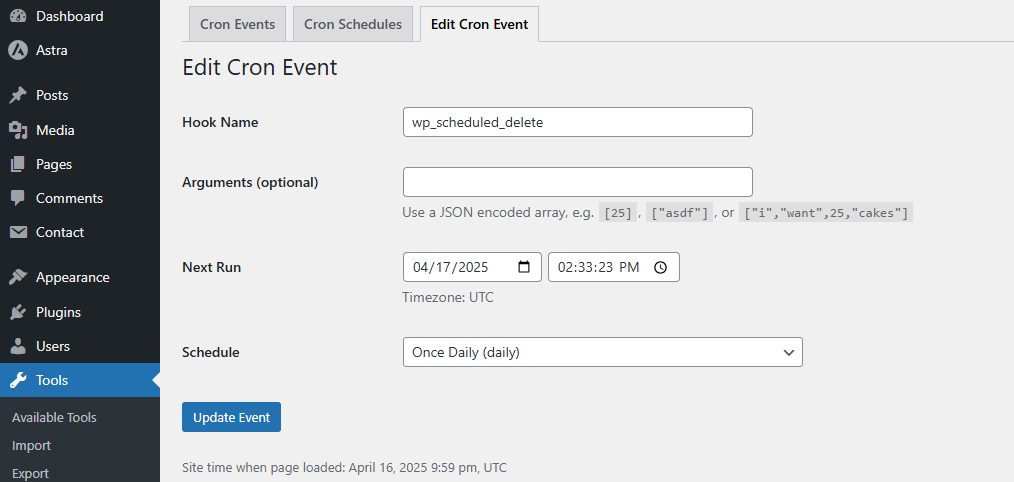
- Find the event and click Edit.
- Change the next run time or the schedule. Click Update Event.
Run WP-Cron from a real cron job in cPanel
- First turn off the built-in trigger. Add this line to
wp-config.php:
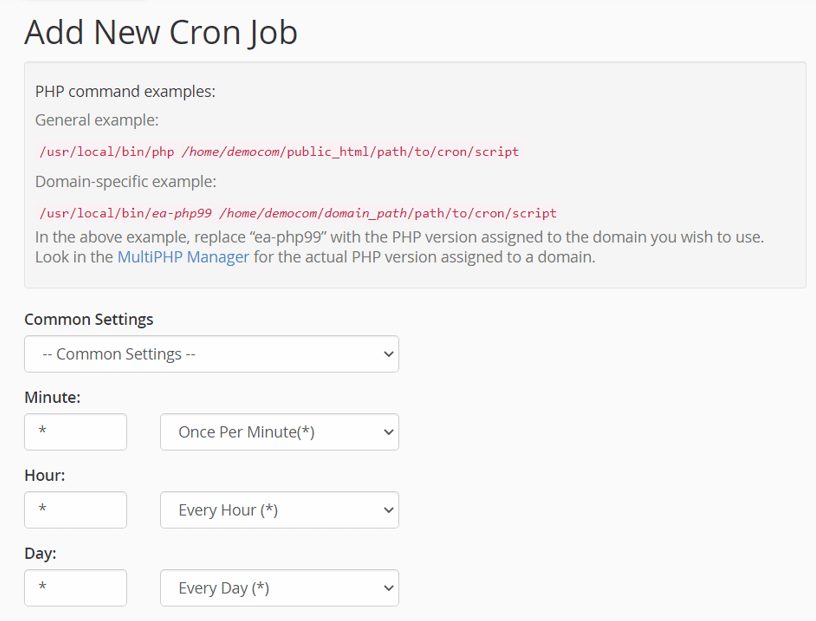
define('DISABLE_WP_CRON', true);- Log in to cPanel. In the Advanced section, click Cron Jobs.

- Choose how often it should run. The Common Settings list has ready choices, or you can fill in the fields.
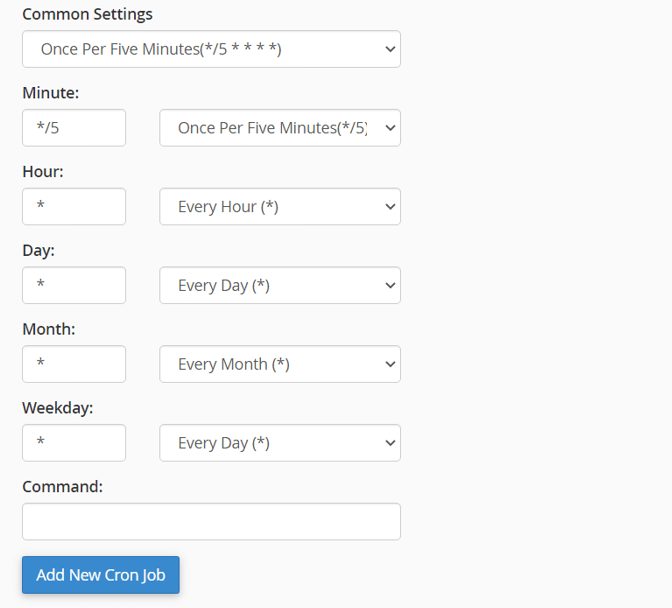
- In Command, enter:
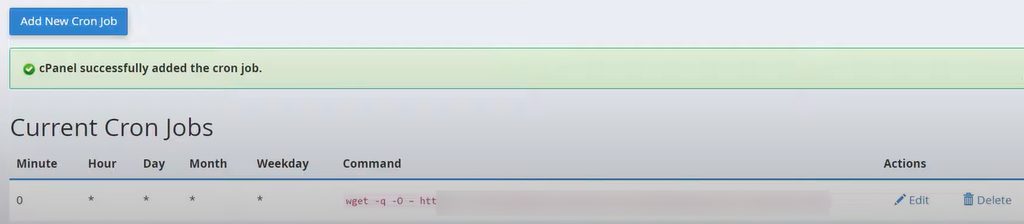
wget -q -O - https://example.com/wp-cron.php?doing_wp_cron >/dev/null 2>&1Use your own domain. Click Add New Cron Job.

- The job appears under Current Cron Jobs. Use Edit or Delete to change it.
Quick recap
- WP-Cron runs when people visit. A real cron job is more reliable.
- Use WP Crontrol to manage events.
- Set
DISABLE_WP_CRONand callwp-cron.phpfrom cPanel cron.