

Why it happens
When WordPress updates itself, it sets a lock so two updates do not run at once. If an update stops half way (the browser closed, the server timed out or a plugin failed), the lock stays. The next update then shows the message "Another update is currently in progress".
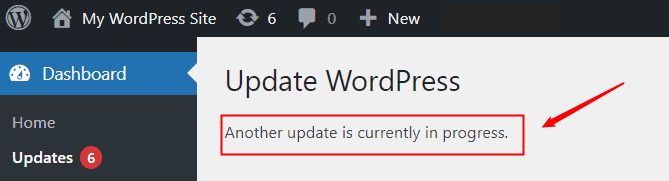
Method 1: Wait
The lock expires after about 15 minutes. Wait, reload the page and try again. Do not start the update twice.
Method 2: Remove the lock in the database
- Log in to cPanel and open phpMyAdmin. Select the database of your site.
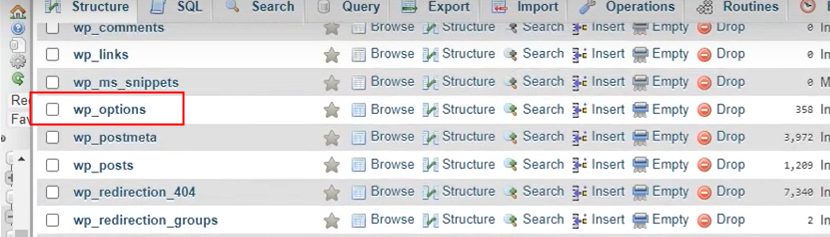
- Open the table
wp_options. (Your prefix may differ fromwp_.)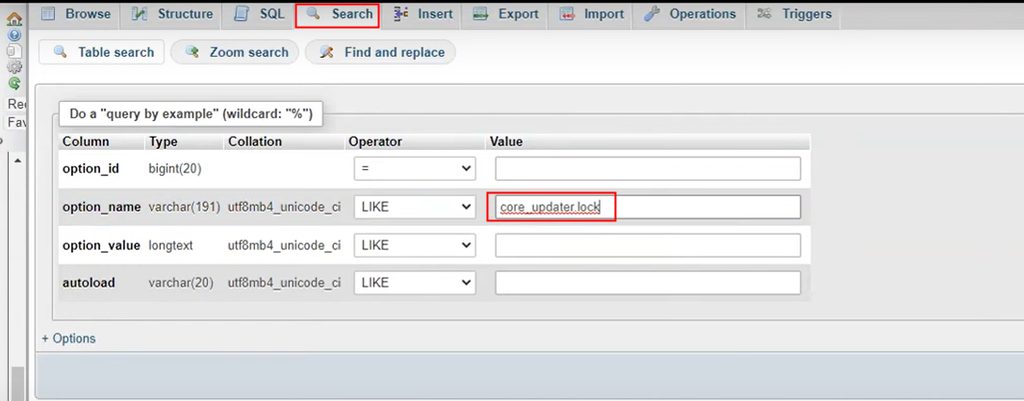
- Search for the row
core_updater.lock, using the Search tab.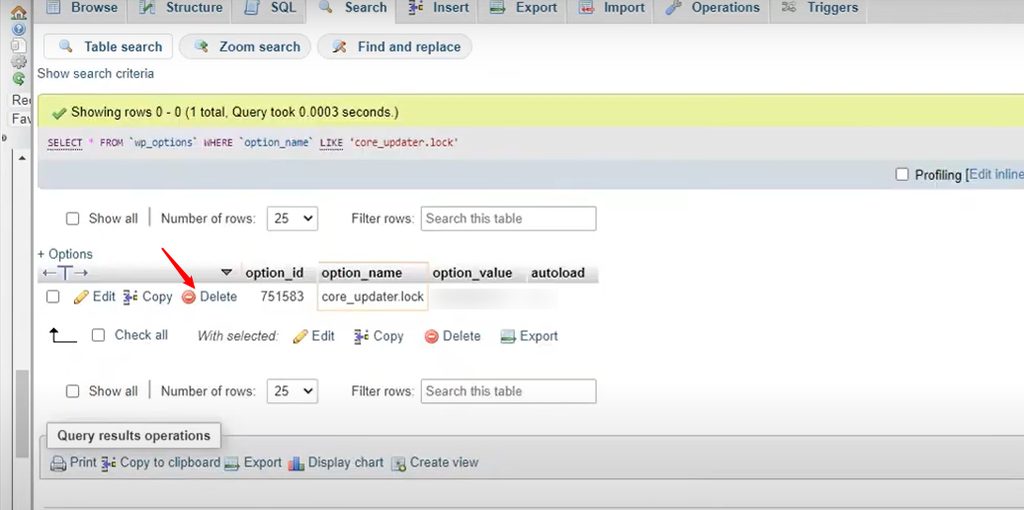
- Delete that row.
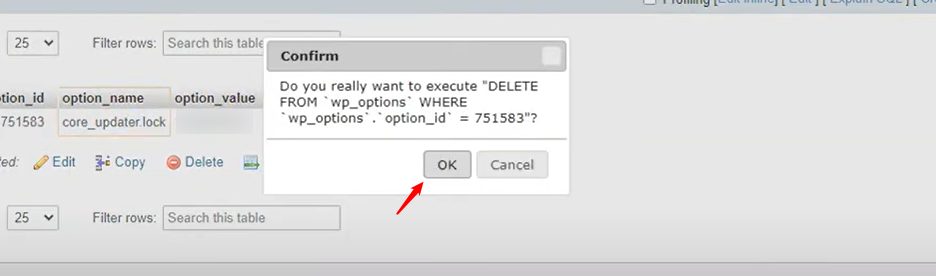
You can also run this query in the SQL tab:
DELETE FROM wp_options WHERE option_name = 'core_updater.lock';- Go back to WordPress and run the update again.
Method 3: Use a plugin
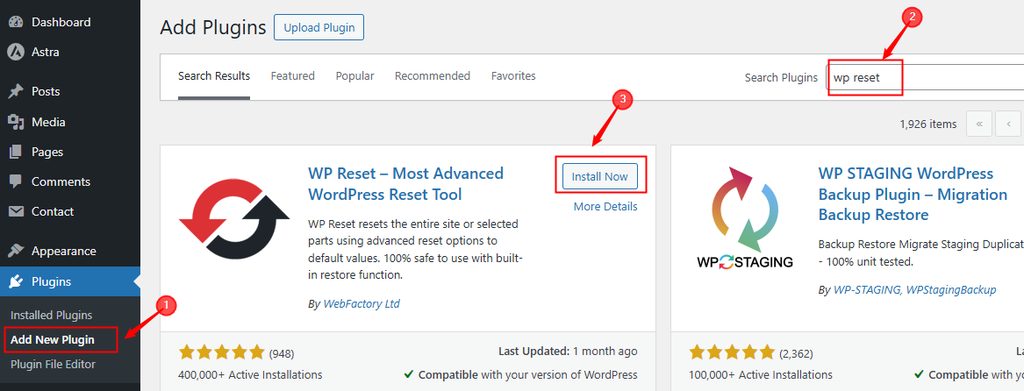
A plugin such as Fix Another Update In Progress removes the lock with a click.
Method 4: Check file permissions
Wrong permissions can make updates fail.
- Folders should be
755. - Files should be
644.
Method 5: Look for conflicts
- Turn off all plugins. If you cannot reach the dashboard, rename the
wp-content/pluginsfolder with FTP. - Switch to a default theme such as Twenty Twenty-Four.
Then try the update again.
Prevent it
- Update the core, themes and plugins one at a time.
- Test updates on a staging site first.
- Use a tool such as Easy Updates Manager to control automatic updates.
- Clear your browser cache if the message stays after the fix.
- Take a backup before every update.
Quick recap
- A leftover lock causes the message.
- Wait 15 minutes or delete
core_updater.lockinwp_options. - Check permissions and plugin conflicts if it comes back.