

What does the error mean?
A database is where WordPress stores your posts, pages and settings. It is like a filing cabinet. WordPress needs a name, a user and a password to open it. If any of these are wrong, or the cabinet is broken or closed, WordPress shows this error and your site goes blank.
Step 1: Check wp-config.php
The wp-config.php file holds the database login details.
- Log in to your hosting control panel.
- Open File Manager and go to your WordPress folder, often
public_html.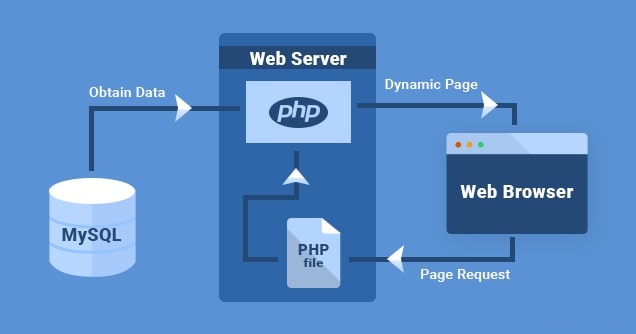
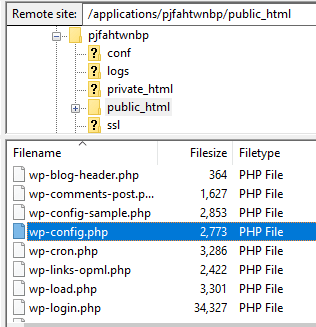
- Right-click
wp-config.phpand choose Edit. - Find these four lines.
define('DB_NAME', 'your_database');
define('DB_USER', 'your_user');
define('DB_PASSWORD', 'your_password');
define('DB_HOST', 'localhost');
These lines name the database, the user, the password and where the database lives. On most hosting accounts the host is localhost. If you are not sure, ask Hostvento support.
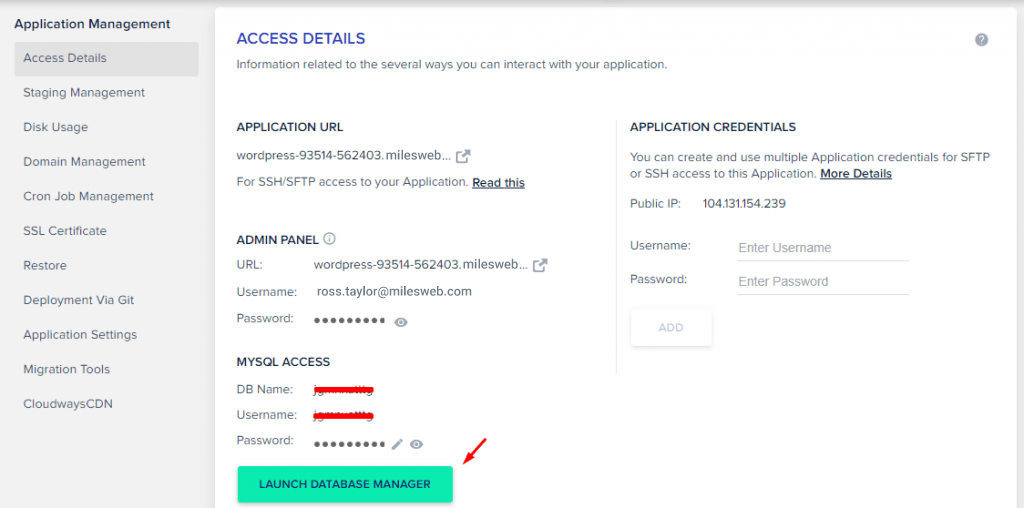
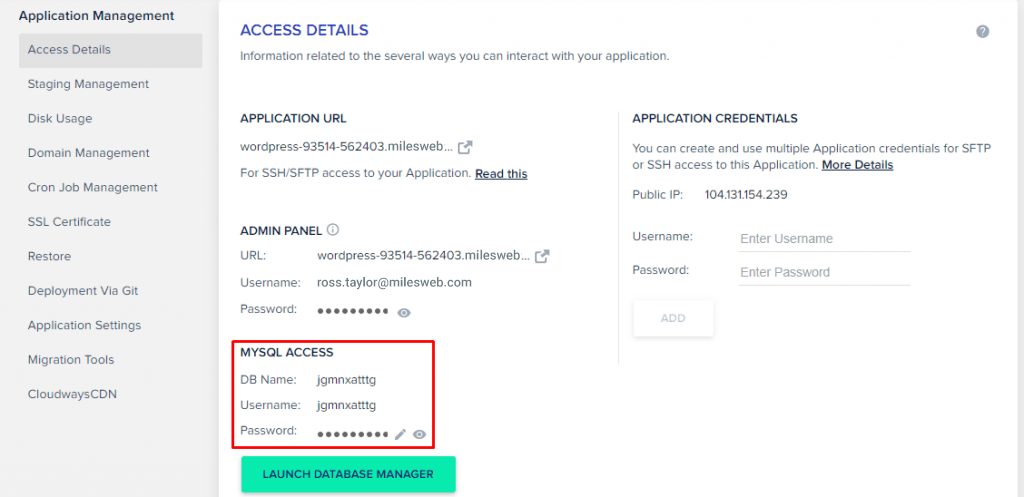
- Compare the name, user and password with those in your control panel. Open MySQL Databases or a similar tool.
- Fix any difference. Make sure there are no extra spaces.
- Save the file and reload your site.
Step 2: Reset the database user password
- In the control panel, open MySQL Databases or the database tool.
- Find the database user.
- Set a new password.
- Copy the same password into
wp-config.php.
Step 3: Check the user is linked
The user must be added to the database with full rights. In the same tool, look for Add User To Database. Choose the user and database, then grant All Privileges.
Step 4: Repair the database
- Open
wp-config.phpagain. - Add this line above the text "That's all, stop editing".
define('WP_ALLOW_REPAIR', true);- Open
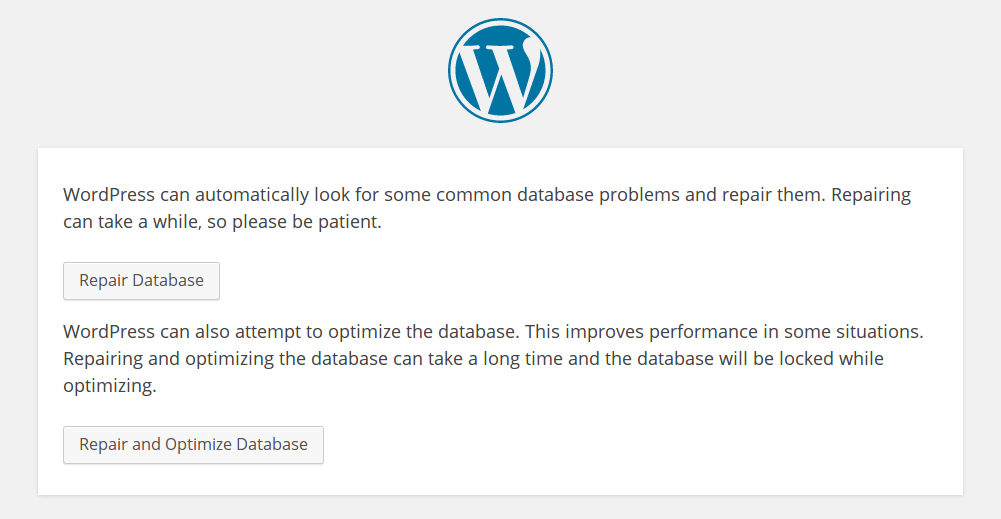
yourdomain.com/wp-admin/maint/repair.phpin your browser. - Click Repair Database.
- Remove the line from
wp-config.phpwhen you finish. The repair page is open to everyone while it is there.
Step 5: Look at the server
If all details are right, the database server may be busy or down. Wait a few minutes and try again. If the error stays, open a ticket at https://secure.hostvento.com/submitticket.php.
Quick recap
- The error means WordPress cannot open its database.
- Check the four database lines in
wp-config.php.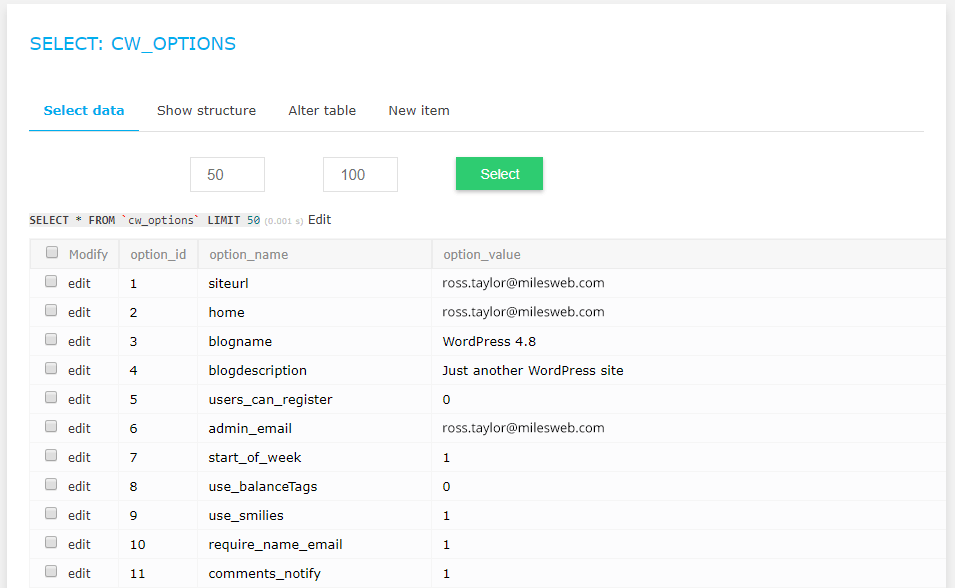
- Reset the user password and link the user to the database.
- Run the repair tool, then remove the repair line.
- Ask support if the server is at fault.