

CyberPanel can deploy WordPress sites with the LiteSpeed Cache plugin for fast loading. These steps follow the CyberPanel Cloud workflow. Some of its features can need a paid plan.
Step 1: Log in to CyberPanel
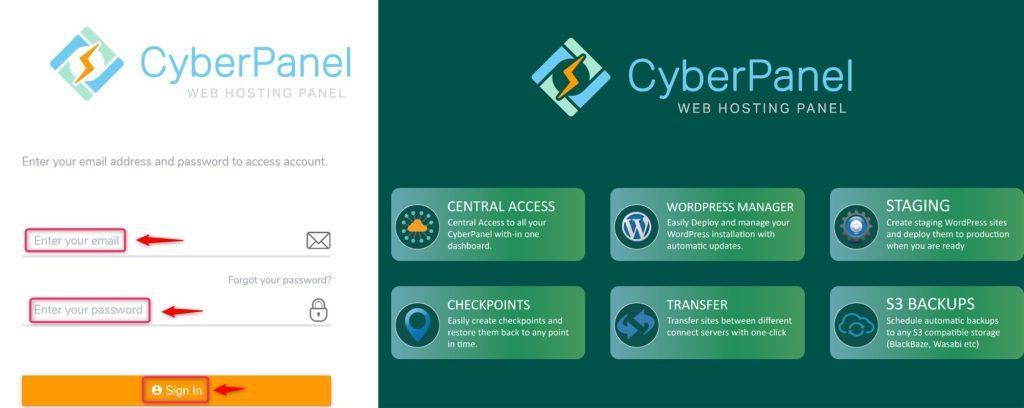
Log in with your username and password. The dashboard shows the website tools.
Step 2: Deploy a server
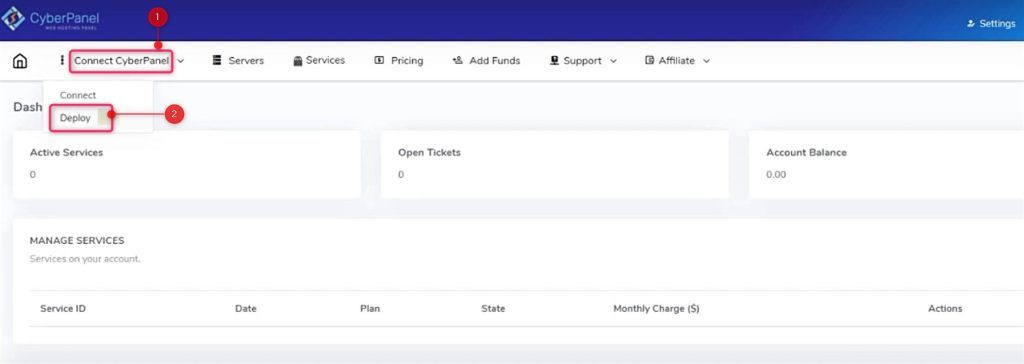
If CyberPanel is not installed yet, install it on your VPS first. Then click Connect CyberPanel in the dashboard and press Deploy.
Step 3: Enter the server details
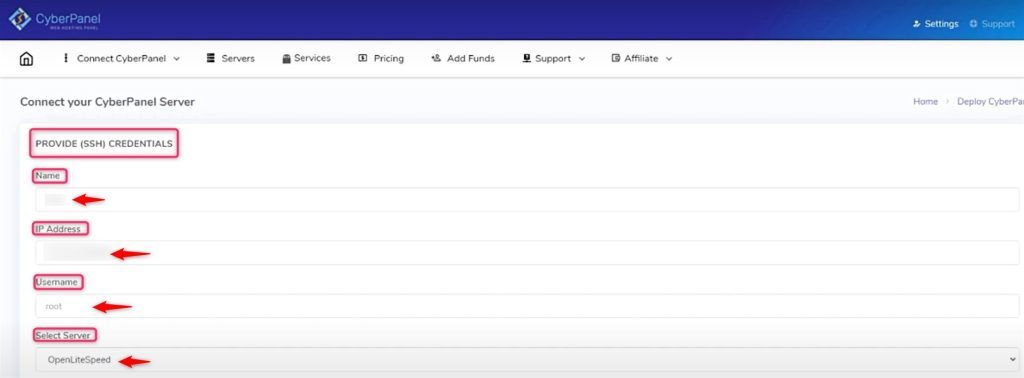
Enter the server name, the server IP address and the admin username and password. Choose the server and the extra features, then click Deploy.
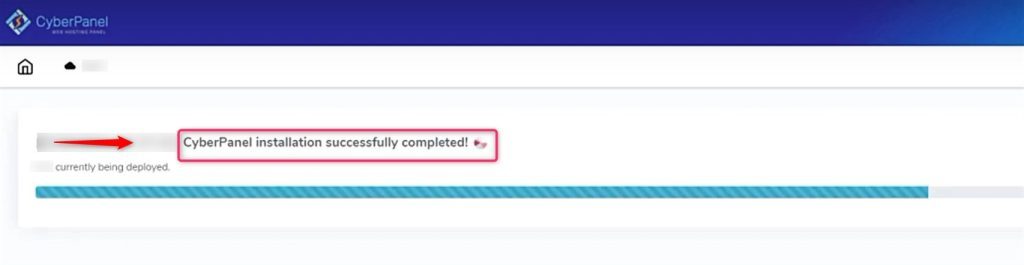
CyberPanel then sets up the server.
Step 4: Check the deployed server
Click Home and open the dashboard. It lists your deployed servers.
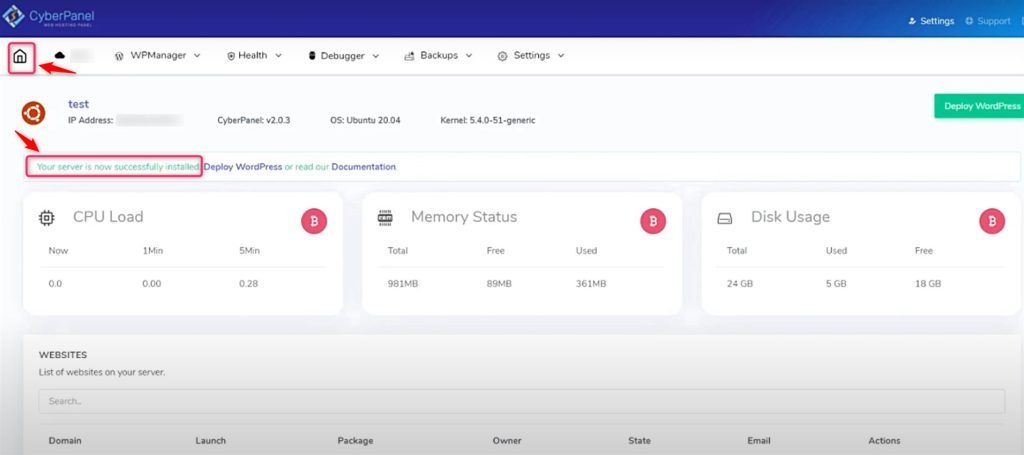
Step 5: Open CyberPanel
Click the three dots and Access CyberPanel. You reach the WordPress manager that lists all your WordPress installs.
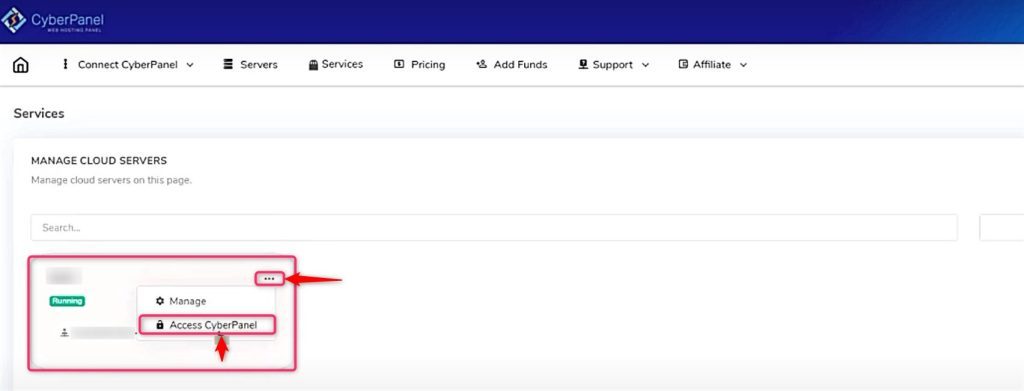
Step 6: Deploy WordPress
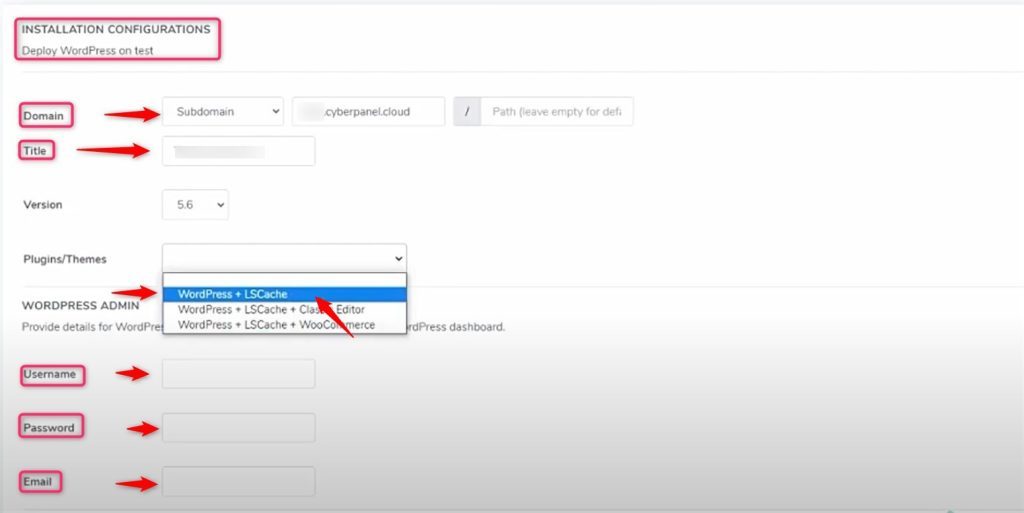
Click Deploy WordPress at the top right. Enter the domain, title, WordPress version, plugins, admin username and password. LiteSpeed Cache is used for speed.
Click Deploy.
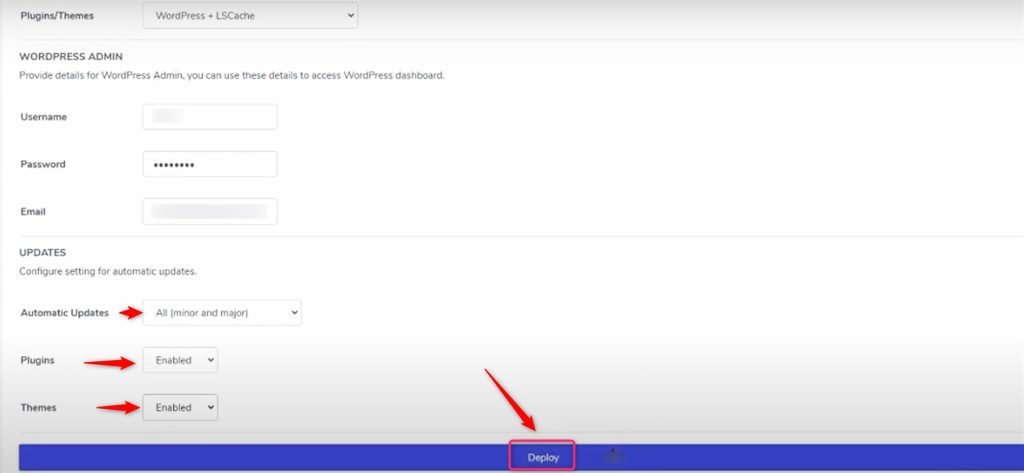
Step 7: Open the site
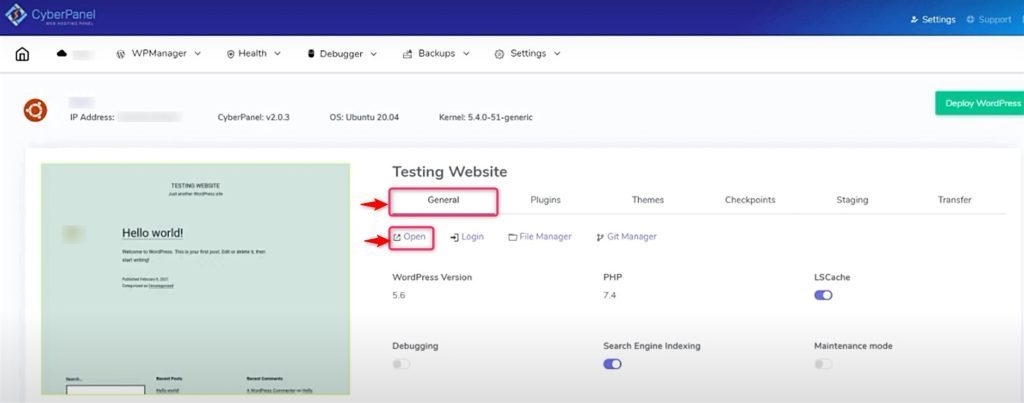
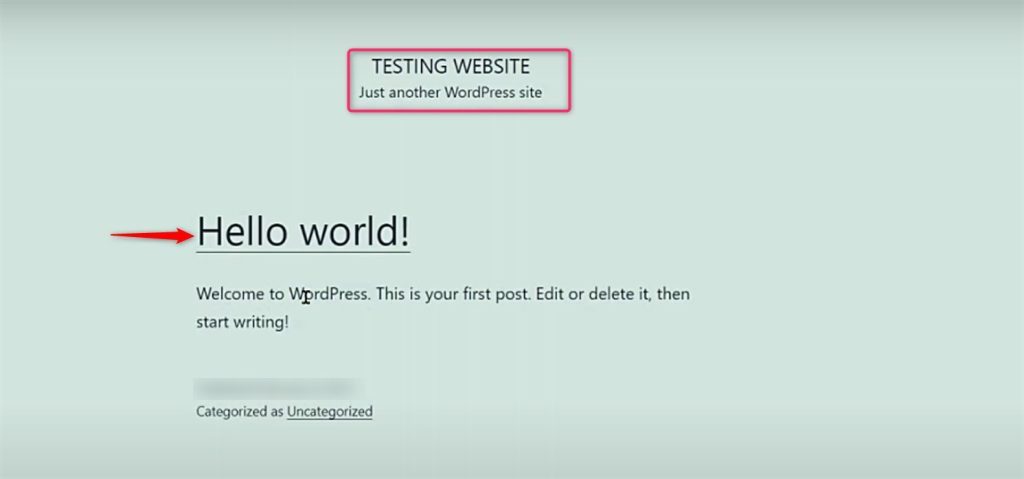
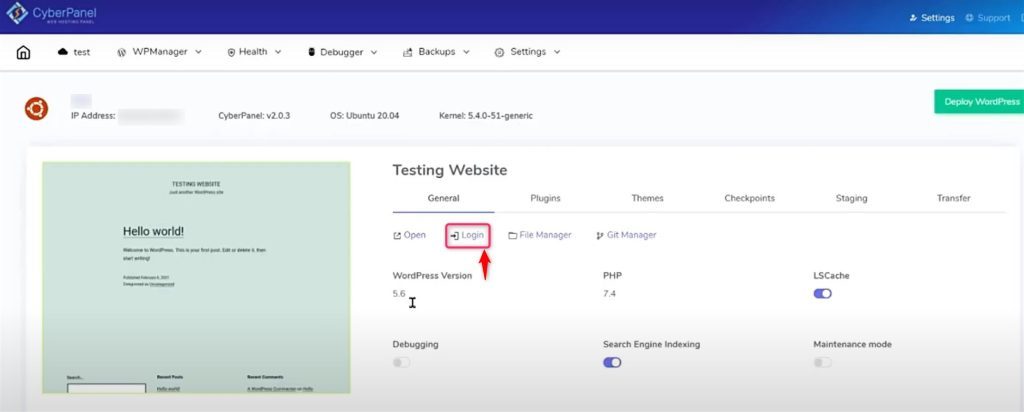
On the General tab click Open to visit the live site.
Step 8: Git manager
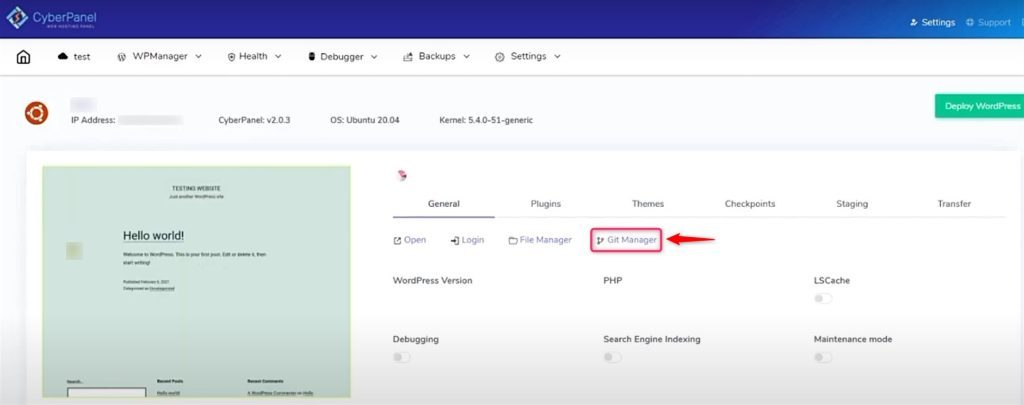
For teams, the Git manager lets developers share and update code.
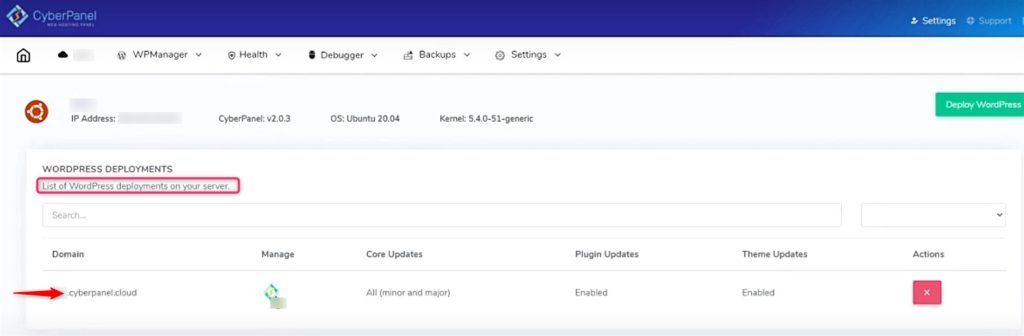
Step 9: List the deployments
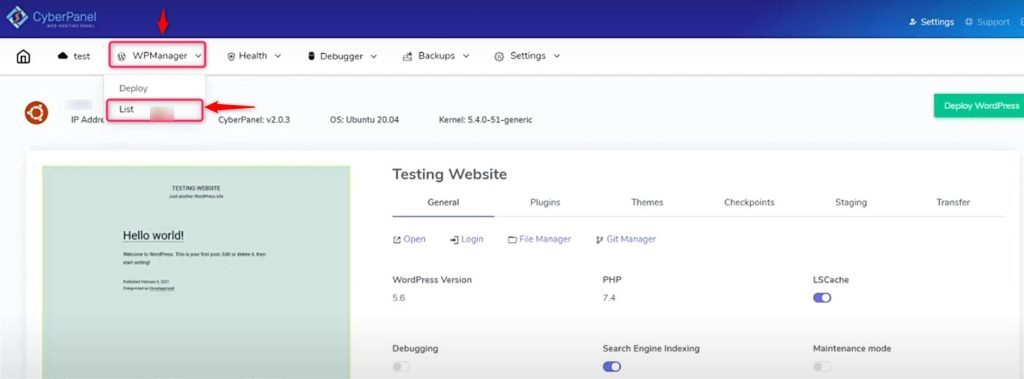
The manager lists every WordPress install.
Step 10: Log in to WordPress
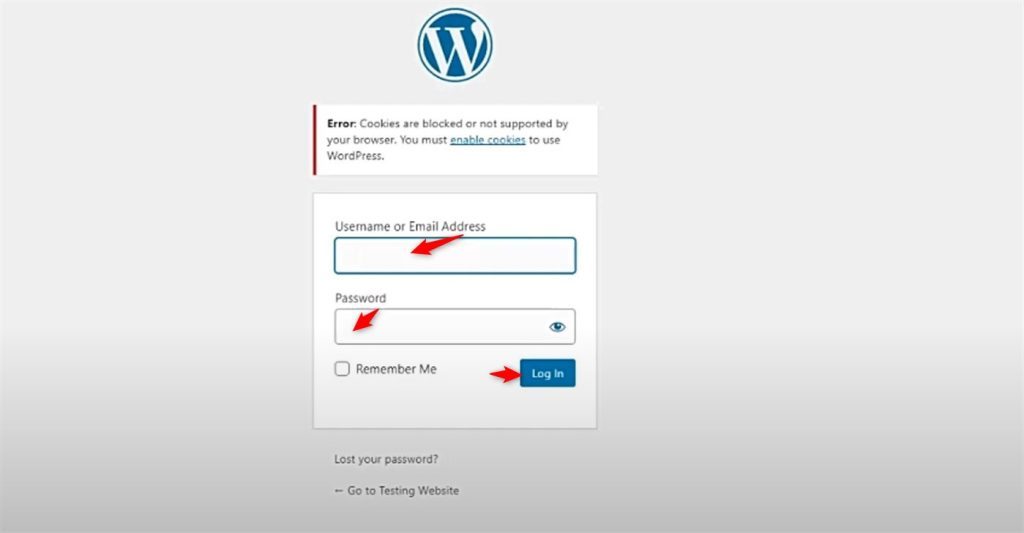
Use the quick login in the manager, or go to yourdomain.com/wp-admin.
Step 11: Optimize
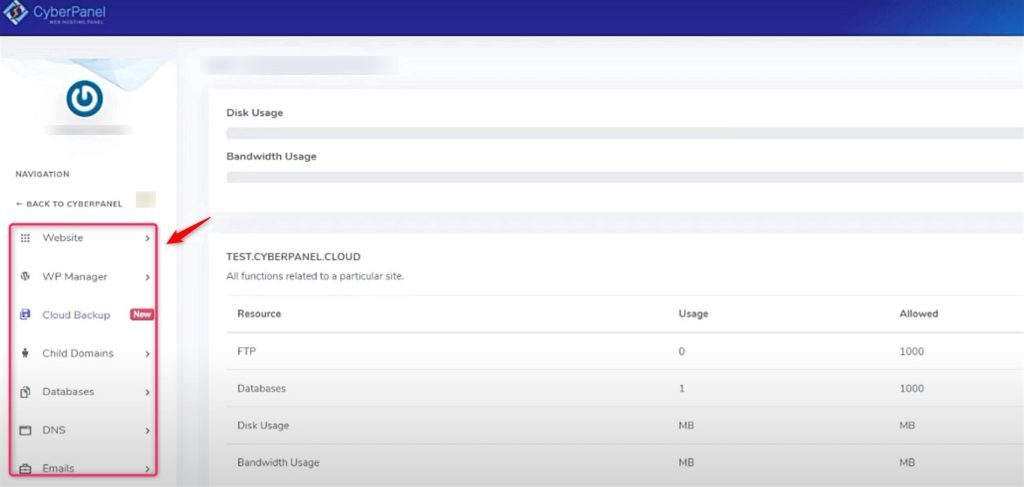
Review the server and WordPress settings, such as caching, PHP version and image optimization.
Quick recap
- Deploy the server, then use Deploy WordPress.
- Open the site and log in at
/wp-admin.