

What is a local WordPress site?
A local site lives only on your computer. Nobody else on the internet can see it. It is like building a model house in your room before you build the real one.
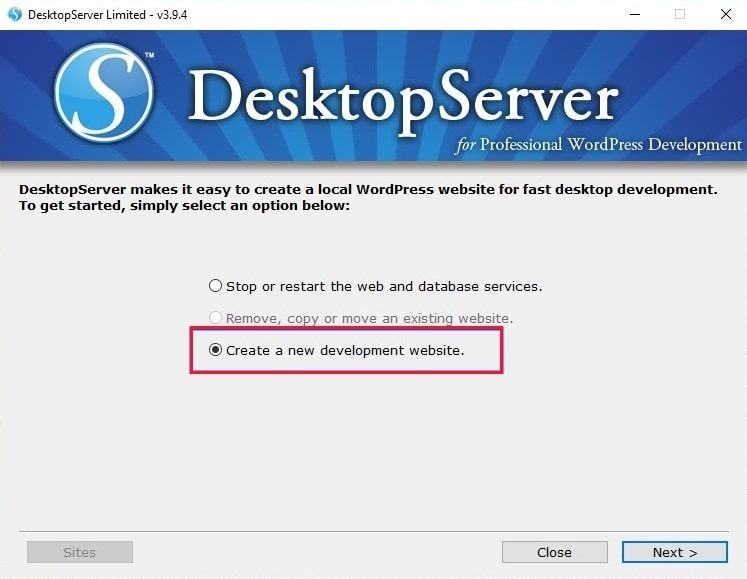
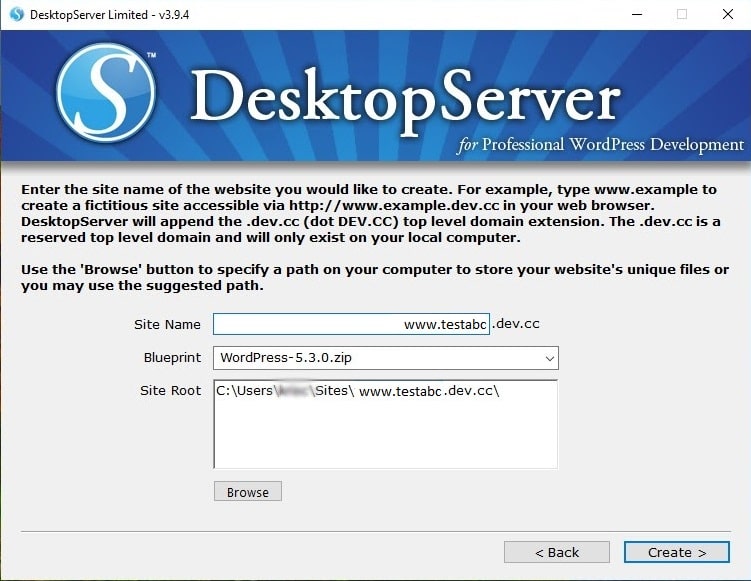
WordPress needs three helpers to run. A web server sends pages to your browser. PHP is the language WordPress is written in. A database is a digital filing cabinet that stores your posts and settings. A free tool called XAMPP installs all three together. Other tools such as Local or WampServer work in a similar way.
Steps
- Download XAMPP from its official website and run the installer.
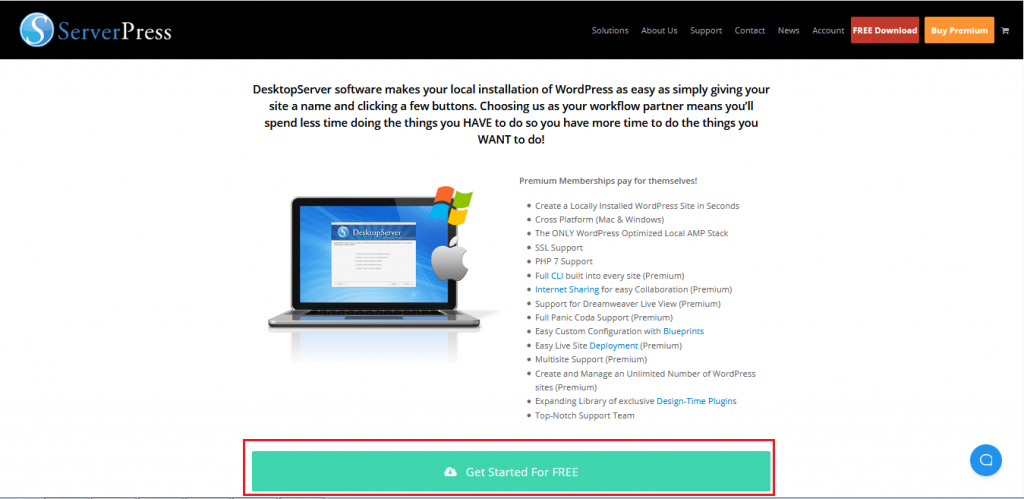
- Keep the default options. Let it install in the
C:\xamppfolder. - Open the XAMPP Control Panel from the Start menu.
- Click Start next to Apache. Apache is the web server.
- Click Start next to MySQL. MySQL is the database.
- Open your browser and go to
http://localhost/phpmyadmin. phpMyAdmin is a page for managing databases. - Click Databases. Type a name such as
mysiteand click Create. - Download the latest WordPress zip file from wordpress.org and unzip it.
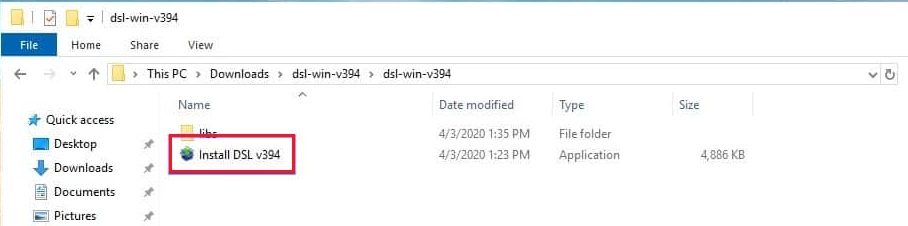
- Copy the
wordpressfolder intoC:\xampp\htdocs. You can rename it, for example tomysite. - In your browser, go to
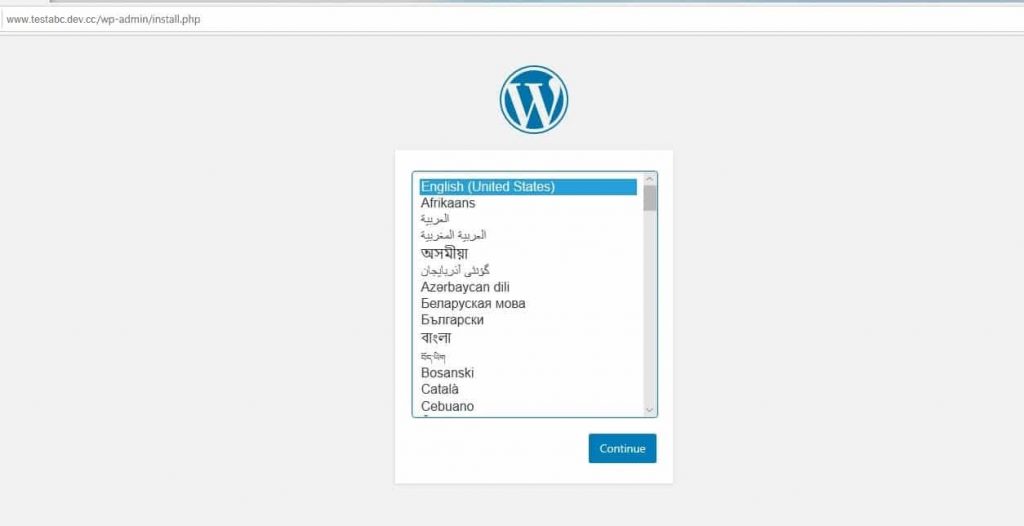
http://localhost/mysite. - Pick your language and click Continue.
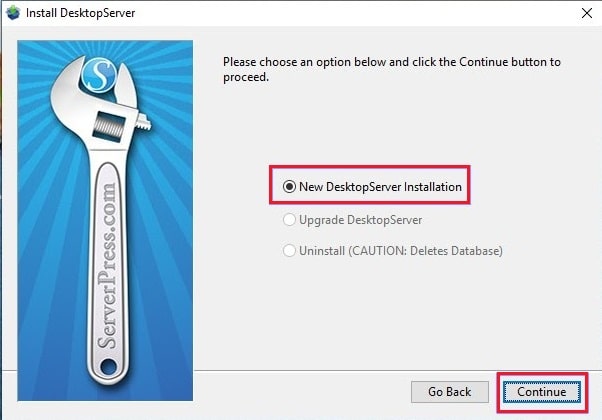
- Enter the database name
mysite. Enter the usernameroot. Leave the password empty. Leave the host aslocalhost. - Click Submit, then Run the installation.
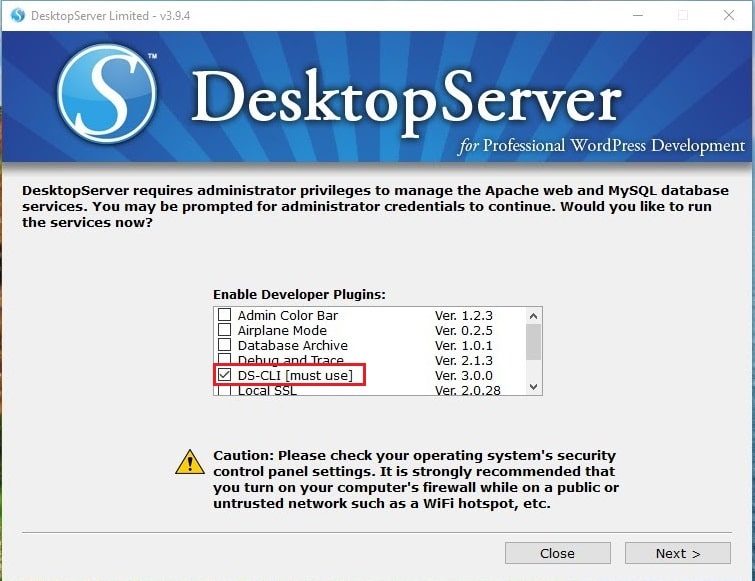
- Type a site title, an admin username and a strong password. Add your email address.
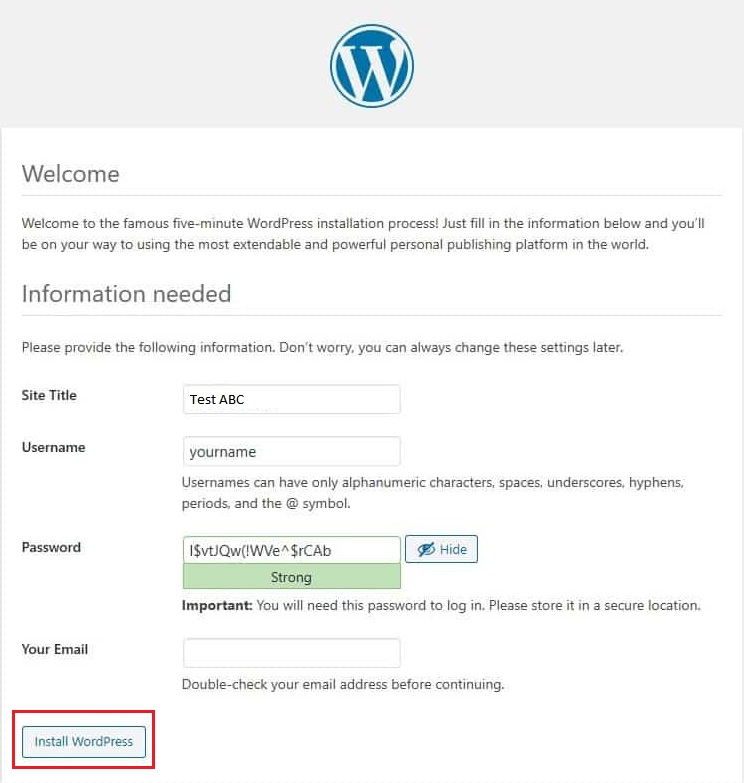
- Click Install WordPress.
Log in any time at http://localhost/mysite/wp-admin.
Tip: The empty password and the
root user are fine on your own PC. Never use them on a real website.If something goes wrong
- If Apache will not start, another program may use the same port. Close Skype or other web tools and try again.
- If the page says it cannot connect to the database, check that MySQL is running.
- If you stop XAMPP, your local site goes offline. Start Apache and MySQL again to bring it back.
Quick recap
- A local site runs only on your own computer.
- XAMPP gives you the web server, PHP and database in one install.
- Create a database, copy WordPress into
htdocs, then open it in your browser.
- Use it for practice. Your real site on Hostvento hosting stays separate.