

Step 1: Install the Docker dependencies
sudo apt install -y apt-transport-https ca-certificates curl software-properties-common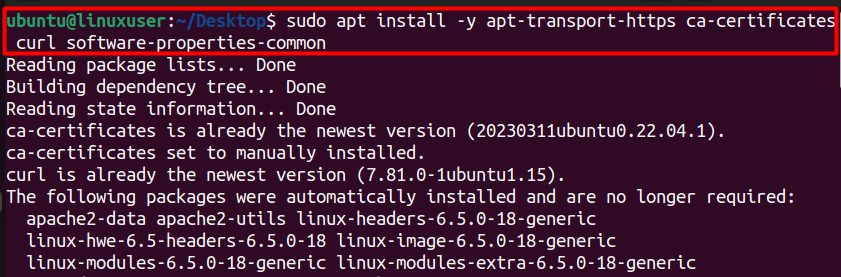
Step 2: Add the Docker GPG key
curl -fsSL https://download.docker.com/linux/ubuntu/gpg | sudo gpg --dearmor -o /usr/share/keyrings/docker-archive-keyring.gpg
Step 3: Add the Docker repository
echo "deb [arch=amd64 signed-by=/usr/share/keyrings/docker-archive-keyring.gpg] https://download.docker.com/linux/ubuntu $(lsb_release -cs) stable" | sudo tee /etc/apt/sources.list.d/docker.list > /dev/null
Step 4: Install Docker Engine
sudo apt update
sudo apt install -y docker-ce docker-ce-cli containerd.io docker-compose-plugin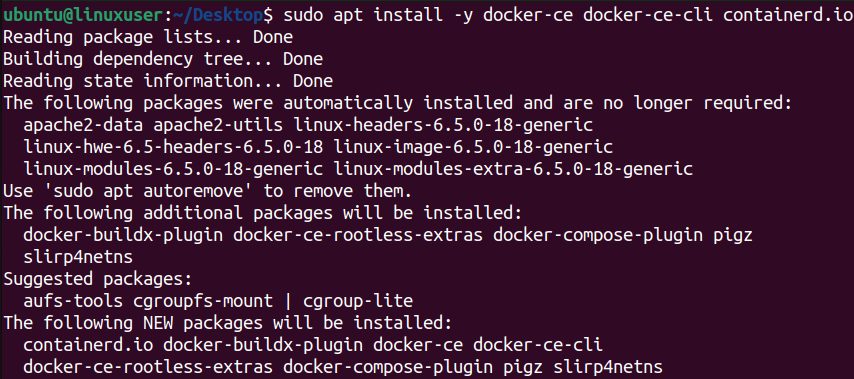
Step 5: Check Docker
sudo docker --version
sudo systemctl status docker
Step 6: Check Docker Compose
The docker-compose-plugin package gives you docker compose (with a space).
docker compose version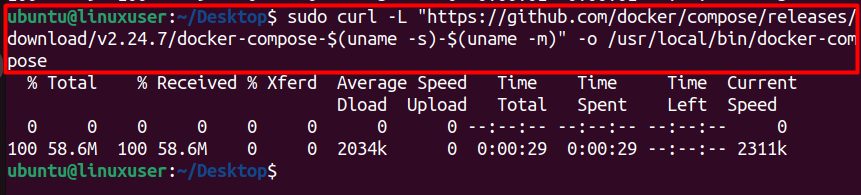

If you prefer the old standalone tool, install docker-compose with apt instead and use docker-compose in the commands below.

Step 7: Create a project folder
mkdir wordpress-docker && cd wordpress-docker
Step 8: Create the compose file
nano docker-compose.ymlPaste this and change the passwords:
services:
  db:
    image: mysql:8.0
    restart: always
    environment:
      MYSQL_DATABASE: wordpress
      MYSQL_USER: wpuser
      MYSQL_PASSWORD: StrongUserPassword
      MYSQL_ROOT_PASSWORD: StrongRootPassword
    volumes:
      - db_data:/var/lib/mysql

  wordpress:
    image: wordpress:latest
    restart: always
    depends_on:
      - db
    ports:
      - "8080:80"
    environment:
      WORDPRESS_DB_HOST: db:3306
      WORDPRESS_DB_USER: wpuser
      WORDPRESS_DB_PASSWORD: StrongUserPassword
      WORDPRESS_DB_NAME: wordpress
    volumes:
      - wp_data:/var/www/html

volumes:
  db_data:
  wp_data: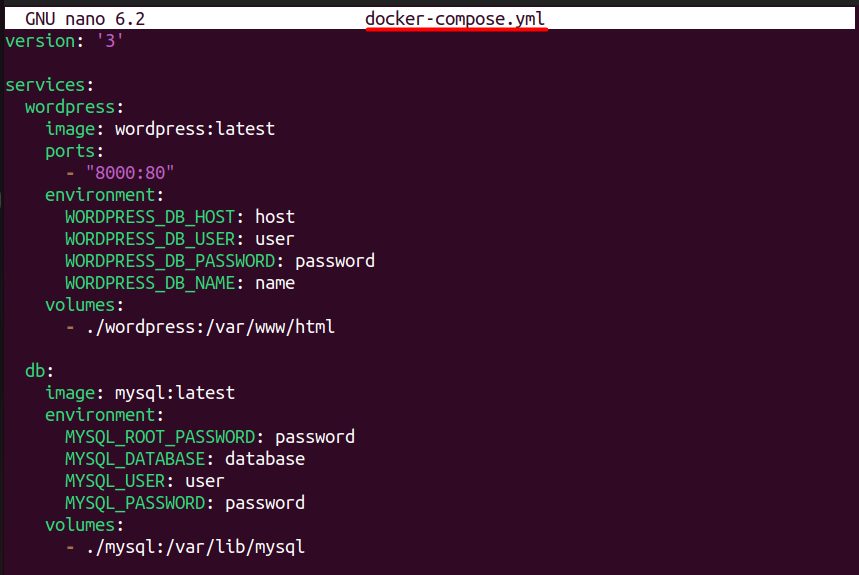
Step 9: Start the services
sudo docker compose up -d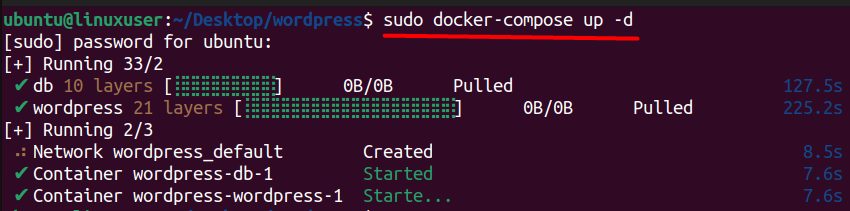
Check them:
sudo docker compose psStep 10: Open WordPress
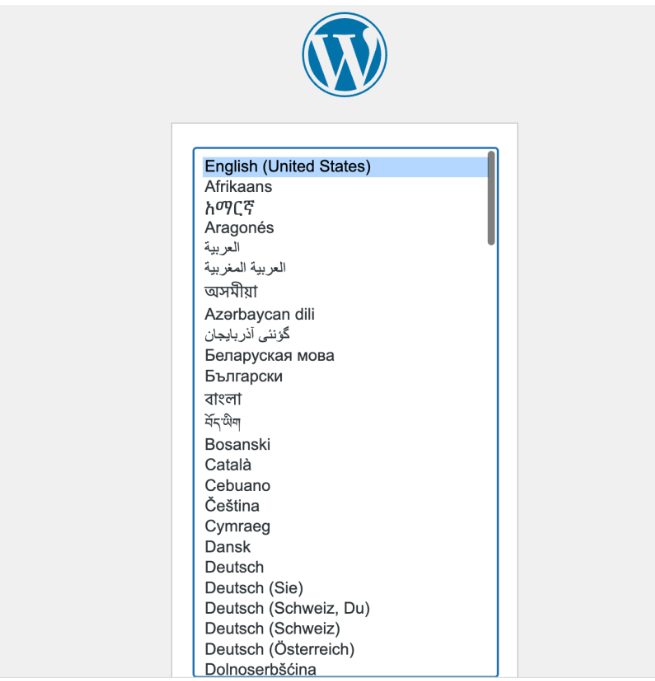
Go to http://your-server-ip:8080 and follow the WordPress installer.
Manage the stack
- Stop:
sudo docker compose down - Logs:
sudo docker compose logs -f - The data stays in the Docker volumes, so it survives restarts.
Quick recap
- Install Docker with the Compose plugin.
- Write
docker-compose.ymlfor MySQL and WordPress. - Run
docker compose up -dand open port 8080.