

Why limit login attempts
- A limit stops attackers from trying thousands of passwords.
- Hackers often target known usernames or emails.
- Many login attempts load your server.
- A visible limit tells attackers your site is protected.
Method 1: Use a plugin
Popular plugins are Limit Login Attempts Reloaded, Wordfence Security and Loginizer.
- In the WordPress admin go to Plugins > Add New.
- Search for
Limit Login Attempts Reloaded.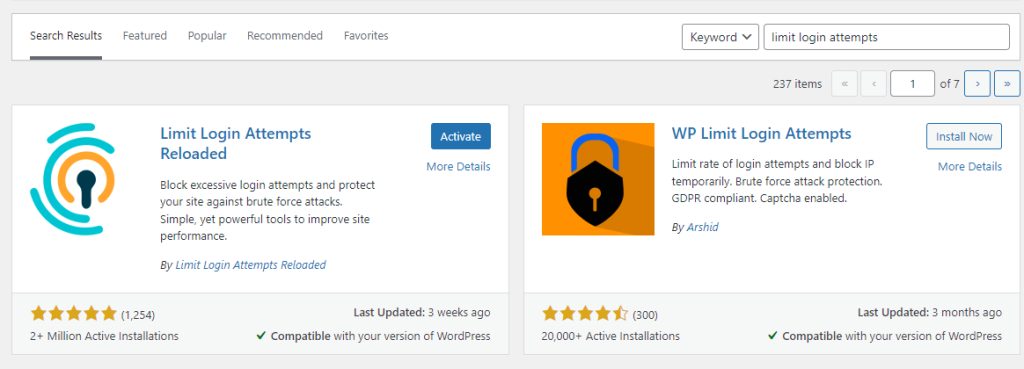
- Click Install Now, then Activate.
- Open the plugin settings.
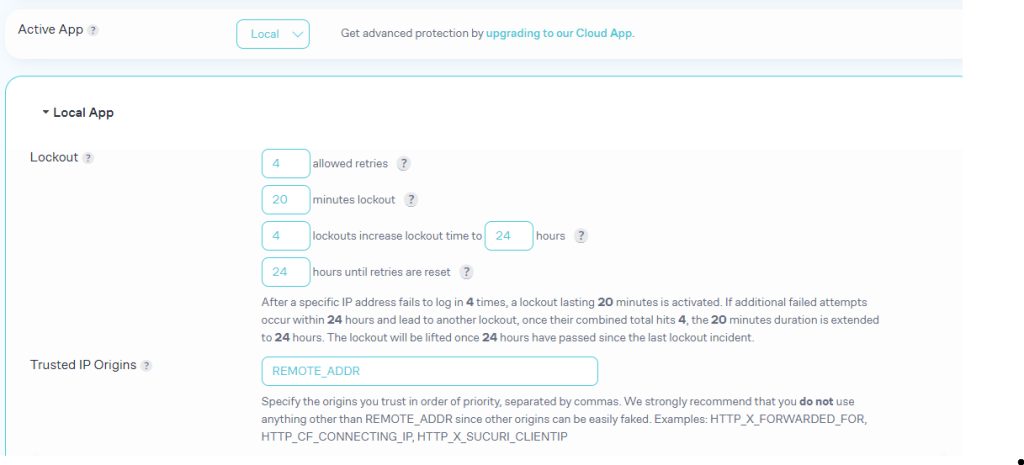
Useful settings:
- Allowed attempts. For example 3 to 5 failed logins.
- Lockout duration. For example 20 minutes for the first lockout and longer for repeats.
- IP or account. Limit by IP address, by user account, or both.
- Notices. Edit the message that blocked users see, and turn on email alerts.
Method 2: Add code (advanced)
Without a plugin you need custom code that counts failed logins and blocks the IP. This is easy to get wrong. A plugin is the better choice for most people.
Another layer you can add on the server is to restrict wp-login.php by IP in .htaccess:
<Files wp-login.php>
    Require ip 203.0.113.10
</Files>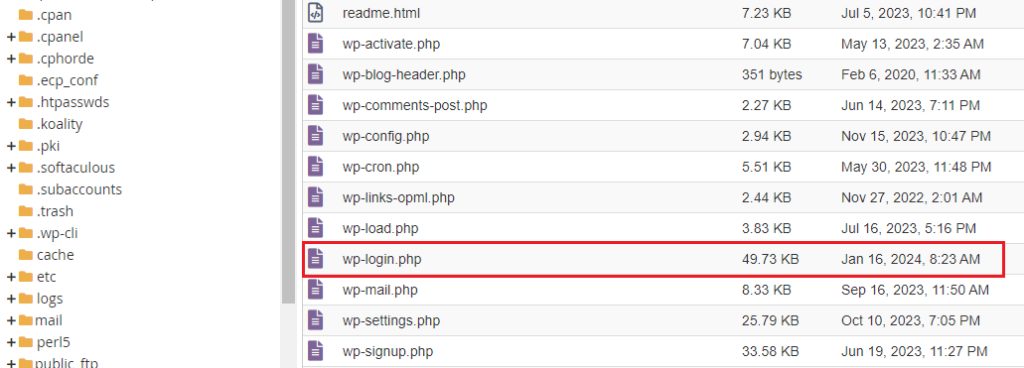
Replace the IP with your own. Use this only if you have a fixed IP, or you will lock yourself out.
More ways to protect the login
- Use strong passwords and two-factor authentication.
- Rename the admin user, and do not use
admin. - Keep WordPress, themes and plugins updated.
- Add a CAPTCHA to the login form.
- Use a firewall plugin or a web application firewall.
Quick recap
- Install a limit login plugin and set 3 to 5 attempts.
- Add two-factor authentication for better protection.