

What is Softaculous?
Softaculous is an auto-installer. It is a tool inside some control panels, such as cPanel. It installs popular apps like WordPress for you. You do not need to make a database by hand. Softaculous does that part.
Not every plan includes it. If you cannot find it, ask Hostvento support whether it is on your plan.
Before you start
- Your domain should already point to your hosting.
- Have your control panel login ready. Find it in your welcome email or client area at https://secure.hostvento.com/clientarea.php.
Warning: If your domain already has a site, installing in the same folder can overwrite files. Take a backup first.
Steps
- Log in to your cPanel.
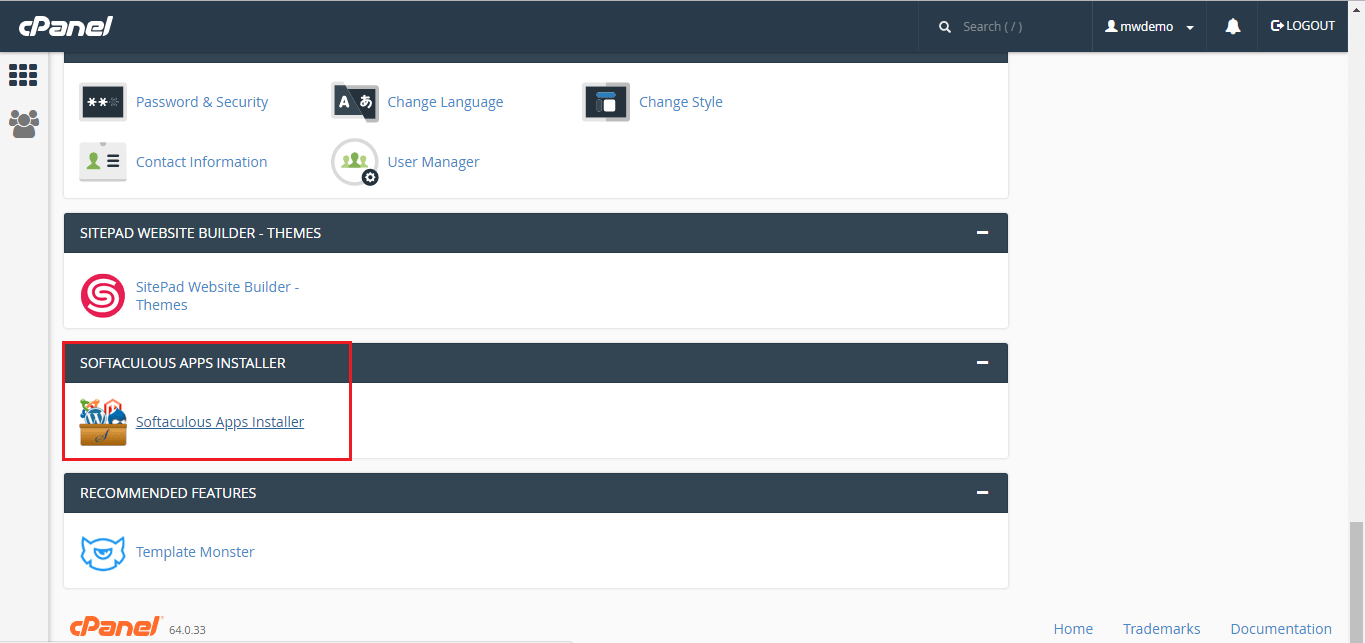
- Scroll to the Softaculous Apps Installer section, or use the search box at the top and type "Softaculous".
- Click the WordPress icon.
- Click Install Now.
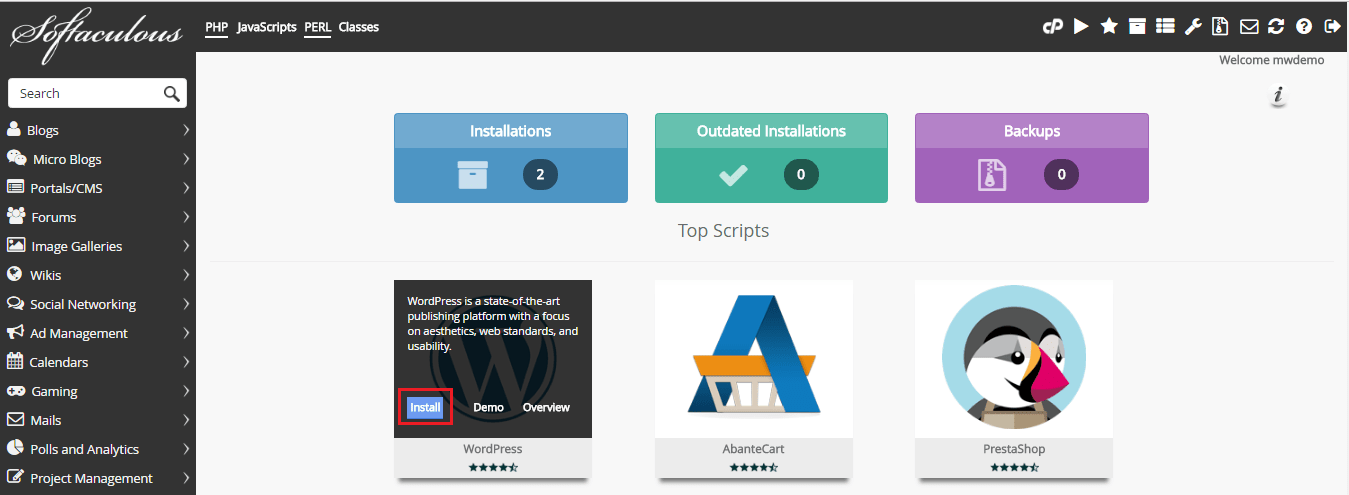
- Under Choose Protocol, pick https:// if your site has an SSL certificate. An SSL certificate makes your site secure. Otherwise pick http://.
- Under Choose Domain, select your domain.
- In In Directory, delete the default text (often "wp") if you want WordPress on your main address. Leave a folder name if you want the site at yourdomain.com/foldername.
- Under Site Settings, type a site name and a short description.
- Under Admin Account, choose a username and a strong password. Avoid "admin" as a username. Write both down safely.
- Type your email address. Softaculous can send you the login details.
- Pick your language.
- Leave the other options as they are, unless you know what to change.
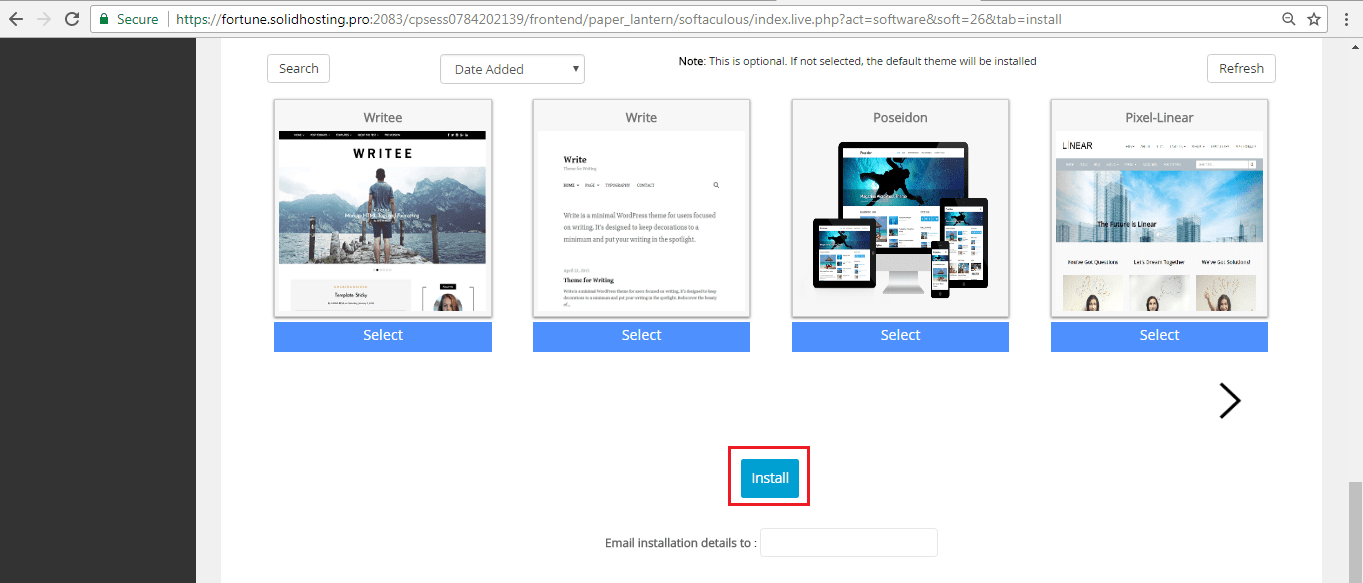
- Click Install.
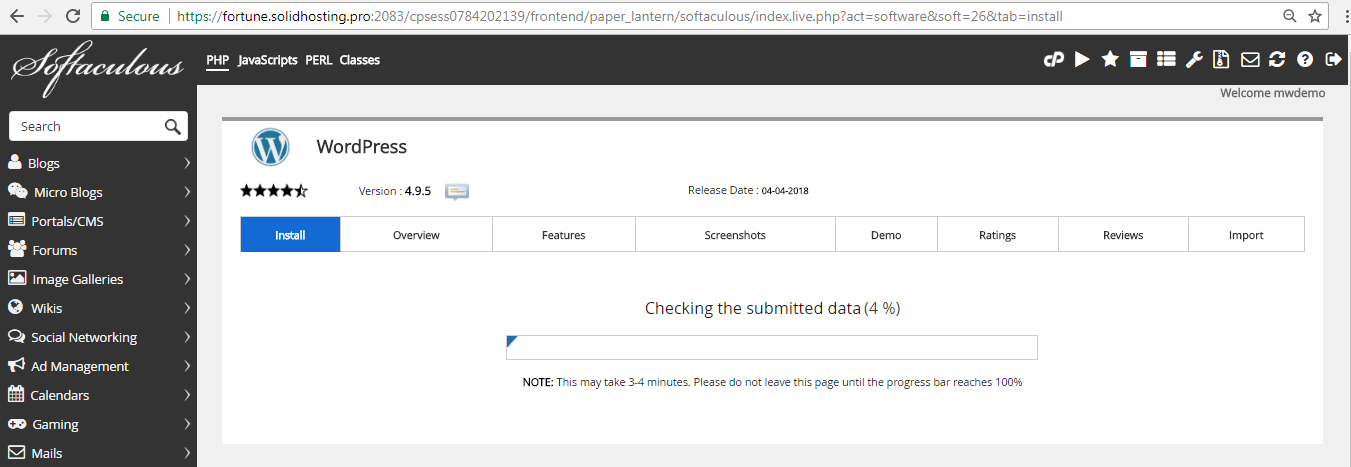
- Wait for the progress bar to reach 100 percent.
After the install
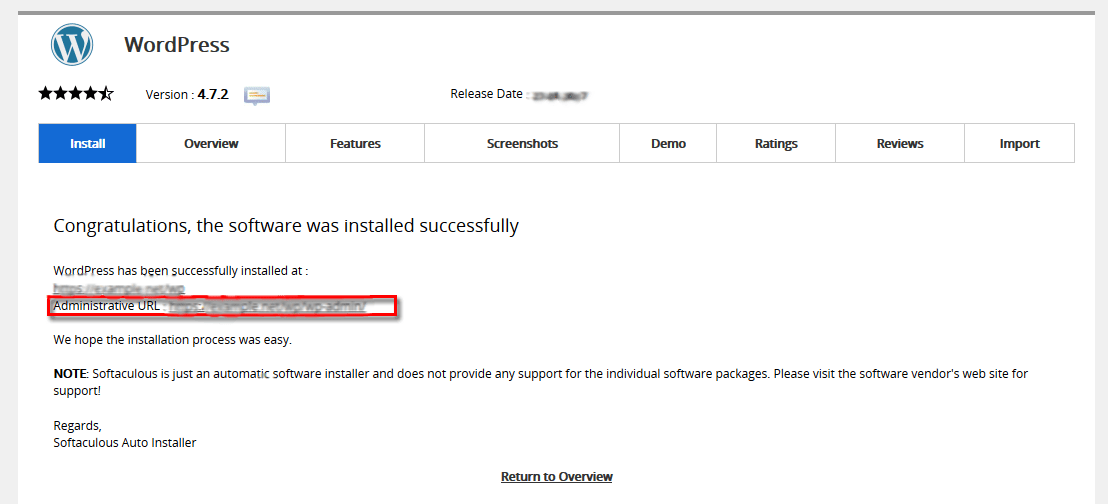
Softaculous shows two links. One is your site. The other is your admin address, which ends with /wp-admin.
- Click the admin link.
- Log in with the username and password you chose.
- You will see the WordPress dashboard. This is the control room of your site.
Tip: Keep WordPress and your plugins updated. Updates fix bugs and security holes. If something goes wrong, open a ticket at https://secure.hostvento.com/submitticket.php.
Quick recap
- Softaculous is a tool that installs apps with a few clicks.
- Open it in cPanel and choose WordPress, then Install Now.
- Pick your domain, folder, site name and admin login.
- Log in at yourdomain.com/wp-admin after the install.