

Why offload media
- Files load fast from Google's global network.
- Your server has less load and uses less disk space.
- Storage grows as your library grows.
- Faster pages help your SEO.
What is Google Cloud Storage
Google Cloud Storage (GCS) is Google's object storage. You keep files in buckets and pay for what you use.
What you need
- A self-hosted WordPress site.
- A Google Cloud account with billing enabled.
- Admin access to WordPress.
- The WP Offload Media plugin.
Step 1: Create a bucket
- Open the Google Cloud Console and create or choose a project.
- Go to Cloud Storage > Buckets and click Create.
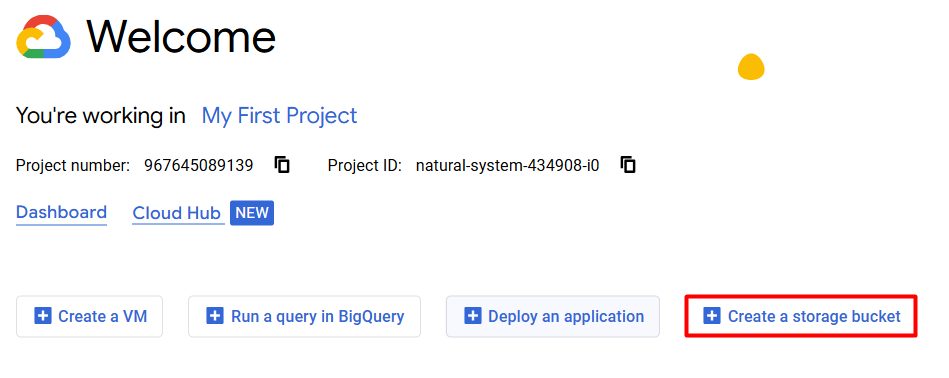
- Choose a unique bucket name and a region close to your visitors, such as
us-central1. - Choose the Standard storage class, which suits files that are read often.
- For access control choose Uniform.
Step 2: Create a service account and key
- Go to IAM & Admin > Service Accounts and click Create Service Account.
- Give it a clear name such as
wp-media-offload. - Give it only the role it needs on the bucket, for example Storage Object Admin.
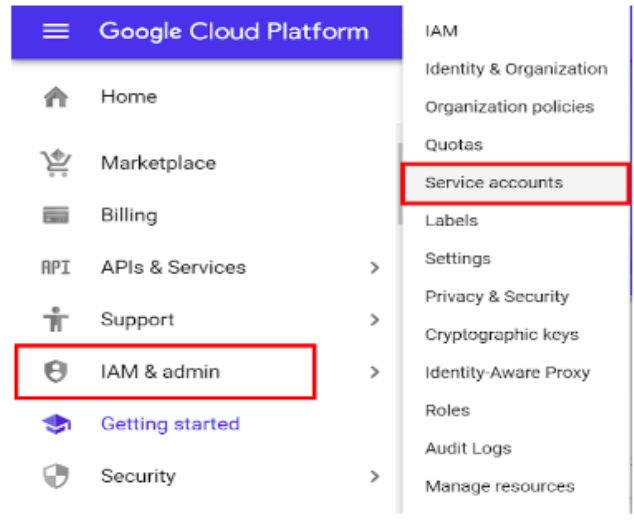
- Click Done. Open the new account, go to Keys > Add Key > Create new key, choose JSON and download the file. Keep it safe, because it gives access to the bucket.
Step 3: Install and set up WP Offload Media
- In WordPress go to Plugins > Add New and search for WP Offload Media. Install and activate it.
- Go to Settings > Offload Media and choose Google Cloud Storage.

- Upload the JSON key file, enter the bucket name and region, and save.
Step 4: Test an upload
Go to Media > Add New and upload an image. Open the image URL in a new tab. It should point to Google Cloud Storage (or your CDN domain).
Step 5: Offload the existing library
Go to Media > Offload Media and click Start Offloading Existing Media. When it ends, check a few URLs. If all is fine, you can remove the local copies to free server space.
Step 6 (optional): Use a CDN
For faster delivery, put a CDN in front of the bucket. Advanced users can use Google Cloud CDN with a load balancer. Others can use a CDN service and set its domain in the plugin settings.
Benefits
- Shorter page load times.
- Fewer requests to your server during traffic peaks.
- Better Core Web Vitals, such as LCP.
Security tips
- Make objects public only when you must. Use signed URLs for private files.
- Give the service account the least rights it needs.
- Rotate the JSON key from time to time and never put it in public code or a public folder.
FAQ
Can I offload both new and old files? Yes. New uploads go to the bucket automatically, and old files are moved with the plugin.
Is a public bucket safe? Only for public media. Use signed URLs for private files.
Do I need technical skills? Basic WordPress and plugin skills are enough.
Quick recap
- Create a bucket and a service account key.
- Connect WP Offload Media and offload the library.