

Why remove old themes?
A theme is the design of your WordPress site. Each theme you install stays on your hosting account, even when it is switched off. Old themes can fall out of date. Out-of-date code is easier for bad people to attack. Removing them also saves a little space.
Warning: Take a backup first. A backup is a saved copy of your site. Never delete the theme that is active. If you use a child theme, keep its parent theme too.
Delete through the dashboard
The dashboard is the control room that opens after you log in to WordPress.
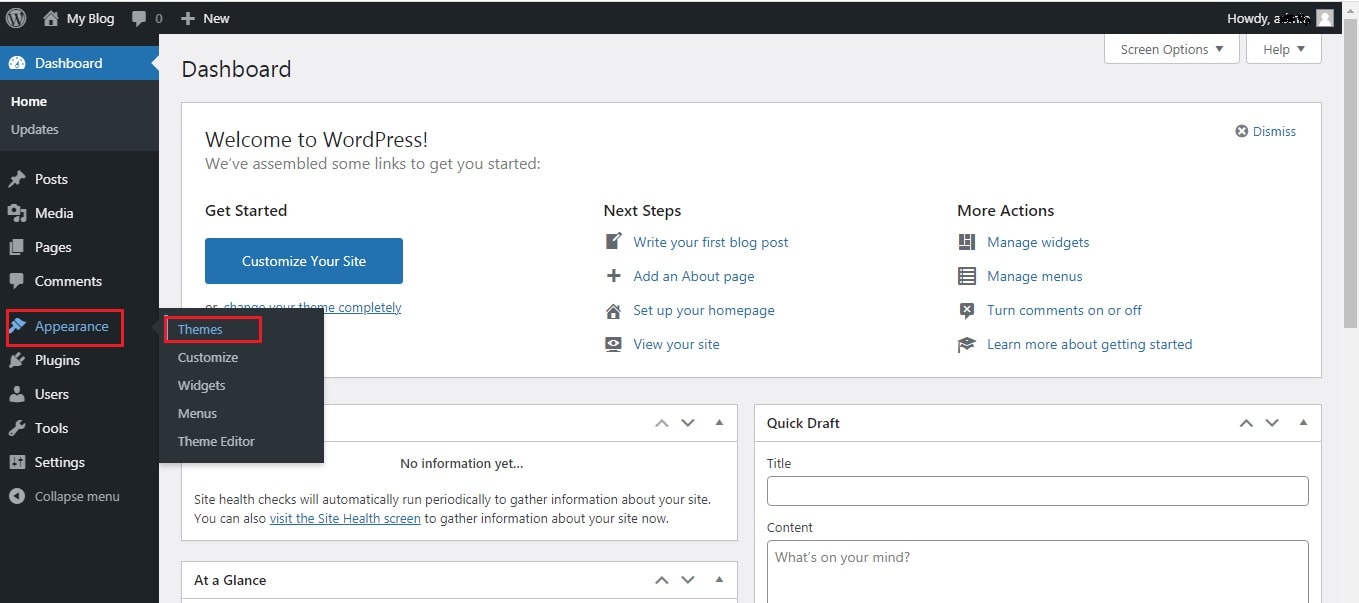
- Log in to your WordPress dashboard.
- Click Appearance, then Themes.
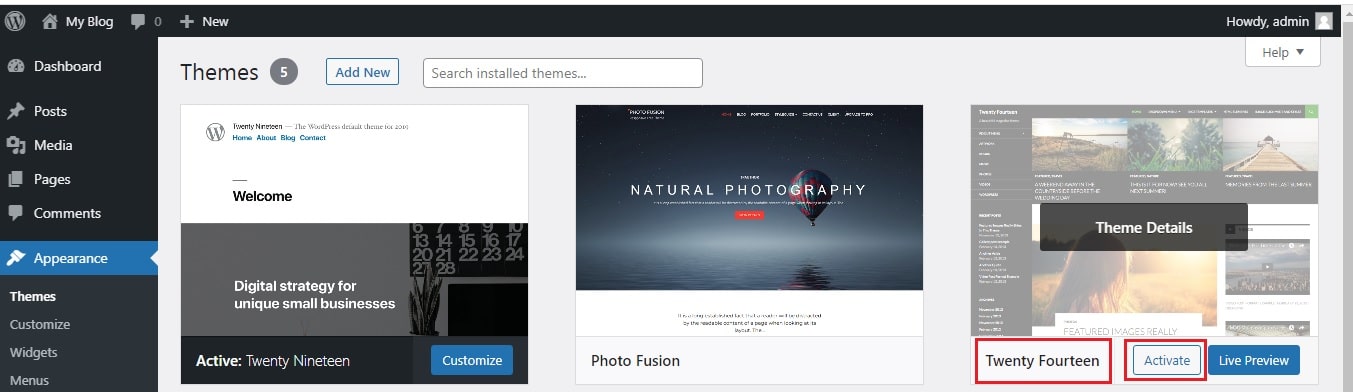
- Check which theme is active. It is the first one in the list.
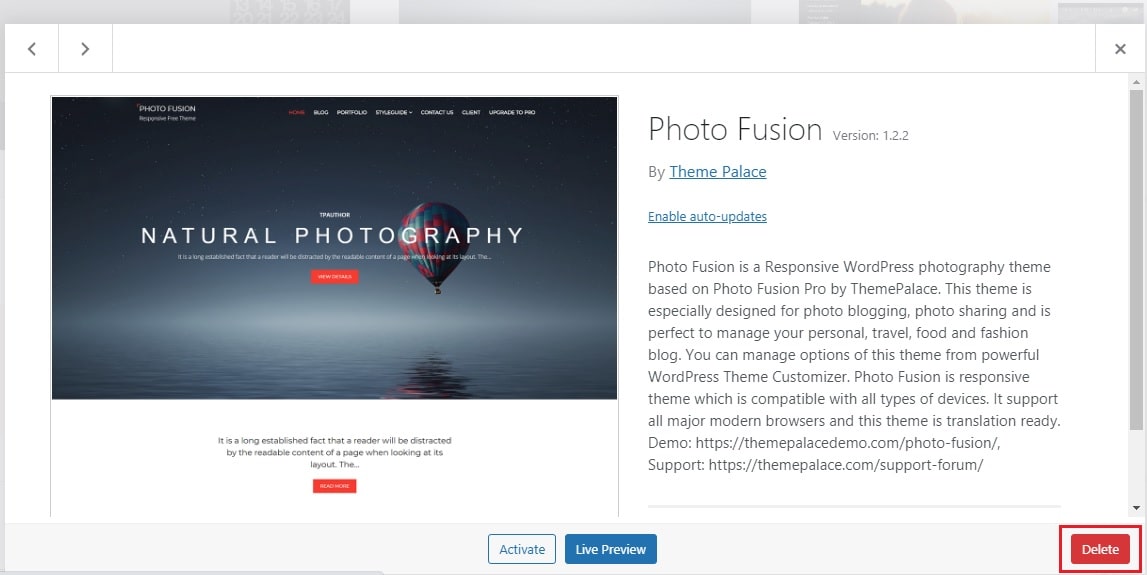
- Click the theme you want to delete.
- Look at the bottom right corner of the window that opens.
- Click the red Delete link.
- Click OK to confirm.
WordPress shows a short message when the theme is removed.
Delete through FTP
Use this way when the dashboard does not open. FTP moves files between your computer and your hosting account. You need a program such as FileZilla. Your FTP host, user name and password are in your welcome email. Hostvento support can help if you cannot find them.
- Open your FTP program.
- Fill in the host, user name and password.
- Click the connect button.
- On the server side, open
public_html. - Open
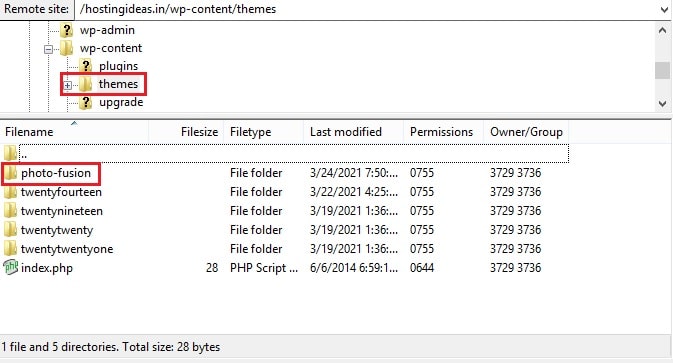
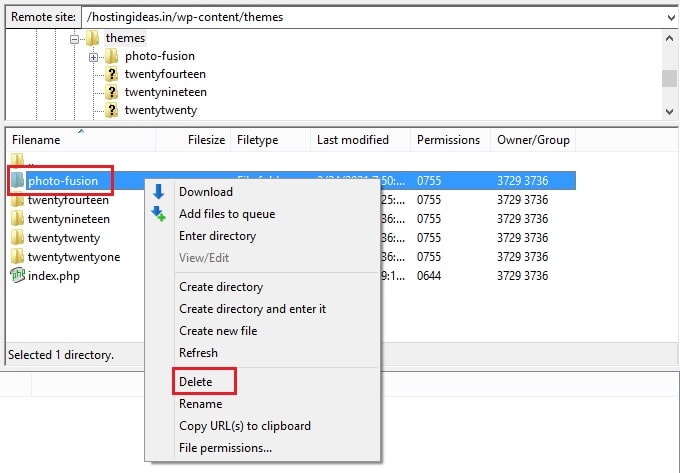
wp-content, thenthemes. - Right-click the folder of the unused theme.
- Choose Delete.
- Confirm the question.
If your site shows an error afterwards
- Connect with FTP again.
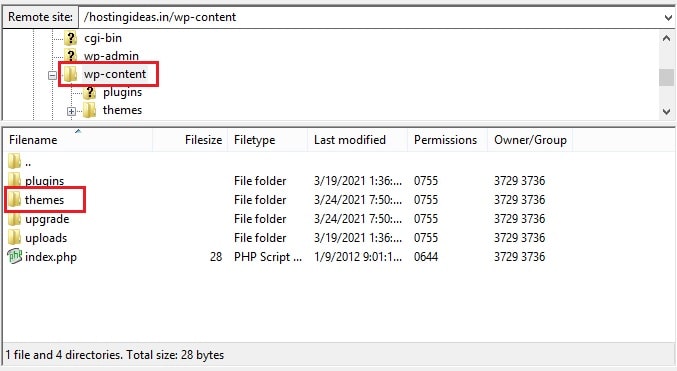
- Go to
wp-content/themes. - Check that your active theme folder is still there.
- If it is not, restore your backup or upload the theme again.
Tip: If you only want to test, rename the theme folder instead of deleting it. For example, add
-old to the end of its name. Rename it back to undo.Quick recap
- Remove themes you do not use to stay safe and tidy.
- Back up before you delete.
- Use Appearance, then Themes in the dashboard.
- Use FTP and the
wp-content/themesfolder if the dashboard is not available.