What does cloning mean?
Imagine you build a model with building blocks. Then you build a second model that looks exactly the same. That is cloning. For a website, the copy has the same pages, pictures and settings as the first one.
Why clone a site?
- You can test changes on the copy. Your real site stays safe.
- You can move a site to a new web address.
- You can make a starting point for a new site.
The two parts of a WordPress site
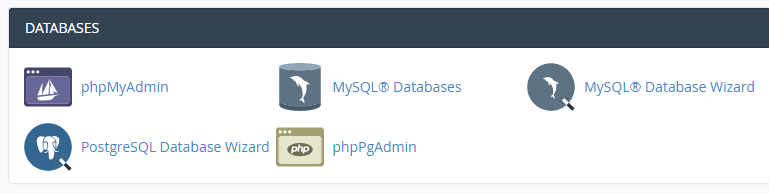
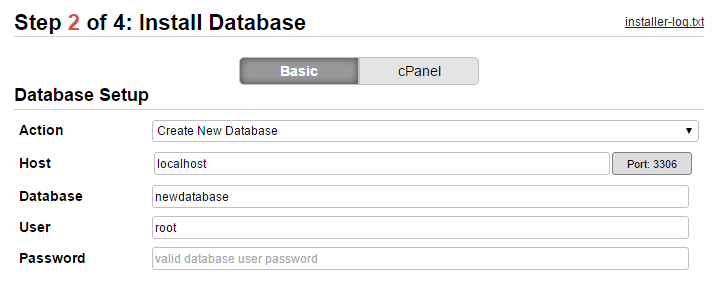
A WordPress site has two parts. The first part is files. These are themes, plugins and pictures. The second part is the database. A database is like a big filing cabinet. It holds your posts, pages and settings. You must copy both parts.
Steps
- Back up the original site. Make a full backup first. If something goes wrong, you still have the original.
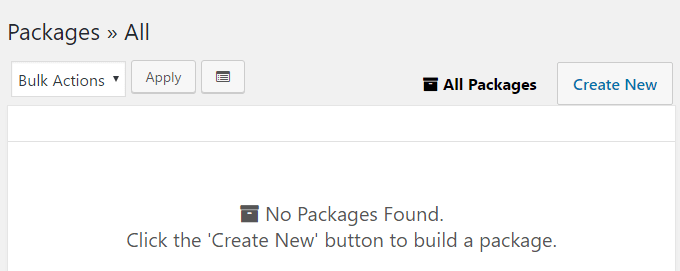
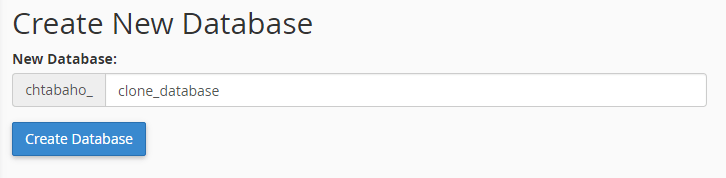
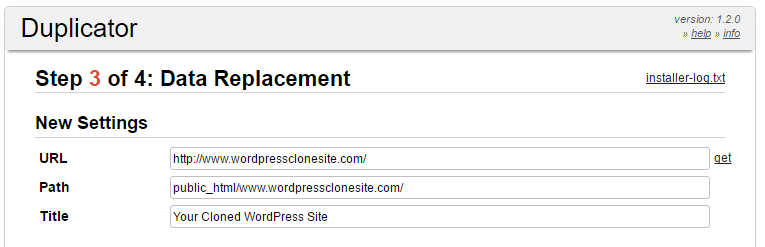
- Choose where the copy will live. Pick a new folder, a subdomain (such as test.yourdomain.com) or a new domain. Create it in your hosting control panel.
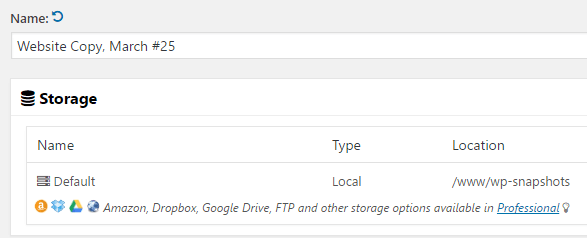
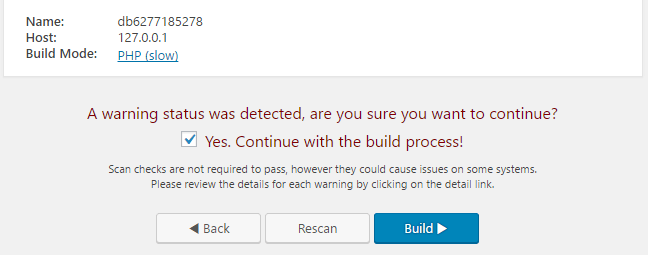
- Copy the site. The easiest way is a cloning tool. Your control panel may offer one, such as a clone option in Softaculous. A cloning plugin from the WordPress plugin directory also works. Follow the tool's screen and enter the new address.
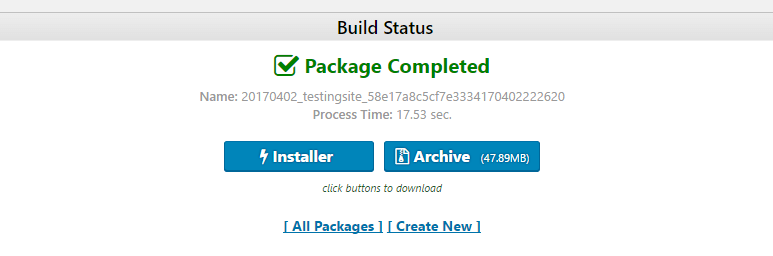
- Check the copy. Open the new address in your browser. Click through the pages. Log in to the WordPress dashboard of the copy and check that it works.
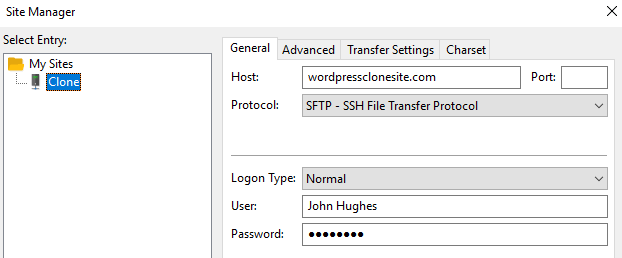
Tip: Ask search engines not to list your test copy. In WordPress, go to Settings, then Reading, and tick the box about discouraging search engines.
Be careful
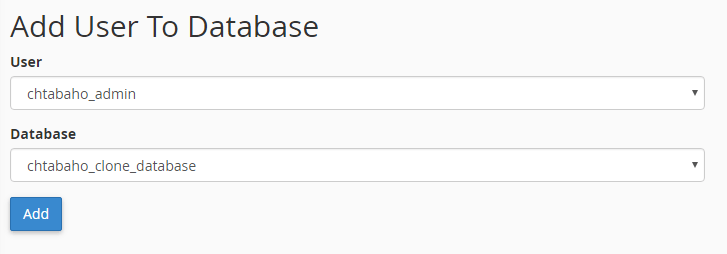
Never clone over a live site that already has content. The tool may replace it. Always clone into an empty folder or an empty database, and take a backup first.
Need help?
If your control panel has no clone option, ask Hostvento support. You can open a support ticket.
Quick recap
- Cloning makes an exact copy of a website.
- A site has files and a database. Copy both.
- Back up first, choose a new place, clone, then check the copy.
- Use the copy to test changes safely.