

What is WHM?
WHM stands for Web Host Manager. It is the admin panel for the whole server. It sits above cPanel. cPanel manages one account. WHM manages all accounts on the server.
Backup User Selection is a screen in WHM that lists every cPanel account. You tick the accounts that should be backed up. Accounts you leave out are skipped.
Before you start
- You need to log in as root, or as a reseller with the right rights.
- Turn on the backup system first. If it is off, no backup will run, even if accounts are selected.
- Check that you have enough disk space for the backups.
Steps
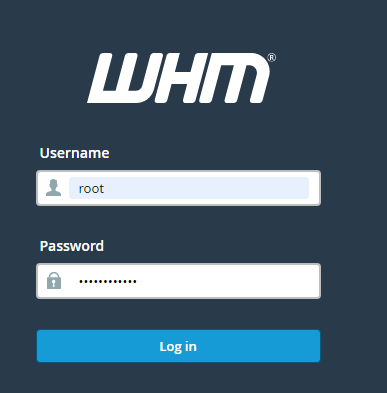
- Log in to WHM. The address is usually your server address followed by
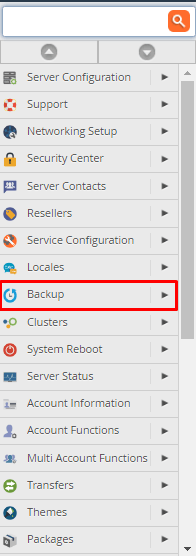
:2087. Your welcome email shows it. - Type Backup in the search box on the left.
- Click Backup Configuration and make sure Enable Backups is ticked. Click Save Configuration.
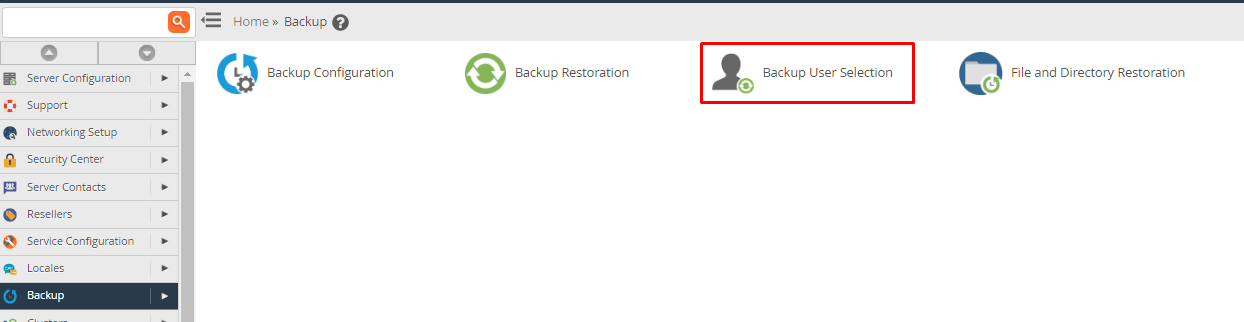
- Go back to the search box and type Backup User Selection.
- Click Backup User Selection.
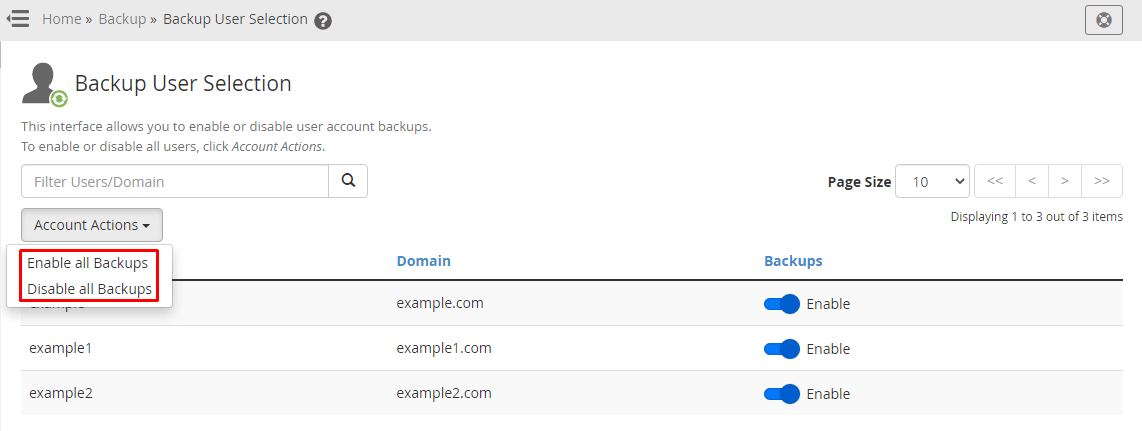
- You will see a list of accounts. Each row has a Backup Status box.
- Tick the box for each account you want to back up.
- Untick accounts you do not need to save.
- Use the search box at the top to find one account quickly.
- Click Submit to save your choice.
Handy buttons
- Select All ticks every account.
- Deselect All clears all ticks.
Names of buttons may differ a little between WHM versions.
Check it worked
- Wait for the next backup time you set in the configuration.
- Look in the backup folder on the server, or the remote place you chose.
- Confirm that a file exists for each account you selected.
Warning: Accounts that are left out are not saved. If you lose their data, you cannot get it back from these backups. Do not leave out important sites.
Tip: Keep one copy of your backups on another server or storage place. If the server disk fails, a backup stored on the same disk is lost too.
Quick recap
- WHM manages all accounts on a server; this guide needs root access.
- Enable backups first in Backup Configuration.

- Open Backup User Selection and tick the accounts you want.
- Click Submit to save.
- Check later that the backup files exist.