

What is Dropmysite?
Dropmysite is a cloud backup service made by another company. A backup is a spare copy of your data. A cloud copy is kept on other computers far away from your website. If your site breaks, the spare copy can save you.
cPanel is the control panel where you manage your hosting. A plugin is a small add-on that adds a new tool to it. Dropmysite can appear as such a tool.

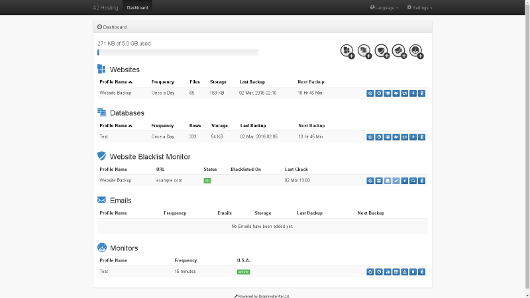
Hostvento may or may not offer Dropmysite on your plan. Ask Hostvento support if you are not sure.
What it can usually back up
- Website files
- Databases, which are the places where your site stores posts, users and orders
- Email messages
Steps
- Log in to the client area at https://secure.hostvento.com/clientarea.php.
- Open your hosting service and go to cPanel.
- Use the search box at the top of cPanel. Type Dropmysite or Backup.

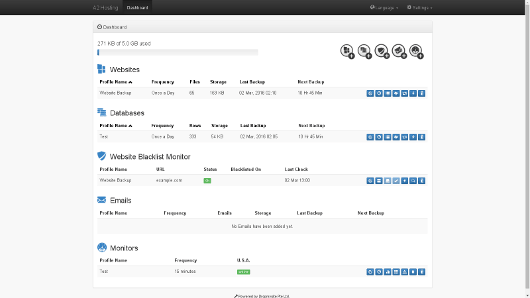
- If you see no Dropmysite icon, it is not set up for you. Open a ticket at https://secure.hostvento.com/submitticket.php and ask.
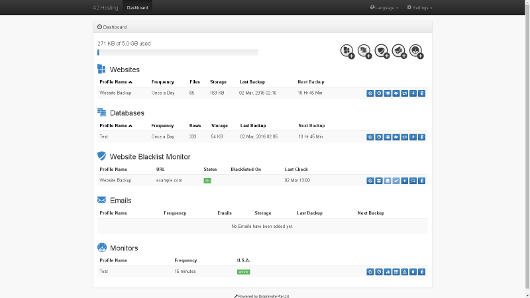
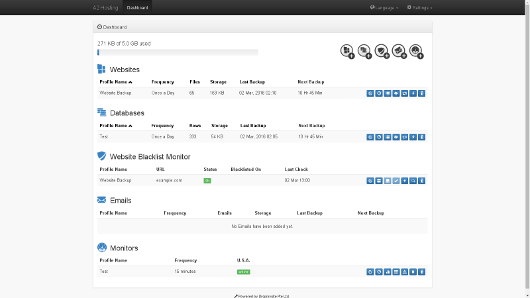
- Open the Dropmysite tool. You may need to sign in or accept an activation link sent to you.

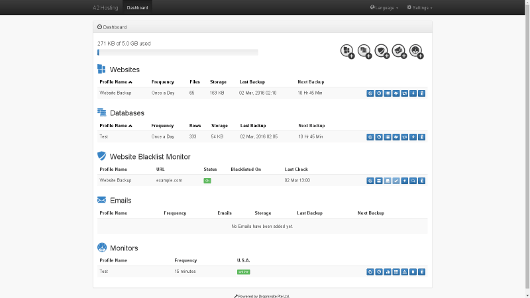
- Look for a place to choose what to back up. Pick your website files, databases and email.
- Look for a schedule setting. Daily is a common choice, but pick what suits you.
- Start the first backup. You may see a button with words like Backup Now.
- Wait. The first backup takes the longest because everything is copied. Later ones copy only what changed.
- Come back later and check that the status says the backup finished.
Tip: Screen names change between versions. If you cannot find a button, look for words close to it. Do not click things you do not understand. Ask support.
Good habits
- Check your backup status once a week.
- Try a small test restore now and then, so you know it works.
- Do not rely on one copy only. Keep a download of important files too.
Quick recap
- Dropmysite copies your files, databases and email to the cloud.

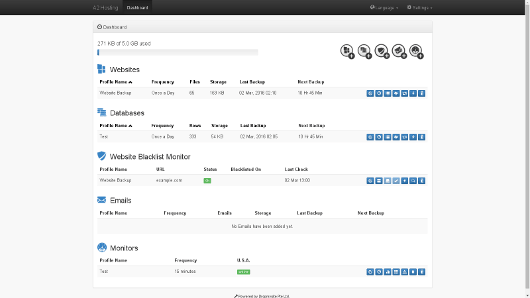


- Look for it inside cPanel using the search box.
- Choose what to back up and how often.
- Check the status after the first backup finishes.
- Ask Hostvento support if it is on your plan.