

What are these tools?
DirectAdmin is a control panel. A control panel is like the dashboard of a car. It lets you manage your hosting with buttons instead of code. Softaculous is an app installer inside it. It can install WordPress and clone it too.
Cloning means making a second site that looks exactly like the first one.
Before you start
- Take a backup of your original site.
- Decide where the copy goes. It can be a new folder, a subdomain or another domain on your account.
- If you want a new domain or subdomain, create it in DirectAdmin first.
Steps
- Log in to DirectAdmin. Your welcome email has the login details. You can also open your service from the Hostvento client area.

- Look for the Softaculous Apps Installer link or icon. Click it.
- Open the list of installations. In many versions this is the Installations link near the top.
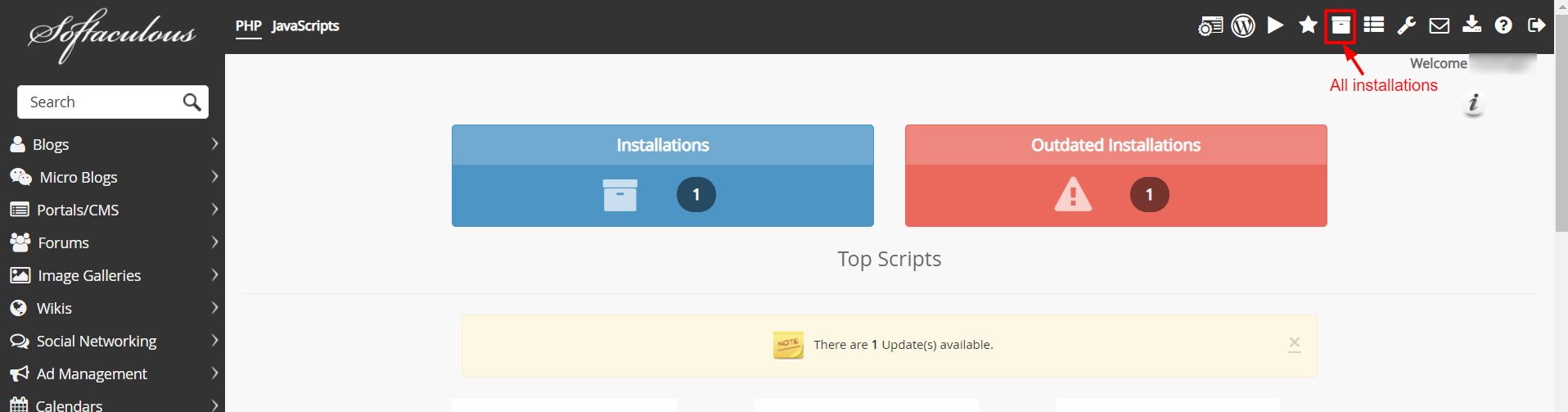
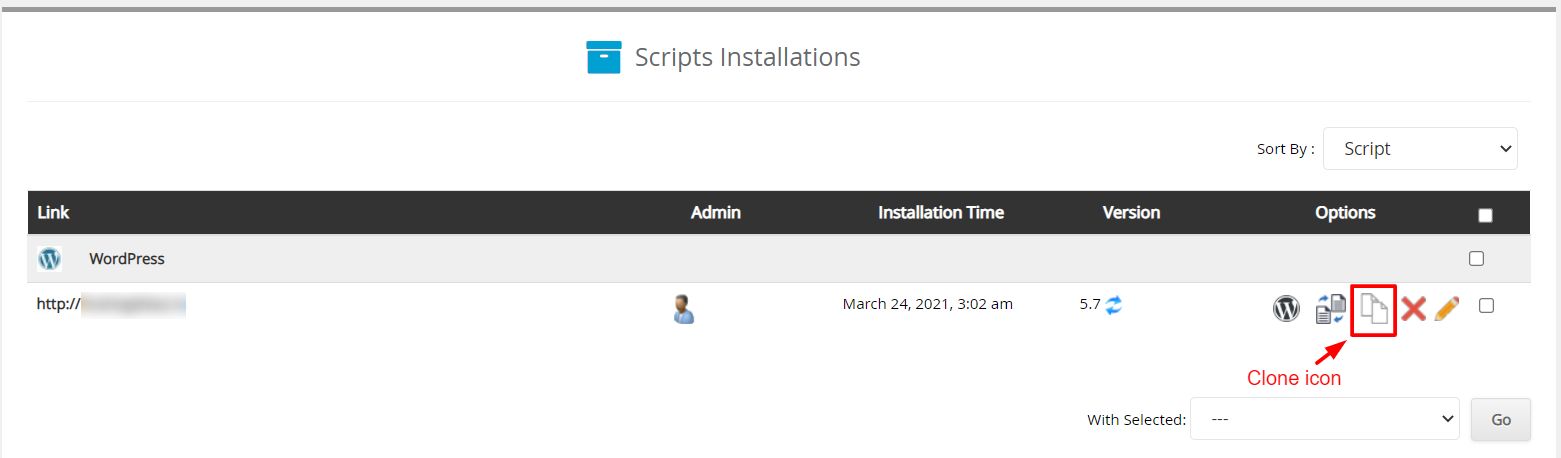
- Find your WordPress site in the list.
- Click the Clone icon next to it. It often looks like two small squares.
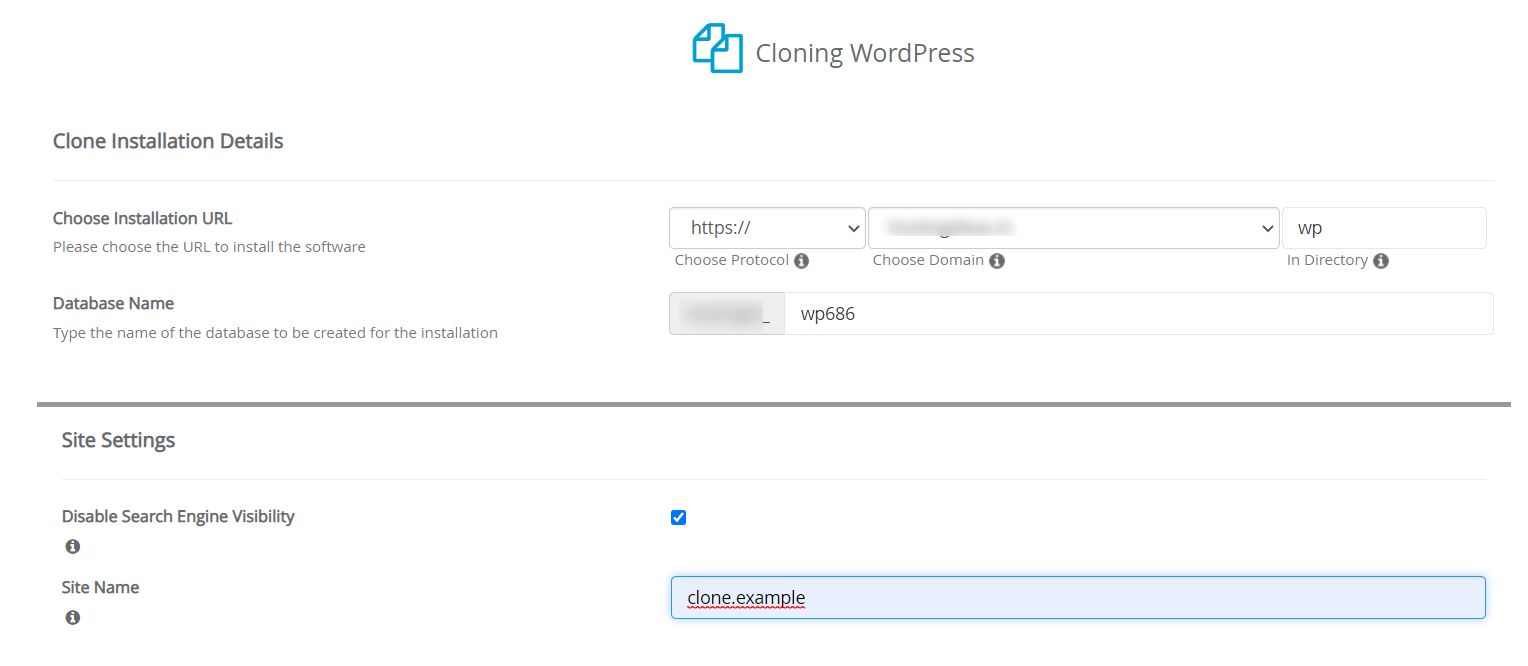
- Choose the protocol. Pick https:// if the target has an SSL certificate. An SSL certificate keeps the connection private and shows a padlock.
- Choose the target domain from the list.
- In In Directory, type the folder name for the copy. Leave it empty to place the copy in the main folder of that domain. Only do that if the domain is empty.
- Click Clone Installation.
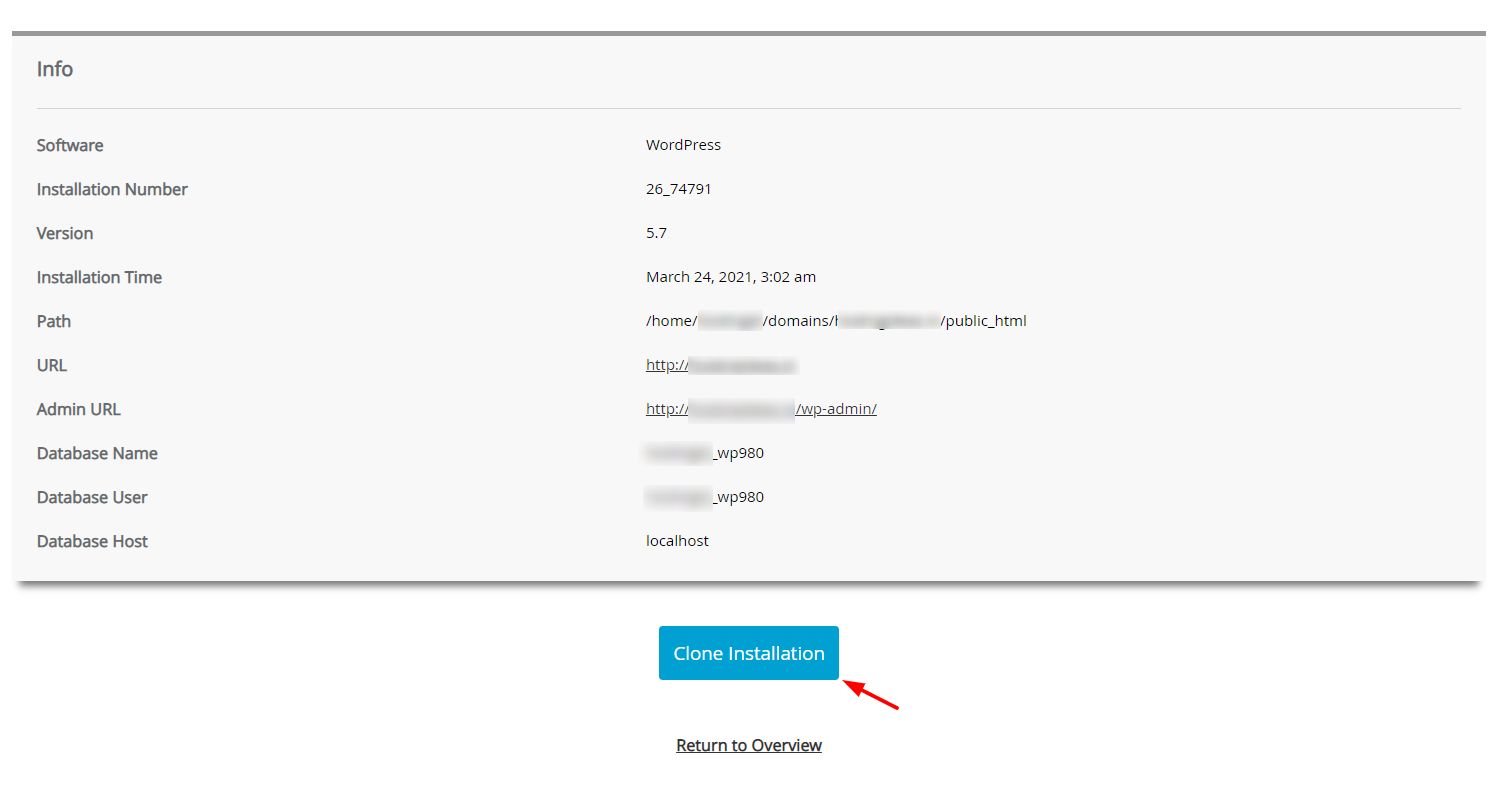
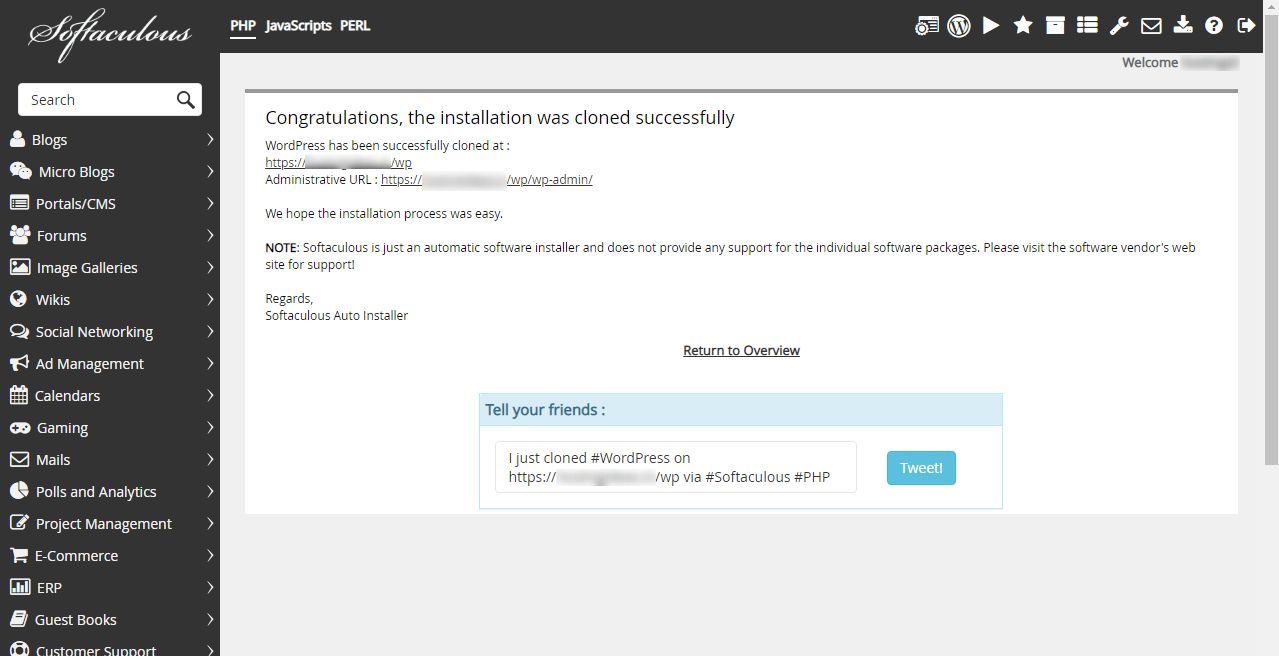
- Wait for the finished message. Then open the new address in your browser and check it.
Warning: If you pick a folder that already has a site, the clone can overwrite it. Use an empty folder.
After cloning
Log in to the WordPress dashboard of the copy. Check the pages, menus and pictures. If you use the copy for tests, discourage search engines from listing it under Settings and Reading.
Menu names can differ a little between versions. If you cannot find an option, open a support ticket.
Quick recap
- DirectAdmin is the control panel. Softaculous is the app installer inside it.
- Back up first.
- Open Softaculous, find your site and click Clone.
- Choose the target and an empty folder, then click Clone Installation.